 ProMapRanker
Best App for Shrinking PDFs in 2026

Key takeaways
- Shrinking a PDF usually means recompressing images inside it, so results depend on the original file.
- iLovePDF and Smallpdf are the easiest free options for a one off file that must fit an email limit.
- PDF24 and PDFgear suit people who want a free tool without a daily task counter.
- Adobe Acrobat, PDFelement and Foxit suit regular work where quality control and batch jobs matter.
- For sensitive files, prefer a desktop tool that processes the file on your own computer.
Quick comparison
| Pick | Great for | Pricing starts at | Free tier | |
|---|---|---|---|---|
 iLovePDF | Easy one off compression | Free | Yes | Visit |
 Smallpdf | Simple browser compression | Free | Yes | Visit |
 Adobe Acrobat | Quality control and full editing | $19.99 per month | Free trial (7 days) | Visit |
 Sejda | Occasional jobs with no account | Free | Yes | Visit |
 PDF2Go | Quick online compression | Free | Yes | Visit |
 PDFgear | Free desktop editing and compression | Free | Yes | Visit |
 PDF24 Tools | Unlimited free compression | Free | Yes | Visit |
 PDFelement | Desktop compression plus editing | $79.99 per year | Free trial | Visit |
 Foxit PDF Editor | Office PDF work | $10.99 per month | Free trial | Visit |
The best apps for shrinking PDFs
A shrinking tool should make a file smaller without making text hard to read. The nine tools below do that job in different ways, from a quick web page to a full desktop editor.
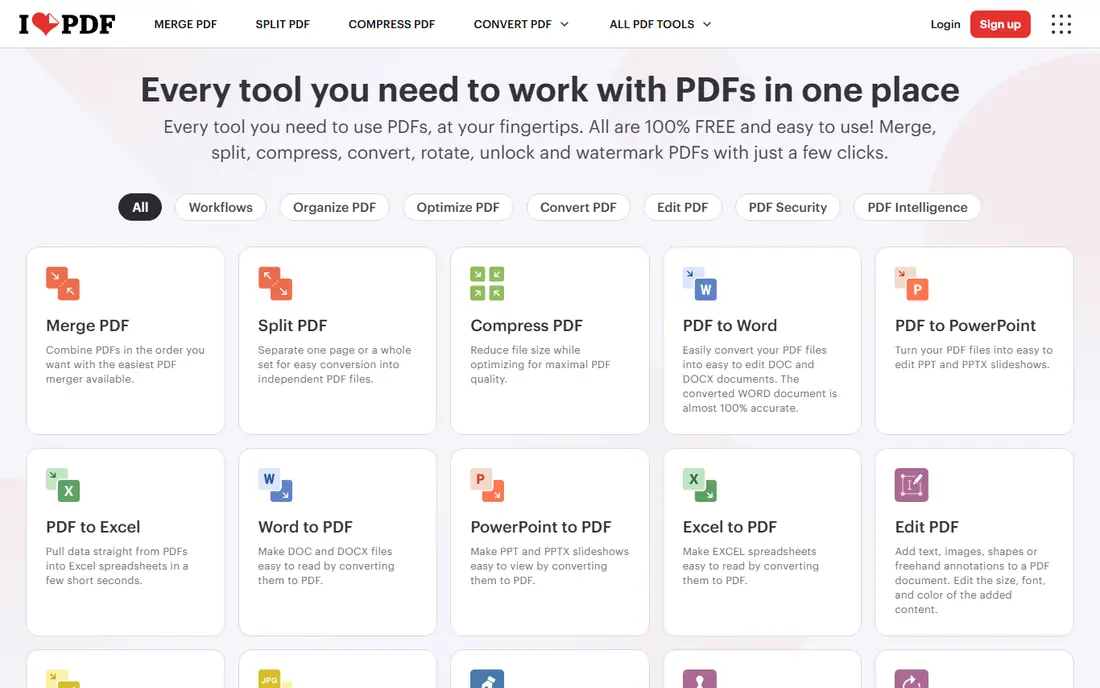
iLovePDF is the tool we would point a casual user to first. Upload a PDF, pick a compression level, download a smaller file, and move on. The free tier handles most one off jobs, with size limits that suit everyday documents, and the same account covers merging, splitting and converting.
Premium, listed from about $4 to $9 per month depending on term, removes limits and adds desktop processing. The trade off is that files are processed on iLovePDF servers, so it is not the right choice for private contracts. For a file that must fit an email attachment, it is fast and forgiving.
- Simple compression choices
- Mobile and desktop apps
- Other PDF tools included
- Free tier has size limits
- Stronger compression can soften images
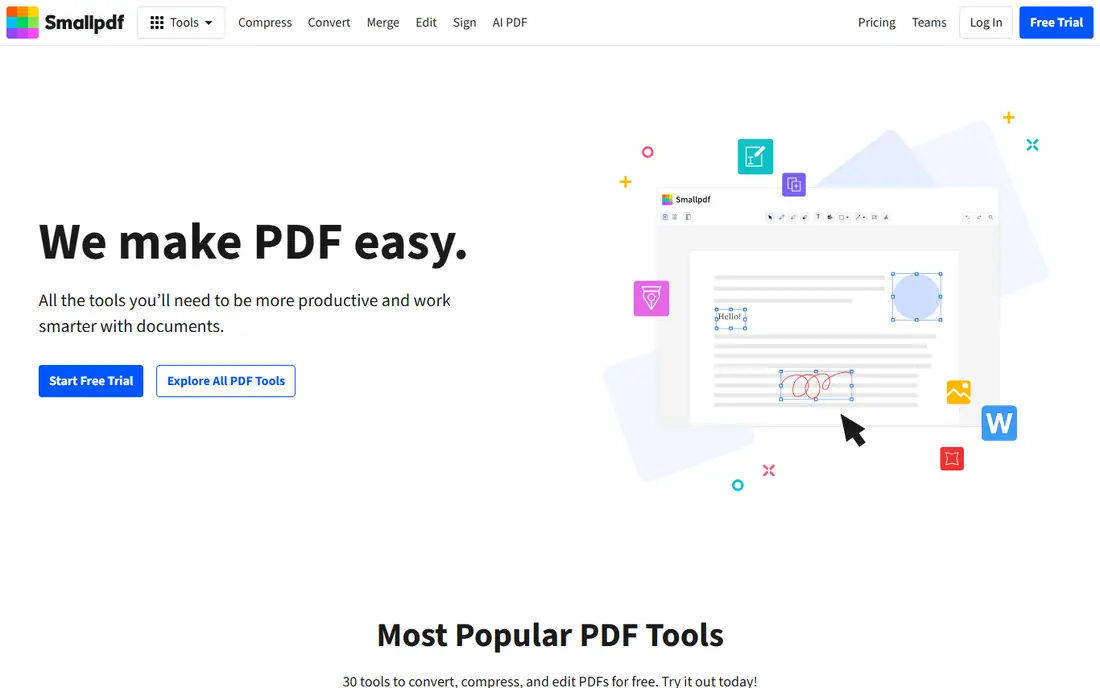
Smallpdf keeps compression to a few clicks, with basic and strong options that cover most needs. The interface is clean, the toolkit around it is broad, and the result is usually ready in under a minute. That simplicity is why it stays popular despite tighter free limits.
The free tier allows about two tasks a day, and Pro is listed at $15 per month or $108 per year. If you compress files most days, that cost adds up, and iLovePDF or PDF24 may be cheaper. If you compress once or twice a month, the free tier is enough.
- Very easy interface
- Basic and strong compression
- Full PDF toolkit
- Free tier allows two tasks a day
- Pro is pricier than iLovePDF
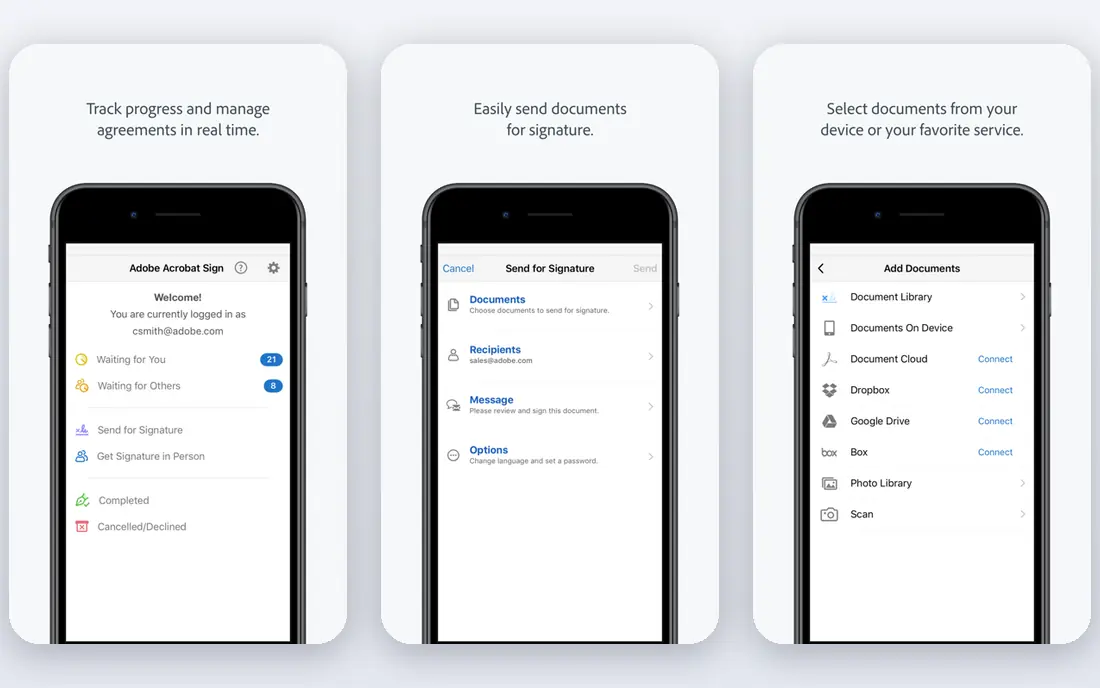
Adobe Acrobat is the full professional option, and its PDF optimizer gives more control than a simple web compressor. You can adjust image resolution, remove unused objects and check the result before you save. That control matters when a file must stay sharp enough to print.
Acrobat Pro is listed from $19.99 per month on an annual plan, with a seven day trial, and online tools allow limited free uses. For one file, that price is hard to justify. For regular office work where quality and editing matter, Acrobat is the benchmark the others are judged against.
- Fine control over optimization
- Full PDF editing
- Trusted file handling
- Most expensive option here
- Overkill for a single compression
Sejda suits people who compress a PDF now and then and do not want another account. Free users get a few tasks per hour, with files up to 50 MB or 200 pages in recent listings. The tools run in the browser, and the site publishes clear handling terms for uploaded files.
Paid plans start at about $7.50 per month, with a week pass for short projects. The limits mean Sejda is not ideal for batch work or very large files. For a quick, no fuss job, it is one of the cleanest options on this list.
- No account needed for free tasks
- Clear privacy handling
- Week pass available
- Free tasks limited per hour
- File size and page limits apply
PDF2Go is a straightforward online compressor with a familiar workflow: upload, compress, download. It also covers conversion, merging and editing, so a file that needs more than shrinking can stay in one place. No install is needed, which helps on a shared or borrowed computer.
Because files are uploaded to PDF2Go servers, it is not the right tool for private documents. Free use also has limits that vary by task. For a public or low sensitivity file that needs shrinking fast, PDF2Go does the job without fuss.
- Simple online compressor
- Other conversion tools
- No install needed
- Upload based, so avoid sensitive files
- Free tier limits apply
PDFgear stands out because its desktop editor and compression tools are free, without a subscription wall for the core job. You can shrink a PDF, edit text, annotate pages and convert formats from the same app. That makes it a strong choice for students and small offices on a tight budget.
It does not offer the same fine optimization controls as Acrobat, and its support resources are smaller than Adobe or Foxit. For everyday shrinking and editing, though, the free price is hard to argue with. Download it from the vendor site and test it with a real file first.
- Free desktop app
- Editing and conversion included
- No subscription needed
- Fewer advanced optimization controls than Acrobat
- Smaller support team
PDF24 Tools offers compression without the daily task counter that limits Smallpdf and Sejda. The online tools are free, and a Windows app processes files on your own computer, which is better for privacy. The toolkit around compression is broad, covering merging, splitting and conversion.
The offline app is Windows only, so Mac users must use the web tools. The interface is plainer than its rivals, but that is a small price for unlimited free use. If you shrink PDFs often and do not want to pay, PDF24 is our pick.
- Free with no task counter
- Online and Windows app
- Broad PDF toolkit
- Windows app only for offline use
- Interface is plainer than Smallpdf
PDFelement brings compression into a full desktop PDF editor, which suits people who shrink files as part of a larger editing job. You can optimize a file, check the result, then edit text or add pages without switching apps. Batch options help when a whole folder needs shrinking.
The price is listed at about $79.99 per year, with a perpetual license also offered, and the free trial is watermarked. Confirm current pricing on the vendor site, since plans change. For compression alone, a free tool is cheaper. For regular PDF editing, PDFelement is a solid middle price.
- Optimize and compress on desktop
- Full editing suite
- Batch options
- Paid plan needed for full use
- Trial adds watermarks
Foxit PDF Editor is aimed at offices that already edit PDFs daily, and its optimizer fits naturally into that workflow. You can reduce file size, then continue editing, signing or sharing the same document. Team features and a mobile version add value for larger groups.
Recent listings put Foxit PDF Editor at about $10.99 per user per month on an annual plan, with a 14 day trial. That is a lot to pay just to shrink a file, so we would only recommend it if you also need the editor. If you do, the compression tools are a useful bonus, not an afterthought.
- Optimize PDFs in a full editor
- Good for teams
- Desktop and mobile versions
- Price is high for compression alone
- Trial limits apply
How we picked these
We compared official pricing pages, feature pages and recent PDF tool comparisons, and kept only tools that exist and work in October 2026 and that truly reduce PDF file size. We favored tools with a clear free tier or trial, and we noted where files are processed online rather than on your own computer. Prices that vary by region or plan are listed from vendor pages, with See website used where a price could not be confirmed.
What to check before you shrink a file
Keep a copy of the original
Compression can be lossy, especially for images, so keep the original file until you have checked the smaller version. A compressed file that looks fine on screen may print poorly, and you cannot undo that loss without the original. Save the original in a separate folder before you start.
Pick the compression level for the job
Email and web uploads can take stronger compression, while print files need a lighter touch. Most tools offer a recommended level that balances size and quality, and that is the right default for most users. Only use extreme compression when a strict size limit forces it.
Check text and images after compression
Open the compressed file and check a few pages, especially photos, charts and small print. Text should stay selectable and sharp, and images should stay readable. If a chart turns to mush, try a lighter setting or a different tool before you send the file.
Use a local tool for private files
Online compressors upload your file to a server, even if they delete it soon after. For contracts, medical forms or client work, use a desktop tool like PDF24, PDFgear or Acrobat that processes the file on your computer. The extra install is worth it for privacy.
Frequently asked questions
What is the best app for shrinking PDFs?
For a one off file, iLovePDF or Smallpdf are the easiest free choices. PDF24 is best for frequent free use, while Adobe Acrobat is best when print quality and fine control matter. Pick based on how often you compress and how sensitive the file is.
How much can I shrink a PDF?
It depends on the file. Image heavy scanned PDFs often shrink a lot, while text only PDFs shrink far less, since text is already compact. Test with your own file and check quality after, rather than trusting a percentage claim from any vendor.
Will shrinking a PDF make it blurry?
Strong compression can soften images and small print, while light compression usually leaves text sharp. Use the recommended level for most files, keep the original, and check the result before you send it. If quality drops, try a lighter setting.
Is it free to shrink a PDF online?
Yes, for occasional use. iLovePDF, Smallpdf, Sejda and PDF2Go all offer free tiers, with daily or hourly limits. PDF24 and PDFgear offer free use without a task counter. Paid plans remove limits and add batch processing and stronger tools.
Can I shrink a PDF on my phone?
Yes. iLovePDF and Smallpdf both offer mobile apps and mobile web tools, and Adobe Acrobat has a mobile app with compression features. Phone tools suit one off jobs, while desktop tools are better for batch work and large files.
Sources
See where you really rank - block by block
ProMapRanker scans Google Maps across a grid of your service area. Simple monthly plans from $19, white-label on every plan.
Start freeKeep reading
 free alternatives to grok imagine
Free Alternatives to Grok Imagine in 2026
We compared the best free alternatives to grok imagine for image generation, from fast daily credits to design tools, so you can create without paying.
Read → best tools for instagram content creation
Best Tools for Instagram Content Creation in 2026
Compare the best tools for Instagram content creation, from Canva and CapCut to Later and Buffer, on design, video, planning, scheduling, and price in 2026.
Read → best tool to split pdf files
Best Tool to Split PDF Files in 2026
We compared the best tool to split pdf files on split modes, file limits, privacy and price, so you can split a PDF cleanly and keep every page in one go.
Read →