 ProMapRanker
Best AI Tools to Animate Photo Into Video in 2026

Key takeaways
- Kling leads for realistic human motion from a photo, while Runway leads for directorial control over a clip.
- Luma suits fast cinematic camera moves, and Pika suits beginners who want quick social effects.
- HeyGen is the pick for a photo that talks to camera, not for cinematic scene animation.
- Free tiers help for testing, but watermarked exports and short clips are common, so check export terms before publishing.
Quick comparison
| Pick | Great for | Pricing starts at | Free tier | |
|---|---|---|---|---|
 Kling AI | Realistic human motion | See website | Yes | Visit |
 Runway | Creative control | $12 per month | Yes | Visit |
 Luma Dream Machine | Cinematic camera moves | See website | Yes | Visit |
 Pika | Beginner social clips | $8 per month | Yes | Visit |
 Hailuo AI | Budget character animation | See website | Yes | Visit |
 Adobe Firefly | Commercially safe video | $9.99 per month | Yes | Visit |
 PixVerse | Fast effects clips | See website | Yes | Visit |
 HeyGen | Talking photo presenters | $24 per month | Yes | Visit |
The best AI tools to animate photo into video
We compared motion quality, camera control, clip length, audio, pricing, and export terms. Most tools make clips of a few seconds from one photo, with a text prompt describing the motion you want.
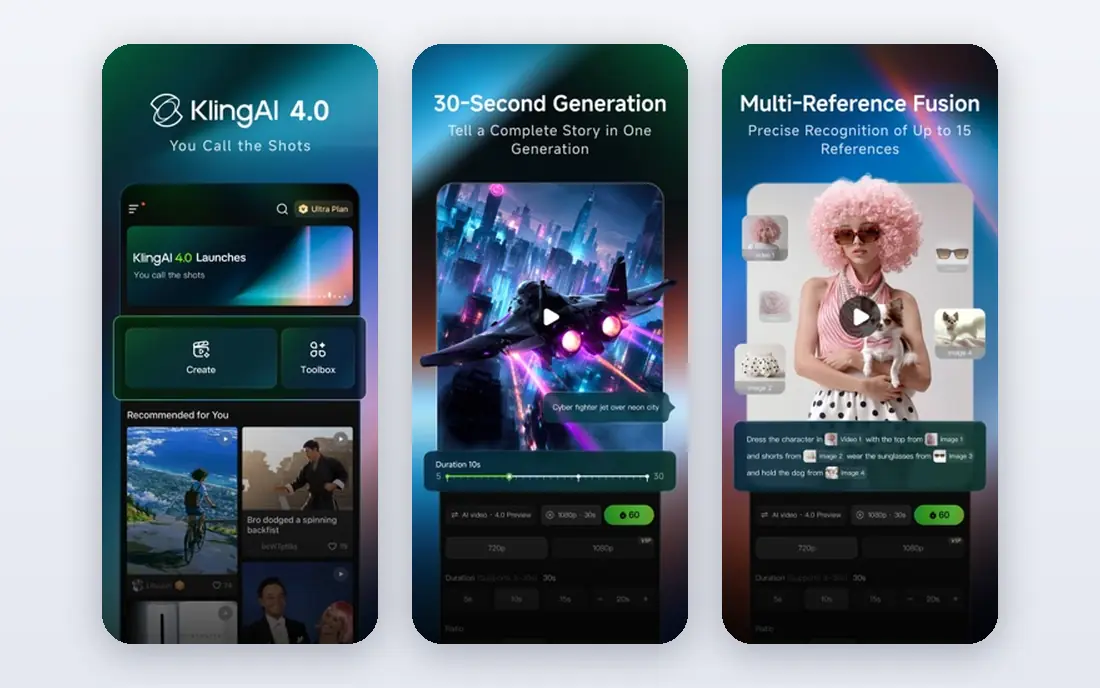
Kling is the tool we would start with for a photo of a person that needs to move naturally. Faces, gestures, and walking motion look more believable than on many rivals, and newer models add lip sync and native audio. Multi shot tools help extend a single photo into a short sequence.
Free access comes with daily credits and limits, and paid plans vary in speed and resolution. Check the current credit allowance for the model you want, since newer models cost more credits per clip. For a hero clip, Kling is worth the extra credit spend.
- Strong realistic human movement
- Lip sync and native audio on newer models
- Multi shot options
- Queues and output quality vary by plan
- Free exports may carry a watermark
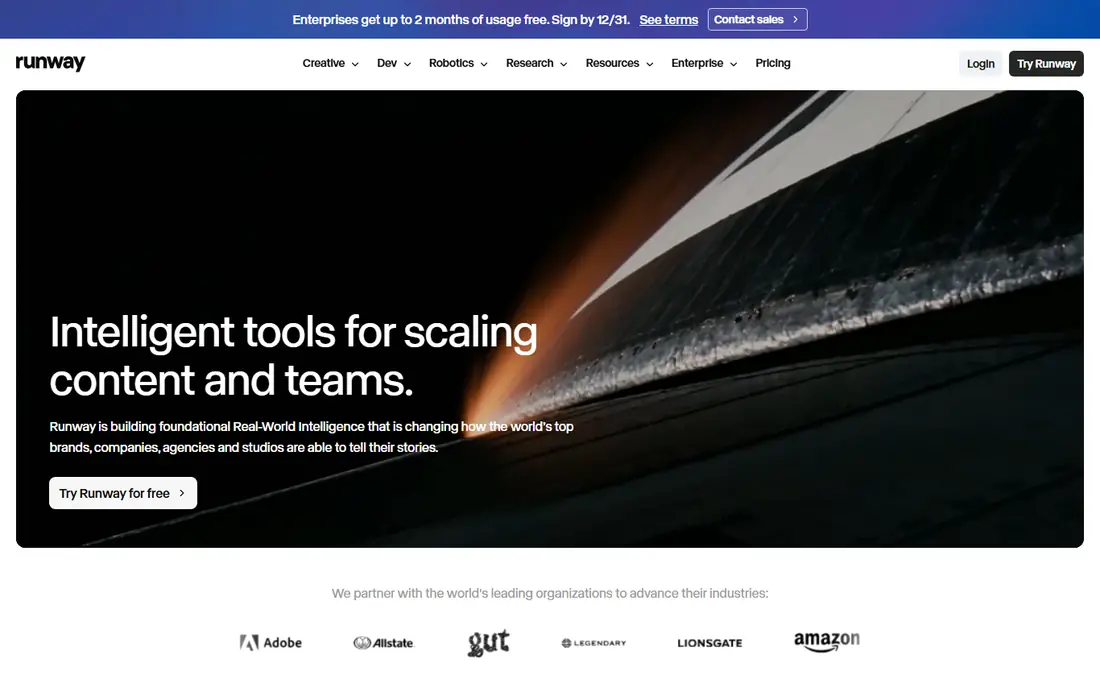
Runway suits creators who want to direct a clip, not just animate it. Reference image tools, camera controls, and multi shot options give precise control over how a still moves and how the camera behaves. That control matters for ads, music videos, and short films where each shot must match a vision.
The cost is iteration. Credits disappear quickly when you test many versions, and the free tier offers only starter credits. Plan a small number of test generations, refine the prompt, and save full runs for the version you intend to keep.
- Strong directorial control
- Reference image and camera tools
- Production workflow
- Credits run out fast during iteration
- Learning curve for advanced controls

Luma Dream Machine is known for fluid motion and natural physics. Camera moves feel smooth, and scenes with water, cloth, or falling objects behave in a believable way. Generation is fast, which helps when you need many test clips in a session.
Pricing has changed across the year, so use the current pricing page rather than an older review. High volume work can become costly, and clip length limits mean Luma suits short cinematic shots rather than long scenes. For a striking five second shot, it is a strong pick.
- Natural physics and camera movement
- Fast generation
- Broad model access
- Serious volume becomes expensive
- Clip length is short on many models
Pika is the easiest tool in this list for a first photo animation. Upload a photo, describe the motion, and get a short clip fast. Effects tools and Pikaframes, which animate between a start and an end image, make transitions simple for social posts.
The trade off is continuity. Pika clips can look playful rather than cinematic, and longer or more complex motion can drift from the original photo. Use Pika for social content and quick tests, and a tool like Kling or Runway for a polished hero shot.
- Simple interface
- Fun effects
- Start and end keyframe transitions
- Short clips can favour spectacle over continuity
- Free tier resolution is limited
Hailuo, from MiniMax, is a budget friendly option for character animation. A single reference photo can produce expressive faces and clear action, which suits short stories, social clips, and product demos. Free credits let you test often before paying.
Plan details and model availability change often, so confirm the current free allowance and paid price on the site. Higher resolution and longer clips cost more credits, which adds up on a busy week. For high volume short clips on a budget, Hailuo is hard to beat.
- Strong character and action animation
- Generous free credits on many plans
- Expressive faces
- Plan details change often
- Higher resolution costs more credits
Adobe Firefly is the safest choice for brands and agencies that need clear commercial terms. Video generation sits inside the Adobe workflow, with integration into Creative Cloud apps that many teams already use. Free daily generations let you test before subscribing.
Generative credits are the limit to watch. Premium video consumes credits faster than still images, so a plan that feels generous for photos may run out quickly on video. If you already pay for Creative Cloud, Firefly video is a natural add on. If not, compare credit costs carefully.
- Commercially oriented workflow
- Creative Cloud integration
- Clear licensing approach
- Premium video uses generative credits fast
- Best value inside Creative Cloud
PixVerse is built for speed and volume. Templates, effects, and multi transition tools turn photos into social ready clips quickly, without deep prompt craft. That pace suits creators who publish daily and need many short clips per week.
Quality varies by template, and higher resolution or longer clips use more credits. Free tier exports can carry watermarks, so check export terms before publishing to a client channel. For fast social output, PixVerse is a practical pick.
- Fast generation
- Templates and multi transition options
- Good for social volume
- Credit use rises with resolution and duration
- Free exports may be watermarked
HeyGen answers a different brief from the rest of this list. Upload a photo, add a script and voice, and the photo speaks to camera as a presenter. That suits training videos, product explainers, and localised marketing, where a talking presenter matters more than scene motion.
It is not a cinematic animation tool. Scenes, camera moves, and action sequences are better handled by Kling, Runway, or Luma. Use HeyGen when the job is a presenter, and use a scene tool when the job is a moving scene.
- Photo avatars that speak
- Many languages
- Presenter workflow for training and marketing
- Not built for cinematic scene generation
- Paid plan needed for polished output
How we picked these
We compared official feature and pricing pages, plus public reviews of motion quality, camera control, and export terms. We kept tools that are live in October 2026 and that accept a photo as the starting point for video. Where pricing varies by credit model or changes often, we wrote See website rather than repeat a stale figure.
What to check before you choose
Start with a sharp, well lit photo. Tools animate clear subjects best, and low resolution or heavily compressed images produce weaker motion. Upscale the source photo first if it is small, and crop to the subject you want to move.
Write a motion prompt that describes one action, not five. A prompt like a slow camera push in while the subject smiles works better than a list of unrelated moves. Test the same photo and prompt on two tools before you commit to one for a series.
Clip length and resolution
Most tools make clips of 4 to 20 seconds, with higher resolution costing more credits. Check the maximum length and resolution for the plan you will actually buy. A tool that looks cheap at low resolution can become costly at 1080p or 4K.
Audio and lip sync
Some tools add native audio and lip sync, while others make silent clips that need sound added later. If you need a talking photo, pick a tool with lip sync built in. If you need a cinematic shot, plan sound separately and judge the tool on motion alone.
Rights and consent
Only animate photos you have rights to use, and get consent before animating a photo of a real person, especially for a talking avatar. Check the tool's terms for commercial use, and keep a record of consent for client work. Never use these tools to create misleading videos of real people.
Frequently asked questions
What are the best AI tools to animate photos into videos?
Kling leads for realistic human motion, Runway leads for creative control, and Luma leads for fast cinematic camera moves. Pika suits beginners, Hailuo suits budget volume, and HeyGen suits talking presenters. Pick by the job, not by a single ranking.
Can I animate a photo into a video for free?
Yes, for testing. Kling, Runway, Luma, Pika, Hailuo, Firefly, PixVerse, and HeyGen all offer free credits or tiers. Free exports often carry watermarks, lower resolution, or short clip limits, and commercial use may need a paid plan. Check export terms before publishing.
How long are AI photo animations?
Most tools make clips of 4 to 20 seconds from one photo. Runway multi shot tools and Kling multi shot options can extend a sequence, but each shot is still short. For a longer video, plan a series of shots and edit them together.
Which tool is best for a talking photo?
HeyGen is the strongest pick for a photo that speaks to camera, with photo avatars, voices, and many languages. Kling also offers lip sync on newer models for shorter clips. For a full presenter video with slides or training content, HeyGen workflow is simpler.
Do I need a good photo to start?
Yes. Clear subjects, good lighting, and sharp focus animate best. Low resolution images, busy backgrounds, and obscured faces produce weaker results. Start with the best photo you have, and upscale it before generation if it is small.
Sources
See where you really rank - block by block
ProMapRanker scans Google Maps across a grid of your service area. Simple monthly plans from $19, white-label on every plan.
Start freeKeep reading
 best ai video editing platforms for quick edits
Best AI Video Editing Platforms for Quick Edits in 2026
Compare the best ai video editing platforms for quick edits in 2026, from auto clips and captions to browser editors, with free tiers, pricing and limits.
Read → best ai tools for hr
Best AI Tools for HR in 2026
Compare the best AI tools for HR in 2026, from HireVue and Paradox to Eightfold and Textio, with pricing, practical uses, and fairness checks to run first.
Read → best ai tools for facebook ad creative
Best AI Tools for Facebook Ad Creative in 2026
Compare the best ai tools for facebook ad creative in 2026, from scored statics and video ads to copy, resizing, and Meta Advantage+ creative for every budget.
Read →