 ProMapRanker
Best AI Tools for Restoring Old Photos in 2026

Key takeaways
- Remini is the quickest route for phone-based face work, while VanceAI gives a clearer browser workflow for scratched and faded prints.
- MyHeritage suits people who already keep a family tree, since its photo tools sit beside genealogy records and sharing.
- Topaz Photo AI and Adobe Photoshop give the most manual control, but they cost more and take longer to learn.
- Free tiers are useful for a handful of photos, but a full album usually needs a paid plan or a credit pack.
Quick comparison
| Pick | Great for | Pricing starts at | Free tier | |
|---|---|---|---|---|
 Remini | Quick mobile face restoration | See website | Yes | Visit |
 VanceAI Photo Restorer | One-click browser restoration | $5.94 per month | Yes | Visit |
 MyHeritage | Family history photo archives | See website | Free trial | Visit |
 Topaz Photo AI | Desktop control for photographers | $199 one-time | Free trial | Visit |
 Fotor | Budget browser editing and repair | See website | Yes | Visit |
 Photomyne | Scanning whole albums by phone | See website | Free trial | Visit |
 Hotpot.ai | Low-cost web restoration | See website | Yes | Visit |
 Adobe Photoshop | Manual repair and finishing | See website | Free trial | Visit |
The best ai tools for restoring old photos
Old prints fade, scratch and blur, and a good AI tool can bring back a surprising amount of detail. The tools below cover phones, browsers and desktop software, so you can match the tool to the size of your project. Please only restore photos you own or have permission to use, and take extra care with photos of people, since AI can change facial features in ways that look plausible but are not accurate.
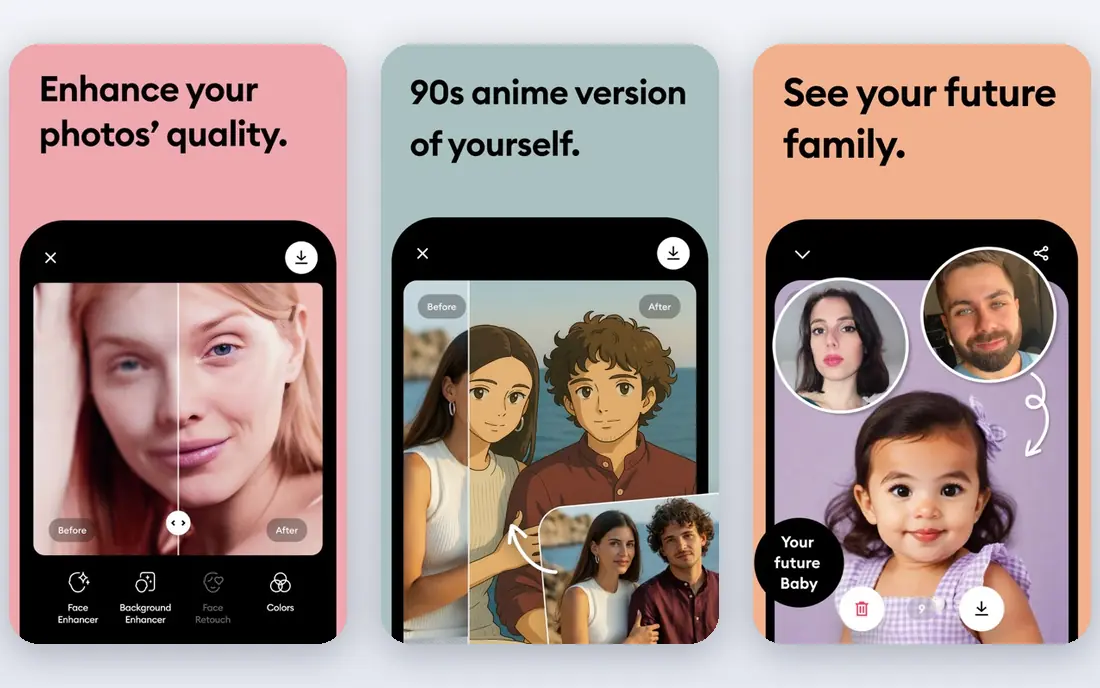
Remini is the tool most people reach for first, and the reason is speed. You open the app, pick a photo and get a sharper, cleaner version in well under a minute in most cases. Faces are its clear strength, which matters because faces are what most people notice first in an old family photo. It is a sensible first try for a single portrait or a small set of phone scans.
The trade-off is control. Remini does not give you the fine-grained repair tools of a desktop editor, so a torn print or a large stain may still need manual work elsewhere. Its pricing also rewards short use rather than a long archive project, so check the current plan in the app before you commit to restoring hundreds of photos. Keep your original scan untouched, and compare the result at full zoom before you print or share it.
- Fast face enhancement
- Simple phone workflow
- Also handles video enhancement
- Weekly-style subscription costs add up
- Results on badly damaged photos can look invented

VanceAI Photo Restorer is built around one job, which is restoring damaged photos in a browser. Its workflow separates scratch removal, color work and face refinement, so you can see what each step does rather than accepting one mystery result. That structure helps when a photo has more than one problem, such as fading plus surface marks. Credits roll over within stated limits on some plans, which suits people who restore in bursts rather than every week.
The free tier is small, so it works as a test rather than a full album solution. Very torn or water-damaged photos can also come back with invented detail in the missing areas, so treat the output as a keepsake version, not a faithful record of what was lost. For most faded prints, though, it is one of the most direct options on this list.
- Dedicated scratch and fade repair
- Credit packs for larger batches
- No software install needed
- Credit limits can run out mid-project
- Heavy damage still needs manual retouching
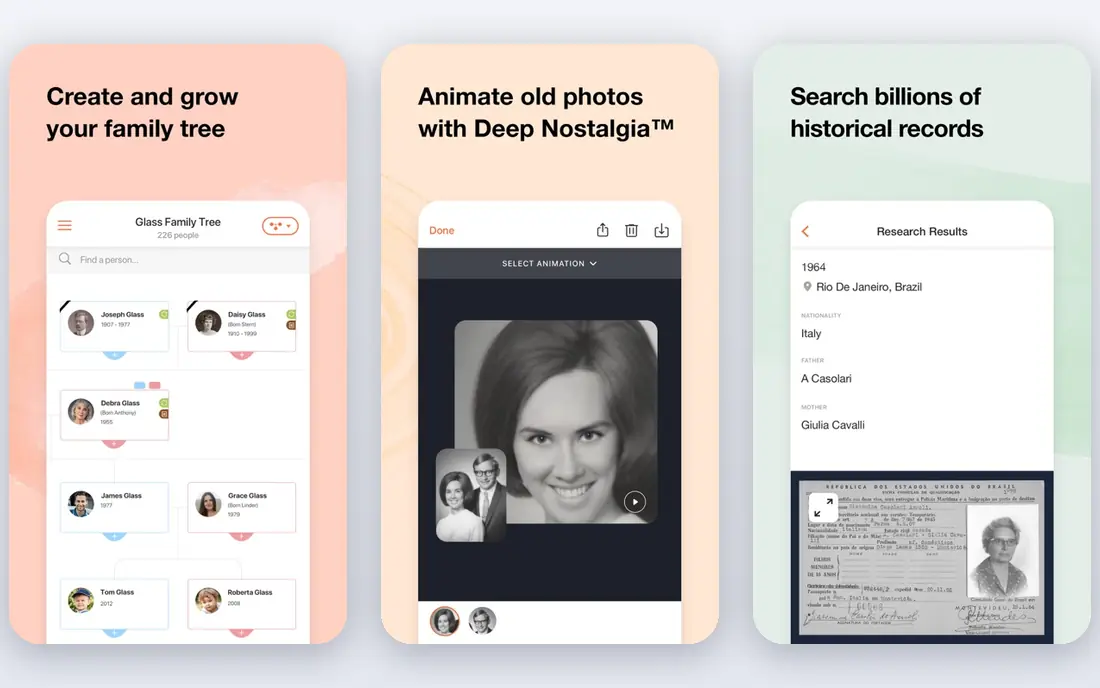
MyHeritage makes sense if your photos are part of a family history project rather than a one-off repair. You can enhance and colorize a portrait, then attach it to the right person in a tree and share it with relatives who may add names and dates. That context is something a standalone enhancer cannot offer, and it helps keep restored photos organized instead of scattered across a phone.
The catch is that the photo tools are bundled with a broader subscription, so a person who only wants five photos fixed may pay for features they will not use. The free allowance is also limited, which is worth checking before you upload a large album. If you already use MyHeritage for research, though, the photo tools are a natural addition.
- Photo repair sits beside family trees
- Colorization and animation options
- Simple sharing with relatives
- Best value only with a wider genealogy plan
- Free photo allowance is limited
Topaz Photo AI is aimed at people who already edit photos and want control over the result. It handles noise, blur and low resolution with separate controls, and it can process batches on your own computer rather than through a browser queue. That local workflow also appeals to people who prefer not to upload family photos to a web service for every edit.
Beginners may find the number of settings more than they need, and a one-time price still feels steep for a handful of prints. The free trial lets you preview results before paying, which we recommend, since you can test it on your worst photo first. For photographers with large scanned archives, it is the most capable desktop pick here.
- One-time purchase option
- Strong denoise and sharpening
- Batch processing on desktop
- Higher upfront cost
- Needs a capable computer
- Learning curve for beginners
Fotor is a general photo editor with an old-photo repair feature, and that mix is its appeal. After the automatic repair, you can crop, adjust color and add text without moving to another app, which suits people making prints, cards or social posts from restored photos. The browser workflow means there is nothing to install, and the free tier covers light use.
The downside is specialization. A heavily scratched portrait may come out cleaner in VanceAI or Remini, and Fotor is better thought of as a good all-rounder than a damage specialist. If your photos are mainly faded or slightly soft, rather than torn, Fotor offers good value and a gentle learning curve.
- Low-cost all-in-one editor
- Old-photo repair plus general editing
- Works in a browser
- Restoration is less specialized than dedicated tools
- Some features sit behind a paid plan
Photomyne starts one step earlier than most tools on this list, because it helps you digitize the album itself. Its phone camera can capture several photos at once, crop them automatically and build albums you can share with family. That matters when the real bottleneck is not one damaged photo but a box of prints that has never been scanned at all.
Once scanned, its enhancement and colorization tools handle everyday fading and softness well. The results depend on good lighting and a steady hand during scanning, so take time with that step rather than rushing it. If your prints are already scanned, a dedicated restorer may suit you better, but for album digitizing, Photomyne is hard to beat.
- Fast multi-photo scanning
- Album organization
- Colorization and sharing options
- Scanning quality depends on your phone and lighting
- Subscription needed for full use
Hotpot.ai is a useful low-cost starting point, especially if you want to test AI restoration without installing an app or signing up for a subscription. Its web tools cover picture restoration alongside other editing jobs, and credits can be bought in small amounts. For a few faded snapshots, that keeps the cost close to zero and the process short.
The trade-off is polish. The site is more functional than friendly, and it does not offer the album organization of Photomyne or the family-tree context of MyHeritage. Treat it as a cheap test bench: run your hardest photo through it, compare it with Remini or VanceAI, and only then decide where to spend money on a larger batch.
- No account needed for basic use in many cases
- Low-cost credit options
- Simple web workflow
- Interface feels basic next to larger editors
- Results vary with damage type
Photoshop is the choice when AI alone is not enough. Its manual tools let you clone out a tear, rebuild a damaged edge or adjust one face without changing the rest of the photo, and its neural filters can speed up parts of that work. For prints with real physical damage, this control is the difference between a plausible guess and a careful repair.
That control comes with cost and complexity. Photoshop is a subscription product with a large feature set, and a beginner may spend more time learning it than restoring photos. It makes most sense as a finishing tool: run a photo through an AI restorer first, then use Photoshop only for the spots the AI got wrong. Used that way, it rounds out this list rather than replacing it.
- Full manual retouching control
- Neural filters for guided repair
- Industry-standard output options
- Subscription cost
- Steep learning curve
- Overkill for a few quick fixes
How we picked these
We compared official feature pages, pricing pages and app store listings, plus public user reviews, for tools that restore faded, scratched or blurred photos. We kept only tools that are live and genuinely fit old-photo work, and we left out generic upscalers with no repair focus. Where pricing was unclear or changed often, we wrote See website rather than guessing a figure.
What to check before you pay
Start with your worst photo, not your favorite one, and run it through two free tiers before you buy. Check faces at full zoom, since eyes and mouths show AI errors first, and keep the original scan in a separate folder so you never overwrite it. For a large album, compare credit packs against a monthly plan by counting photos, not by headline price, since credit use per photo varies. If a photo has tears, missing corners or heavy stains, expect to finish it by hand or accept that the AI will invent detail in the gaps.
Frequently asked questions
What is the best ai app for restoring old photos?
For phone use, Remini is a strong starting point because its face work is fast and simple. If you prefer a browser, VanceAI Photo Restorer gives a more restoration-focused workflow with separate scratch and color steps. Try both free tiers on the same photo before you choose.
What is the best ai tool for restoring old photos on a desktop?
Topaz Photo AI suits photographers who want batch processing and manual control on their own computer. Adobe Photoshop suits damaged prints that need hand retouching after an AI pass. For most casual users, a browser tool is cheaper and faster.
Can AI fully repair a torn or water-damaged photo?
AI can clean fading, scratches and blur well, but it cannot recover detail that is truly gone. In torn or missing areas it fills the gap with a plausible guess, which can look good but is not a true record. Keep the original, and treat heavily damaged results as keepsakes.
Is it safe to upload family photos to these tools?
Check each tool's privacy page before uploading sensitive photos, and avoid uploading photos of other people without their permission. Desktop tools like Topaz Photo AI process files locally, which some people prefer for private family material. Delete uploads from a web service when you no longer need them there.
Do free plans restore photos without a watermark?
That depends on the tool and the plan, and terms change often, so check the current free tier before you start a batch. Free tiers are usually limited to a small number of photos or credits per day or month. Paid plans generally remove those limits and raise export quality.
Sources
See where you really rank - block by block
ProMapRanker scans Google Maps across a grid of your service area. Simple monthly plans from $19, white-label on every plan.
Start freeKeep reading
 wpforms alternatives
Best WPForms Alternatives in 2026
We compare 9 wpforms alternatives for WordPress forms, with free and paid options, current pricing notes, and honest limits for small business sites in 2026.
Read → windows task scheduler alternatives
Best Windows Task Scheduler Alternatives in 2026
Looking for Windows Task Scheduler alternatives? We compare 9 schedulers for Windows and cross-platform work, from free tools to enterprise automation.
Read → which ai video service is best
Which AI Video Service Is Best in 2026
which ai video service is best? We compare 10 legitimate AI video services on price, avatars, editing and output quality to help you pick the right tool.
Read →