 ProMapRanker
Best AI Image Editing Tools in 2026


Generative editing and compositing · Pricing starts at: $22.99 per month
Key takeaways
- Adobe Photoshop and Lightroom remain the professional standard for detailed editing, masking, and generative fill.
- Luminar Neo and Topaz Photo AI suit photographers who want fast AI results without learning a full professional suite.
- Canva, PhotoRoom, and Pixlr cover quick social and product edits, with useful free tiers and browser access.
- Check export resolution, commercial use terms, and generative credit limits before paying, since free plans often cap both.
Quick comparison
| Pick | Great for | Pricing starts at | Free tier | |
|---|---|---|---|---|
| Adobe Photoshop | Generative editing and compositing | $22.99 per month | Free trial | Visit |
 Adobe Lightroom Adobe Lightroom | Photo library and AI masking | $9.99 per month | Free trial | Visit |
 Luminar Neo Luminar Neo | Fast creative AI edits | $129 one-time | Free trial | Visit |
 Topaz Photo AI Topaz Photo AI | Denoising and upscaling | $199 one-time | Free trial | Visit |
 Canva Canva | Design and quick photo edits | Free | Yes | Visit |
 PhotoRoom PhotoRoom | Product background removal | Free | Yes | Visit |
 Pixlr Pixlr | Browser photo editing | Free | Yes | Visit |
 Picsart Picsart | Mobile photo and social edits | See website | Yes | Visit |
The best AI image editing tools
We compared generative editing, masking, noise reduction, upscaling, background removal, and price for photographers, creators, and small businesses.
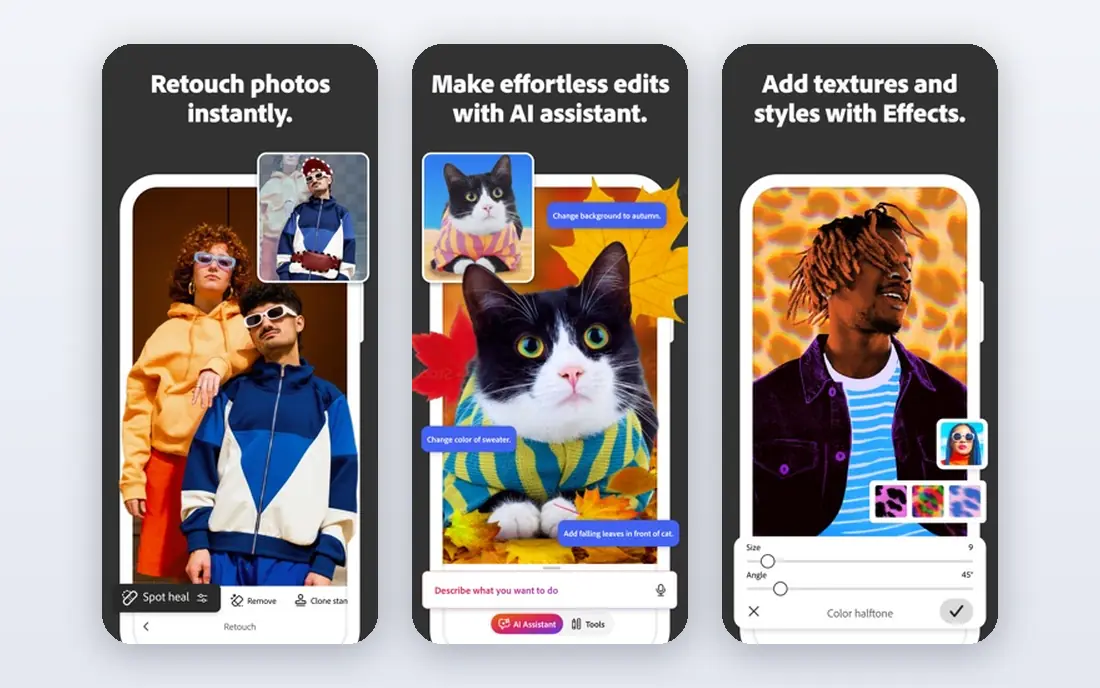
Photoshop is the tool for edits that need pixel-level control. Generative Fill can add, remove, or expand parts of an image from a text prompt, while layers and masks let you undo, refine, and combine edits without damaging the original. That control matters for client work, print work, and complex composites.
Cost and complexity are the downsides. A single-app subscription is costly for casual editors, and generative credits can add limits on top of the subscription. Beginners should start with Lightroom or a simpler editor, and move to Photoshop when masking and compositing become regular work.
- Generative Fill and Expand
- Precise layers and masking
- Firefly models with commercial terms on paid plans
- Subscription cost is high
- Learning curve is steep for beginners
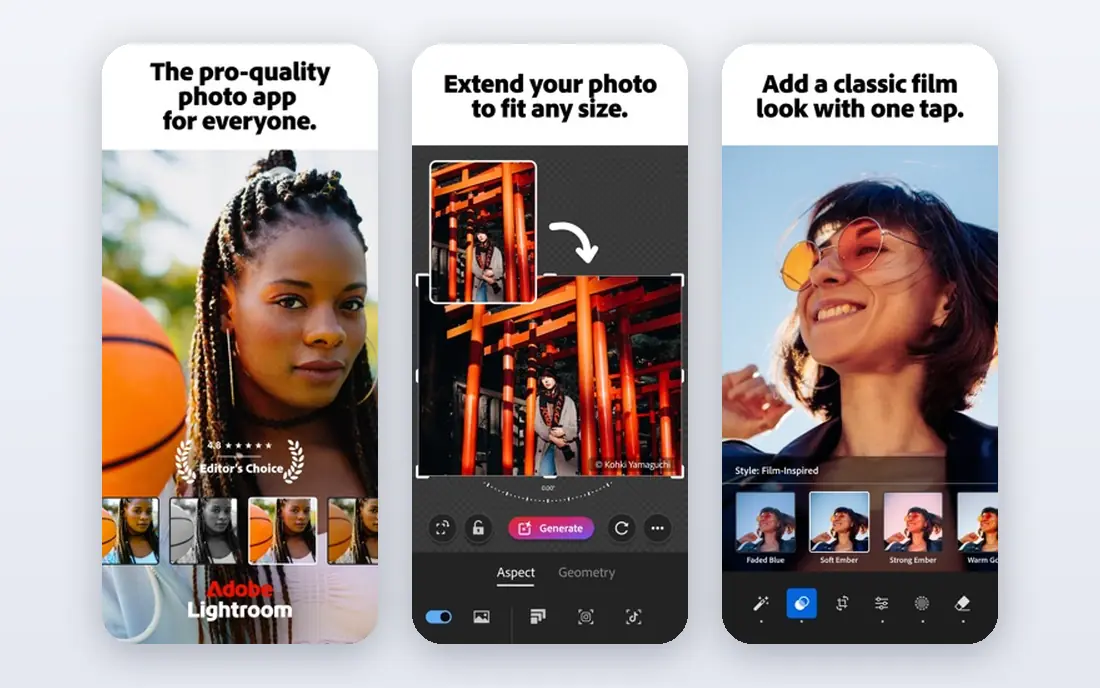
Lightroom is the daily editor for most photographers. It organises large photo libraries, applies batch edits, and uses AI masking to select subjects, skies, and backgrounds in seconds. Noise reduction and lens blur tools help RAW files from weddings, events, and travel shoots.
It is not a compositing tool. For heavy object removal, text-based generative edits, or layered design work, Photoshop or a specialist tool fits better. Check the current Photography plan terms, since included apps, storage, and price change over time.
- AI masking for subject, sky, and background
- Strong RAW workflow and catalog
- Sync across desktop and mobile
- Subscription only
- Catalog can grow large over time
- Generative features are more limited than Photoshop
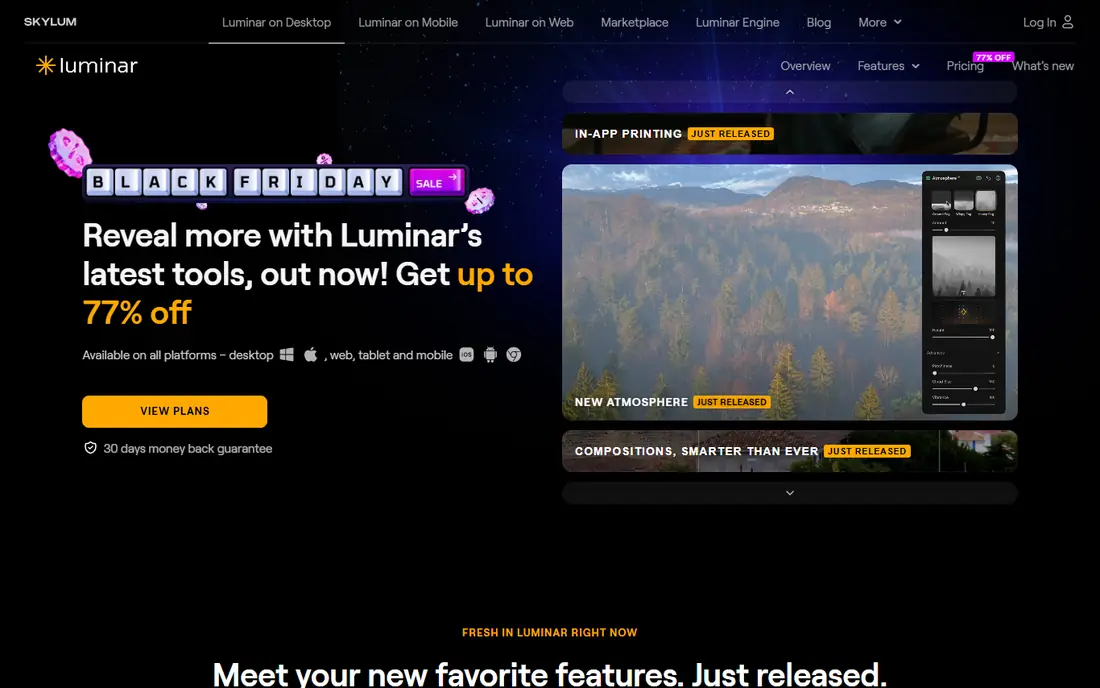
Luminar Neo suits photographers who want dramatic results fast. Sky AI, Relight AI, and portrait tools turn an average photo into a polished image with a few sliders, without layers or complex masking. A one-time purchase option in published comparisons also appeals to editors who dislike subscriptions.
Workflow depth is the limit. Lightroom still leads for large catalogs, tethered shooting, and batch work across thousands of files. Luminar Neo works best as a creative editor for finished images, or as a second editor beside Lightroom.
- One-click sky, portrait, and relight AI tools
- One-time purchase option in published comparisons
- Slider-based editing
- Catalog and RAW workflow are thinner than Lightroom
- Some AI features need a subscription or add-on
Topaz Photo AI does one job better than most general editors: it rescues noisy, soft, or low-resolution images. Denoising, sharpening, and upscaling use AI models trained for those tasks, and autopilot settings give a sensible starting point for each photo. Wildlife, event, and old-photo editors benefit most.
It is not a full editor. You still need Lightroom, Photoshop, or another editor for colour, cropping, and creative work. Treat Topaz as a specialist step in a workflow, and test it on your own noisy files during the trial before buying.
- Strong denoising, sharpening, and upscaling
- Autopilot suggestions for each image
- One-time purchase in published comparisons
- Specialist tool, not a full editor
- Price is high for casual use
- Processing can be slow on older computers
Canva is the best pick when a photo edit is part of a design, not the whole job. It offers background removal, AI editing tools, filters, and a huge template library for social posts, ads, and presentations, all in a browser. The free tier covers many basic edits, while Pro adds more AI tools and higher-quality exports.
Serious photo work will hit limits. RAW editing, detailed masking, and print colour control are weaker than in Lightroom or Photoshop. Use Canva for social and marketing images, and keep a photo editor for images that need careful colour or print preparation.
- Free tier with background removal on Pro
- Huge template library
- Browser and mobile access
- Photo editing depth is limited
- Best AI features need a Pro plan
- Export control is thinner than a photo editor
PhotoRoom leads for product photos. It removes backgrounds automatically, adds studio-style backdrops, and offers templates for marketplace listings and social ads. Sellers who photograph many products will save time compared with manual masking in a general editor.
Free limits matter. Free exports may be lower resolution or include limits that suit social posts but not print or large listings. Check Pro pricing and export terms if you sell products at scale, and test background removal on your own product types before committing.
- Clean automatic background removal
- Product templates and studio looks
- Useful free tier
- Free exports have limits
- Full Pro features need a paid plan
- Not a full RAW photo editor
Pixlr suits quick edits on any computer. It runs in a browser, offers AI background removal, enhancement, and a layout familiar to Photoshop users, and it needs no install. That makes it useful for school, work, or shared computers where installing software is not possible.
Free limits are the catch. Ads, upgrade prompts, and export limits appear on the free tier, and some AI tools need a paid plan. For occasional edits it is excellent value, but regular editors will prefer a desktop app with offline access and fuller export control.
- No install needed
- AI background removal and enhancement
- Photoshop-style layout in the browser
- Free version shows ads and upgrade prompts
- Some exports and AI features need a paid plan
Picsart is a mobile-first editor for social creators. It combines AI photo tools, filters, stickers, and templates in one phone app, which suits quick edits for Instagram, TikTok, and other social platforms. The free tier covers basic edits, while paid plans add more AI tools and remove limits.
Desktop photo work is not its strength. Colour control, RAW editing, and print preparation are thinner than in Lightroom or Photoshop. Use Picsart for fast mobile and social edits, and keep a desktop editor for photos that need careful, high-resolution work.
- Strong mobile AI tools
- Stickers, filters, and social templates
- Free tier for basic edits
- Best AI features need a paid plan
- Editing depth is lower than desktop photo editors
How we picked these
We compared official product pages, pricing pages, and app store listings for generative editing, masking, denoising, upscaling, background removal, and export options. We favoured tools that are live in 2026, offer a clear free tier or trial, and state a current price or one-time purchase option. We did not claim hands-on testing, and prices should be confirmed on vendor sites, since subscription and credit terms change often.
How to choose the best AI image editing tool for you
Start with your main job. Photographers need RAW workflow, masking, and batch editing, so Lightroom or Luminar Neo fit first. Product sellers need background removal and templates, so PhotoRoom or Canva fit first. Designers need templates and quick edits, so Canva or Pixlr fit first. A tool that does your main job well beats a broader tool that does it poorly.
Check generative terms next. Some tools limit generative credits per month, some limit commercial use on free plans, and some change output resolution on free exports. If you sell images or use them in ads, confirm commercial terms and export resolution on the plan you would buy, not on the free tier.
Free versus paid, honestly
Free plans suit testing and occasional social edits, but they usually cap AI edits per day, limit export resolution, or add watermarks. Paid plans add higher resolution, more credits, and commercial terms. Start free, test on your own photos, and pay only when a limit actually blocks your work.
A simple workflow that works
Pick one main editor, one specialist if needed, and one quick mobile or browser tool. Edit and organise in the main editor, use Topaz for noisy images or PhotoRoom for product shots when needed, and use Canva or Picsart for social versions. That small stack covers most needs without paying for five overlapping subscriptions.
Frequently asked questions
What is the best AI image editing tool?
Adobe Photoshop is the best pick for detailed generative editing and compositing, while Lightroom is the best daily photo editor for most photographers. Luminar Neo suits fast creative edits, Topaz Photo AI suits denoising and upscaling, and Canva suits design-led edits. Choose by your main job, not by feature count alone.
What is the best AI photo app for beginners?
Canva and Pixlr are strong beginner picks because they run in a browser, offer free tiers, and need little learning. Luminar Neo suits beginners who want pro-looking results with sliders rather than layers. Start free, learn basic cropping, exposure, and colour, then add AI tools one at a time.
What is the best AI tool for photo editing on mobile?
Picsart offers strong mobile AI tools and social templates, while Lightroom mobile offers a more serious photo workflow with sync to desktop. PhotoRoom suits product photos on a phone. For quick social edits, Picsart wins on speed; for serious mobile photo work, Lightroom mobile wins on control.
Can AI image editing tools remove backgrounds well?
Yes, PhotoRoom, Canva, Pixlr, and Photoshop all offer automatic background removal, with PhotoRoom leading for product photos. Results vary with hair, glass, and complex edges, so check output at full size before using it for listings or print. Manual masking in Photoshop still wins for tricky edges.
Are AI image editing tools free?
Many tools offer free tiers or trials, including Canva, PhotoRoom, Pixlr, and Picsart, but free plans usually limit AI edits, export resolution, or commercial use. Photoshop, Lightroom, Luminar Neo, and Topaz Photo AI need paid plans or one-time purchases for full use. Check the plan terms before using free exports for commercial work.
What is the best AI tool for image editing for product photos?
PhotoRoom is the best pick for product background removal and studio looks, with Canva as a strong second option for listings and ads. Both offer templates and fast exports for marketplaces. For high-resolution print catalogues, add Lightroom or Photoshop for colour and export control.
Sources
- https://www.adobe.com/products/photoshop.html
- https://www.adobe.com/products/photoshop-lightroom.html
- https://skylum.com/luminar
- https://www.topazlabs.com/topaz-photo-ai
- https://www.canva.com
- https://www.photoroom.com
- https://pixlr.com
- https://picsart.com
- https://rankite.com/blog/best-ai-photo-editing-software-comparison
- https://www.bitveen.com/best-ai-photo-editors/
See where you really rank - block by block
ProMapRanker scans Google Maps across a grid of your service area. Simple monthly plans from $19, white-label on every plan.
Start freeKeep reading
 zoom alternatives
Best Zoom Alternatives in 2026
Compare Zoom alternatives in 2026, with free meeting limits and prices, so you can pick the best alternative to Zoom for your team, class, or community.
Read → which software is best for remote work
Which Software Is Best for Remote Work in 2026
Answering which software is best for remote work, we compare Slack, Zoom, Asana, Notion, Teams and more, with pricing and honest tradeoffs in 2026 now.
Read → which ai tool is best for content writing
Which AI Tool Is Best for Content Writing in 2026
Wondering which ai tool is best for content writing? We compare ChatGPT, Claude, Jasper, Grammarly, and more on price, quality, and best use in 2026 now.
Read →