 ProMapRanker
Best Alternatives to Adobe Acrobat in 2026

Key takeaways
- Foxit PDF Editor is our pick for most Acrobat switchers because it covers full desktop editing, signing, and OCR at a lower subscription price.
- UPDF and PDFgear give budget buyers strong value, with UPDF offering paid AI features and PDFgear covering everyday edits for free.
- PDF Expert is the strongest Mac and iOS choice, while PDF-XChange Editor remains a Windows favorite for a one-time style purchase.
- Smallpdf and Sejda suit people who need quick browser edits without installing desktop software.
- Nitro PDF Pro fits small teams that need batch work, conversion, and e-signing in one business tool.
Quick comparison
| Pick | Great for | Pricing starts at | Free tier | |
|---|---|---|---|---|
 Foxit PDF Editor | Most Acrobat switchers | $10.99 per month | Free trial | Visit |
 PDFelement | Budget AI editing | See website | Free trial | Visit |
 Nitro PDF Pro | Small teams | $15 per month | Free trial | Visit |
 PDF Expert | Mac and iOS users | See website | Yes | Visit |
 Smallpdf | Quick browser edits | See website | Yes | Visit |
 Sejda | Online merging and edits | See website | Yes | Visit |
 UPDF | Budget AI features | $49.99 per year | Yes | Visit |
 PDF-XChange Editor | Windows value | See website | Yes | Visit |
 PDFgear | Free everyday editing | Free | Yes | Visit |
The best alternatives to Adobe Acrobat
Leaving Acrobat usually comes down to price, platform, or a simpler workflow. Some readers need full text editing and OCR every day, while others only merge files, fill a form, or sign a document once a week. The nine tools below cover desktop editors, Mac-only polish, browser tools, and a genuinely free editor, without listing Acrobat itself.
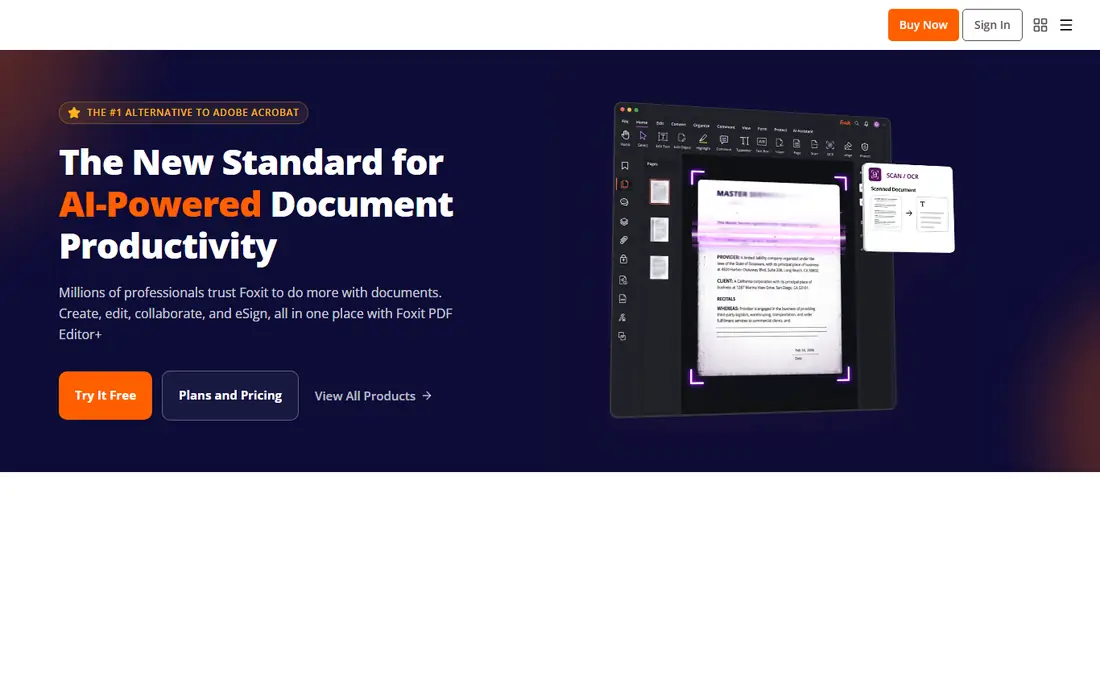
Foxit PDF Editor is the closest like-for-like replacement for most office users. Edit text and images in a PDF, fill and sign forms, add comments, compare document versions, and convert files to common Office formats.
Pricing starts around $10.99 per user per month billed annually, with a free reader tier and a trial for the full editor. That still costs money, but it undercuts the usual Acrobat Pro subscription for comparable editing. The honest catch is AI. Base plans include a limited AI credit allowance, so heavy AI summarization or translation needs a paid add-on. If your daily work is editing, signing, and organizing PDFs, Foxit covers it without that extra layer.
- Full PDF editing, signing, and form tools
- OCR and document comparison
- Apps for Windows, Mac, and mobile
- Advanced AI credits are limited on the base plan
- Interface packs in many tools for casual users
- Perpetual pricing costs more upfront
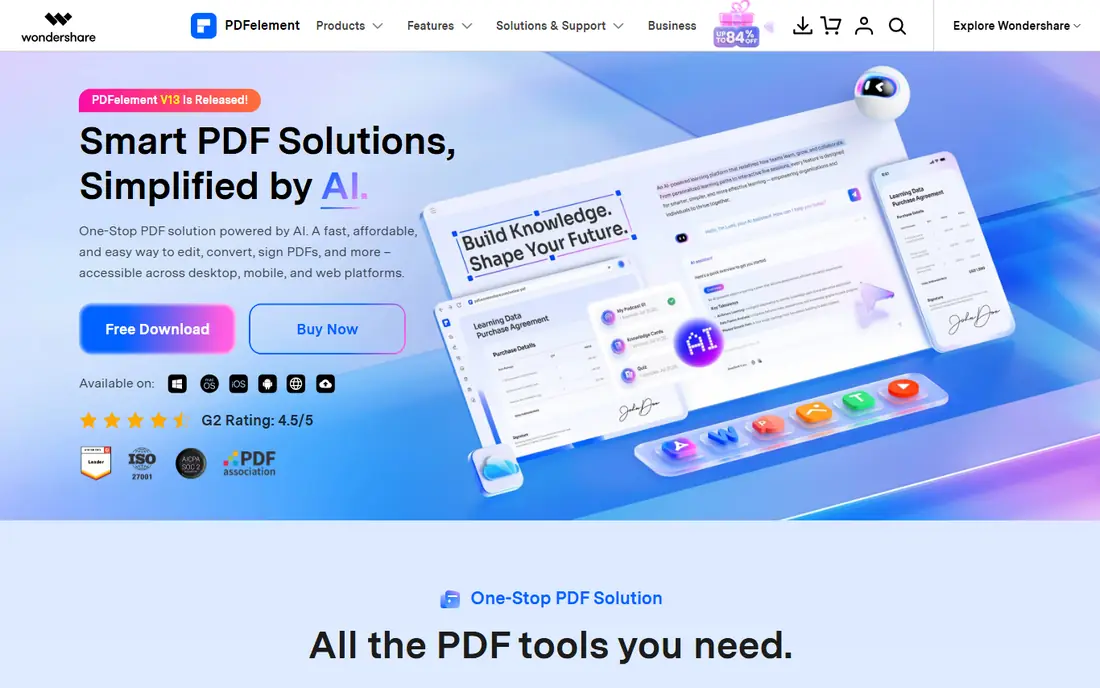
Wondershare PDFelement appeals to buyers who want modern AI features without paying a top-tier price. The editor handles everyday text changes, form filling, annotations, and conversions, and its AI tools can summarize long documents or translate passages. Apps for Windows, Mac, iOS, and Android mean a document started on a laptop can be signed on a phone.
Check the current pricing page before buying, because PDFelement prices differ by platform, billing period, and promotion, with annual plans commonly listed near $79.99 per year in recent comparisons. A free trial helps you test editing and OCR on your own files, which matters because scanned PDFs vary widely in quality. For mixed-platform households and small offices, the cross-platform coverage is the main reason to pick it over a Windows-only or Mac-only rival.
- Text, image, and form editing across platforms
- Built-in AI tools for summaries and translation
- Batch conversion and OCR options
- Pricing varies by platform and promotion
- Some advanced features sit on higher tiers
- Interface can feel crowded on smaller screens
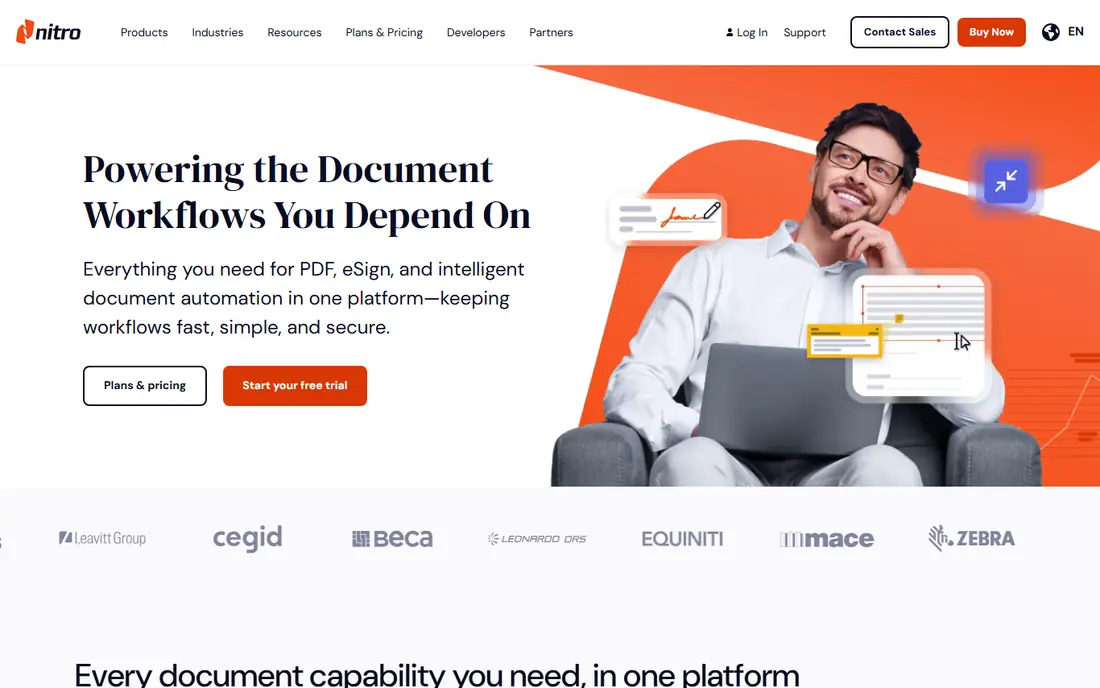
Nitro PDF Pro is aimed at teams that process PDFs in volume. Batch conversion, consistent editing tools, and e-signing reduce the need to bounce between three separate apps, and review features help managers approve documents without printing or emailing endless copies. For a small business that handles contracts, invoices, and client forms daily, that combined workflow saves real time.
The price reflects that business focus, starting around $15 per user per month billed annually, with a free trial for testing. Solo users who only edit a few PDFs a month will find cheaper options here, and Mac users should check current platform support, since Nitro has historically centered on Windows. If your team needs one standard PDF tool with signing and batch work, Nitro is a credible business pick.
- Editing, conversion, and e-signing in one tool
- Batch processing for many files
- Collaboration and review tools for teams
- Higher monthly price than budget editors
- Windows focus with web tools for other platforms
- Some AI and admin features sit on business plans
Readdle PDF Expert is the app many Mac users name first, and the reason is feel rather than a single feature. Opening, annotating, filling, and signing PDFs feels native to macOS and iOS, with smooth scrolling, clean toolbars, and strong iPad support. It handles the daily jobs, such as editing text, merging pages, compressing files, and signing contracts, without the heavier interface of a business suite.
The limit is platform. There is no Windows or Android version, so mixed-device teams need a second tool. Pricing has also shifted between annual and lifetime options, with annual plans commonly near $79.99 per year and lifetime near $139.99 in recent listings, so confirm the current offer on the vendor site. For an Apple-only workflow, PDF Expert remains the most pleasant Acrobat alternative in this list.
- Polished native Mac and iOS experience
- Fast editing, annotation, and signing
- Good Apple Pencil and iPad support
- No Windows or Android editor
- Lifetime pricing has changed over time
- Some pro features require a subscription
Smallpdf fits the reader who opens a PDF tool twice a month. Merge two reports, split a long scan, compress a file for email, convert a PDF to Word, or sign a form, all from a browser tab. There is nothing to install, and the tool list is easy to scan, which helps occasional users who do not want to learn a full editor.
Free use covers basic tasks with limits, and Pro plans, commonly listed near $10 to $12 per month billed annually, remove those limits and add desktop and mobile access. The trade-off is depth. Precise text editing, heavy OCR, and complex forms belong in a desktop editor, not a browser tool. For quick jobs and shared computers, Smallpdf is often the fastest answer, and its free tier is enough to judge whether the workflow suits you.
- No install needed for common tasks
- Merge, split, compress, and convert tools in the browser
- Clean interface for occasional users
- Free use has daily task limits
- Deep text editing is thinner than desktop editors
- Large or sensitive files need care on a web service
Sejda is another browser-first option, and it stands out for people who want to edit a PDF without creating a desktop workflow. Text edits, form filling, merging, splitting, page reordering, and signatures all run in the browser, and the site also offers desktop apps for users who prefer local processing.
Free use has limits on document size and number of tasks per hour, which keeps casual use free but pushes regular users toward a paid plan. Recent listings show weekly and annual options, so check the pricing page for the plan that matches how often you edit. Sejda will not replace a full desktop editor for daily production work, but for online edits, school forms, and small business paperwork, it is a practical Acrobat alternative.
- Browser editing with merge, split, and form tools
- Files are processed online without an install
- Straightforward pricing for occasional use
- Free plan limits file size and hourly tasks
- Advanced desktop-style editing is limited
- Web processing suits smaller files best
UPDF has grown quickly by offering a modern editor at a price that undercuts the established business tools. The annual Pro plan is listed at $49.99 per year, with a perpetual option also offered, and it covers editing, annotation, conversion, OCR, and AI summaries across desktop and mobile. A free reader tier lets you test the interface before paying.
The honest limit is maturity in large organizations. Companies that need deep admin controls, compliance tooling, and long support histories may still prefer Foxit or Nitro. For individuals, students, and small teams, UPDF gives a strong mix of editing and AI at a budget price. Test OCR on your own scanned files during the free period, since scan quality affects every editor in this list.
- Editing, annotation, OCR, and AI tools at a lower annual price
- Apps for Windows, Mac, iOS, and Android
- One license can cover multiple platforms
- Newer brand than Foxit or Nitro, so enterprise admin tools are thinner
- AI features need a paid plan
- Some advanced business features are still catching up
PDF-XChange Editor has a loyal Windows following for a simple reason. It opens large PDFs quickly, offers detailed annotation and measurement tools, and lets many users work with the free version for reading, commenting, and basic edits. The paid Plus version adds OCR and deeper editing, and the vendor has sold a perpetual license style option, which appeals to buyers tired of monthly billing.
Windows-only support is the clear limit, and the interface packs in toolbars that can overwhelm a first-time user. Pricing has varied between a lower one-time style figure for the standard editor and a higher Plus price, so check the current store page rather than relying on an old review. For Windows users who want speed, annotation depth, and a buy-once mindset, this is a strong Acrobat alternative.
- Fast Windows editor with strong annotation tools
- Free version covers reading and many edits
- Perpetual license option for buyers who dislike subscriptions
- Windows only
- Interface looks technical for casual users
- Some Plus features, including full OCR, need the paid version
PDFgear is the pick for readers whose main requirement is free. The desktop and mobile apps cover text editing, annotation, form filling, conversion, compression, merging, and signing without a subscription for core features. That makes it useful for students, job seekers, and small offices that handle PDFs weekly but cannot justify a monthly editor bill.
Free does not mean identical to a paid business suite. Enterprise admin tools, priority support, and some AI features are thinner or paid, and long-term reliability matters when a tool holds your documents. Still, for everyday editing, PDFgear removes the usual excuse to stay with an expensive subscription you barely use. Start here if cost is the blocker, and move to Foxit or UPDF only when a paid feature becomes a daily need.
- Free editor for Windows, Mac, iOS, and Android
- Editing, conversion, compression, and signing included
- AI chat features on some plans
- Support and enterprise features are thinner than paid rivals
- Some AI tools sit behind paid tiers
- Smaller brand, so check update history before business use
How we picked these
We compared official feature pages, pricing pages, and app store listings, plus current PDF editor comparisons, for tools live in October 2026. We kept only editors that handle real PDF editing, signing, conversion, or form work, and we excluded Acrobat itself, as this article covers alternatives only. Where vendor pricing varies by platform or promotion, we used See website rather than printing a figure that could mislead a buyer in another region.
What to check before you switch
Test the switch with your hardest files, not your easiest ones. Open a scanned contract, a form with fields, a large report with images, and a PDF with comments, then try editing, signing, and exporting each one. Check whether fonts, layout, and signatures survive the round trip, since a clean edit on a simple file does not prove the tool handles your real documents.
Also confirm the platform and file rules that matter to you. Some tools are Windows only or Mac only, some browser tools limit file size, and some free tiers add watermarks or limit daily tasks. If you handle sensitive documents, prefer a desktop editor for private files, check the privacy policy for any web tool, and keep a backup of originals before batch converting a folder.
Editing, OCR, and signing, in plain terms
Editing means changing text and images inside a PDF. OCR means turning a scanned image into searchable, editable text, and its accuracy depends on scan quality. Signing can mean a drawn signature, a typed signature, or a certified digital signature, and those are not the same thing for legal or business use. Match the tool to the exact job, and do not assume every editor covers all three at the same standard.
Free versus paid, in plain terms
Free editors and browser tools cover merging, splitting, compressing, filling, and basic signing for most occasional users. Paid editors earn their price with full text editing, reliable OCR, batch work, form creation, and team controls. If you edit PDFs most workdays, a paid desktop editor usually pays for itself in time saved. If you edit PDFs monthly, a free tool plus an occasional browser plan is often enough.
Frequently asked questions
What is the best free alternative to Adobe Acrobat?
PDFgear is the strongest free desktop and mobile editor for everyday text edits, forms, conversion, and signing. Smallpdf and Sejda also cover quick browser tasks for free within limits. For Mac and iOS users, PDF Expert offers a free reader tier, with paid features for full editing.
What is the best Acrobat alternative for Mac?
PDF Expert is our pick for Mac and iOS users because of its native feel, fast annotation, and strong iPad support. Foxit PDF Editor and UPDF also offer Mac apps with fuller business features. Windows-only tools such as PDF-XChange Editor do not fit a Mac workflow.
What is the best Acrobat alternative for Windows?
Foxit PDF Editor suits most Windows users who need full editing, signing, and OCR. PDF-XChange Editor suits Windows users who want speed, annotation depth, and a perpetual style license. UPDF and PDFelement also offer Windows apps with AI features at lower annual prices.
Is there a good alternative to Acrobat Pro for small business?
Yes. Nitro PDF Pro fits small teams that need batch conversion, e-signing, and review tools in one product. Foxit PDF Editor fits businesses that want a closer Acrobat-style editor at a lower subscription price. Check seat pricing, admin controls, and platform support before standardizing on one tool.
Can I edit PDFs for free without installing software?
Yes, for common tasks. Smallpdf and Sejda let you merge, split, compress, convert, and sign PDFs in a browser, within free limits. Deep text editing, heavy OCR, and large files work better in a desktop editor such as PDFgear, Foxit, or UPDF.
Do Acrobat alternatives handle OCR and scanned PDFs?
Most paid editors in this list offer OCR, including Foxit, PDFelement, Nitro, UPDF, and PDF-XChange Editor Plus. Accuracy depends on scan quality, handwriting, and language, so test OCR on your own scans before buying. Free browser tools may limit OCR or handle scanned files less reliably than desktop editors.
Sources
See where you really rank - block by block
ProMapRanker scans Google Maps across a grid of your service area. Simple monthly plans from $19, white-label on every plan.
Start freeKeep reading
 free alternatives to grok imagine
Free Alternatives to Grok Imagine in 2026
We compared the best free alternatives to grok imagine for image generation, from fast daily credits to design tools, so you can create without paying.
Read → best tools for instagram content creation
Best Tools for Instagram Content Creation in 2026
Compare the best tools for Instagram content creation, from Canva and CapCut to Later and Buffer, on design, video, planning, scheduling, and price in 2026.
Read → best tool to split pdf files
Best Tool to Split PDF Files in 2026
We compared the best tool to split pdf files on split modes, file limits, privacy and price, so you can split a PDF cleanly and keep every page in one go.
Read →