 ProMapRanker
Best Thumbnail Software in 2026

Key takeaways
- Canva is the easiest all-round choice for most creators, with templates and a generous free plan.
- Adobe Photoshop gives the most control, but it costs more and takes longer to learn.
- Snappa and VistaCreate suit fast, repeatable thumbnails when you publish often.
- Photopea is the best free route to layered, Photoshop-style editing in a browser.
Quick comparison
| Pick | Great for | Pricing starts at | Free tier | |
|---|---|---|---|---|
 Canva | All-round thumbnail design | $12 per month | Yes | Visit |
 Adobe Express | Quick Adobe templates and resizing | $9.99 per month | Yes | Visit |
 Adobe Photoshop | Full control over every detail | $22.99 per month | Free trial | Visit |
 Snappa | Fast simple graphics | $10 per month | Yes | Visit |
 Picmaker | Template driven social graphics | See website | Yes | Visit |
 VistaCreate | Large template library | $10 per month | Yes | Visit |
 Fotor | Photo editing and batch work | $8.99 per month | Yes | Visit |
 Pixlr | Cheap browser photo editing | $1.49 per month | Yes | Visit |
 Photopea | Free layered editing | $5 per month | Yes | Visit |
The best thumbnail software
A good thumbnail reads clearly at a small size, with one face or subject, short text, and strong contrast. These tools differ in how much help they give you to reach that result, and in how much control they leave in your hands.
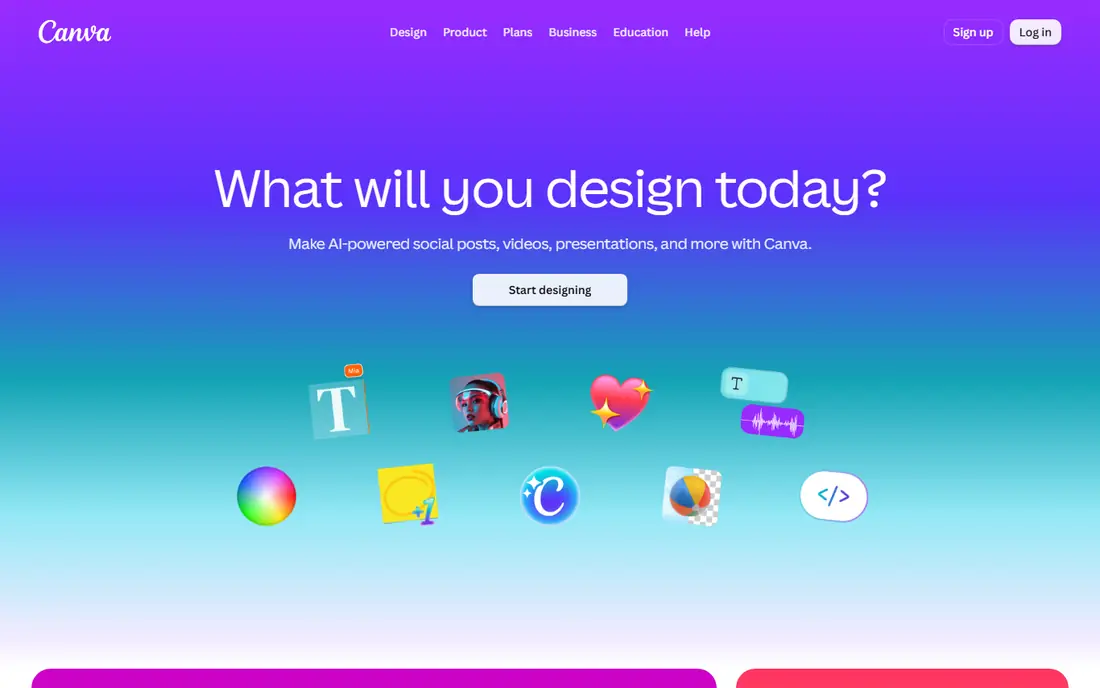
Canva is the default choice for many creators because it removes the blank page problem. You start from a thumbnail template sized for YouTube, swap in your own photo, change a few words, and export. The editor runs in a browser and on mobile, so a thumbnail started on a laptop can be finished on a phone.
The catch is sameness. Templates that thousands of creators use will look familiar, and the photo tools will not replace a dedicated editor for careful cutouts or retouching. If you customize colors, fonts, and images rather than publishing a template unchanged, Canva stays fast without looking generic.
- Huge template library
- Easy text, shapes, and photo tools
- Brand kit and resizing on paid plans
- Popular templates can look familiar
- Advanced photo editing is limited
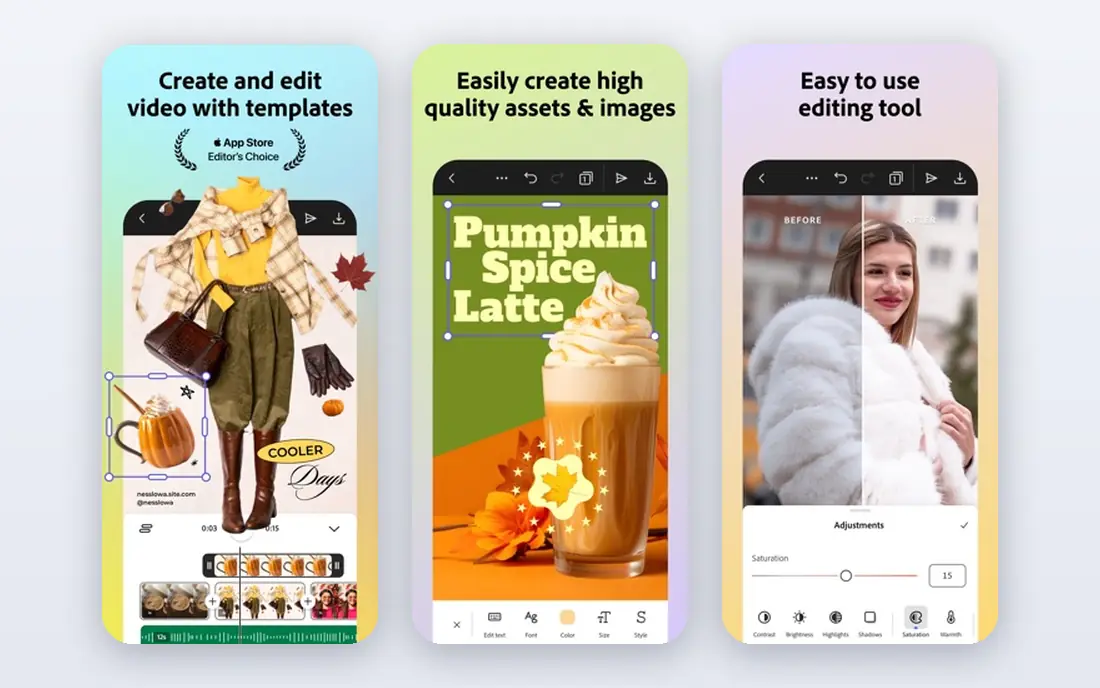
Adobe Express sits between Canva and Photoshop. It gives you templates, stock photos, and fonts from Adobe, plus tools to remove backgrounds and resize a design for other platforms. For creators who already use Adobe fonts or assets, that shared library is convenient.
It will not match Photoshop for layered compositing or detailed retouching, and that is by design. Express trades depth for speed. If your thumbnails follow a repeatable format and you want them done in minutes, that trade is worth it.
- Clean templates and Adobe stock assets
- Quick resize for different platforms
- Simple photo and text tools
- Less depth than Photoshop
- Some premium assets need a paid plan
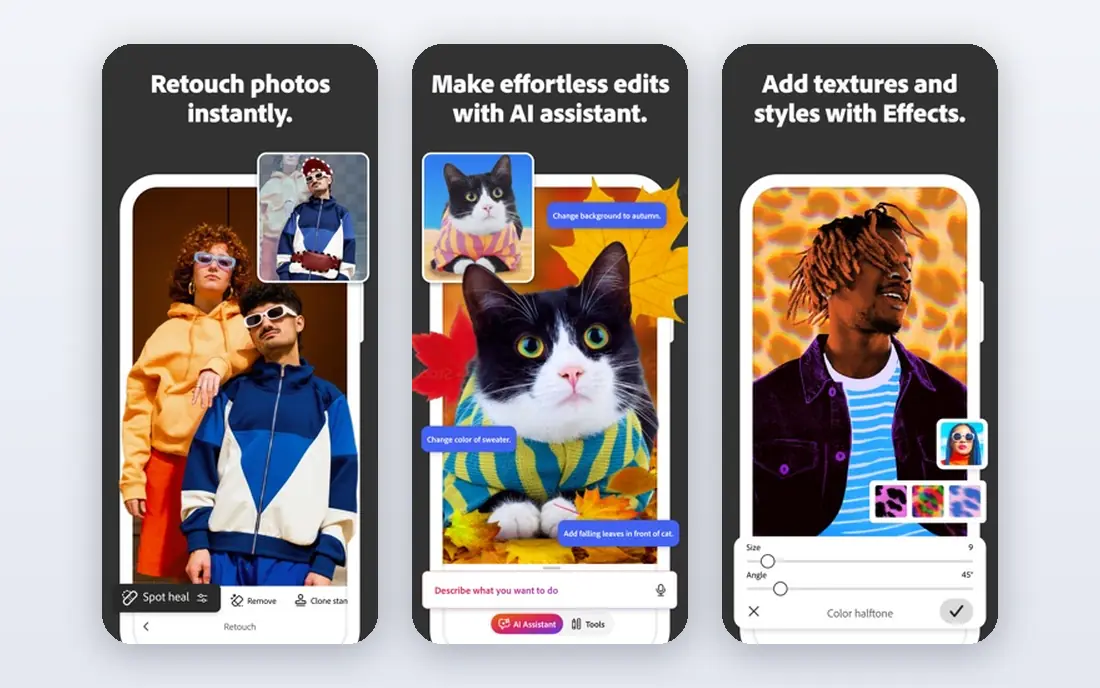
Photoshop remains the tool to choose when a thumbnail needs careful work. You can cut a subject out cleanly, adjust light and color by zone, combine several images, and control text down to the letter spacing. That control shows in thumbnails where the subject pops against a crafted background rather than a flat template.
The price and learning time are real costs. A creator publishing one video a week may not need this depth, and a template tool will finish the job faster. For channels where the thumbnail is a major part of the strategy, Photoshop pays for itself in flexibility.
- Precise layers, masks, and selection tools
- Best results for cutouts and compositing
- Huge tutorial base
- Subscription cost adds up
- Learning curve is steep for beginners
Snappa is built for people who want a finished graphic without learning design software. Preset sizes remove guesswork, the stock library saves a photo search, and the editor keeps options to a manageable set. A repeatable thumbnail format comes together quickly once you save your fonts and colors.
The simplicity has a ceiling. Layered compositing, detailed masking, and advanced photo work belong in Photoshop or Photopea. Snappa also limits downloads on the free plan, so frequent publishers will need the paid tier. For speed and consistency, it is a good fit.
- Very simple editor
- Preset sizes for YouTube and social
- Large stock photo library
- Fewer advanced editing tools
- Free plan limits monthly downloads
Picmaker offers a template-first route similar to Canva, with designs for YouTube thumbnails, banners, and social posts. Brand kit tools help keep colors and fonts consistent across a channel, which matters when viewers should recognize your videos at a glance. AI-assisted suggestions can speed up a first draft.
It lacks the huge tutorial base and third-party template market that Canva enjoys, so finding a specific walkthrough may take longer. Pricing also varies by plan and billing, so check the current page before committing. For creators who want a Canva-style workflow with a different template set, it is worth a trial.
- Thumbnail and social templates
- Brand kit tools
- AI-assisted design options
- Smaller community and tutorial base than Canva
- Pricing needs checking on its site
VistaCreate stands out for the size of its free offering. Templates, photos, and a brand kit are available without paying, which helps new creators test a visual style before spending. The editor is straightforward, and resizing a thumbnail for other formats takes a few clicks.
Photo work is the weak spot. Retouching, precise cutouts, and layered composites are limited compared with a photo editor. VistaCreate works best when your thumbnail starts from a strong photo and needs text, shapes, and color, rather than heavy manipulation.
- Large template and asset library
- Brand kit on the free plan
- Easy resizing
- Photo editing is lighter than Pixlr or Photoshop
- Some assets need the paid plan
Fotor is a useful middle option when your thumbnail starts with a photo that needs work. You can adjust exposure and color, clean up a background, and batch resize images, then add text and shapes in the same editor. That combination suits creators who shoot their own thumbnail photos and need consistent sizing across a series.
Its template library is smaller than Canva or VistaCreate, so you will build more layouts from scratch. Paid features also gate some of the stronger tools. If photo quality is your bottleneck, Fotor earns its place; if templates are, look elsewhere first.
- Solid photo editing and batch resizing
- Templates for social graphics
- Works on web and mobile
- Template range is narrower than Canva
- Some features sit behind the paid plan
Pixlr gives browser users much of what a desktop photo editor offers, at a low price. Layers, masks, and retouching tools handle cutouts and color work that template editors cannot, and it opens without an install. For creators on a shared or low-spec computer, that browser access matters.
The free tier carries ads and limits, and AI features draw on monthly credits, so heavy AI use can push you to a higher plan. The interface also packs many tools into a browser window, which takes a little learning. For budget photo editing, it is strong value.
- Low paid price
- Layers, masks, and retouching in a browser
- No install needed
- AI features use credits
- Free tier includes ads and limits
Photopea is the closest free equivalent to Photoshop for thumbnail work. It runs in a browser, supports layers and masks, and opens PSD files, so a design started elsewhere can be finished here. You can work without an account, which makes it easy to try on any computer.
Ads in the free version take screen space, and the interface assumes some familiarity with layered editing. Beginners may prefer a template tool for their first thumbnails. Once you want real control without a subscription, Photopea is the clear budget pick.
- Free layered editing with Photoshop-style tools
- Opens PSD and common image files
- No account needed to start
- Free version shows ads
- AI tools use credits on paid plans
How we picked these
We compared official feature pages, pricing pages, and app store listings, plus public user reviews, and kept only tools that still work in October 2026 and truly fit thumbnail creation. We included template tools, photo editors, and one AI-assisted option type across the list, and we favored tools with a usable free plan or trial so readers can test before paying. Prices reflect published starting plans at the time of writing, and vendors change them, so check the pricing page before you buy.
How to choose for your channel
Match the tool to your publishing pace and your starting material. If you publish several videos a week and reuse a format, a template tool with a brand kit will save the most time. If each thumbnail is a custom composite, a layered editor is worth the learning time even if each design takes longer.
Test readability at a small size before you publish. Shrink the thumbnail to the size it appears on a phone feed and check that the main subject and the first three or four words still read clearly. Strong contrast, one focal point, and short text beat a crowded design every time, whatever tool you use.
Keep a repeatable format
Save your fonts, colors, and layout as a template or preset. A consistent look helps returning viewers spot your videos, and it cuts design time once the format is set. Change the photo and the words, not the whole system, for each new video.
Mind the source photo
A sharp, well-lit photo makes every tool work better. Template tools cannot rescue a dark or blurry image, and even Photoshop has limits. Shoot or choose a clear subject photo first, then design around it.
Frequently asked questions
What software is best for thumbnails for beginners?
Canva is our pick for beginners because templates, preset sizes, and simple text tools remove most of the setup. Snappa and VistaCreate are close alternatives if you want a simpler editor or a different template library.
What is the best app for thumbnails on a phone?
Canva and Fotor both offer mobile apps that cover templates, text, and basic photo work. Photopea and Pixlr run in a mobile browser but work best on a larger screen, so they suit finishing touches more than phone-first design.
Do I need Photoshop to make good thumbnails?
No. Photoshop gives the most control, but Canva, Snappa, and VistaCreate produce strong thumbnails for most channels. Choose Photoshop when you need precise cutouts, compositing, or color work that template tools cannot do.
What size should a YouTube thumbnail be?
YouTube recommends 1280 by 720 pixels, a 16 by 9 image. All the tools here offer that preset or let you set custom dimensions, so start from the preset rather than guessing.
Is there a free thumbnail maker that is actually good?
Yes. Canva, VistaCreate, Pixlr, and Photopea all offer usable free plans. Photopea is best for layered editing, while Canva and VistaCreate are best for fast template-based designs.
Sources
See where you really rank - block by block
ProMapRanker scans Google Maps across a grid of your service area. Simple monthly plans from $19, white-label on every plan.
Start freeKeep reading
 top custom software development company
Top Custom Software Development Company in 2026
Looking for a top custom software development company? We compare 9 firms for web, mobile, and enterprise software, covering strengths and fit for 2026.
Read → tableau alternatives
Tableau Alternatives in 2026
Compare the best Tableau alternatives for 2026, from Power BI to Metabase, with prices, hosting options, and picks for small teams and enterprises today.
Read → microsoft teams alternatives
Best Microsoft Teams Alternatives in 2026
Looking for microsoft teams alternatives? We compare 9 chat and video tools for 2026, covering free plans, pricing, meetings, and integrations for teams.
Read →