 ProMapRanker
What Is the Best App for Creating PDFs in 2026

Key takeaways
- Adobe Acrobat is the most complete PDF creator, but its price is higher than simpler tools, so it suits professionals who edit PDFs daily.
- Smallpdf and iLovePDF are the easiest browser options for creating a PDF from a file, a scan, or a web page without installing software.
- PDF Expert is the best pick for Apple users, while Foxit and Nitro suit Windows teams that want a lower-cost Acrobat alternative.
- PDF24 is the standout free option, with a wide toolset at no cost, while Sejda suits occasional use with a limited free tier.
- Creating a PDF is only the first step: check editing, signing, compression, and file-size limits before you pick, since those decide whether a tool stays useful.
Quick comparison
| Pick | Great for | Pricing starts at | Free tier | |
|---|---|---|---|---|
 Adobe Acrobat | Complete professional PDF work | See website | Free trial | Visit |
 Smallpdf | Easy browser PDF creation | $12 per month | Yes | Visit |
 iLovePDF | Simple all-in-one web tools | $7 per month | Yes | Visit |
 PDF Expert | Apple users | $79.99 per year | Free trial | Visit |
 Foxit PDF Editor | Windows Acrobat alternative | See website | Free trial | Visit |
 Nitro PDF Pro | Windows business PDF work | See website | Free trial | Visit |
 PDFelement | Affordable editing and creation | $39.99 per year | Free trial | Visit |
 Sejda | Occasional browser PDF work | See website | Yes | Visit |
 PDF24 | Free PDF creation and tools | Free | Yes | Visit |
The best app for creating pdfs
Creating a PDF can mean converting a Word file, scanning paper, building a form, or merging several files into one document. The best app depends on which of those jobs you do most, and on whether you work on a phone, a Mac, or a Windows laptop. These nine apps cover all of those cases.
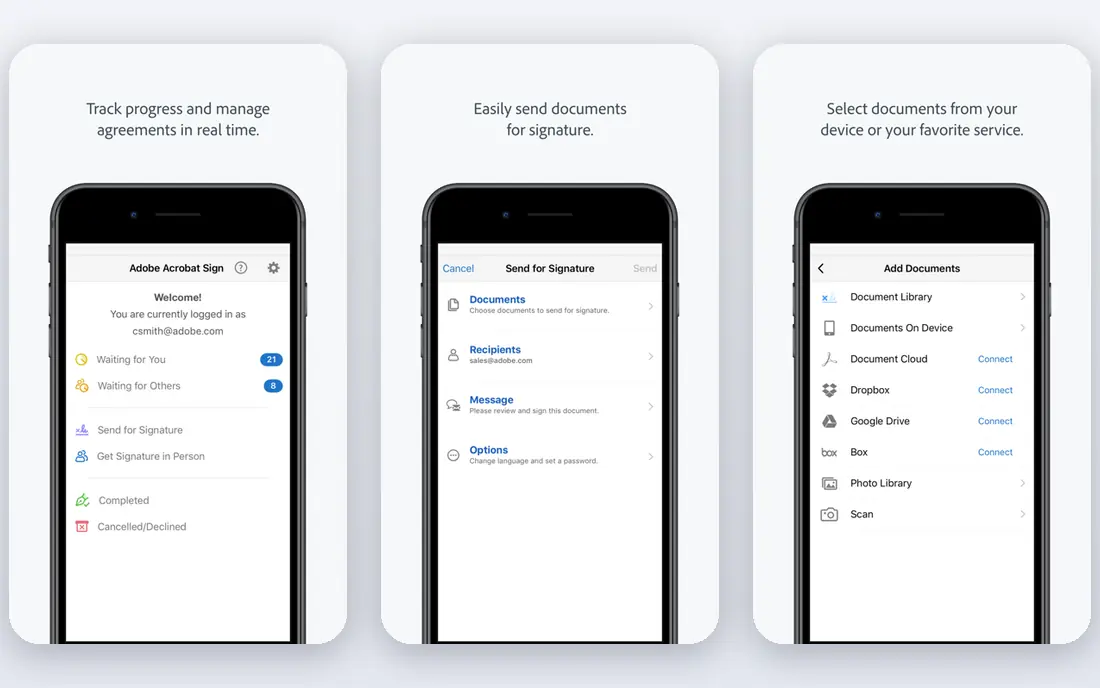
Adobe Acrobat is our pick for most professionals, because it does the whole PDF job in one place: create from Office files, scans, images, and web pages, edit text and images, fill and sign forms, compare documents, and protect files with passwords and permissions. Its mobile apps also let you scan paper with a phone camera and create a PDF on the spot.
The price is the honest catch. Acrobat Pro is a subscription, and it costs more than every simpler tool here, so occasional users will not get value from it. If you create, edit, and sign PDFs every working day, the depth and reliability justify the cost. If you only create a PDF a few times a month, a free or cheaper tool will do.
- Most complete PDF creation, editing, signing, and form tools
- Strong mobile apps
- Widely accepted as the standard
- Highest price in this list
- Subscription model with no perpetual licence for the full Pro version
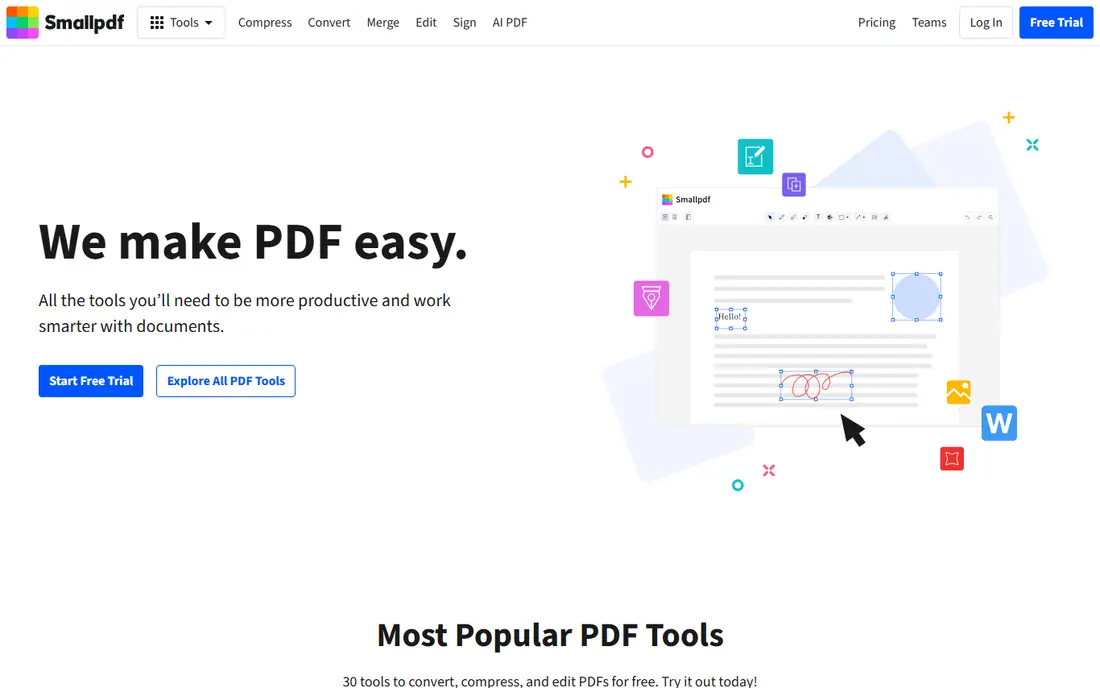
Smallpdf is the easiest browser option for most people. Open the site, choose a tool such as Word to PDF, JPG to PDF, or Create PDF, drop in a file, and download the result. Pro plans start at $12 per month on some listings, with more tasks, larger files, and desktop and mobile apps included.
The free tier is the limit: it allows only a small number of tasks per day, so heavy users will hit the cap quickly. Smallpdf also focuses on common tasks rather than deep editing, so complex form work still belongs in Acrobat or PDF Expert. For quick, everyday PDF creation in a browser, it is hard to beat for simplicity.
- Very easy browser tools for creating, converting, and compressing PDFs
- Clean interface
- Desktop and mobile apps
- Free tier limits tasks per day
- Pro price is higher than some rivals for similar tools
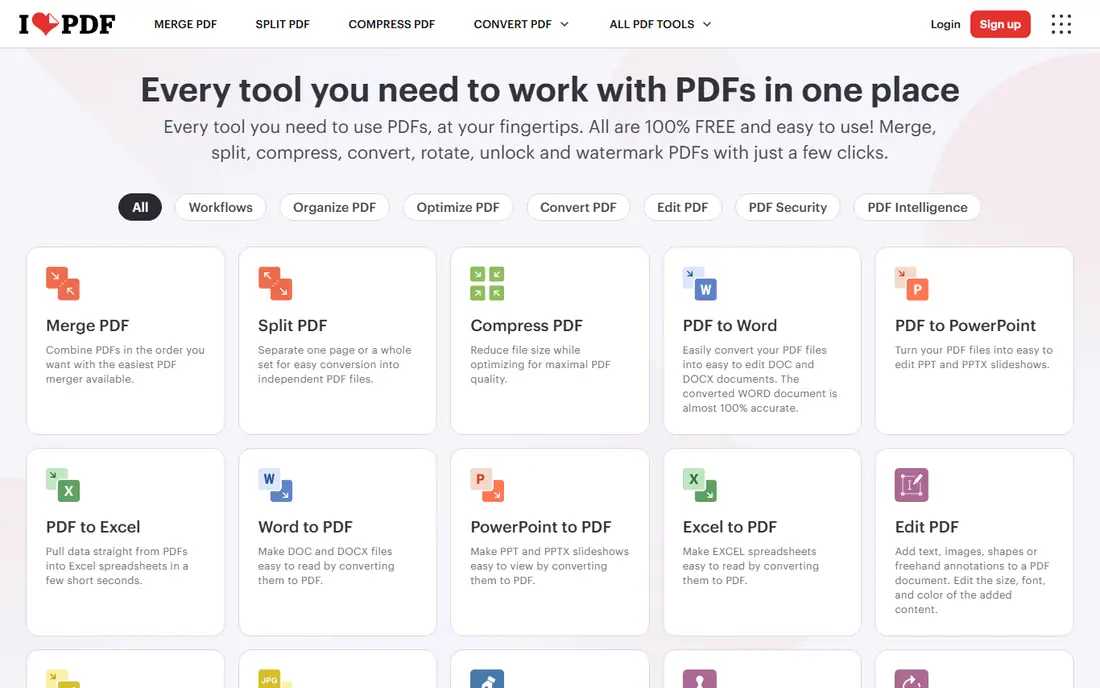
iLovePDF offers a wide web toolkit for creating and managing PDFs: merge, split, compress, convert, rotate, protect, and sign, plus OCR for scanned documents on Premium. Premium starts at $7 per month billed annually, or $9 per month billed monthly, which makes it cheaper than Smallpdf for regular use. Files are handled over an encrypted connection and deleted automatically after a short period.
The free tier covers basic tasks but limits file sizes and processing, and batch work needs Premium. iLovePDF is also a web-first tool, so deep text editing is lighter than in a desktop editor. For a cheap, all-in-one browser toolkit, it is excellent value.
- More than 25 web tools in one place
- Premium at $7 per month billed annually
- Desktop and mobile apps for offline work
- Free tier has file size and task limits
- OCR and batch processing need Premium
PDF Expert, from Readdle, is the best PDF app for Apple users. It creates PDFs from documents, images, and scans, and it handles annotation, form filling, signing, and page management with a polished, fast interface. The annual plan costs $79.99 per year, with a free trial to test it first.
The obvious limit is platform: there is no Windows or Android version, so mixed-device households will need another tool. PDF Expert is also not the cheapest option for occasional use. If you live on a Mac, iPhone, or iPad and create PDFs often, its speed and polish make it the natural pick.
- Fast, polished apps for Mac, iPhone, and iPad
- Good annotation, form, and signing tools
- Easy PDF creation from many file types
- No Windows or Android version
- Annual price of $79.99 per year is higher than some web tools
Foxit PDF Editor is the classic lower-cost alternative to Acrobat on Windows, with tools for creating PDFs from Office files and scans, editing text and images, filling forms, and collaborating through comments. Foxit also offers a free PDF Reader for viewing and basic annotation, which is useful if you only need to read and mark up files.
Pricing varies by edition and billing, so check the current plan page before buying, since the Reader and Editor are different products. Some advanced features, such as certain compliance tools, sit on higher tiers. For Windows teams that want Acrobat-style depth at a lower price, Foxit is a proven choice.
- Strong editing, form, and collaboration tools
- Lighter feel than Acrobat for many users
- Free Reader for basic viewing
- Pricing varies by plan and platform
- Some advanced features sit on higher tiers
Nitro PDF Pro is a business-focused PDF editor for Windows, with creation from Office files and scans, editing, conversion to Office formats, batch processing, and e-signing. It suits offices that standardise on Windows and want a perpetual or business licence model rather than a consumer subscription. A free trial lets teams test it before buying.
Nitro's Mac offering is more limited than its Windows app, so Apple-led teams should look at PDF Expert instead. Business pricing can also be quoted rather than listed as a simple self-serve price. For Windows business use, Nitro is a capable Acrobat alternative with a long track record.
- Create, edit, convert, and sign PDFs in one Windows app
- Batch conversion
- Business-friendly licensing
- Mac version is more limited than Windows
- Pricing is quoted on some business plans
PDFelement, from Wondershare, gives a lot of PDF capability for a lower annual price, starting at $39.99 per year on some listings. It creates PDFs from files and scans, edits text and images, converts to Office formats, fills forms, and adds signatures, with OCR and AI-assisted features on higher plans. It runs on Windows, Mac, iOS, and Android.
The interface packs in many features, which can feel busy compared with PDF Expert or Smallpdf, and the cheapest plan does not include everything. For users who want desktop editing plus creation at a budget price, PDFelement offers strong value, especially if you use it weekly rather than daily.
- Affordable annual pricing from $39.99 per year
- Create, edit, convert, and sign PDFs
- AI and OCR features on higher plans
- Interface can feel busy
- Some features need higher tiers or add-ons
Sejda is a browser PDF tool that suits occasional use without installing software. You can create PDFs from images and documents, merge and split files, edit text, fill forms, and sign, all from the web, with a desktop app available for offline work. The free tier covers a few tasks per day, which is enough for many personal users.
That free limit is the catch for regular use: larger files and frequent tasks need a paid plan, and pricing varies by plan. Sejda is also less of a full document platform than Acrobat. For a few PDFs a week in a browser, it is a clean and private-feeling option, since files are deleted automatically after processing.
- Clean browser tools for creating and editing PDFs
- No account needed for basic tasks
- Desktop app for offline work
- Free tier limits tasks per day and file size
- Heavier work needs a paid plan
PDF24 is the standout free option in this list. Its web tools cover PDF creation, conversion, merging, splitting, compression, and signing at no cost, and its Windows Creator app handles offline work. For a user who only needs to create PDFs from files or images and does not want a subscription, PDF24 removes the price question entirely.
The trade-off is polish and platform coverage. The web interface is functional rather than beautiful, and Windows gets the best desktop support. PDF24 also lacks the deep editing and collaboration features of Acrobat. If free creation is the priority, start here and only pay if you later need advanced editing.
- Wide toolset free, including creation, conversion, merging, and compression
- Desktop Creator app for Windows
- No account needed for web tools
- Web interface is plainer than Smallpdf or iLovePDF
- Mac and mobile support is thinner than Windows
How we picked these
We compared official feature pages, pricing pages, and app listings for PDF creation tools, and we kept only apps that exist and work today and genuinely create PDFs, not just view them. We weighed creation methods, editing and signing depth, platform support, free tiers, and pricing transparency. We did not claim hands-on testing we did not do; this comparison reflects published features, pricing, and public reviews.
How to choose the right PDF app
Start with how you create PDFs. If you convert Office files in a browser, Smallpdf, iLovePDF, Sejda, or PDF24 will cover you. If you scan paper with a phone, Acrobat, PDF Expert, and PDFelement all offer mobile scanning. If you build forms or edit text inside PDFs daily, a desktop editor such as Acrobat, Foxit, Nitro, or PDFelement is the right class of tool.
Next, check the limits that cause frustration later: free task counts, file size caps, OCR availability, and whether signatures are legally useful in your country. Test with a real document, including a scanned page and a form, before you pay for a year. Finally, confirm the app runs on every device you use, since platform gaps are the most common reason people end up paying for two PDF tools.
For occasional use
PDF24 is free and covers most creation jobs, with Sejda as a clean browser alternative for a few tasks a week.
For regular browser use
Smallpdf is the simplest, and iLovePDF is the best value paid web toolkit at $7 per month billed annually.
For daily professional use
Adobe Acrobat is the most complete, with Foxit and Nitro as Windows alternatives and PDF Expert as the Apple pick.
Frequently asked questions
What is the best app for creating PDFs overall?
Adobe Acrobat is the most complete app for creating, editing, and signing PDFs, and it is our pick for professionals. For free or occasional use, PDF24 and Smallpdf are better value, since they cover creation without a subscription.
Can I create a PDF for free?
Yes. PDF24 offers a wide free toolset, and Smallpdf, iLovePDF, and Sejda offer free tiers with task or size limits. Your operating system can also help: Windows, macOS, and most browsers can print a document to PDF at no cost.
How do I create a PDF from a Word document?
Open the document in Word or Google Docs and use the export or print-to-PDF option, or upload it to Smallpdf, iLovePDF, or PDF24 and download the converted PDF. Check the layout after conversion, since fonts and tables can shift.
How do I create a PDF from paper documents?
Use a scanner app on your phone, such as Adobe Scan, PDF Expert on iOS, or the scanning feature in a PDF editor, then save the scan as a PDF. For searchable text, choose an app with OCR, which turns the scanned image into selectable text.
Is a free PDF creator safe for sensitive documents?
Free web tools process your file on their servers, so avoid uploading highly sensitive documents to a service you have not checked. For contracts, medical, or financial files, use a desktop app or a vendor with a clear privacy policy and automatic file deletion.
Which PDF app is best on a Mac or iPhone?
PDF Expert is the best pick for Mac, iPhone, and iPad, thanks to its speed and polish on Apple devices. Adobe Acrobat and PDFelement are good cross-platform alternatives if you also use Windows or Android.
Sources
See where you really rank - block by block
ProMapRanker scans Google Maps across a grid of your service area. Simple monthly plans from $19, white-label on every plan.
Start freeKeep reading
 top custom software development company
Top Custom Software Development Company in 2026
Looking for a top custom software development company? We compare 9 firms for web, mobile, and enterprise software, covering strengths and fit for 2026.
Read → tableau alternatives
Tableau Alternatives in 2026
Compare the best Tableau alternatives for 2026, from Power BI to Metabase, with prices, hosting options, and picks for small teams and enterprises today.
Read → microsoft teams alternatives
Best Microsoft Teams Alternatives in 2026
Looking for microsoft teams alternatives? We compare 9 chat and video tools for 2026, covering free plans, pricing, meetings, and integrations for teams.
Read →