 ProMapRanker
Google Business Profile Not Showing? How to Get It Back on Maps
As Md Shihab Mia, founder of ProMapRanker, I often hear from businesses facing the frustrating problem of their Google Business Profile (GBP) not appearing on Maps or Search. The core reason your Google Business Profile isn't showing up typically boils down to one of three main categories: a Google-imposed issue (like suspension or unverified status), a data inconsistency problem, or a local SEO optimization deficiency preventing it from ranking. Immediate action involves logging into your GBP dashboard for alerts, ensuring your profile is fully verified and compliant with Google's guidelines, and then systematically optimizing every aspect of your listing to improve its visibility and relevance for local searches.
Why did my Google Business Profile disappear?
Your Google Business Profile might disappear due to a suspension for policy violations, an unverified status, being marked as a duplicate, or a temporary technical glitch. Google prioritizes accurate and compliant business information, removing listings that don't meet its strict guidelines or haven't completed the necessary verification steps to prove legitimacy.
The most common causes for a GBP disappearing are:
- Suspension: This is Google's most severe action, often triggered by policy violations such as inaccurate business names, keyword stuffing, incorrect addresses (e.g., P.O. Boxes), or misleading information. A suspended profile is completely removed from public view.
- Unverified Status: If your profile was never fully verified, or if a previous verification expired or was revoked, Google will not display it. Verification is crucial for proving your business is real and located where you claim.
- Duplicate Listing: Google actively suppresses duplicate profiles. If another listing exists for your exact business at the same address, one or both might be removed.
- Policy Violations: Beyond direct suspensions, minor policy infractions can lead to visibility filters. This includes using a virtual office address, having a service-area business display its address, or listing services that are prohibited.
- Technical Glitch: Rarely, a system error on Google's end can temporarily hide listings. These usually resolve on their own, but it's worth checking your dashboard for status.
Understanding these underlying issues is the first step toward optimizing your GBP for local SEO and getting it back on the map.
Why is my Google Business Profile not publicly visible?
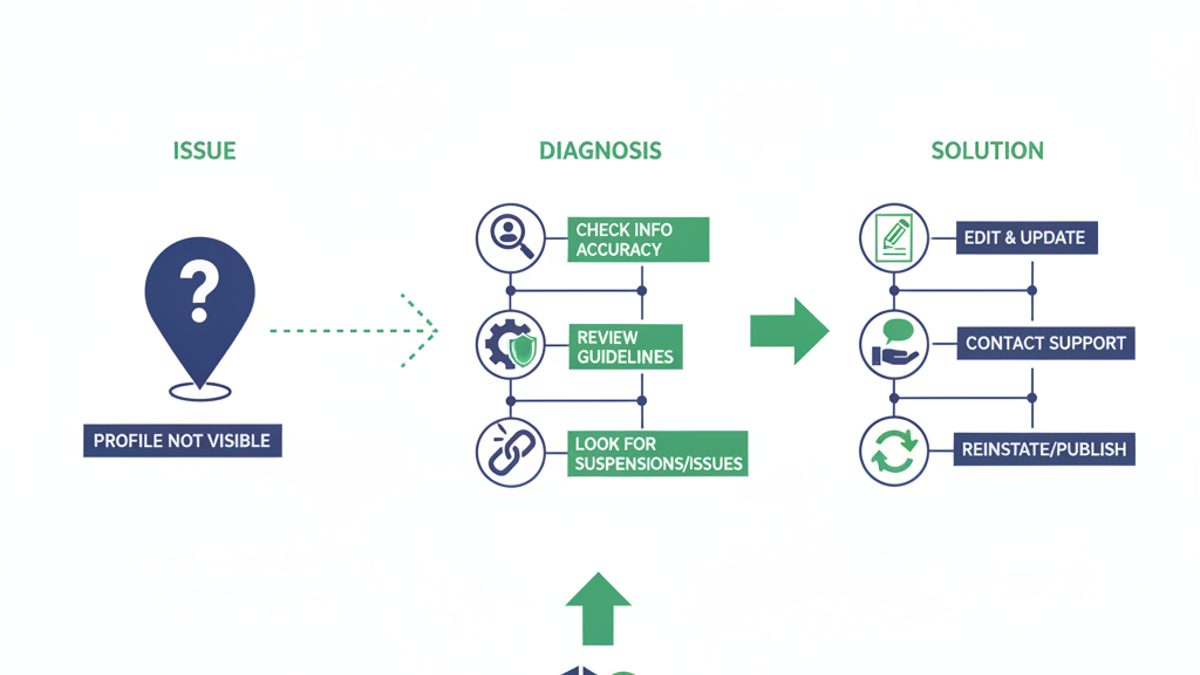
A Google Business Profile may not be publicly visible if it's unverified, suspended, pending review, or simply not ranking high enough due to low optimization, intense local competition, or lack of proximity to the searcher. Google needs to trust your business information and find it relevant before displaying it broadly to potential customers.
Beyond suspensions and verification, several factors can prevent a GBP from being publicly visible:
- Pending Verification: If you've just initiated the verification process, it can take anywhere from a few days to several weeks for the postcard to arrive or the video verification to be reviewed. During this period, your listing may not be visible.
- Low Ranking: Even if visible, your profile might be so far down the search results that users rarely see it. This is often due to poor local SEO, where competitors have stronger profiles, more reviews, or better website authority.
- Proximity: Google heavily weights proximity. If a searcher is too far from your business location, your profile might not appear for their query, especially if there are closer alternatives. This is why geo-grid rank tracking is essential.
- Incomplete Profile: A sparse profile lacking business hours, photos, services, or a website link is less likely to rank well because Google struggles to understand its relevance.
- Recent Changes: Significant edits to your profile (e.g., changing the business name or primary category) can trigger a manual review by Google, temporarily impacting visibility.
For more detailed information on Google's guidelines, refer to the Google Business Profile Help Center.
How do I check my Google Business Profile status?
You can check your Google Business Profile status by logging into your GBP dashboard at business.google.com. Look for alerts, "pending review" messages, or "suspended" notifications at the top of the page. Additionally, search for your business name and address directly on Google Maps and Search to see if it appears publicly for users.
Here's a step-by-step approach:
- Log into your GBP Dashboard: Go to business.google.com using the Google account associated with your business profile.
- Look for Alerts: Once logged in, immediately check for any red or yellow banners at the top of your dashboard. These often indicate a "Suspended" status, "Pending Verification," or "Action Required."
- Check "View on Search" / "View on Maps": On your dashboard, there should be options like "View on Search" or "View on Maps." Click these to see if your profile is publicly visible. If it's suspended, these links might not work or will show no results.
- Perform an Incognito Search: Open an incognito or private browsing window (to avoid personalized results) and search for your business name + city, and then your business name + specific service + city. Also, try searching for your business address directly on Google Maps. If you still can't find it, it's likely not visible.
- Utilize a GBP Audit Tool: Tools like ProMapRanker offer a free GBP audit that can quickly identify missing information, inconsistencies, and potential policy violations that might be impacting your visibility.
What are the common reasons for a Google Business Profile suspension?
Common reasons for GBP suspension include policy violations like using an ineligible business type, listing a P.O. Box or virtual office address, keyword stuffing in the business name, providing inaccurate business hours, having duplicate listings, or engaging in spammy review tactics. These actions directly violate Google's guidelines for truthful and helpful business information.
Understanding these common pitfalls is crucial for prevention and recovery:
- Ineligible Business Type: Businesses that operate purely online without a physical location, or those that rent shared office spaces without clear signage and staff during business hours, are often deemed ineligible.
- Incorrect or Virtual Address: Google requires a physical address where customers can visit during business hours. P.O. Boxes, virtual offices, or mail forwarding services are strictly prohibited. Service-area businesses (SABs) should hide their address if they don't have a storefront.
- Keyword Stuffing in Business Name: Including extra keywords in your business name (e.g., "Shihab's Plumbing & HVAC Repair 24/7 Best Service in Chicago") instead of your legal business name is a blatant violation and a common reason for suspension.
- Misleading Information: Any information that isn't accurate, such as incorrect business hours, phone numbers that don't reach your business, or claiming services you don't offer, can lead to suspension.
- Duplicate Listings: Creating multiple profiles for the same business at the same physical location is a policy violation. Google wants one authoritative listing per unique business entity.
- Spammy Review Tactics: Generating fake reviews, offering incentives for positive reviews, or negatively reviewing competitors can lead to suspension.
- Significant Edits: Drastic, unexplained changes to crucial profile information can sometimes trigger a manual review and potential suspension if Google suspects foul play.
How do I fix a suspended Google Business Profile?
To fix a suspended Google Business Profile, first identify and correct all policy violations on your listing. Once issues are resolved, submit a reinstatement request through the Google Business Profile Help Center, providing clear evidence such as business registration documents and photos of your storefront to prove your legitimacy and adherence to guidelines.
This process requires diligence and patience:
- Identify and Correct Violations:
- Review Google's guidelines for representing your business on Google thoroughly.
- Edit your business name to match your legal business name exactly. Remove any marketing taglines or keywords.
- Ensure your address is a legitimate physical location you own or lease and staff during business hours. Remove P.O. Boxes or virtual addresses. For service-area businesses, ensure your address is hidden.
- Verify all other information (phone number, website, hours) is 100% accurate.
- Delete any duplicate listings you might have created.
- Gather Evidence: Collect compelling proof of your business's legitimacy. This often includes:
- Business registration documents (e.g., Secretary of State filing).
- Utility bills (electric, water, gas) showing your business name and address.
- Photos of your storefront (exterior with permanent signage, interior showing your office/workspace).
- Photos of your business license.
- Video walkthroughs for service-area businesses showing your work vehicle, equipment, and home office setup.
- Submit a Reinstatement Request: Use the official Google Business Profile reinstatement request form. Be clear, concise, and provide all requested information and supporting evidence.
- Wait and Follow Up: Reinstatement can take anywhere from 2-3 weeks, sometimes longer. Avoid submitting multiple requests, as this can delay the process. If you don't hear back after a reasonable time, you can follow up via the same form or contact Google Business Profile support directly.
Why isn't my *verified* Google Business Profile showing up?
Even a verified Google Business Profile might not show up if it's poorly optimized, outranked by competitors, or too far from the searcher's location. A verified listing is merely the first step; ongoing optimization, consistent data across the web, and strong local SEO signals are crucial for achieving and maintaining visibility and competitive ranking.
If your GBP is verified but still elusive, consider these factors:
- Poor Optimization: A verified profile still needs to be fully optimized. Missing business hours, services, product lists, descriptions, or a lack of high-quality photos can significantly hinder visibility. Google favors complete and detailed profiles.
- Lack of Reviews: Customer reviews are a major local ranking factor. If competitors have significantly more 4-5 star reviews, your business may struggle to appear in the local pack or map results. Aim for a consistent flow of positive reviews and prompt responses.
- NAP Inconsistency: Your Name, Address, Phone (NAP) must be identical across your GBP, website, and all other online directories (citations). Inconsistencies confuse Google and erode trust. Tools like ProMapRanker can help you monitor your business listings consistency across the web.
- Website Authority: Google considers the authority and relevance of your linked website. A strong, mobile-friendly website with relevant content and local SEO optimization signals trustworthiness to Google.
- Proximity and Competition: In competitive markets, even a well-optimized business might struggle to rank for searches far from its physical location. Google's local algorithm heavily prioritizes proximity, especially for "near me" searches. Using a local rank tracker with geo-grid capabilities is essential to understand your true local visibility.
- New Listing Lag: Brand new verified profiles can take a few weeks to fully integrate into Google's index and start ranking consistently.
Learn more about the specific factors that influence visibility in the local pack ranking factors article.
How does Google Business Profile verification impact visibility?
Google Business Profile verification is absolutely essential because an unverified listing will not appear publicly on Google Maps or Search results, including the local pack. Verification confirms your business's legitimacy and physical presence, establishing the foundational trust Google requires to display your information to potential customers and preventing spam.
Here's why verification is non-negotiable:
- Public Display: Unverified profiles are simply not shown to the public. They exist in your dashboard but remain invisible on Google Search and Maps.
- Trust Signal: Verification tells Google that your business is real, operating at the claimed address, and that you are authorized to manage its information. This trust is fundamental for Google to recommend your business to users.
- Access to Features: Many critical GBP features, such as responding to reviews, publishing posts, and accessing performance insights, are only available for verified profiles. These features are vital for ongoing optimization and engagement.
- Spam Prevention: The verification process helps Google combat fake businesses and spam, ensuring the quality and reliability of its local search results.
Google offers several verification methods, including postcard by mail, phone, email, or video verification. Choose the method most suitable for your business and complete it promptly.
How can I optimize my Google Business Profile for better visibility?
Optimize your GBP by ensuring NAP consistency, selecting accurate primary and secondary categories, adding detailed services, uploading high-quality photos, consistently responding to reviews, and publishing regular posts. These actions signal to Google that your profile is active, relevant, and trustworthy, significantly improving its chances of ranking well in local search results.
A fully optimized GBP is a powerful local SEO asset:
- Complete All Profile Fields: Fill out every single section of your GBP. This includes business hours, special hours, phone number, website, accessibility features, and attributes. The more information Google has, the better it can match your business to relevant searches.
- Accurate Categories: Choose the most specific primary category that describes your core business. Add relevant secondary categories to broaden your reach. For example, "Pizza Restaurant" is better than just "Restaurant."
- Detailed Services/Products: List all your services or products with clear descriptions and pricing where applicable. This provides Google with more keywords to rank for.
- High-Quality Photos and Videos: Upload a minimum of 10-15 high-resolution photos of your storefront (exterior and interior), team, products, and services. Businesses with photos receive 42% more requests for driving directions and 35% more clicks to their websites than businesses without photos.
- Actively Solicit and Respond to Reviews: Encourage customers to leave reviews and respond to every single one, positive or negative, within 24-48 hours. This shows engagement and builds trust. Aim for an average rating of 4.5 stars or higher.
- Publish Google Posts Regularly: Use Google Posts to share updates, offers, events, or new products. Post at least once a week to keep your profile active and provide fresh content.
- Maintain NAP Consistency: Ensure your business Name, Address, and Phone number are identical across your GBP, website, and all other online directories (e.g., Yelp, Facebook, Yellow Pages). Inconsistent NAP data is a major local SEO deterrent.
- Link to an Optimized Website: Your GBP should link to a mobile-friendly website that is also optimized for local SEO, with relevant content, clear calls to action, and LocalBusiness schema markup on your contact page.
- Use a Geo-Grid Rank Tracker: Tools like ProMapRanker help you visualize your Google Maps SEO performance across a local grid. This allows you to identify areas where you're not showing up and tailor your optimization efforts.
What role does proximity play in Google Maps visibility?
Proximity is a critical ranking factor in Google Maps, meaning businesses closer to the searcher's physical location or the geographic center of their search query tend to rank higher. Google aims to provide the most relevant local results, and physical distance is a primary indicator of relevance for local searches like "restaurants near me" or "plumber in [city]."
Google's local search algorithm considers three main factors: Relevance, Prominence, and Proximity. Of these, Proximity is often the most significant, especially for mobile "near me" searches. Here's how it works:
- User's Location: For mobile searches, Google uses the user's device location to determine their proximity to businesses. The closer your business is to the searcher, the higher its likelihood of appearing.
- Search Query Intent: If a user searches for "dentist San Jose," Google will prioritize dentists located within or very close to San Jose. If they search for "dentist near me," it will use their real-time location.
- Geo-Grid Visualization: A geo-grid rank tracking tool like ProMapRanker performs searches from multiple points across a local area (e.g., a 5x5 grid at 1-mile intervals). This generates a heatmap showing exactly where your business ranks for specific keywords, highlighting areas where proximity is working for or against you. This is invaluable for understanding your real-world local visibility.
While you can't change your physical address, optimizing all other GBP factors can help mitigate the impact of being slightly further away, allowing your business to rank from a greater distance.
How do I know if my GBP is performing well on Google Maps?
To assess GBP performance, regularly monitor your listing's insights for direct, discovery, and branded searches, along with website clicks, calls, and direction requests. Crucially, use a geo-grid local rank tracker like ProMapRanker to see your business's precise ranking across a defined local area (e.g., a 5x5 grid at 3-5 mile intervals) for target keywords and compare it against competitors.
Here's how to measure your GBP's effectiveness:
- Google Business Profile Insights: Log into your GBP dashboard and navigate to the "Insights" section. Here you'll find data on:
- How customers find your business: Direct searches (searching for your business name), discovery searches (searching for a category/service), and branded searches (searching for a brand you carry).
- Where customers view your business: On Search or on Maps.
- Customer actions: Website visits, direction requests, phone calls, messages, and bookings.
- Geo-Grid Rank Tracking with ProMapRanker: This is the most accurate way to understand your local search visibility. ProMapRanker provides a visual heatmap showing your business's ranking for specific keywords from multiple points across your target service area. This pinpoints exactly where you're strong and where you're struggling, giving you actionable insights to improve. You can also track your Share of Local Voice (SoLV) and Average Rank Position (ARP) to benchmark your performance against competitors. Learn more about
See where you really rank - block by block
ProMapRanker scans Google Maps across a grid of your service area. Simple monthly plans from $19, white-label on every plan.
Start free