 ProMapRanker
Best Webcam Software in 2026

Key takeaways
- OBS Studio is the best free choice for streams and recordings, with scenes, sources, and a virtual camera.
- ManyCam and CyberLink YouCam are better for quick effects, overlays, and background blur in calls.
- Camo is the best pick if you want to use a phone as a high quality webcam.
- NVIDIA Broadcast needs a compatible RTX graphics card, so check hardware support before you rely on it.
Quick comparison
| Pick | Great for | Pricing starts at | Free tier | |
|---|---|---|---|---|
 OBS Studio | Free streams and recording | Free | Yes | Visit |
 ManyCam | Effects and overlays in calls | $29 per year | Yes | Visit |
 Camo | Phone as a webcam | See website | Yes | Visit |
 XSplit Broadcaster | Guided scene production | See website | Yes | Visit |
 CyberLink YouCam | Beauty and background effects | See website | Yes | Visit |
 SplitCam | Free multistream and effects | Free | Yes | Visit |
 NVIDIA Broadcast | AI noise and background cleanup | Free | Yes | Visit |
 Ecamm Live | Mac live production | See website | Free trial | Visit |
The best webcam software
Webcam software can improve a call, a stream, or a recording in different ways. Some tools add effects and virtual backgrounds, some turn a phone into a camera, and some build full scenes with several sources. We compared tools on virtual camera support, effects, recording, ease of use, and price.
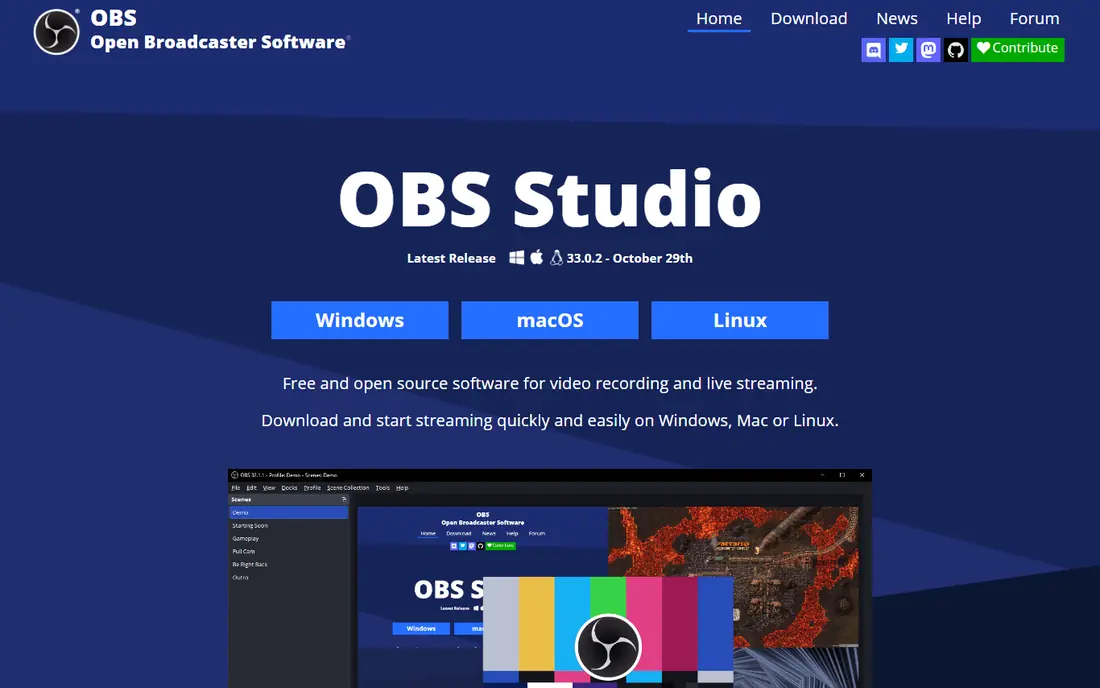
OBS Studio is the most capable free webcam tool here, and it is the default pick for streamers. You can build scenes from a webcam, screen, images, and text, switch between scenes live, record locally, and send the output to a call app through the virtual camera. It runs on Windows, Mac, and Linux, and a large plugin community adds extra sources and controls.
The trade off is complexity. OBS gives you full control, which means you need to learn scenes, sources, and audio settings before a first live session. It also lacks the one click beauty filters of YouCam or ManyCam. Pick OBS if you want free, full production control, and pick a simpler enhancer if you only want a better call image.
- Free and open source
- Scenes and sources
- Virtual camera for calls
- Works on Windows, Mac, and Linux
- Learning curve for beginners
- No built in beauty filters
- Setup takes time
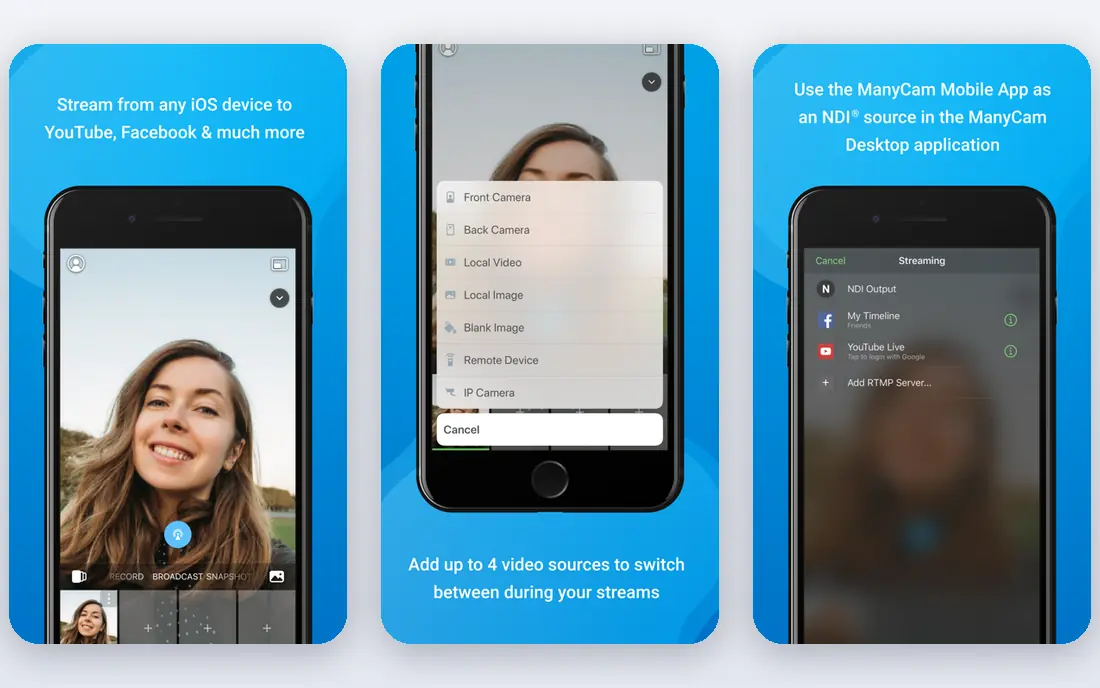
ManyCam sits between a simple enhancer and a full broadcaster. It lets you add effects, backgrounds, lower thirds, and picture in picture, then send the result to Zoom, Teams, Discord, or a stream as a virtual camera. The Standard plan is listed at $29 per year, with Studio at $59 per year and Premium at $79 per year in recent pricing pages, and a free version is available to try.
The limit is tiering. More video sources, 4K quality, and unlimited RTMP streams sit on higher plans, so check which tier matches your setup. The interface also packs in a lot, which can feel busy on a first call. For teachers, presenters, and small streamers who want overlays without learning OBS, ManyCam is a strong middle ground.
- Virtual camera
- Effects, overlays, and lower thirds
- Picture in picture
- Mobile app as a source
- Higher tiers needed for more sources and 4K
- Interface can feel busy
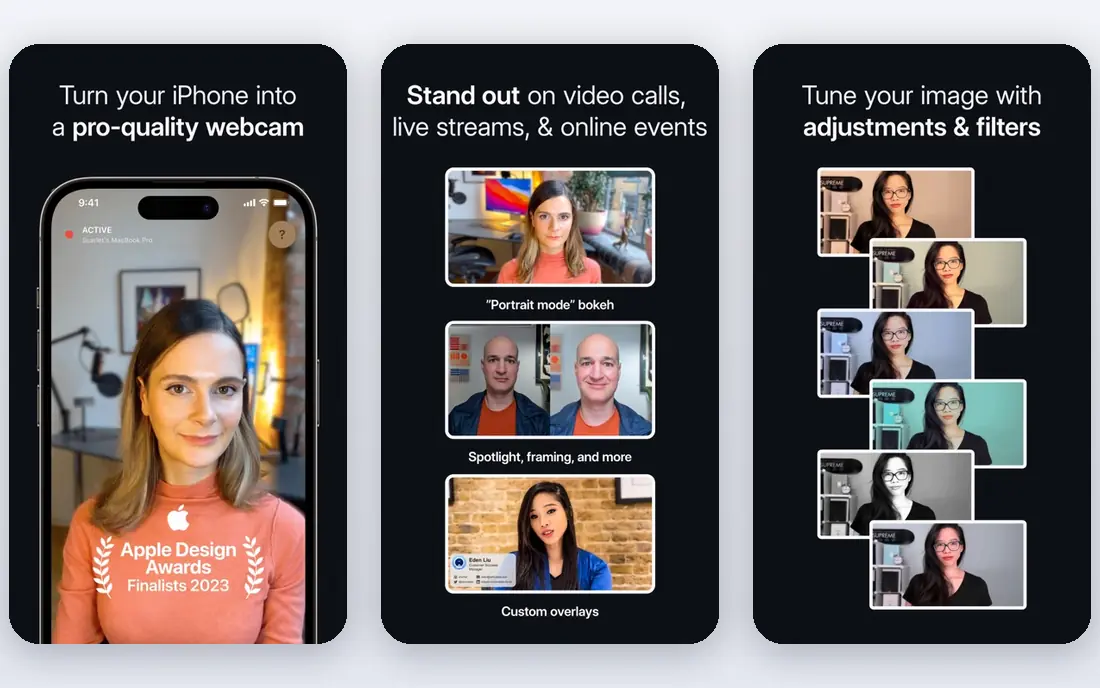
Camo turns a phone into a webcam, which can beat a built in laptop camera by a clear margin. Phone cameras offer better lenses, better low light handling, and sharper detail, and Camo adds framing, lens choice, and image controls on the computer side. The result appears as a virtual camera that call and stream apps can select.
The catch is the two device setup. You need the phone app and the computer app, a stable connection, and a way to mount the phone, and some advanced features sit on paid plans. Check the current price on the vendor site, since we list it as See website here. Pick Camo if your laptop camera is the weak link and your phone camera is much better.
- Uses a phone camera for sharper video
- Lens and framing controls
- Works as a virtual camera
- Needs a phone and a computer app
- Some features sit on paid plans
- Check cable and wireless stability
XSplit Broadcaster is a polished Windows alternative to OBS for people who want guided setup. A layout wizard helps you build scenes, audio controls are clear, and the virtual camera lets you send a produced scene into a call app. The free version lets you learn the workflow, while paid plans remove the watermark and add unlimited scenes and multistreaming.
The limits are platform and price. Broadcaster is Windows focused, and the free version is limited, so regular streamers will need a paid plan. Check the current price on the vendor site before you commit, since plans have changed over time. Pick XSplit if you want a guided, polished Windows production tool and do not mind paying for it.
- Guided scene setup
- Virtual camera
- Multistream support on paid plans
- Windows focused polish
- Windows only for Broadcaster
- Free version has limits and a watermark
- Paid plans needed for full use
CyberLink YouCam is built for people who want to look better on a call with little setup. It offers skin smoothing, lighting help, AR filters, and background blur or replacement, and it can feed the result into Teams, Zoom, or OBS as a virtual camera. That makes it a good pick for job interviews, classes, and daily meetings.
The trade off is scope. YouCam is an enhancer, not a full scene broadcaster, so it lacks the multi source production control of OBS or XSplit. It is also Windows only, which rules it out for Mac users. Check the current price on the vendor site, since subscription and lifetime options have varied. Pick YouCam for fast, flattering call video.
- Skin smoothing and AR effects
- Background blur and replacement
- Works with calls and OBS
- Windows only
- Not a full broadcaster
- Some features sit on paid plans
SplitCam is a useful free option for people who want to stream to more than one service at once. It can split a webcam feed across apps, add effects and scenes, and send a virtual camera output to calls and streams. That multistream feature is the main reason to pick it over a simple enhancer, especially for small creators on a budget.
The catch is polish. The interface feels dated next to ManyCam and XSplit, and support resources are thinner. Test it with your call app and stream service before a live event, and keep a backup plan if a feature behaves oddly. For a free multistream tool, SplitCam still covers the core job well.
- Free
- Multistream to several services
- Effects and scene tools
- Virtual camera
- Interface feels dated
- Support and updates are thinner than paid tools
- Windows and Mac focus
NVIDIA Broadcast uses the AI cores on compatible RTX graphics cards to clean up a webcam and microphone feed. It can remove background noise, blur or replace a background, and add framing and eye contact help, all before the feed reaches Zoom, Discord, or OBS. For RTX owners, it is a free upgrade to call quality with no extra camera to buy.
The hard limit is hardware. If your computer lacks a compatible RTX card, the app will not run, so check the vendor hardware list first. It is also Windows only, and it uses GPU resources, which can matter during a demanding game. Pick Broadcast if you already own a supported RTX card and want clean audio and video with little setup.
- Free for compatible RTX cards
- AI noise removal
- Background blur and replacement
- Eye contact and framing help
- Needs a compatible NVIDIA RTX graphics card
- Windows only
- Can use GPU resources during games
Ecamm Live is the Mac production pick for streamers and presenters who want more than a simple enhancer. It offers scene switching, overlays, guest handling, and a virtual camera for calls, with a workflow built around Mac hardware and apps. That focus makes it smoother on a Mac than a cross platform tool that treats Mac as a second priority.
The limits are platform and cost. Ecamm Live is Mac only, and it is a paid subscription, so casual callers should start with OBS or Camo instead. Check the current trial and price on the vendor site. Pick Ecamm Live if you produce regular Mac streams and want a guided, reliable production setup.
- Mac focused live production
- Scene switching
- Guest and overlay tools
- Virtual camera
- Mac only
- Paid subscription
- More than a casual caller needs
How we picked these
We compared vendor feature pages, pricing pages, and recent webcam software roundups, and we kept tools that were still available in October 2026. We favoured tools with a virtual camera, a clear platform list, and a real use in calls, streams, or recording, over tools that only record locally. Where a price varied by plan or region, we wrote See website rather than picking one figure.
Getting a better image without buying a new camera
Software helps, but light and position matter more. Face a window or a lamp, put the camera at eye level, and keep the background tidy before you add blur or effects. Test audio with headphones, since a clean microphone often matters more than a sharper image. Record a short test clip, watch it back, and adjust light, framing, and volume before a live call.
Check privacy as well. A virtual camera can send a produced scene to any app that can select it, so close private windows and pause notifications before you go live. If you use background replacement, test it with your room and lighting, since busy backgrounds and low light can cause artefacts around hair and hands.
Frequently asked questions
What is the best webcam software?
OBS Studio is best for free streams and recording, ManyCam is best for effects and overlays, and Camo is best for using a phone as a webcam. YouCam is best for quick beauty and background effects in calls. Pick by whether you need production, effects, or a better camera.
Is there a free webcam software?
Yes. OBS Studio, SplitCam, and NVIDIA Broadcast for compatible RTX cards are free. ManyCam, XSplit, YouCam, and Camo offer free versions or trials, while Ecamm Live offers a free trial. Check the free tier limits before a live session.
What is the best webcam software for Zoom?
ManyCam, YouCam, OBS Studio, and Camo all work as virtual cameras that Zoom can select. ManyCam and YouCam are simplest for effects, OBS is best for scenes, and Camo is best if your phone camera beats your laptop camera. Test the virtual camera in Zoom before a meeting.
Can I use my phone as a webcam?
Yes. Camo is built for that job, and ManyCam also offers a mobile app as a source. You need the phone app, the computer app, and a stable connection, plus a mount or stand to hold the phone steady. Check battery and heat on long calls.
Does webcam software improve video quality?
It can improve framing, light, background, and noise, but it cannot add detail that a camera sensor did not capture. A good light, eye level position, and a clean background help more than filters alone. If your camera is very old, a phone camera through Camo may give a bigger gain than software alone.
Sources
See where you really rank - block by block
ProMapRanker scans Google Maps across a grid of your service area. Simple monthly plans from $19, white-label on every plan.
Start freeKeep reading
 who has best internet service
Who Has the Best Internet Service in 2026
Who has best internet service for US homes? We compare fiber, cable, fixed wireless and satellite providers on speed, price, availability and terms today.
Read → which survey tool has the best analytics
Which Survey Tool Has the Best Analytics in 2026
Find which survey tool has the best analytics in 2026, comparing Qualtrics, SurveyMonkey, Typeform, Alchemer, and more on reports, text, and stats today.
Read → which streaming service has the best movies
Which Streaming Service Has the Best Movies in 2026
Answering which streaming service has the best movies, with Netflix, Max, Criterion and more compared on libraries, prices and free options in this guide.
Read →