 ProMapRanker
Best Video Editing Software Comparison in 2026

Key takeaways
- DaVinci Resolve is our pick for most serious editors, thanks to a full free version with professional colour, audio, and effects tools.
- Premiere Pro suits teams and agencies that work inside Adobe pipelines, while Final Cut Pro suits Mac owners who want a one-time purchase.
- CapCut leads for short-form social video, and Filmora leads for beginners who want templates and AI help.
- Subscription cost adds up: compare five-year cost, not just the monthly figure, before you commit.
- Check platform, hardware needs, and export limits first, because a good editor on the wrong machine frustrates fast.
Quick comparison
| Pick | Great for | Pricing starts at | Free tier | |
|---|---|---|---|---|
 Adobe Premiere Pro | Professional team work | $22.99 per month | Free trial | Visit |
 DaVinci Resolve | Free professional editing and colour | Free | Yes | Visit |
 Final Cut Pro | Mac editors buying once | $299.99 one-time | Free trial | Visit |
 CapCut | Short-form social video | Free | Yes | Visit |
 Filmora | Beginners wanting templates | $49.99 per year | Yes | Visit |
 iMovie | Free beginner editing on Apple devices | Free | Yes | Visit |
 Clipchamp | Free editing on Windows | Free | Yes | Visit |
 CyberLink PowerDirector | Feature-rich enthusiast editing | $79.99 per year | Free trial | Visit |
The best video editing software
Video editing software ranges from free phone-friendly apps to professional timeline editors used for film and broadcast work. The eight editors below cover that range, with different strengths on price, platform, learning curve, and export quality. We compared desktop editors and one strong web and desktop option, not AI video generators, so every entry gives you a real timeline to cut on.
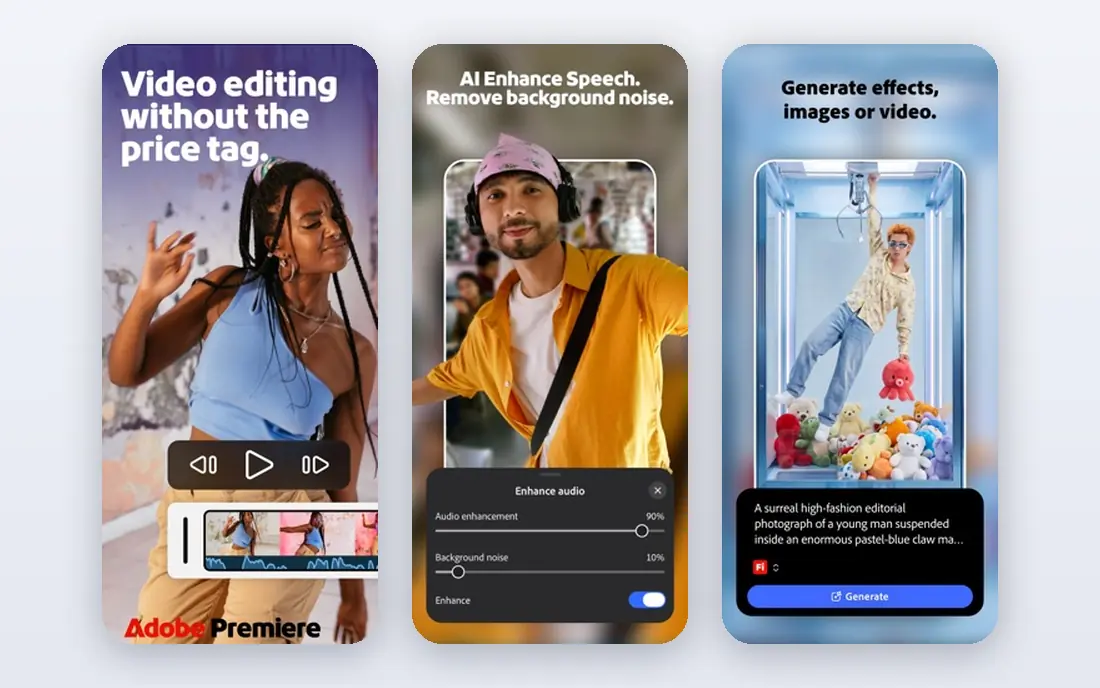
Premiere Pro remains the default for agencies, freelancers, and teams that hand projects between editors, motion designers, and sound staff. Its timeline handles multi-camera work, captions, colour, and audio well, and shared projects, libraries, and Adobe integrations keep team pipelines moving. Text-based editing, which lets you cut by editing a transcript, saves time on interviews and talking-head videos.
The catch is cost and commitment. Premiere Pro is subscription only, starting at 22.99 dollars per month on an annual single-app plan, and that total passes 1,000 dollars over a few years. It also needs solid hardware for smooth 4K work. Pick Premiere Pro when Adobe collaboration is part of your work, and pick DaVinci Resolve or Final Cut Pro when you want professional power without an ongoing subscription.
- Industry-standard timeline with team workflows
- Deep link to After Effects, Audition, and Photoshop
- Text-based editing and strong format support
- Subscription only, from 22.99 dollars per month on an annual plan
- Needs a capable machine
- 7-day trial is short for a full test
DaVinci Resolve is our pick for most serious editors, and the free version is the reason. It includes a full timeline editor, world-class colour grading, Fusion visual effects, and Fairlight audio in one app, with 4K export and no watermark. That is more than many paid editors offer, and it runs on Windows, Mac, and Linux, which makes it the most flexible professional choice here.
The honest catch is learning curve and hardware. Resolve has many panels and deep colour tools, so beginners should expect weeks of learning, and a weak graphics card will slow playback and rendering. Studio, at 295 dollars one-time, adds advanced effects, noise reduction, and other pro features, but most editors can start free and upgrade only if they need those tools. If you want professional power for free, start here.
- Full free version with editing, colour, effects, and audio
- Studio costs 295 dollars one-time
- No watermark on free exports
- Steep learning curve
- GPU-heavy, so older machines struggle
- Studio-only features include some advanced effects and stereoscopic tools
Final Cut Pro suits Mac owners who want professional editing without a subscription. It is tuned for Apple silicon, so rendering and playback feel fast on modern Macs, and its magnetic timeline snaps clips together in a way that speeds rough assembly. A one-time price of 299.99 dollars for Mac, plus a generous 90-day trial, makes the total cost easy to judge against subscription rivals.
The catch is platform lock-in. Final Cut Pro does not run on Windows or Linux, and teams built around Premiere Pro may find project sharing awkward. It fits best for solo creators, YouTubers, and small teams that live on Mac and want to buy once. If you ever plan to switch to Windows, DaVinci Resolve is the safer long-term pick, because it runs everywhere.
- Fast performance on Apple silicon
- One-time purchase at 299.99 dollars
- Magnetic timeline speeds assembly
- 90-day free trial
- Mac and iPad only
- Plugin and template ecosystem is smaller than Adobe
- Team workflows differ from Premiere Pro pipelines
CapCut is the default for short-form social video, from TikTok and Reels to Shorts. Its free plan covers cutting, captions, templates, and effects well enough that many creators never pay, and its auto-captioning is among the fastest in this list. Mobile, desktop, and web versions share projects, so a clip started on a phone can be finished on a computer.
The honest limit is depth. CapCut colour, audio, and long-form timeline tools are basic next to Resolve, Premiere Pro, or Final Cut Pro, and premium templates and assets sit behind Pro, from 19.99 dollars per month in some regions. Pick CapCut when short, vertical, social-first video is the job, and pick a timeline editor when you cut long YouTube videos, films, or client work.
- Generous free plan for short-form video
- Strong auto-captions and trending templates
- Works on mobile, desktop, and web
- Pro plan needed for premium assets and some features
- Colour and audio tools are basic next to Resolve
- Long-form editing is weaker
Filmora, from Wondershare, is built for beginners and intermediate creators who want fast, good-looking results. Templates, titles, transitions, and AI helpers such as auto-captioning and background removal shorten the path from raw clips to a finished video. Paid plans start at 49.99 dollars per year for individuals, which is modest next to Premiere Pro, and the interface stays approachable for new editors.
The catch is the free plan limit. Free exports carry a watermark, so Filmora only becomes a real publishing tool once you pay. It also lacks the colour and audio depth of Resolve or Premiere Pro, so professionals will outgrow it. Pick Filmora when you want templates and speed for YouTube, vlogs, and social video, and pick Resolve when you want professional depth for free.
- Friendly interface with templates and AI helpers
- Paid plans from 49.99 dollars per year
- Works on Windows, Mac, and mobile
- Free exports carry a watermark
- AI features vary by plan
- Less depth for professional colour and audio work
iMovie is the free starting point for Apple device owners, and for simple family videos, school projects, and first YouTube uploads, it is enough. Cutting, titles, transitions, and basic colour are easy to learn, projects move between iPhone, iPad, and Mac, and exports are clean with no watermark. There is nothing to buy and little to configure, which is the point.
The honest limit is scope. iMovie caps you at two video tracks, offers fewer effects and colour controls than pro editors, and updates arrive less often. It fits best for beginners, students, and casual creators who want a free, simple editor on Apple devices. When projects grow longer or need deeper colour, audio, or effects work, move to Final Cut Pro or DaVinci Resolve, both of which import the habit, if not always the project, easily.
- Free on Mac, iPhone, and iPad
- Simple interface for first-time editors
- Clean integration with Photos and Apple devices
- Limited to two video tracks
- Fewer effects and colour tools than pro editors
- Updates arrive less often than rivals
Clipchamp, from Microsoft, is the easiest free editor on a Windows PC, built into Windows 11 and available on the web. Its free plan covers timeline editing, templates, captions, and 1080p exports without a watermark, which beats many free editors that watermark every export. The interface is simple, stock video and audio are included, and projects save to the cloud for access across machines.
The catch is the ceiling. 4K export and premium features need a paid plan, often through Microsoft 365, and deep colour, audio, and effects work stays beyond its scope. Clipchamp fits best for Windows users making social clips, presentations, and simple YouTube videos without paying. When work turns professional or long-form, step up to DaVinci Resolve, which is also free but far deeper.
- Free, watermark-free 1080p editing on Windows
- Simple web and desktop workflow
- Templates and stock assets included
- 4K export and premium features need a subscription
- Online workflow needs a good connection for some tasks
- Less depth than pro editors
PowerDirector, from CyberLink, suits enthusiasts who want a feature-rich editor without a pro learning curve. Its library of effects, titles, transitions, and templates is large, rendering is fast, and AI tools for background removal, object detection, and captions speed common jobs. PowerDirector 365 starts at 79.99 dollars per year, with a one-time version also offered, and it runs on Windows and Mac.
The honest catch is polish and pipeline fit. The interface can feel crowded next to Final Cut Pro or Filmora, and agencies built around Adobe will still prefer Premiere Pro for shared projects. PowerDirector fits best for hobbyists, family video makers, and YouTubers who want many built-in effects and fast exports. Try the trial on a real project, and check whether the effects you actually use are in the plan you buy.
- Large effects, title, and template library
- Fast rendering on Windows and Mac
- 365 plan from 79.99 dollars per year
- Interface can feel crowded
- Subscription for the fullest library
- Less standard than Premiere Pro for agency pipelines
How we picked these
We compared official product pages, pricing pages, and public reviews for video editors that exist and work today, and we kept only editors with a real timeline for cutting video, not AI generators alone. We favoured a mix of professional, beginner, free, and social-first editors, across Windows, Mac, and Linux where possible. Where pricing was unclear or region-dependent, we wrote See website rather than guessing. We did not claim hands-on testing, and we compared public pages, pricing, and documented features.
How to choose video editing software
Start with platform and hardware. Mac-only editors are off the table for Windows users, Linux users should start with DaVinci Resolve, and older machines should favour Clipchamp, iMovie, or Shotcut-style lightweight editors over GPU-heavy pro tools. Check the minimum and recommended specs on the vendor site, and test playback with your own footage, because 4K phone video can choke a machine that handles 1080p easily.
Next, match the editor to the job and the budget. Short-form social video favours CapCut, beginner YouTube work favours Filmora or iMovie, and professional client work favours Premiere Pro, Resolve, or Final Cut Pro. Compare five-year cost: a 22.99 dollar monthly subscription passes 1,300 dollars in five years, while a 299.99 dollar one-time purchase stays flat. Free editors with watermarks are trials, not publishing tools, so check export limits before you invest learning time.
Finally, trial with a real project, not a sample clip. Cut a full video end to end, add titles and captions, grade colour, mix audio, and export for your main platform. Check caption accuracy, export speed, and file size, and confirm the editor reads your camera formats. A week of real cutting tells you more than any feature list, and most editors here offer a free plan or a long trial for exactly that test.
Frequently asked questions
What is the best video editing software comparison for beginners?
For beginners, Filmora is the best paid starting point thanks to templates and AI help, while iMovie is the best free start on Apple devices and Clipchamp is the best free start on Windows. DaVinci Resolve is free and professional, but its learning curve suits beginners who plan to grow into serious editing. Pick by platform and patience for learning.
Which video editing software is best for professionals?
DaVinci Resolve, Premiere Pro, and Final Cut Pro are the professional picks in this comparison. Resolve leads on free professional power and colour, Premiere Pro leads on team and Adobe pipelines, and Final Cut Pro leads on Mac speed and one-time cost. The best choice depends on platform, team workflow, and budget model.
Is DaVinci Resolve really free?
Yes, DaVinci Resolve offers a full free version with editing, colour, effects, and audio, plus 4K export with no watermark. Studio costs 295 dollars one-time and adds advanced effects, noise reduction, and other pro features. Most editors can start free and upgrade only if a Studio feature becomes essential.
How much does video editing software cost?
Costs range from free for DaVinci Resolve, CapCut, iMovie, and Clipchamp, to 49.99 dollars per year for Filmora, 79.99 dollars per year for PowerDirector 365, 22.99 dollars per month for Premiere Pro, and one-time prices of 295 dollars for Resolve Studio and 299.99 dollars for Final Cut Pro. Compare five-year cost before choosing a subscription.
Can I edit video on a phone with these tools?
Yes, CapCut, Filmora, and iMovie offer strong mobile apps, while desktop editors such as Resolve, Premiere Pro, and Final Cut Pro focus on computers, with Final Cut Pro also available on iPad. Phone editing suits short social clips, while long or professional projects still benefit from a desktop timeline, larger screen, and faster exports.
Sources
See where you really rank - block by block
ProMapRanker scans Google Maps across a grid of your service area. Simple monthly plans from $19, white-label on every plan.
Start freeKeep reading
 who has best internet service
Who Has the Best Internet Service in 2026
Who has best internet service for US homes? We compare fiber, cable, fixed wireless and satellite providers on speed, price, availability and terms today.
Read → which survey tool has the best analytics
Which Survey Tool Has the Best Analytics in 2026
Find which survey tool has the best analytics in 2026, comparing Qualtrics, SurveyMonkey, Typeform, Alchemer, and more on reports, text, and stats today.
Read → which streaming service has the best movies
Which Streaming Service Has the Best Movies in 2026
Answering which streaming service has the best movies, with Netflix, Max, Criterion and more compared on libraries, prices and free options in this guide.
Read →