 ProMapRanker
Best Typing Software in 2026

Key takeaways
- TypingClub and Typing.com suit beginners and schools, because both offer structured free lessons in a browser.
- Keybr and Monkeytype suit typists who already know the basics and want focused speed and accuracy practice.
- Typesy and TypingMaster suit learners who want a complete paid course with progress tracking and offline use.
- Games help younger learners stay engaged, but structured lessons build correct finger placement faster than racing alone.
- Short, regular practice beats long, rare sessions, so pick a tool you will actually open each day.
Quick comparison
| Pick | Great for | Pricing starts at | Free tier | |
|---|---|---|---|---|
 TypingClub | Beginners and schools | Free | Yes | Visit |
 Typing.com | Free structured lessons | Free | Yes | Visit |
 Typesy | Complete paid course | $9 per month | Free trial | Visit |
 Keybr | Adaptive letter practice | Free | Yes | Visit |
 Monkeytype | Speed tests for advanced typists | Free | Yes | Visit |
 Ratatype | Free tests and group practice | Free | Yes | Visit |
 Nitro Type | Racing games for kids | Free | Yes | Visit |
 Mavis Beacon Teaches Typing | Classic structured course | See website | Free trial | Visit |
 TypingMaster | Windows course with real-world tracking | $29 per year | Free trial | Visit |
The best typing software
These tools teach touch typing, test speed, or both, and each suits a different age and skill level. Free browser tools cover most beginners well, while paid courses add structure, tracking, and support for schools and families.
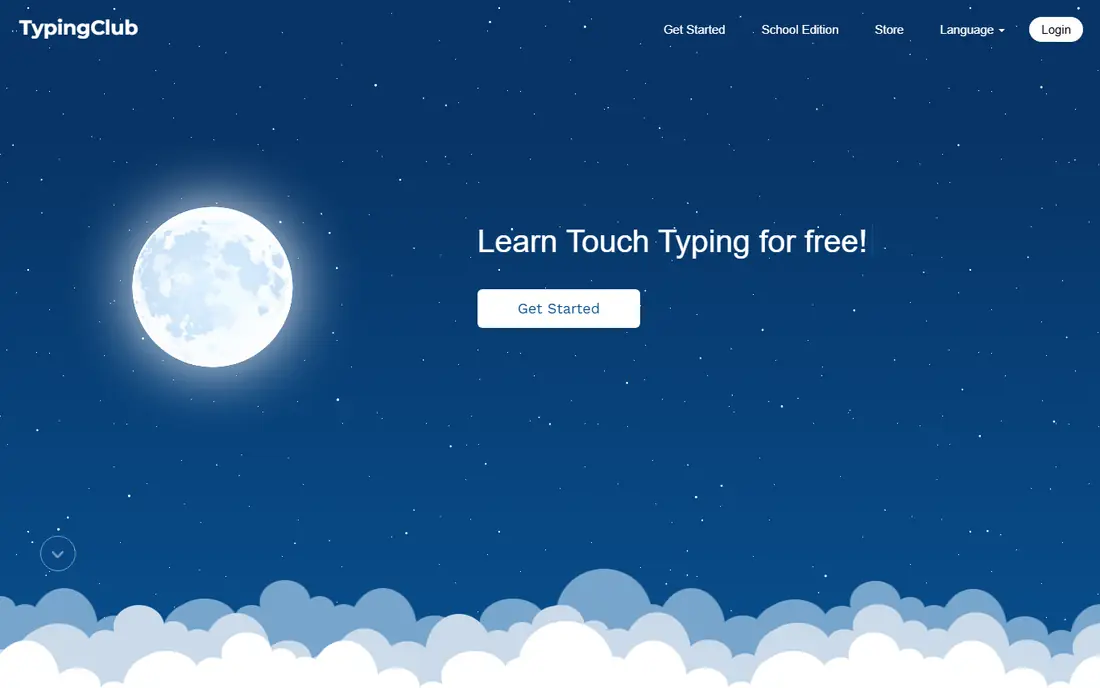
TypingClub is our pick for most beginners, because it teaches touch typing in small, ordered steps. Lessons start with the home row, add keys gradually, and use stars to show when a lesson is truly mastered. A hand posture guide shows correct finger placement on every key, which helps new learners avoid bad habits early.
The individual version is free, while schools can pay for an edition with fuller admin and reporting tools. That split keeps the core lessons open to anyone, while giving teachers the controls they need for a class. For a child, student, or adult starting from scratch, TypingClub is the easiest place to begin.
- Structured lessons from the home row up
- Stars and badges for motivation
- Free for individuals and schools
- Paid school edition needed for full admin tools
- Games are lighter than Nitro Type
- Design feels school-focused
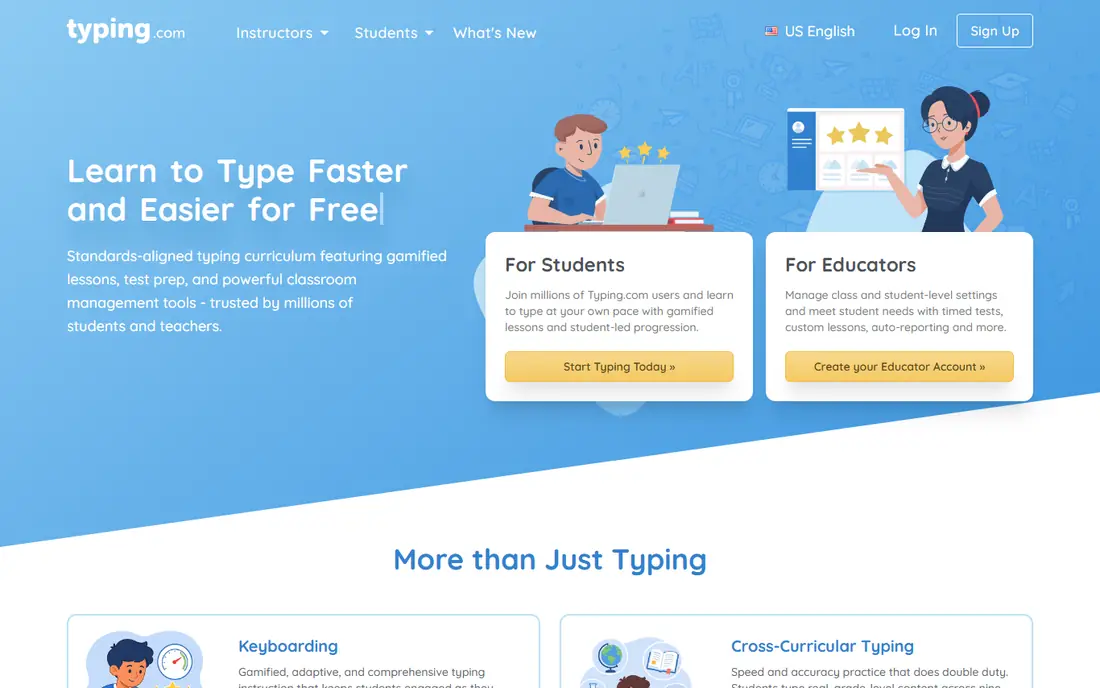
Typing.com offers a full typing curriculum free, supported by advertising, which makes it a strong choice for schools and families on a budget. Lessons cover keyboarding basics, speed, and accuracy, with tests and games alongside the core course. Teachers can set up students quickly and track progress through the free teacher tools.
The main trade-off is the ad-supported model and the need for an internet connection, since Typing.com runs in a browser. Schools that want an ad-free experience can upgrade. For a free, structured course that works on Chromebooks, tablets, and desktop browsers, Typing.com is hard to beat.
- Full curriculum free for students and teachers
- Lessons, tests, and games in one place
- Works in any modern browser
- Ads support the free version
- Offline use is not available
- Paid upgrade needed to remove ads for a class
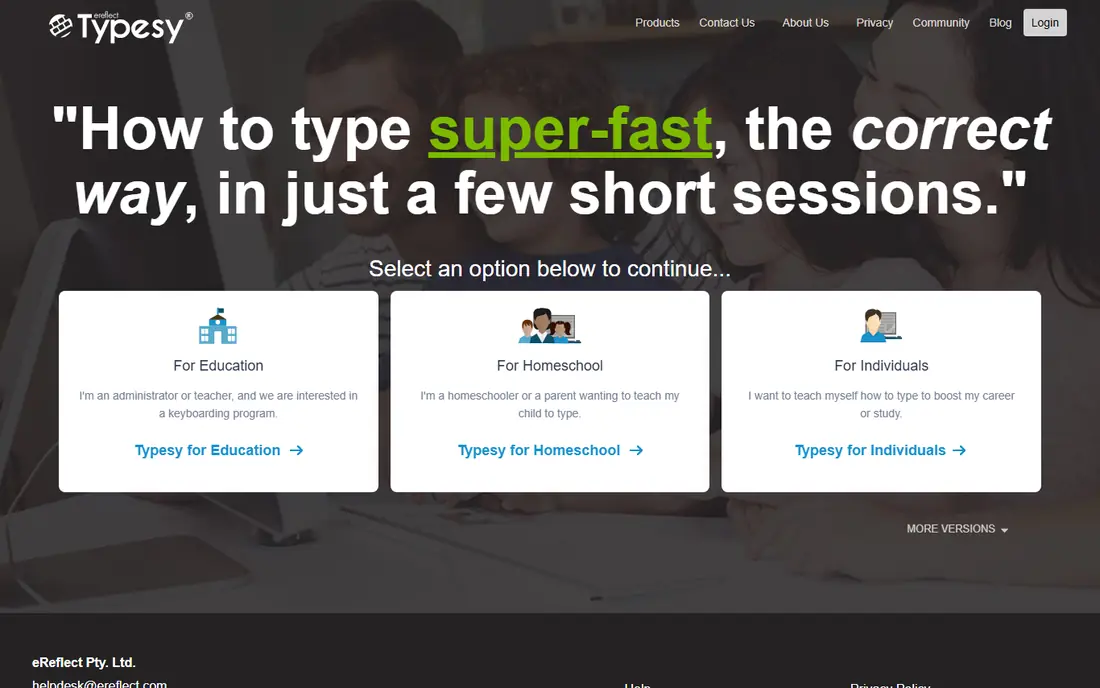
Typesy suits learners who want a complete course rather than a collection of tests. It offers a large lesson library, video guidance, adaptive exercises that adjust to weak keys, and progress tracking across devices. Homeschool and school versions add admin tools and multi-user support for families and classes.
Pricing varies by individual, homeschool, and school plans, so check the plan that matches your household or class size. The feature range can also feel busy at first compared with the simplicity of TypingClub. For an adult or family that wants one paid course to cover typing and related productivity skills, Typesy is a strong choice.
- Thousands of lessons and video tutorials
- Adaptive difficulty
- Cloud sync across devices
- Paid plans vary by user type
- Interface packs in many features
- Free options are more limited
Keybr suits typists who already know the keyboard layout but want to fix weak letters and build speed. It generates practice words from the letters you struggle with most, so time goes to the keys that slow you down. The layout is plain and focused, with speed and accuracy shown as you type.
It is not a beginner course. There is no step-by-step path from the home row, and the generated words can feel repetitive. For an intermediate typist who wants targeted drills without games or lessons, Keybr is one of the most efficient free tools available.
- Practice adapts to your weakest letters
- Clean, distraction-free layout
- No account needed to start
- No structured beginner course
- Practice text looks artificial
- Progress needs an account to save
Monkeytype is the favourite of many advanced typists for measuring and pushing speed. Tests can be set by time, word count, or quote, with options for punctuation, numbers, and difficulty. Detailed stats show words per minute, accuracy, and consistency, and accounts save personal bests and history.
Beginners should start elsewhere. Monkeytype assumes you already touch type and want to test and improve, rather than learn finger placement from scratch. For a typist chasing a higher speed score or tracking progress over months, it is the cleanest and most flexible free test tool here.
- Highly customisable speed tests
- Clean interface
- Detailed stats and personal bests
- Not a teaching course for beginners
- Settings can overwhelm new users
- No formal lesson path
Ratatype offers free typing tests, lessons, and group features in a simple package. Individuals can test speed and work through lessons, while teachers and teams can create groups, set exercises, and track members. Certificates for completed lessons give learners a small, shareable goal.
Lesson depth does not match TypingClub or Typesy, and the design feels older than newer tools. Advanced typists will also find fewer test options than Monkeytype. For a free tool that mixes tests, lessons, and group practice without a paywall for the basics, Ratatype is a practical choice.
- Free typing tests and lessons
- Group and classroom features
- Certificates for completed courses
- Lesson depth is thinner than TypingClub
- Design feels dated in places
- Advanced stats are limited
Nitro Type turns typing practice into car races, where faster and more accurate typing moves your car ahead. Kids compete against other players in real time, earn rewards, and customise cars as they improve. That game loop keeps many children practising longer than a plain lesson would.
Racing is a supplement, not a course. It does not teach correct finger placement step by step, so pair it with a structured tool such as TypingClub for younger learners. Parents should also check chat settings and in-game purchases. For motivation and fun practice after lessons, Nitro Type works well.
- Racing game format keeps kids engaged
- Typing races against other players
- Cars and rewards for progress
- Racing alone does not teach finger placement
- Chat and competition need supervision for young kids
- Ads and purchases exist
Mavis Beacon Teaches Typing is the classic name in typing courses, with structured lessons, practice games, and progress tracking that have served schools and families for many years. Lessons build finger placement and speed in order, and reports show accuracy and words per minute over time. Family and school editions cover multiple learners.
The trade-off is modernity. The interface feels older than browser-first tools, and pricing and platform details vary by edition, so check the current offer before buying. For a family that wants a traditional, self-contained course rather than a free browser tool, Mavis Beacon remains a recognisable choice.
- Long-running structured course
- Lessons, games, and progress reports
- Family and school options
- Pricing and platform details vary by edition
- Interface feels dated
- Fewer modern browser options than free rivals
TypingMaster suits Windows users who want a structured course plus a view of how they type outside lessons. The course covers touch typing basics and builds speed step by step, while the TypingMeter tool watches everyday typing and highlights keys and words that cause errors. Personalised exercises then target those weak spots.
It runs on Windows only, which rules it out for Mac, Chromebook, and tablet households. The interface also feels older than modern browser tools. For a Windows user who wants a complete course and real-world feedback in one package, TypingMaster is good value at its yearly price.
- Structured Windows course
- TypingMeter tracks real-world typing
- Personalised exercises based on weak keys
- Windows only
- Interface feels dated
- No browser or mobile course to match
How we picked these
We compared official product pages, lesson descriptions, and pricing pages for typing tools that are live in October 2026. We kept only tools that teach touch typing, test speed, or both, with a working free or trial route for most readers. We left out generic keyboard apps and tools that had closed or stopped updating their courses.
How to choose the right typing tool
Start with the learner, not the feature list. A young child needs games and short lessons, a student needs a structured school course, and an adult at work needs quick drills and speed tracking. A tool that fits the learner will get used, while a feature-rich tool that feels like homework will sit unused.
Build correct habits first
Speed follows accuracy, so choose a tool that teaches finger placement before it rewards fast, sloppy typing. Lessons that start on the home row and add keys slowly build muscle memory that lasts. Racing games and speed tests work best after those habits are in place, not instead of them.
Practice little and often
Ten to fifteen minutes a day beats a single long session each week for most learners. Pick a tool with progress tracking and daily goals, and set a regular time for practice. If the tool works in a browser, it is easier to fit into a school day or a work break than a tool that needs installation.
Check school and family needs
Teachers should check admin tools, student reporting, and privacy controls before choosing a class tool. Families should check how many users a plan covers and whether progress saves across devices. A free tool that covers one child may cost more than a family plan once several children need accounts.
Frequently asked questions
What is the best typing software for beginners?
TypingClub and Typing.com are the best free starting points, with structured lessons from the home row upward. Typesy and Mavis Beacon suit families that want a paid, complete course. Start with a free tool, and only pay if you need fuller tracking or offline use.
What are the best typing apps for kids?
TypingClub suits structured learning for kids, while Nitro Type adds racing-game motivation after lessons. Typing.com also offers lessons and games for younger learners. Pair games with lessons, so children learn correct finger placement as well as speed.
Is there free typing software that actually works?
Yes, TypingClub, Typing.com, Keybr, Monkeytype, and Ratatype all offer strong free versions. TypingClub and Typing.com cover full beginner courses, while Keybr and Monkeytype cover drills and speed tests. Paid tools add tracking, support, and ad-free use, but free tools cover most learners well.
How long does it take to learn touch typing?
Many learners see clear progress within a few weeks of short daily practice, and reach comfortable touch typing within a couple of months. Results vary with practice time, starting skill, and whether lessons are followed in order. Regular, accurate practice matters more than total hours in a single week.
What is the best typing software for adults at work?
TypingMaster suits Windows workers who want real-world tracking, while Keybr and Monkeytype suit adults who already touch type and want speed drills. Typesy suits adults who want a complete course with video guidance. Pick drills if you already know the layout, and a course if you still look at the keys.
Do typing games help or hurt learning?
Games help motivation and speed once basic finger placement is learned, but they can reinforce bad habits if used alone. Use a structured course for placement and accuracy first, then add games such as Nitro Type for fun practice. That mix keeps practice enjoyable without sacrificing technique.
Sources
See where you really rank - block by block
ProMapRanker scans Google Maps across a grid of your service area. Simple monthly plans from $19, white-label on every plan.
Start freeKeep reading
 twitch alternatives
Twitch Alternatives in 2026
Explore the best Twitch alternatives in 2026 for live streaming, with free platforms, monetisation options, audiences, chat tools, and tips for new streamers.
Read → firebase alternatives
Best Firebase Alternatives in 2026
Looking for Firebase alternatives? We compare 9 backend platforms for auth, databases, realtime, storage, functions, self-hosting, and pricing for your app.
Read → companies with best work life balance
Companies With Best Work Life Balance in 2026
See companies with best work life balance in 2026, ranked by employee ratings, with flexible work options, benefits, and what to check before applying.
Read →