 ProMapRanker
Best Tool to Resize Video Without Losing Quality

Key takeaways
- HandBrake is our pick for most people, thanks to free, precise control over codec, quality, and size.
- No resizer can promise zero loss on every file, since quality depends on the source, codec, and settings you choose.
- FFmpeg suits automation and batch work, while CloudConvert and Clideo suit quick online jobs.
- Keep the original file, use H.265 where devices support it, and preview the result before you delete anything.
Quick comparison
| Pick | Great for | Pricing starts at | Free tier | |
|---|---|---|---|---|
 HandBrake | Precise free resizing | Free | Yes | Visit |
 FFmpeg | Batch and automation | Free | Yes | Visit |
 VLC | Simple local conversion | Free | Yes | Visit |
 Clipchamp | Easy Windows and web edits | Free | Yes | Visit |
 CloudConvert | Browser conversions | Free | Yes | Visit |
 Clideo | Quick online resizing | See website | Yes | Visit |
 Kapwing | Social video resizing | See website | Yes | Visit |
 VEED | Online editing and resizing | See website | Yes | Visit |
The best tool to resize video without losing quality
Resizing video always involves a trade-off. Shrinking a file with a modern codec can look identical to the original on screen, but true lossless resizing barely shrinks anything. The tools below help you get close to that ideal, with honest notes on where quality can slip. We compared official feature pages, pricing, and public guides to build this list.
HandBrake is our pick for most people because it gives you the controls that matter most. You choose the codec, set a quality level, pick the resolution, and queue several files at once. H.265 at a quality setting around 22 to 24 often shrinks a file by half while looking the same in normal viewing.
The preset library helps beginners. Presets for phones, tablets, and web use give sensible starting points, and you can tweak one setting at a time as you learn. Batch encoding means you can set up a folder of clips and let HandBrake work through them.
The catch is time and learning. Encoding large files takes a while, and the many settings can confuse first-time users. Start with a preset, preview a short clip, and only then run the full file. Keep the original until you are happy with the result.
- Free and open source
- Precise codec and quality controls
- Batch queue
- Interface can overwhelm beginners
- Encoding takes time on large files
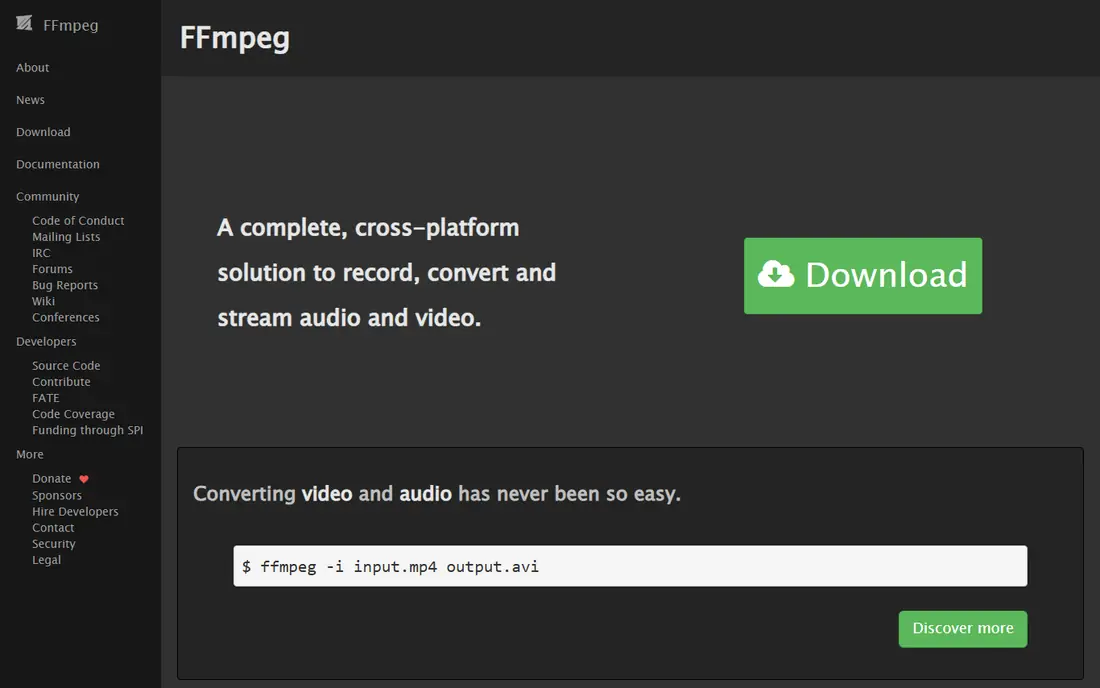
FFmpeg is the engine behind many other video tools, and using it directly gives you total control. You can resize, change codecs, adjust bitrate, and process hundreds of files with a script. For teams that resize video every day, that automation is hard to beat.
It also handles edge cases well. You can copy a stream without re-encoding when only the container needs to change, which preserves quality exactly. That trick alone makes FFmpeg worth learning for serious video work.
The downside is the command line. There is no friendly preset panel, and a wrong flag can produce a poor result. FFmpeg suits developers and power users who are happy to test commands on short clips first. Beginners should start with HandBrake instead.
- Full control over every setting
- Ideal for scripts and batches
- Free and open source
- Command line only
- Mistakes are easy without care
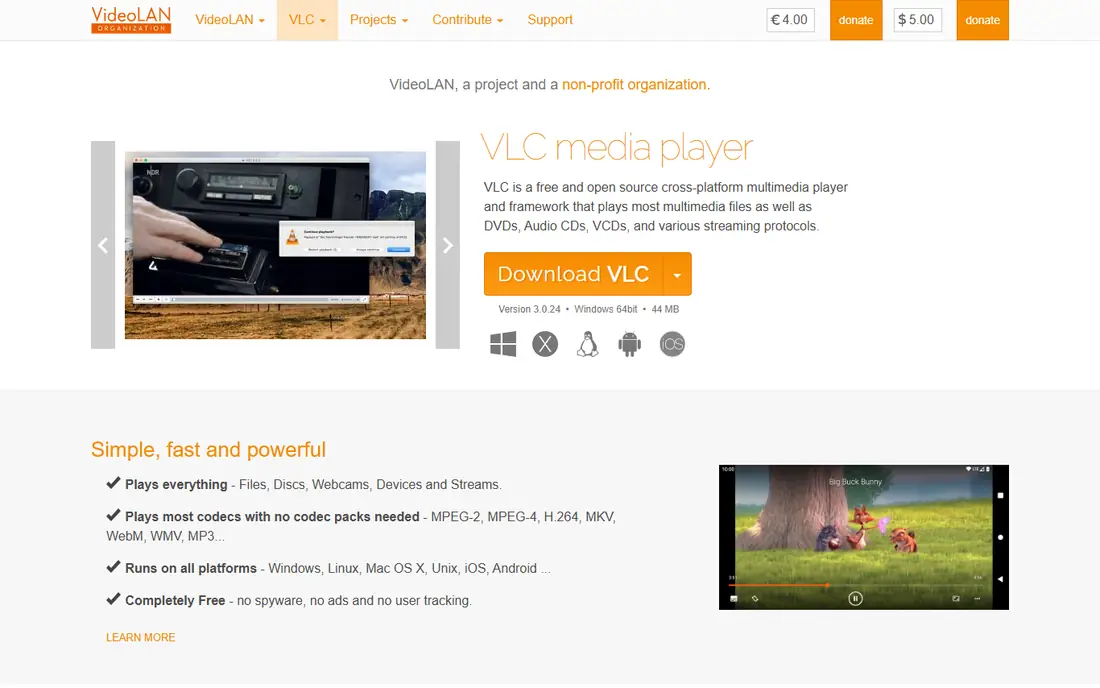
VLC is best known as a player, but it can also convert and resize video. That makes it a handy option when you already have it installed and need a quick job. Files stay on your computer, so there is no upload wait and no privacy worry.
The conversion panel lets you pick a profile, adjust resolution, and change codecs, though the settings are less clear than in HandBrake. For a simple shrink to a smaller size, VLC is enough. For careful quality work, HandBrake gives finer control.
The honest weakness is guidance. VLC does not explain quality trade-offs well, so beginners may pick a low bitrate and lose detail. Test a short clip first, and keep the original file until you check the output.
- Free and widely available
- No upload needed
- Handles many formats
- Conversion settings are buried
- Quality control is less precise than HandBrake
Clipchamp suits creators who want resizing inside a simple editor. You drop a clip in, trim it, add text if needed, and export at 720p or 1080p. The interface is far friendlier than HandBrake, and Windows 11 users may already have it installed.
Social creators will like the preset exports. You can resize for common platforms without learning codec settings, and the results look clean for short clips. That speed matters when you publish daily.
The limit is control. Clipchamp uses presets rather than fine codec settings, so you cannot tune quality as precisely as in HandBrake. Free exports also carry limits, so check the current plan before you rely on it for large files.
- Easy drag and drop editing
- Good for social exports
- Built into Windows 11
- Export quality depends on presets
- Free tier has limits
CloudConvert is a strong browser option when you cannot install software. You upload a file, pick the output format and size, and download the result. Format support is broad, and the options are clearer than on many free online tools.
It suits one-off jobs and work computers where installs are blocked. You can convert a clip for a client or a platform without touching your system. The interface stays simple, which helps occasional users.
The catch is the free tier. Recent guides list a 1 GB file cap and limited daily credits on free accounts, so large files may need a paid plan or a local tool. Upload time also adds up on slow connections. For big files, HandBrake is faster and free.
- No install needed
- Many formats
- Clear conversion options
- Free tier caps file size and daily credits
- Uploads take time
Clideo is built for quick online jobs. You upload a video, choose a new size or preset, and download the resized file. The steps are few, and the tool works on phones, tablets, and desktops without an install.
That simplicity suits social clips and one-off resizes. You do not need to learn codecs or bitrates to get a usable result. For a short clip that needs a new aspect ratio, Clideo is fast.
The trade-off is quality control and branding. Free exports may carry a watermark, and you have less say over codec settings than in a desktop tool. Check the output closely, and use HandBrake for files where quality matters most.
- Simple online resizing
- No install
- Works on any device
- Free exports may carry a watermark
- Quality depends on source and settings
Kapwing is popular with social teams because resizing is part of a fuller editor. You can resize for vertical, square, and wide formats, add captions, and export for each platform from one project. That workflow saves time when one clip must fit several feeds.
Collaboration is another plus. Teams can share projects and edit together in a browser, which suits remote creators. Templates for common social sizes speed up routine work.
The limit is the free tier. Recent guides note 720p exports with a watermark and a short export length on free accounts, so serious work needs a paid plan. Kapwing is best for social drafts and quick platform crops, not for final high-quality masters.
- Strong social format tools
- Easy resizing for platforms
- Team editing
- Free exports limited to 720p with watermark in recent guides
- Needs internet
VEED combines resizing with a full online editor, so you can trim, caption, and resize in one place. That suits creators who need a finished social clip, not just a smaller file. The interface is clean, and sharing links make review easy.
Its format tools cover the main social sizes, and captions help accessibility and silent viewing. For teams that publish short video often, VEED can replace several separate tools.
The downside is the free tier. Free exports carry a watermark in recent guides, and large uploads take time. For a final master file, a local tool like HandBrake gives better quality control and no watermark.
- Full online editor
- Resizing plus captions and edits
- Easy sharing
- Free exports carry a watermark in recent guides
- Upload time for large files
How we picked these
We compared official feature pages, pricing pages, and public guides for tools that resize or convert video. We kept only tools that exist and work today, and we favoured tools with clear quality controls, broad format support, and honest free tier limits. We did not claim hands-on testing. Quality depends on source and settings, so test a short clip before you process a full library.
How to resize without noticeable quality loss
Start by keeping the original file safe. Never overwrite it, since a bad resize cannot be undone from the smaller file alone. Next, choose a modern codec. H.265 often gives a smaller file than H.264 at the same visible quality, though older devices may prefer H.264. Use a quality-based setting rather than a fixed low bitrate, and keep the frame rate the same unless you have a reason to change it.
Then preview on the screen where viewers will watch. A file that looks fine on a phone may show banding on a large TV, especially in dark scenes. Check faces, text, and fast motion closely. If you see softness or blocky patches, raise the quality setting and try again. Small quality steps cost file size, but they protect the parts viewers notice most.
Frequently asked questions
Can you resize video with truly zero quality loss?
Only in narrow cases, such as copying a stream into a new container without re-encoding, or using a lossless codec that barely shrinks the file. Most resizing re-encodes the video, which drops some data. The goal is visible quality, where the result looks the same in normal viewing even though the file is smaller.
What is the best free tool to resize video?
HandBrake is our pick for most free users, thanks to its codec and quality controls and batch queue. FFmpeg is best for automation, and VLC is handy for a quick local job. Online tools suit one-off clips, but free tiers often cap size or add watermarks.
Does H.265 really keep more quality than H.264?
At the same visible quality, H.265 often produces a smaller file than H.264, by a useful margin in many guides. Device support matters, though, since older players may struggle with H.265. Use H.264 when compatibility matters most, and H.265 when size matters most.
Why does my resized video look blurry?
Blur usually comes from too low a bitrate, too low a resolution, or a poor source file. A low-quality source cannot gain detail by resizing, and aggressive compression will soften faces and text. Raise the quality setting, keep the resolution close to the source where possible, and preview before you finish.
Should I resize online or on my computer?
Local tools are better for large files, private footage, and careful quality work, since there is no upload and no free tier cap. Online tools are better for quick jobs on shared computers. For masters and large libraries, use HandBrake or FFmpeg and keep the original file.
Sources
- https://handbrake.fr
- https://ffmpeg.org
- https://www.videolan.org/vlc/
- https://clipchamp.com
- https://cloudconvert.com
- https://www.clideo.com
- https://www.kapwing.com
- https://www.veed.io
- https://clippie.ai/blog/best-video-compressor-tools-without-losing-quality-2026
- https://www.bukcil.com/finish/video-compressor-without-quality-loss.html
See where you really rank - block by block
ProMapRanker scans Google Maps across a grid of your service area. Simple monthly plans from $19, white-label on every plan.
Start freeKeep reading
 twitch alternatives
Twitch Alternatives in 2026
Explore the best Twitch alternatives in 2026 for live streaming, with free platforms, monetisation options, audiences, chat tools, and tips for new streamers.
Read → firebase alternatives
Best Firebase Alternatives in 2026
Looking for Firebase alternatives? We compare 9 backend platforms for auth, databases, realtime, storage, functions, self-hosting, and pricing for your app.
Read → companies with best work life balance
Companies With Best Work Life Balance in 2026
See companies with best work life balance in 2026, ranked by employee ratings, with flexible work options, benefits, and what to check before applying.
Read →