 ProMapRanker
Best Tool to Enhance Video Quality in 2026


Maximum upscale quality on a strong PC · Pricing starts at: $59 per month
Key takeaways
- Topaz Video is the quality benchmark for desktop upscaling, but it needs a strong graphics card and a subscription.
- DaVinci Resolve gives the best free route to cleaner color, noise reduction in Studio, and careful sharpening.
- Cloud tools such as TensorPix and Remini suit weak computers and short clips, with queues and limits to watch.
- No enhancer can recover detail the camera never recorded, so test on your own footage before you pay.
Quick comparison
| Pick | Great for | Pricing starts at | Free tier | |
|---|---|---|---|---|
| Topaz Video | Maximum upscale quality on a strong PC | $59 per month | Free trial | Visit |
 HitPaw VikPea | Simple one-click desktop enhancement | See website | Free trial | Visit |
 AVCLabs Video Enhancer AI | Desktop all-rounder for repair and upscale | See website | Free trial | Visit |
 DaVinci Resolve | Free editing plus color and cleanup | Free | Yes | Visit |
 Adobe Premiere | Editors who want enhancement inside a full editor | $22.99 per month | Free trial | Visit |
 TensorPix | Cloud upscaling with no install | See website | Yes | Visit |
 UniFab | Upscaling bundled with conversion and editing | See website | Free trial | Visit |
 Remini | Fast phone and web photo and video touch-ups | See website | Yes | Visit |
The best tools to enhance video quality
These eight tools cover the main ways to improve a clip: AI upscaling, noise removal, stabilization, color correction, and simple phone touch-ups.
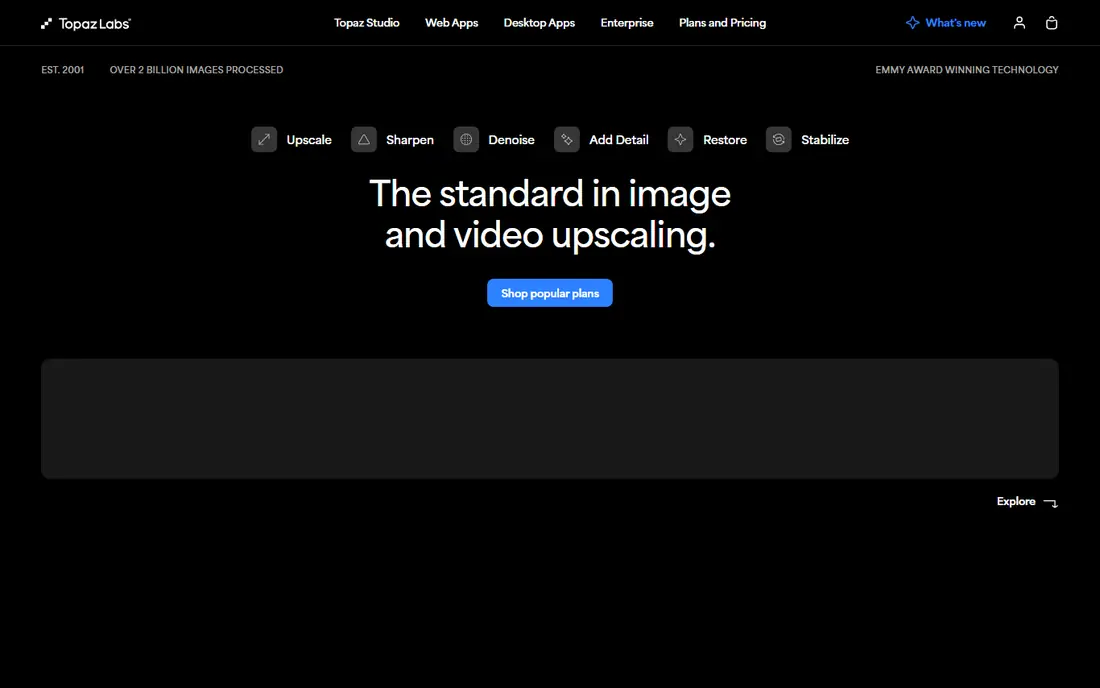
Topaz Video is our pick for most people who care most about the final picture and already have a capable desktop. Its models are built for distinct problems, so a noisy old clip, a soft phone clip, and a low-resolution archive clip can each get a different treatment. That control is the reason it shows up in so many professional workflows, and the reason casual users may find the settings list long at first.
The honest catch is cost and time. The monthly plan is expensive for occasional use, and a long 4K render can tie up a computer for hours. If your machine has a modest graphics card, try the trial on a short clip first and time it before you commit to a large project.
- Strong AI upscaling and face recovery
- Separate models for noise, blur, and frame rate
- Local processing keeps footage on your computer
- Subscription pricing is costly over time
- Renders can be slow
- Needs a capable graphics card

HitPaw VikPea suits creators who want a result without learning a full editor. You pick a model, choose an output resolution, and let the software handle the rest. Face enhancement is a clear strength, which helps with older webcam clips, social videos, and family footage where a face is the main subject.
The trade-off is control. When a clip needs gentle treatment, the presets can push sharpness further than you want, so check faces and text closely before exporting a full video. It is a good middle option between a phone app and a professional upscaler.
- Clear presets for faces, anime, and general footage
- Works on Windows and Mac
- Beginner-friendly layout
- Fewer manual controls than Topaz Video
- Some results can look over-sharpened
- Pricing varies by plan length
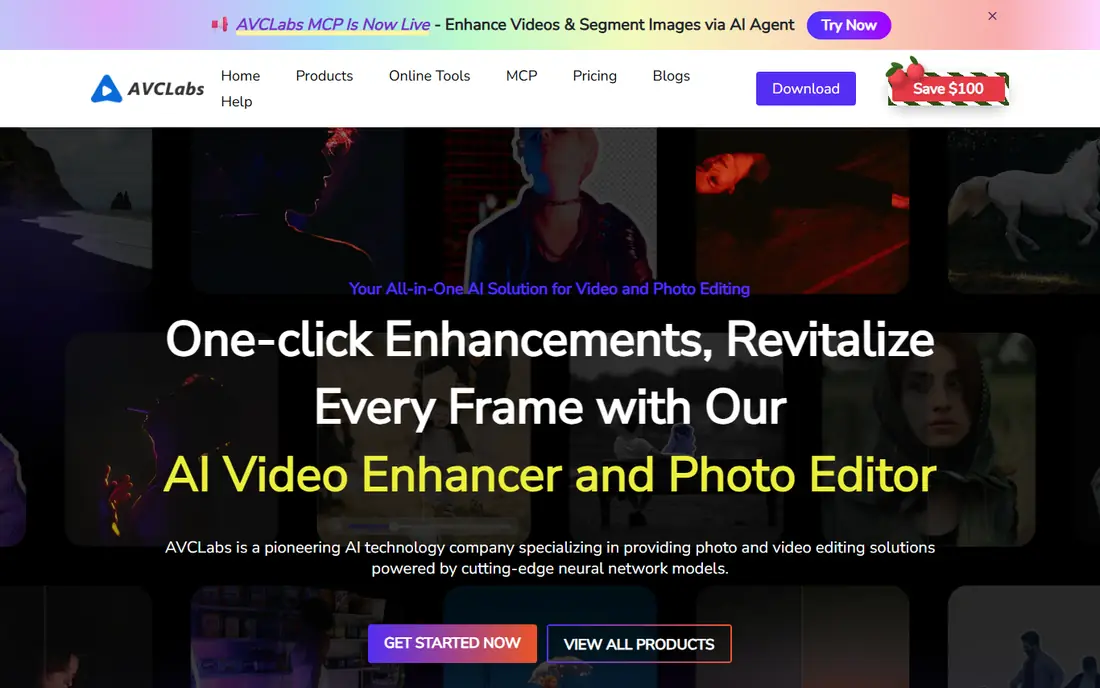
AVCLabs is a steady choice for people restoring mixed footage, from VHS transfers to compressed phone clips. The interface stays out of the way, and the combination of denoise, deblur, and stabilization covers the most common faults in one pass. For a family archive project, that simplicity matters more than having dozens of models.
Speed is the main limit. On a mid-range laptop, long clips take patience, and the trial limits what you can export. Plan to run enhancements overnight for larger batches, and keep the original files so you can reprocess a clip if a setting proves too strong.
- Upscaling to 4K and 8K
- Face restoration and stabilization in one app
- Straightforward interface
- Exports can be slow on mid-range laptops
- Fewer advanced models than Topaz Video
- Trial output is limited
DaVinci Resolve is not a one-click enhancer, and that is both its strength and its barrier. The free version gives you professional color tools, stabilization, sharpening, and audio cleanup, which can fix many clips without any AI upscaling at all. Poor white balance, dull contrast, and shaky handheld footage often improve more from careful color and stabilization than from added resolution.
If you buy Studio, you gain noise reduction and other AI tools, plus output above 4K. The catch is time: learning the color page takes effort, and the interface can feel large for a single clip. For creators who already edit, though, it is the best value in this list.
- Full editor with color, audio, and effects
- Free version exports up to 4K
- Studio adds AI noise reduction and higher resolutions
- Steep learning curve
- Studio is a separate one-time purchase
- Heavy projects need strong hardware
Adobe Premiere fits editors who need enhancement as one step inside a larger edit, not as a separate job. You can stabilize, color correct, clean up speech, and export for several platforms without leaving the timeline. Enhance Speech is genuinely useful for interviews and vlogs recorded in noisy rooms, where dialogue matters more than pixel detail.
The weakness is specialization. Premiere does not match a dedicated AI upscaler for rescuing very low-resolution footage, and the subscription means you lose access if you stop paying. It makes sense if you already edit in Adobe tools, and less sense as a purchase for enhancement alone.
- Full editing timeline with effects and audio tools
- Enhance Speech for dialogue
- Wide format and plugin support
- Subscription only, with no perpetual license
- Enhancement is less specialized than Topaz Video
- Needs a steady subscription to keep access
TensorPix is the practical pick for a weak laptop, a Chromebook, or a one-off clip. Because processing happens in the cloud, your computer only needs to upload and download. That makes it useful for travel, for school machines, and for anyone who does not want to install a heavy desktop app.
The limits are queues, upload time, and control. Large files take a while to move, and you cannot fine-tune models the way a desktop app allows. For private or client footage, check the privacy terms before uploading, and keep a local copy of the original.
- No powerful computer needed
- Upscale, stabilize, and raise frame rate in a browser
- Free previews on some clips
- Internet dependent, with possible queues
- Fewer fine controls than desktop tools
- Uploads raise privacy questions for sensitive footage
UniFab suits people who do more than enhance: converting formats, trimming clips, and preparing files for different platforms. Having those tools in one place saves switching between apps, and the cloud option helps when local hardware is limited. For a small content team, that breadth can justify the price.
The downside is focus. A bundle will always carry tools you never use, and the sheer number of modules can slow down a simple job. Compare the lifetime or subscription cost against a single upscaler plus a free editor before you buy the whole suite.
- Video upscaling plus conversion, compression, and editing tools
- Cloud option for weaker machines
- Up to 16K output listed
- Bundle pricing can cost more than a single-purpose tool
- Interface covers many tools, so finding the right one takes time
- Results vary by source
Remini is best for quick social clips, old phone videos, and photos that need a fast lift. The phone workflow is the point: open a clip, enhance it, and share it without moving files to a desktop. For creators posting daily, that speed often matters more than squeezing out the last bit of detail.
It is not a replacement for a desktop upscaler on long, detailed footage. Faces can look smoothed, and complex motion can produce artifacts. Use it for short clips and previews, and move to a desktop tool when a project deserves careful treatment.
- Very fast results on phones
- Good for faces and short social clips
- Free tier with ads on some plans
- Less control than desktop upscalers
- Quality varies on long or complex clips
- Subscription needed for full use
How we picked these
We compared official feature pages, pricing pages, and app store listings, plus public reviews, for tools that enhance existing footage rather than generate new video. We favored tools that are still sold and supported in October 2026, that state their output limits plainly, and that cover different budgets and hardware levels. We did not claim hands-on testing, and we left out tools that only upscale single images or that had no clear current product page.
What to check before you pay
Start with the fault, not the resolution
Upscaling helps a soft clip, but it will not fix bad exposure, clipped audio, or heavy compression artifacts on its own. Watch the clip first and name the main problem: noise, blur, shake, color, or low resolution. Pick the tool whose strength matches that fault, and test a short section before processing a full video.
Test on your own footage
Every enhancer behaves differently on faces, text, animation, and fast motion. Run the same 30-second clip through two tools when you can, and look at faces, small text, and edges in motion. A result that looks clean on a still frame can flicker or warp once the clip plays.
Watch the total cost and the hardware
Desktop AI tools need a strong graphics card and time, while cloud tools need upload bandwidth and may charge by credits or minutes. Add storage too, since enhanced files are larger than the originals. Keep the original files, export a test file, and only then commit to a full batch.
Frequently asked questions
What is the best app to enhance video quality?
For maximum desktop quality, Topaz Video is the usual pick, while DaVinci Resolve is the best free route for color and cleanup. For a quick phone fix, Remini is faster and simpler. The best choice depends on your hardware, your clip length, and how much control you want.
What is the best software to enhance video quality for old footage?
Topaz Video and AVCLabs are strong for old, noisy, or low-resolution footage, because they offer dedicated denoise and face models. Start with a short test, since heavy settings can smooth faces or invent detail that was never there.
Can a tool really turn a blurry video into 4K?
It can produce a 4K file, but it cannot recover detail the camera never captured. AI models predict plausible texture, which looks better on a large screen but is not the same as a true 4K recording. Treat enhanced footage as presentation quality, not as evidence or archival truth.
Is there a free tool to enhance video quality?
Yes. DaVinci Resolve is free and covers color, stabilization, and sharpening, and TensorPix and Remini offer free tiers with limits. Free tiers often cap resolution, add watermarks, or limit exports, so check those limits before starting a project.
Do I need a powerful computer for video enhancement?
For desktop AI tools, yes, a capable graphics card and enough memory make a large difference in speed. Cloud tools such as TensorPix avoid that need, but they depend on your internet connection and upload time. If your computer struggles, try a cloud tool or a short desktop test first.
How long does video enhancement take?
It depends on clip length, output resolution, and hardware. Short social clips may finish in minutes, while a long 4K upscale on a desktop can take hours. Cloud queues add more time at busy periods, so start long jobs early and keep the original file safe.
Sources
See where you really rank - block by block
ProMapRanker scans Google Maps across a grid of your service area. Simple monthly plans from $19, white-label on every plan.
Start freeKeep reading
 peec ai alternatives
Peec AI Alternatives in 2026
Compare the best peec ai alternatives for tracking brand visibility in AI answers, from Profound and Otterly to Scrunch, AthenaHQ, Goodie and more in 2026.
Read → janitor ai alternatives
Janitor AI Alternatives in 2026
Compare the best Janitor AI alternatives for character chat and roleplay, with pricing, safety notes, moderation practices, and honest trade-offs in 2026.
Read → best tools for seo e-commerce
Best Tools for SEO E-Commerce in 2026
We compared the best tools for SEO e-commerce, from keyword research and audits to product page optimization, with current pricing and store trade-offs.
Read →