 ProMapRanker
Best Tool to Enhance Photos Online in 2026

Key takeaways
- Let's Enhance and Fotor are the easiest online-first picks, while Topaz Photo AI suits photographers who want desktop repair quality.
- Remini is strongest for faces and old portraits on a phone, but check weekly billing carefully before you subscribe.
- Upscayl is the best free option for upscaling on a computer, with no subscription and offline processing.
- Enhancement can improve a photo, but it cannot recover detail that was never captured, so keep expectations realistic.
Quick comparison
| Pick | Great for | Pricing starts at | Free tier | |
|---|---|---|---|---|
 Let's Enhance | Online upscaling and cleanup | See website | Yes | Visit |
 Fotor | One-click online enhancement | Free | Yes | Visit |
 Remini | Face and portrait enhancement | Free | Yes | Visit |
 Topaz Photo AI | Desktop sharpen, denoise, and upscale | See website | Free trial | Visit |
 Upscayl | Free offline upscaling | Free | Yes | Visit |
 Pixlr | Browser editing with enhancement | Free | Yes | Visit |
 PhotoRoom | Product photo enhancement | Free | Yes | Visit |
 VanceAI | Web enhancement and upscaling | See website | Yes | Visit |
The best tools to enhance photos online
Enhancing a photo online can mean several different jobs: sharpening a soft shot, removing noise, enlarging a small image, fixing color, or restoring an old portrait. No single tool is best at all of them. These eight cover web enhancers, mobile face repair, and desktop quality, so you can pick by the photo in front of you rather than by a headline claim.
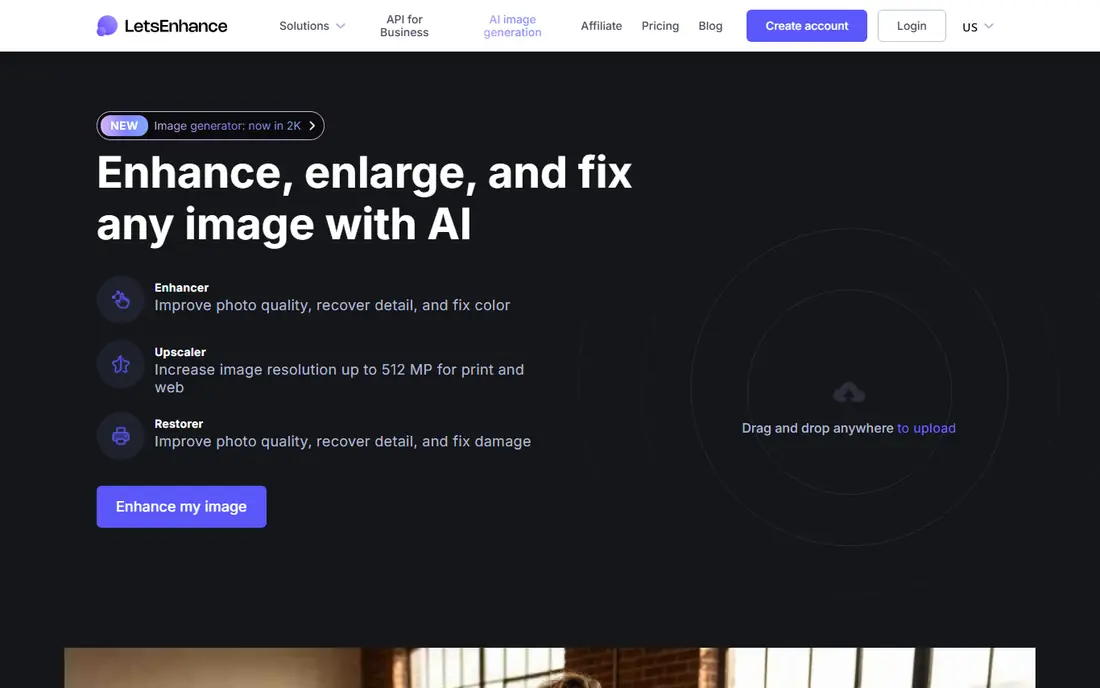
Let's Enhance is our first pick for a straightforward online enhancer. You upload a photo, choose an upscale and cleanup level, and download a larger, cleaner result without installing software. That simplicity suits online sellers, bloggers, and anyone who needs a better version of an image for a website or listing.
The limit is the original file. A heavily blurred or tiny photo will look cleaner, but it will not gain true detail that was never there. Free credits also run out quickly if you process many images, so check the current credit plan before you build a workflow around it.
- Simple web upload and upscale workflow
- Useful for product and web images
- API option for batch work
- Paid credits needed for larger or frequent jobs
- Quality varies on very blurry originals
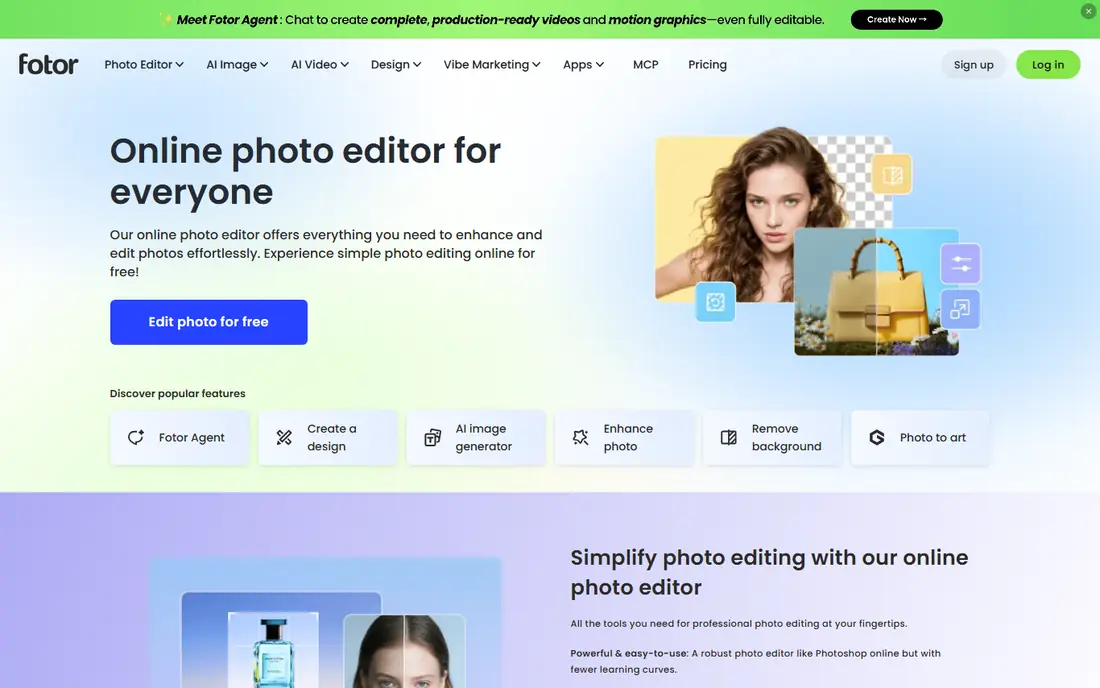
Fotor is a good all-round online choice when enhancement is one part of a larger edit. One-click enhancement fixes light, color, and sharpness quickly, and the same editor lets you crop, retouch, and add text without switching tools. For social posts, headshots, and marketing images, that combination saves time.
Power users will notice the ceiling. Fotor is not a replacement for a desktop RAW editor or a dedicated repair suite, and some batch and high-resolution features sit behind a paid plan. Use it for fast, good-looking results, and move to Topaz or Lightroom when a photo needs careful, manual repair.
- One-click enhancement plus full online editor
- Batch tools on paid plans
- Easy for beginners
- Best features need a paid plan
- Free exports may carry limits
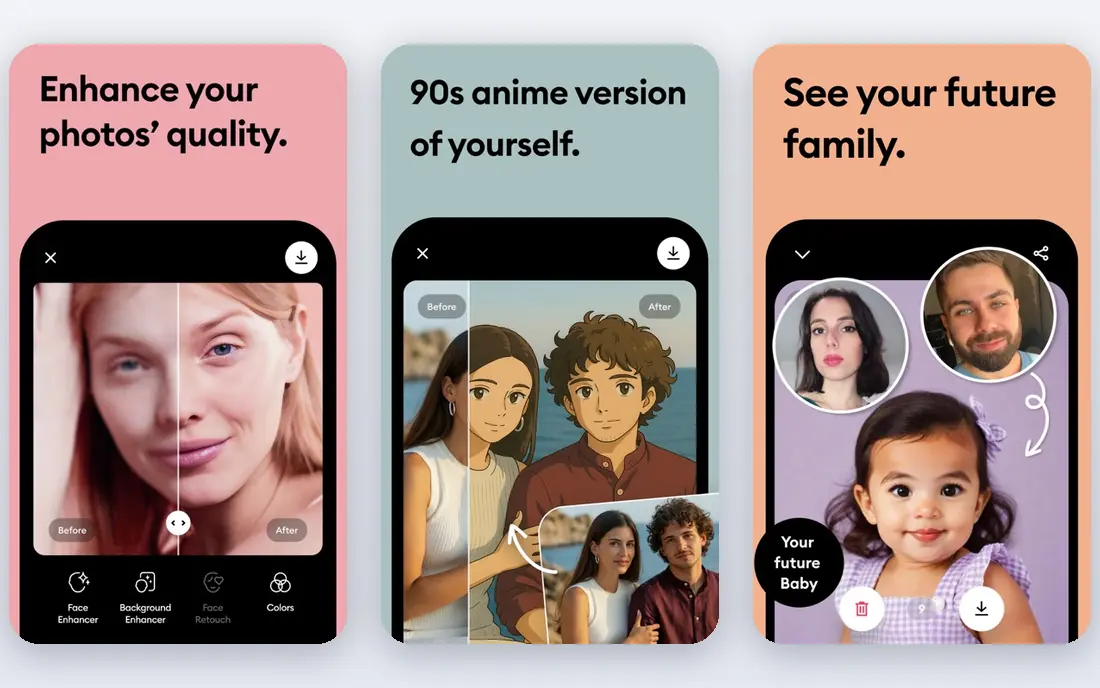
Remini earns its place for one job: making faces clearer. Old family photos, blurry group shots, and low-light portraits often improve visibly, with facial detail that general enhancers miss. The mobile workflow is simple, which matters when the photos live on a phone.
Billing needs care. Remini has offered weekly plans on app stores, and a weekly price adds up much faster than a monthly price. Check the exact billing period, set a reminder if you subscribe, and cancel promptly if you only need it for one restoration project.
- Strong face restoration for old and blurry portraits
- Simple mobile workflow
- Useful for family photos
- Weekly billing can add up fast
- Quality on non-face subjects is less impressive
Topaz Photo AI is the quality pick for photographers who want the best repair, even if it means using desktop software rather than a browser. It combines sharpening, noise removal, and upscaling in one workflow, with controls to dial back effects that make skin look artificial. For noisy high-ISO shots or soft wildlife and sports photos, it often beats a one-click web tool.
It is not the fastest option for a single web image. Installation, processing time, and price make it better for regular photo work than for a one-off fix. If you enhance photos often, though, the control and output quality justify the extra steps.
- Strong sharpen, denoise, and upscale models
- Works as a standalone app or plugin
- Good for photographers with large libraries
- Desktop only, not a pure online tool
- Processing can be slow on older computers
Upscayl is the best free enhancer for computer users who care about privacy and cost. It runs offline, so your photos do not need to upload to a server, and it supports batch upscaling with several AI models. For enlarging images for print or a website, it is a serious alternative to paid web services.
Beginners may need a few tries to pick the right model for a photo, since different models suit different subjects. The interface is also simpler than a commercial editor. Those are fair trade-offs for a free, private, and capable upscaler.
- Free and open-source desktop app
- Offline processing keeps photos private
- Batch upscaling support
- Desktop only
- Interface is plainer than paid tools
- Model choice can confuse beginners
Pixlr suits users who want enhancement plus real editing in a browser. You can enhance a photo, then crop, retouch, and adjust it with layers, all without installing software. That makes it useful on a shared computer, a Chromebook, or a work machine where installs are restricted.
Free users will meet ads and limits, and the most useful AI features often need a paid plan. Pixlr is still a strong free starting point, especially for users who already edit in a browser and want one tool for several jobs.
- Full browser editor with layers
- AI enhancement and background tools
- No install needed
- Ads and limits on the free plan
- Some AI features need a paid plan
PhotoRoom is the pick for online sellers who need clean product photos. It removes backgrounds, tidies up product shots, and creates marketplace-ready images with consistent staging. For an Etsy, Amazon, or Shopify seller, that workflow matters more than general portrait repair.
It is less suited to outdoor scenes or portrait restoration, where Remini or Topaz do better work. Free exports also carry limits, so check resolution and watermark terms before you rely on the free plan for a full catalog.
- Strong background removal and product cleanup
- Templates for marketplace listings
- Mobile and web options
- Built mainly for product work
- Free exports may be lower resolution or limited
VanceAI offers a broad set of web enhancement tools in one place, from upscaling and denoising to portrait repair. That breadth suits users who want to try several fixes on the same photo without switching sites. Batch processing helps when a set of images needs the same treatment.
Credit pricing is the catch. Occasional use is affordable, but frequent or large jobs consume credits quickly. Test VanceAI on your own photos first, compare the result with a free option such as Upscayl, and only buy credits when the paid result is clearly better for your use.
- Web tools for upscale, denoise, sharpen, and portrait repair
- Batch options
- No install needed
- Credit-based pricing can get expensive for frequent use
- Results vary by photo type
How we picked these
We compared official product pages, pricing pages, and app store listings, and we favored tools that are still available in October 2026 and that genuinely enhance photos, rather than only applying filters. We included web, mobile, and desktop options, since the keyword covers online use but many readers also need a desktop result. Where a price could not be confirmed on the vendor site at the time of writing, we wrote See website instead of guessing.
How to get a better enhancement result
Start with the best original you have. An enhancement tool works from the pixels in your file, so a larger, less compressed original will always beat a screenshot or a heavily compressed social download. If you can, use the original camera file or the highest-resolution copy available.
Test two tools on the same photo
Enhancement quality is subjective, especially for skin, text, and fine detail. Run the same photo through two tools, zoom to 100 percent, and check edges, skin texture, and text. A tool that looks good at thumbnail size can still produce waxy skin or distorted text at full size. Keep the version that preserves the subject, not just the version that looks sharpest at a glance.
Watch for invented detail
AI enhancers can invent plausible texture where none existed, which matters for product photos, documents, and historical images. If accuracy matters, use a conservative setting, compare with the original, and avoid presenting an enhanced photo as an exact record. For product listings, disclose heavy retouching when it could mislead a buyer about condition or appearance.
Frequently asked questions
What is the best tool to enhance photos online for free?
Upscayl is the best free desktop option, while Fotor, Pixlr, and Let's Enhance offer free online starting points. The best free choice depends on whether you need upscaling, one-click fixes, or full browser editing. Test two free tools on the same photo before you pay for anything.
Can an enhancer fix a very blurry photo?
It can improve a blurry photo, especially a face with Remini or a noisy shot with Topaz Photo AI, but it cannot recover detail that was never captured. Very blurry originals will look cleaner, yet still soft, and AI tools may invent texture. Keep expectations realistic and start from the best original file you have.
Is it safe to upload personal photos to an online enhancer?
Check the privacy policy before you upload sensitive or family photos, and prefer offline tools such as Upscayl for private images. Many web enhancers store uploads for processing, and terms differ by service. Avoid uploading identity documents or photos of children to a service you have not checked.
Which enhancer is best for product photos?
PhotoRoom is built for product cleanup and marketplace listings, while Let's Enhance suits web upscaling for catalog images. For high-volume product work, compare batch pricing and export resolution, since free plans often limit both.
Do photo enhancers work on old black-and-white photos?
Yes, with limits. Remini and general enhancers can sharpen faces and reduce noise in scanned old photos, and colorization tools exist in some editors. Scan at high resolution first, since a low-quality scan limits what any enhancer can do.
Sources
See where you really rank - block by block
ProMapRanker scans Google Maps across a grid of your service area. Simple monthly plans from $19, white-label on every plan.
Start freeKeep reading
 top custom software development company
Top Custom Software Development Company in 2026
Looking for a top custom software development company? We compare 9 firms for web, mobile, and enterprise software, covering strengths and fit for 2026.
Read → tableau alternatives
Tableau Alternatives in 2026
Compare the best Tableau alternatives for 2026, from Power BI to Metabase, with prices, hosting options, and picks for small teams and enterprises today.
Read → microsoft teams alternatives
Best Microsoft Teams Alternatives in 2026
Looking for microsoft teams alternatives? We compare 9 chat and video tools for 2026, covering free plans, pricing, meetings, and integrations for teams.
Read →