 ProMapRanker
Best Tool for Editing PDF Documents in 2026

Key takeaways
- Adobe Acrobat is the most complete PDF editor, especially for forms, redaction, and accessibility work.
- PDFelement and Foxit PDF Editor offer strong desktop editing at a lower cost than Acrobat for many users.
- Smallpdf and Sejda suit quick browser edits, while PDFgear is a strong free desktop option.
- Check whether you need true text editing, OCR for scans, or e-signatures, since tools differ sharply on those jobs.
Quick comparison
| Pick | Great for | Pricing starts at | Free tier | |
|---|---|---|---|---|
 Adobe Acrobat | Complete PDF editing | See website | Free trial | Visit |
 Foxit PDF Editor | Acrobat-class desktop editing | See website | Free trial | Visit |
 PDFelement | Value desktop editing with AI | $79.99 per year | Free trial | Visit |
 Smallpdf | Quick browser edits | See website | Yes | Visit |
 PDF Expert | Mac and iPad editing | $80 per year | Free trial | Visit |
 Sejda | Browser and desktop editing | See website | Yes | Visit |
 Nitro PDF Pro | Office-style PDF editing | See website | Free trial | Visit |
 PDFgear | Free desktop editing | Free | Yes | Visit |
The best tools for editing PDF documents
Editing a PDF can mean changing a few words, filling a form, merging pages, signing a contract, or turning a scan into searchable text. Those are different jobs, and a tool that is excellent for one can be weak for another. These eight cover desktop suites, browser editors, and a free option, so you can match the tool to the document in front of you.
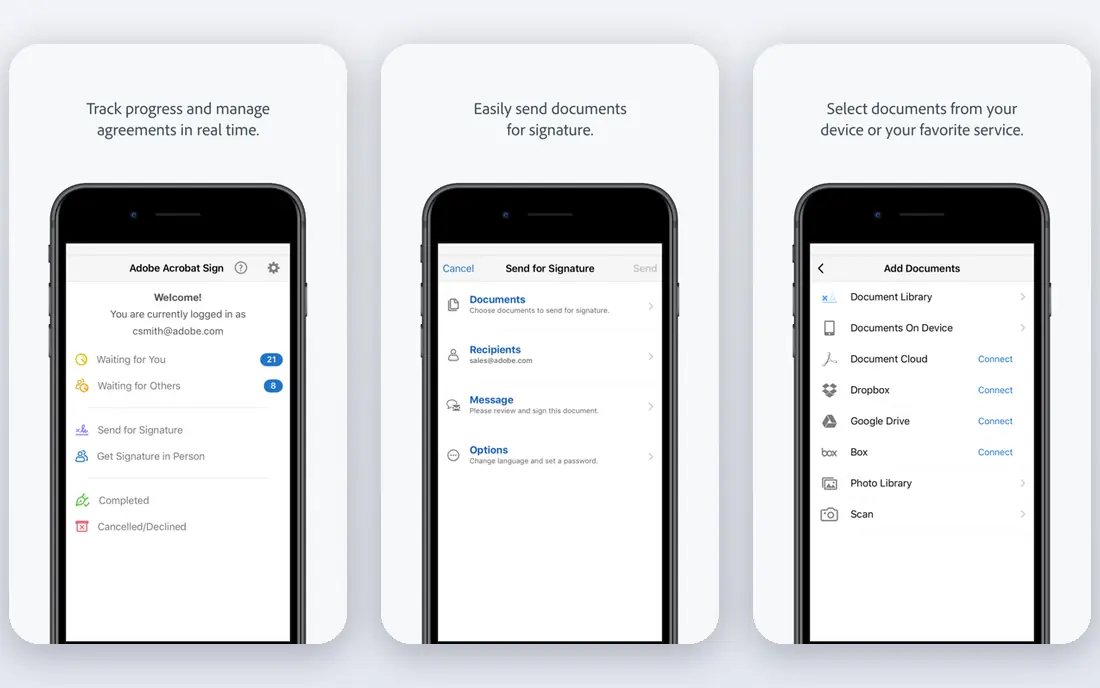
Adobe Acrobat remains the reference PDF editor for a reason. It edits text and images directly, builds and fills forms, handles signatures, redacts sensitive content, and checks accessibility, all in a tool that other PDF software is measured against. For legal, finance, or client-facing work, that completeness and compatibility matter, since files behave as recipients expect.
The cost and weight are the drawbacks. A subscription is hard to justify if you edit PDFs only a few times a month, and simple tasks can feel buried in menus. Occasional users should try a free or browser tool first, and move to Acrobat when forms, signatures, or accessibility work become regular.
- Full text, image, form, and page editing
- Strong e-signature, redaction, and accessibility tools
- Wide compatibility
- Subscription cost is high for occasional use
- Interface can feel heavy for simple edits
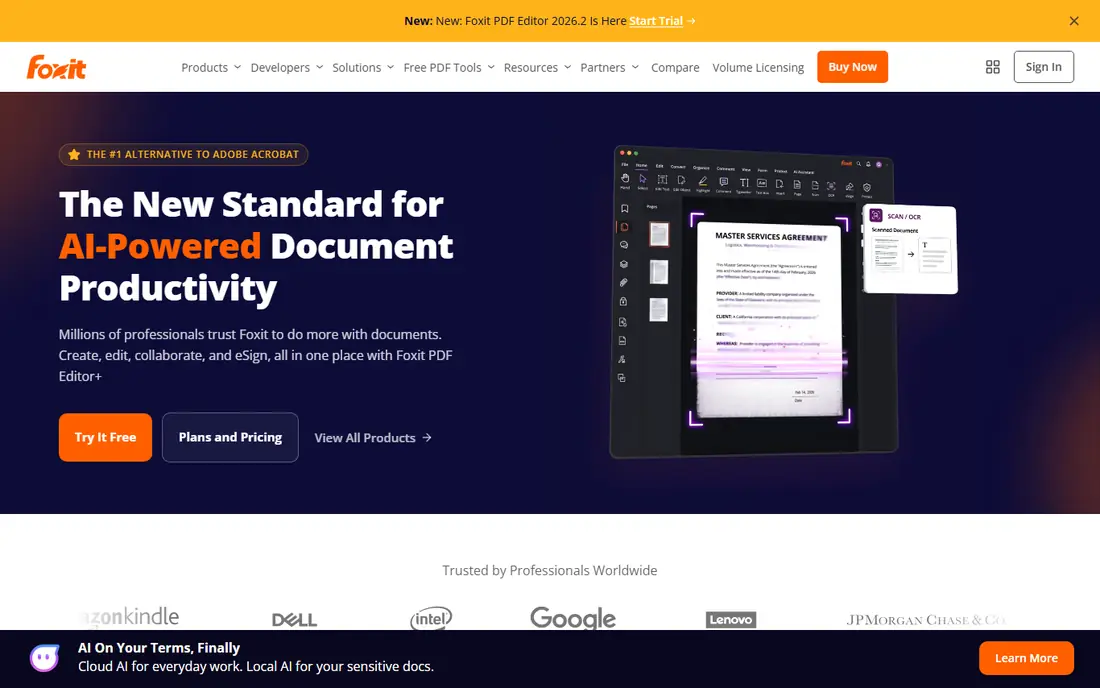
Foxit PDF Editor is the closest desktop alternative to Acrobat for business teams. It covers text editing, forms, comments, signatures, and document protection, with an interface that feels familiar to Office users. Teams that standardize on Foxit often do so because it covers daily PDF work without Acrobat pricing for every seat.
Plan differences need checking. Some features, integrations, and mobile options depend on the tier you buy, so compare the plan details against your actual tasks before you commit. For core editing and forms, though, Foxit is a credible, long-standing alternative.
- Strong editing, forms, and collaboration tools
- Familiar Office-style interface
- Good for business teams
- Pricing varies by plan and platform
- Some advanced features need higher tiers
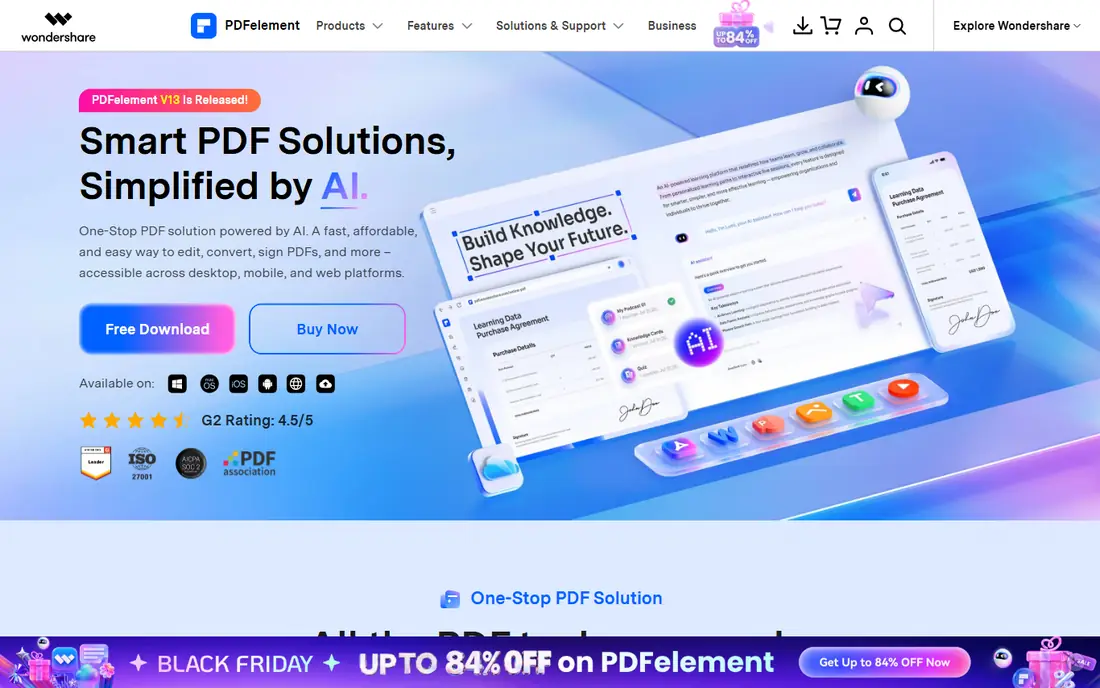
PDFelement is our value pick for users who need a full desktop editor without Acrobat pricing. It edits text and images, converts files, runs OCR on scans, builds forms, and adds AI summarization and translation features in recent plans. For freelancers and small businesses, that breadth at a lower yearly price is attractive.
Signature-heavy workflows are where Acrobat still leads. Bulk sending, branded requests, and complex signing routes are stronger in Acrobat. If your main work is editing, converting, and OCR, PDFelement covers it well, and a perpetual license option can reduce long-term cost further.
- Full editing, OCR, forms, and AI features at a lower price
- Perpetual license options in some plans
- Works on Windows, Mac, and mobile
- E-signature workflows are less deep than Acrobat
- AI features may use separate credits or limits
Smallpdf is ideal for quick, browser-based PDF jobs. Merging files, splitting pages, compressing a large file for email, and converting to Word or image formats take only a few clicks, with no install needed. For a student, job seeker, or office worker with occasional PDF tasks, that speed is the main selling point.
It is not a full desktop editor. Editing large blocks of text, building complex forms, or running OCR on a long scan is better done in Acrobat, Foxit, or PDFelement. Use Smallpdf for fast file tasks, and keep a desktop editor for serious document work.
- Easy browser tools for merge, split, compress, and convert
- Clean interface
- Useful for occasional edits
- Free use has daily limits
- Deep text editing is weaker than desktop suites
PDF Expert is the best pick for Mac and iPad users who edit PDFs often. It opens files quickly, annotates cleanly with Apple Pencil support on iPad, fills forms, and signs documents without the heavier feel of Acrobat. For a Mac-based freelancer or student, it feels like a native part of the workflow.
Cross-platform teams should check coverage. PDF Expert is strongest in Apple environments, and Windows or Android users will get a better fit from Foxit, PDFelement, or Nitro. Within its home platform, though, it is one of the most pleasant PDF editors available.
- Fast and polished on Mac and iPad
- Good annotation, forms, and signing
- Syncs well in Apple workflows
- Windows and Android support is more limited
- Subscription cost for full features
Sejda suits users who want browser convenience with a privacy-conscious desktop option. The web editor handles text edits, annotations, forms, merging, and signing, while the desktop app can process files locally without uploading them. That local option matters for sensitive documents such as contracts or medical forms.
Free limits are the main constraint. Daily task counts and file sizes are capped, so frequent users will need a paid plan. The design is also plain compared with PDF Expert or Acrobat. For careful, occasional editing, especially of sensitive files, Sejda is a thoughtful choice.
- Browser editor with desktop app option
- Good form filling and annotation
- Privacy-friendly desktop processing
- Free plan limits tasks per day and file size
- Interface is functional rather than polished
Nitro PDF Pro appeals to Windows teams that live in Microsoft Office. The ribbon interface feels familiar, editing and conversion are straightforward, and signing and collaboration cover common business needs. For an office that wants one PDF tool for most staff, Nitro is easy to train and deploy.
Check platform details before you buy. The Mac version has historically differed from Windows, and pricing can vary by channel, so confirm the current plan on the vendor site. For Windows-centered teams, Nitro remains a solid Acrobat alternative.
- Familiar ribbon interface for Office users
- Strong editing, conversion, and signing
- Good for Windows teams
- Pricing is not always published clearly
- Mac version differs from Windows version
PDFgear is the standout free option for desktop PDF editing. It edits text, annotates, converts, fills forms, and signs documents without a subscription, which makes it ideal for students, job seekers, and anyone who edits PDFs a few times a month. The fact that it is free does not mean it is only a viewer.
Business users with heavy needs will still notice gaps. Advanced redaction, accessibility checks, bulk signing, and enterprise admin tools are stronger in Acrobat, Foxit, or Nitro. For everyday editing, though, PDFgear removes the excuse to use an unsafe or pirated tool, and it deserves a trial before you pay for anything.
- Full desktop editing at no cost
- Text editing, annotation, conversion, and signing
- No subscription needed
- Fewer advanced business features than Acrobat
- Support and updates depend on vendor roadmap
How we picked these
We compared official feature and pricing pages, and we favored tools that are still available in October 2026 and that truly edit PDF text and pages, rather than only viewing or converting files. We included desktop, browser, and free options, and we excluded tools that only merge files without editing. Where a price could not be confirmed on the vendor site at the time of writing, we wrote See website rather than inventing a figure.
How to choose a PDF editor
Start with the job you do most. If you only merge, compress, and sign occasionally, a browser tool or PDFgear is enough. If you edit text daily, build forms, or work with scans, a desktop suite with OCR will save time. If you handle contracts or sensitive data, check redaction, signing, and privacy handling before price.
Check OCR, forms, and signing separately
OCR turns a scan into searchable, editable text, and quality varies by tool and language. Form tools differ in whether they create fillable fields or only fill existing ones. Signing tools differ in legal validity, audit trails, and bulk sending. Test each feature with a real document from your work, not a sample file, before you commit to a yearly plan.
Mind privacy for sensitive documents
For contracts, medical forms, or financial documents, prefer a desktop editor or a service with clear data handling, and avoid uploading sensitive files to a free web tool you have not checked. Sejda desktop, Acrobat, Foxit, and PDFgear all keep processing local when used as desktop apps. Read the privacy terms for any browser tool, and delete uploaded files when the service allows it.
Frequently asked questions
What is the best tool for editing PDF documents for free?
PDFgear is the best free desktop editor for everyday text editing, annotation, and signing. Smallpdf and Sejda offer free browser editing with limits, which suits occasional tasks. For frequent editing, a paid desktop tool may still save time through OCR and forms.
Can I edit PDF text without Adobe Acrobat?
Yes. Foxit PDF Editor, PDFelement, Nitro PDF Pro, PDF Expert, and PDFgear all edit PDF text directly, and Sejda edits text in a browser. The right alternative depends on your platform, whether you need OCR, and how often you edit.
Which PDF editor is best for scanned documents?
PDFelement, Adobe Acrobat, and Foxit PDF Editor all offer OCR that turns scans into searchable text, with quality depending on scan resolution and language. Scan at a clear resolution first, then test OCR on a real page, since a low-quality scan limits every tool.
Is it safe to edit PDFs online?
It can be, for non-sensitive files, if you use a reputable service and check its privacy policy. For sensitive contracts or personal documents, use a desktop editor that processes files locally, and avoid uploading files to a service you have not reviewed.
Do I need a paid PDF editor for signatures?
No, for basic signing. PDFgear, Smallpdf, Sejda, and most desktop editors let you sign a document. Paid plans matter for bulk sending, branded requests, audit trails, and legal-grade signature workflows, which Acrobat and Foxit handle more deeply.
Sources
See where you really rank - block by block
ProMapRanker scans Google Maps across a grid of your service area. Simple monthly plans from $19, white-label on every plan.
Start freeKeep reading
 top custom software development company
Top Custom Software Development Company in 2026
Looking for a top custom software development company? We compare 9 firms for web, mobile, and enterprise software, covering strengths and fit for 2026.
Read → tableau alternatives
Tableau Alternatives in 2026
Compare the best Tableau alternatives for 2026, from Power BI to Metabase, with prices, hosting options, and picks for small teams and enterprises today.
Read → microsoft teams alternatives
Best Microsoft Teams Alternatives in 2026
Looking for microsoft teams alternatives? We compare 9 chat and video tools for 2026, covering free plans, pricing, meetings, and integrations for teams.
Read →