 ProMapRanker
Best SSD Cloning Software in 2026


Cloning plus security · Pricing starts at: $49.99 per year
Key takeaways
- Cloning copies a drive exactly, including the operating system, while imaging creates a backup file you restore later.
- Acronis and Macrium are the most complete paid options for Windows users who want cloning plus ongoing backup.
- Clonezilla and Rescuezilla are free and effective, with Clonezilla for technicians and Rescuezilla for beginners.
- Samsung Data Migration is free but only clones to a Samsung SSD, so check your target drive brand before choosing it.
Quick comparison
| Pick | Great for | Pricing starts at | Free tier | |
|---|---|---|---|---|
| Acronis Cyber Protect Home Office | Cloning plus security | $49.99 per year | Free trial (30 days) | Visit |
 Macrium Reflect X | Reliable Windows cloning | $49.99 per year | Free trial (30 days) | Visit |
 AOMEI Backupper | Budget Windows cloning | $39.95 per year | Yes | Visit |
 EaseUS Disk Copy | Simple free disk cloning | Free | Yes | Visit |
 Clonezilla | Free technician cloning | Free | Yes | Visit |
 Rescuezilla | Easy free cloning | Free | Yes | Visit |
 Samsung Data Migration | Samsung SSD upgrades | Free | Yes | Visit |
 Paragon Hard Disk Manager | Partition control during clones | See website | Free trial | Visit |
 Hasleo Backup Suite | Free Windows backup and clone | Free | Yes | Visit |
The best ssd cloning software
SSD cloning software copies everything from an old drive to a new SSD, so you can swap drives without reinstalling Windows or your programs. We compared official pricing pages, product documentation and public reviews, and we included tools that clone a system drive, not just copy files. Always back up important data before cloning, because the target drive is overwritten during the process.
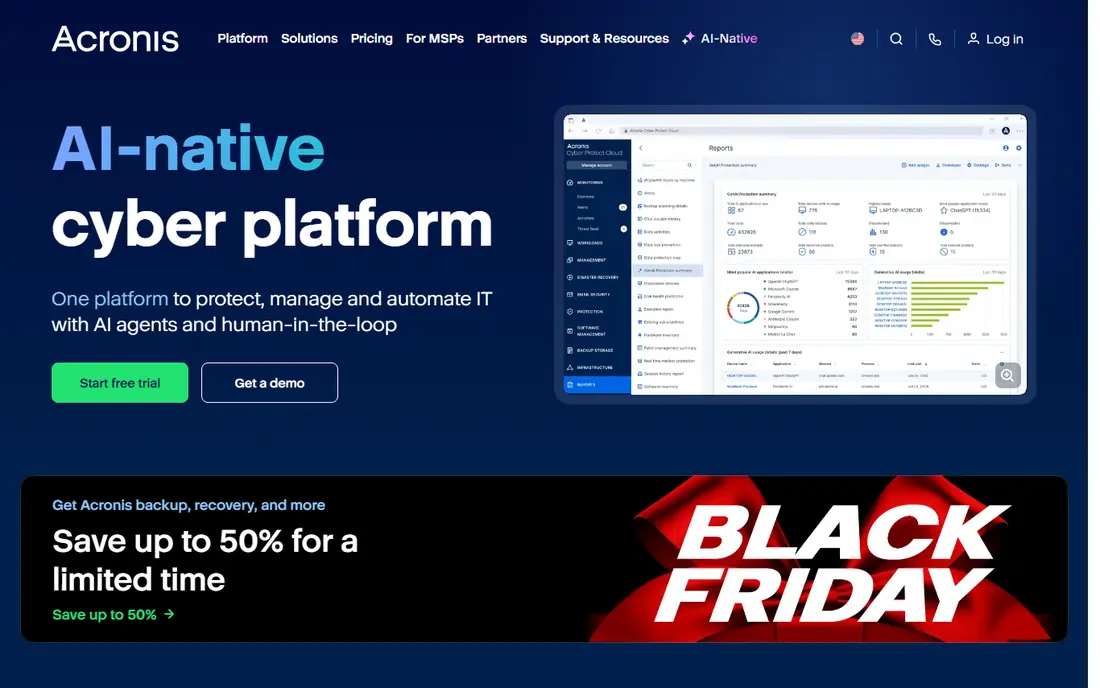
Acronis is the best pick for users who want cloning as part of ongoing protection, not just a one-off migration. It clones a full drive to a new SSD, creates scheduled backups afterwards, and includes security tools that watch for ransomware. Bootable rescue media helps if Windows will not start, which is a useful safety net for a home PC.
The subscription is the main drawback for someone who only needs one clone. At $49.99 per year for the Essentials plan, it costs more than a free tool for a single job. If you will also use backup and security features through the year, the price is easier to justify. For a one-time move, a free tool may do the same core job.
- Full disk cloning plus backup
- Antivirus and ransomware protection included
- Bootable rescue media
- Annual subscription model
- Interface has many features for a one-time clone
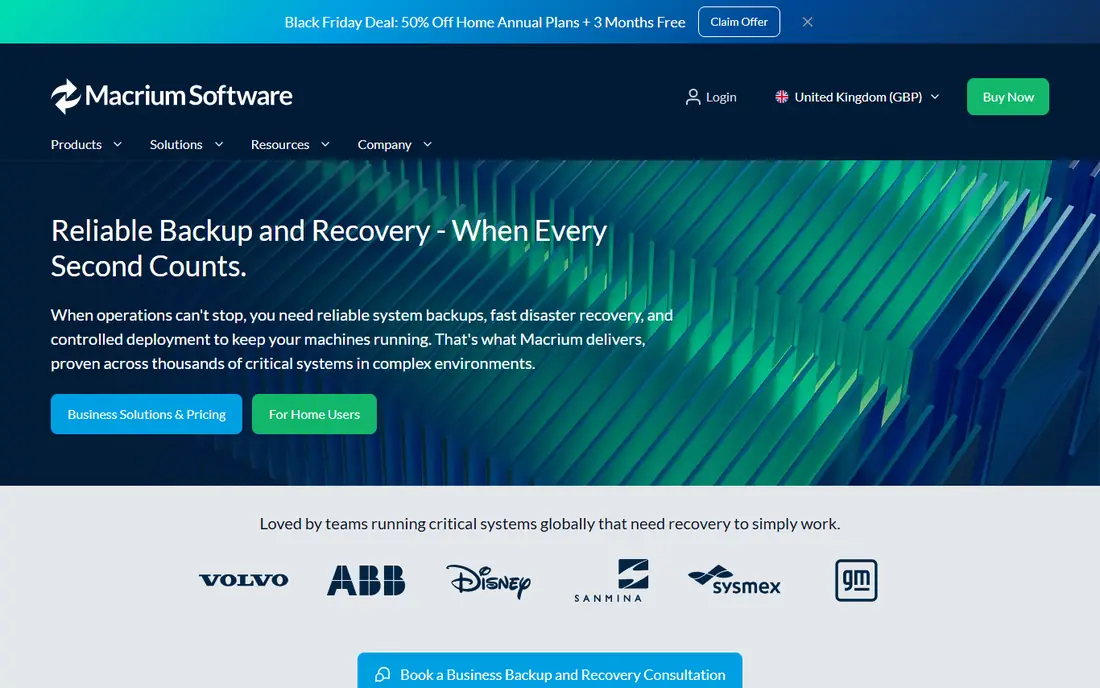
Macrium Reflect X has a long record as a dependable Windows imaging and cloning tool. It clones disks and partitions, schedules image backups, and creates rescue media for recovery when a system will not boot. For users moving to a larger SSD, it handles partition resizing in a clear way, and its restore speed is a practical advantage when time matters.
Macrium no longer offers a free edition, so every user needs a paid plan or a trial. The interface is also more technical than a simple migration wizard, though it rewards that learning curve with control. Home users who want a tool they can trust for both migration and regular backups will find it a solid paid choice.
- Dependable cloning and imaging
- Scheduled backups
- Rapid restore features
- No free edition now
- Interface assumes some Windows knowledge
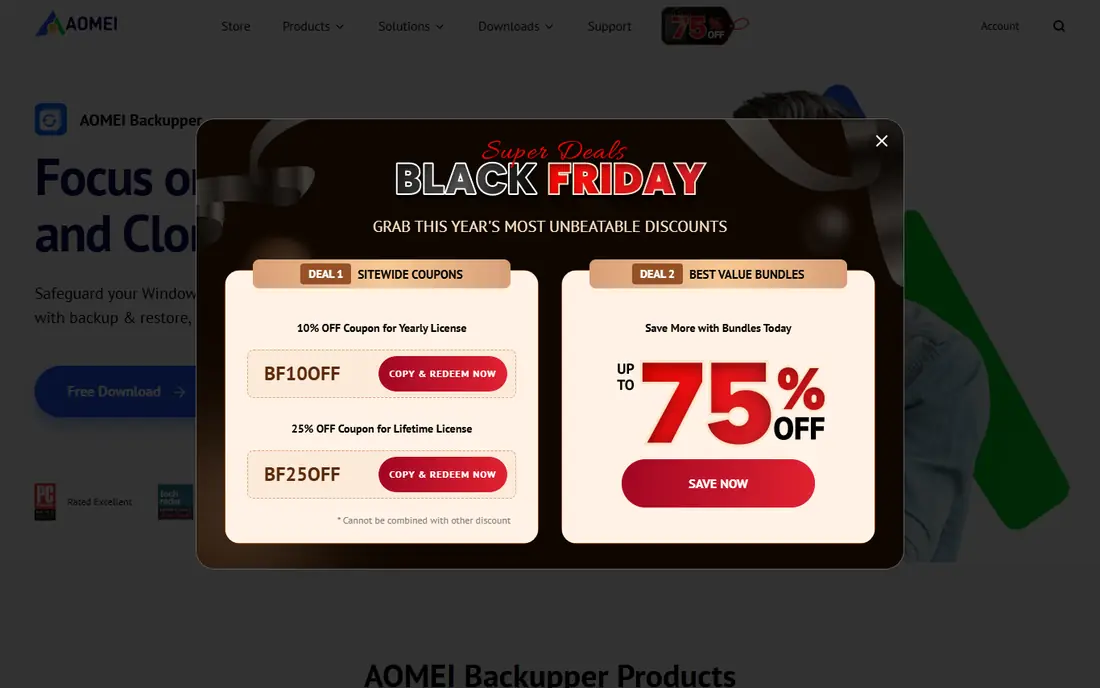
AOMEI Backupper covers both a one-time SSD upgrade and ongoing backup in one Windows program. The free Standard edition handles basic backup and data disk cloning, while Professional adds system cloning, differential backup and encryption. That tiered approach lets home users test the program before paying for the features a system migration actually needs.
The free limits need attention. System cloning, which most SSD upgraders need, sits in Professional at $39.95 per year, with a lifetime option also listed. The interface offers many choices, which can slow a first-time user. For Windows users who want one tool for cloning and backup at a lower price than Acronis or Macrium, AOMEI is a strong middle option.
- Free Standard edition for basic backup
- System, disk and partition cloning in paid plans
- Bootable media included
- Full system cloning needs the paid Professional plan
- Interface has many options for beginners
EaseUS Disk Copy focuses on one job: copying a disk to a new drive. That focus makes it easier for a first-time upgrader than a full backup suite, because there are fewer menus and settings to navigate. It supports cloning a larger drive to a smaller SSD when the used data fits, which is common when moving from a large hard drive to a smaller SSD.
It is not a full backup platform, so users who also want scheduled imaging will need another EaseUS product or a different tool. For a single SSD migration on Windows, that narrow focus is a strength. Check that the target SSD has enough space for the used data, then run the clone and test booting before wiping the old drive.
- Simple clone workflow
- Supports cloning to smaller drives when data fits
- Sector-by-sector option
- Advanced backup features sit in other EaseUS products
- Windows only
Clonezilla is the free tool technicians reach for when they need power without a licence fee. It clones disks and partitions, creates images, and runs from a bootable USB drive, which means it works even when Windows will not start. It supports Windows, Linux and other systems, making it useful in mixed environments and repair shops.
The interface is the barrier. Clonezilla uses a text-based menu system that can confuse beginners, and some steps, such as cloning to a smaller target, need care. Users who follow a guide and test the result will get a reliable clone at zero cost. Beginners who want a graphical interface should look at Rescuezilla instead.
- Completely free and open source
- Powerful disk and partition cloning
- Works across many systems
- Text-based interface
- Cloning to a smaller drive is less straightforward
Rescuezilla gives beginners the free power of Clonezilla with a graphical interface. It boots from a USB drive, shows disks clearly, and walks through cloning and restoring without command-line steps. That makes it a good choice for a home user who wants a free SSD upgrade but does not want to learn a text menu system.
It is less suited to scheduled, ongoing backup than a paid Windows suite, because it is mainly a bootable cloning and imaging tool. Creating the bootable USB also takes a little preparation. For a one-time migration, Rescuezilla removes cost and complexity at the same time, which is rare in this category.
- Free and open source
- Graphical interface from a bootable USB
- Simple clone and restore workflow
- Fewer advanced scheduling features than paid suites
- Bootable USB setup takes a few steps
Samsung Data Migration is the simplest option if your new drive is a Samsung SSD. It is free to download from Samsung, moves the system drive, applications and files together, and uses a short wizard rather than a full backup interface. For a straightforward upgrade to a Samsung drive, it is hard to beat on ease.
The brand limit is absolute. It will not clone to a non-Samsung SSD, and it focuses on the system drive rather than offering a full backup suite. Buyers should confirm their target drive is a Samsung SSD before relying on this tool. If it is, the migration is usually quick. If it is not, choose one of the brand-neutral tools above.
- Free for Samsung SSD owners
- Simple system migration wizard
- Moves OS, apps and files together
- Only clones to Samsung SSDs
- Limited partition control compared with full cloning suites
Paragon Hard Disk Manager suits users who need control over partitions during a clone. It can resize, move and convert partitions, handle MBR to GPT changes, and combine cloning with backup and recovery tools. That control matters when moving between drives of different sizes or layouts, where a simple clone wizard may not give the result you want.
Pricing depends on edition, so buyers should check the current Paragon store page for the version that fits their use. A free community edition covers basic partition work for personal use, while full cloning sits in paid editions. For power users and technicians, Paragon offers depth that simpler tools lack.
- Advanced partitioning during cloning
- Backup and recovery in one suite
- Handles MBR and GPT conversion
- Pricing varies by edition
- Interface has a learning curve for casual users
Hasleo Backup Suite is a useful free Windows option that combines backup and cloning without a subscription. It backs up system, disk and partition images, clones drives, and creates bootable rescue media for recovery. For a home user who wants a free tool with more structure than a boot-only utility, it fills a gap between Rescuezilla and paid suites.
It is Windows only, and its support resources are thinner than those of Acronis or Macrium. Users should still test rescue media once after installing, because a backup you cannot boot from is not a backup. For a free Windows migration and basic ongoing backup, Hasleo is worth testing before paying.
- Free system, disk and partition backup
- Cloning included
- Windows PE bootable media
- Windows only
- Paid features and support are less prominent than larger vendors
How we picked these
We compared official product pages, pricing pages and documentation for tools that clone a system drive to an SSD, not just copy files. We included free, paid and brand-specific tools, and we stated brand limits clearly where they apply. We favoured tools with bootable rescue media, partition resizing and a clear path to test the clone before wiping the old drive.
How to clone an SSD without losing data
Back up first, even if the clone is the backup plan. Copy important files to an external drive or cloud storage, because cloning overwrites the target drive and a failed clone can leave both drives in an uncertain state. Check that the new SSD has enough capacity for the used data, not just the old drive size, and connect it correctly before starting, using a direct SATA or NVMe connection where possible.
Next, choose the clone type. A disk clone copies the whole drive, while a system clone copies only the partitions Windows needs to boot, which helps when moving to a smaller SSD. Enable SSD alignment or optimisation if the tool offers it, and do not interrupt the process once it starts. After cloning, shut down, replace the old drive or set the new SSD as the first boot device, and test that Windows, key apps and personal files all open.
Finally, keep the old drive untouched for a few days. Boot from the new SSD, check that extra capacity is visible, and confirm that programs and files work as expected. Only then wipe or repurpose the old drive. That waiting period turns a risky migration into a reversible one.
Frequently asked questions
What is the best SSD cloning software?
Acronis Cyber Protect Home Office and Macrium Reflect X are the most complete paid options for Windows, while Clonezilla and Rescuezilla are the best free options. Samsung Data Migration is best if your new drive is a Samsung SSD. The right pick depends on budget, operating system and whether you also want ongoing backup.
Is SSD cloning software free?
Yes, several tools are free. Clonezilla, Rescuezilla, EaseUS Disk Copy, Samsung Data Migration and Hasleo Backup Suite all offer free cloning, though some limit system cloning or advanced features. Paid tools add scheduled backup, support and easier interfaces, which may be worth the cost for regular use.
Can I clone a larger drive to a smaller SSD?
Yes, if the used data on the old drive fits on the new SSD. Most tools in this list support cloning to a smaller target under that condition, though Clonezilla needs more care with smaller targets. Check used space, not total drive size, before starting.
Does cloning copy Windows and programs?
Yes, a full disk or system clone copies the operating system, installed programs, settings and files, so the new SSD should boot like the old drive. File-copy tools do not do this, which is why a true cloning tool matters for an SSD upgrade. Always test booting from the new SSD before wiping the old one.
What is the best cloning software for SSD in this list for beginners?
Rescuezilla is the easiest free option, thanks to its graphical bootable interface. Samsung Data Migration is even simpler if the target drive is Samsung. AOMEI Backupper and EaseUS Disk Copy are also beginner-friendly on Windows, with wizards that guide the clone step by step.
Sources
See where you really rank - block by block
ProMapRanker scans Google Maps across a grid of your service area. Simple monthly plans from $19, white-label on every plan.
Start freeKeep reading
 who has best internet service
Who Has the Best Internet Service in 2026
Who has best internet service for US homes? We compare fiber, cable, fixed wireless and satellite providers on speed, price, availability and terms today.
Read → which survey tool has the best analytics
Which Survey Tool Has the Best Analytics in 2026
Find which survey tool has the best analytics in 2026, comparing Qualtrics, SurveyMonkey, Typeform, Alchemer, and more on reports, text, and stats today.
Read → which streaming service has the best movies
Which Streaming Service Has the Best Movies in 2026
Answering which streaming service has the best movies, with Netflix, Max, Criterion and more compared on libraries, prices and free options in this guide.
Read →