 ProMapRanker
Best Software for Remote PC Access in 2026

Key takeaways
- TeamViewer is the best-known all-rounder, while AnyDesk wins on speed and Splashtop wins on value for small teams.
- RemotePC is the cheapest way to reach your own computers unattended, and Chrome Remote Desktop does the same job free for personal use.
- Zoho Assist and ScreenConnect suit support teams, because they price per technician and include session tools.
- Security matters more than speed here: use strong passwords, two-factor authentication, and unattended access only on machines you control.
- Always confirm whether a free plan covers commercial use, because personal-use free tiers can block a work session.
Quick comparison
| Pick | Great for | Pricing starts at | Free tier | |
|---|---|---|---|---|
 TeamViewer | All-round remote access | $24.90 per month | Free trial | Visit |
 AnyDesk | Fast low-latency access | $22.90 per month | Yes | Visit |
 Splashtop | Best value for teams | $5 per month | Free trial | Visit |
 RemotePC | Cheap unattended access | $2.95 per month | Free trial | Visit |
 Zoho Assist | Budget support teams | $10 per month | Yes | Visit |
 Chrome Remote Desktop | Free personal access | Free | Yes | Visit |
 RealVNC Connect | Secure cross-platform access | $8.25 per month | Free trial | Visit |
 ConnectWise ScreenConnect | MSP and IT teams | $27 per month | Yes | Visit |
 Parsec | Low-latency creative work | $9.99 per month | Yes | Visit |
The best software for remote pc access
Remote access splits into three jobs: reaching your own computer from elsewhere, helping someone else with their computer, and managing a fleet of machines without anyone present. The tools below cover all three, so match the tool to the job you actually do.
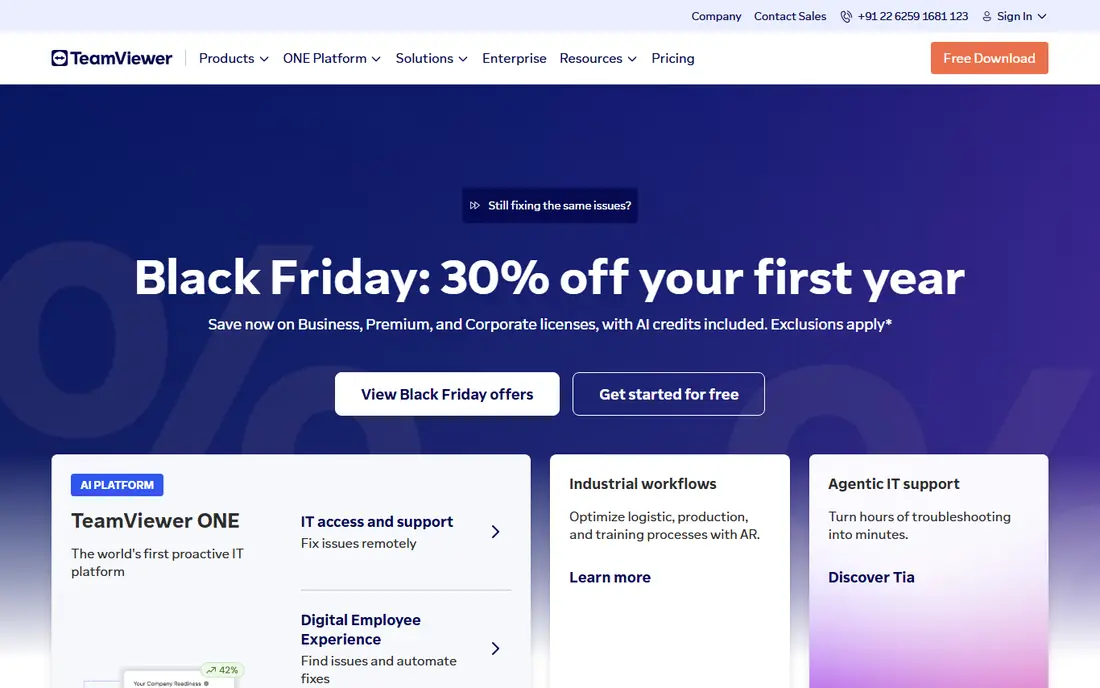
TeamViewer is the name most people think of for remote access, covering remote support, unattended access and device management across Windows, Mac, Linux, mobile and more. Its Remote Access plan starts at $24.90 per user per month, and higher plans add session management, reporting and device groups for larger teams.
The catch is price and the free tier. Personal use is free, but commercial use needs a paid license, and the system can flag sessions it suspects are commercial. For a business that wants the safe, widely recognized choice with broad device coverage, TeamViewer still earns its place.
- Broad device support across desktop and mobile
- Unattended access and remote support in one tool
- Strong compliance credentials
- Commercial pricing is premium
- Free tier is limited to personal use
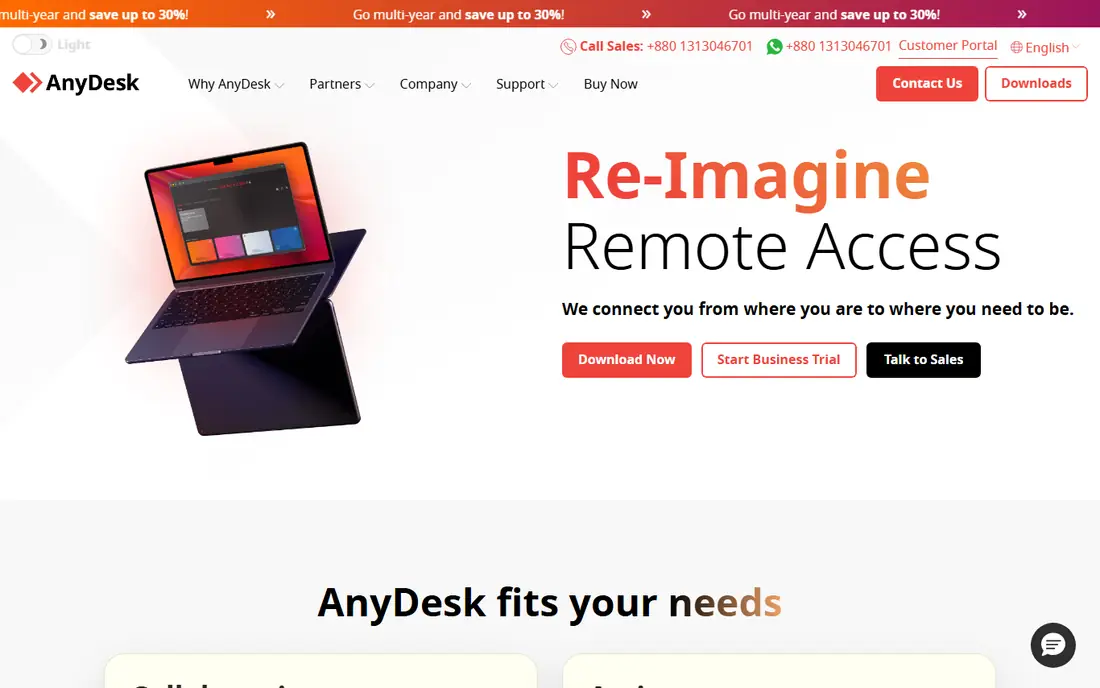
AnyDesk wins on speed. Its codec is built for low latency, so mouse movement and screen updates feel close to sitting at the machine, even on a weaker connection. The app is small and quick to install, which helps when you need to help someone who is not technical: they download it, share a code, and you connect.
Pricing starts around $22.90 per month for the Solo plan, with higher tiers adding address book, session logging and more devices. The free plan covers personal use, not commercial work. If your sessions involve design, video or fast interaction, AnyDesk is the first tool to test.
- Fast connections with low latency
- Lightweight app
- Works well on slower connections
- Free plan is for personal use only
- Some advanced features sit in higher tiers
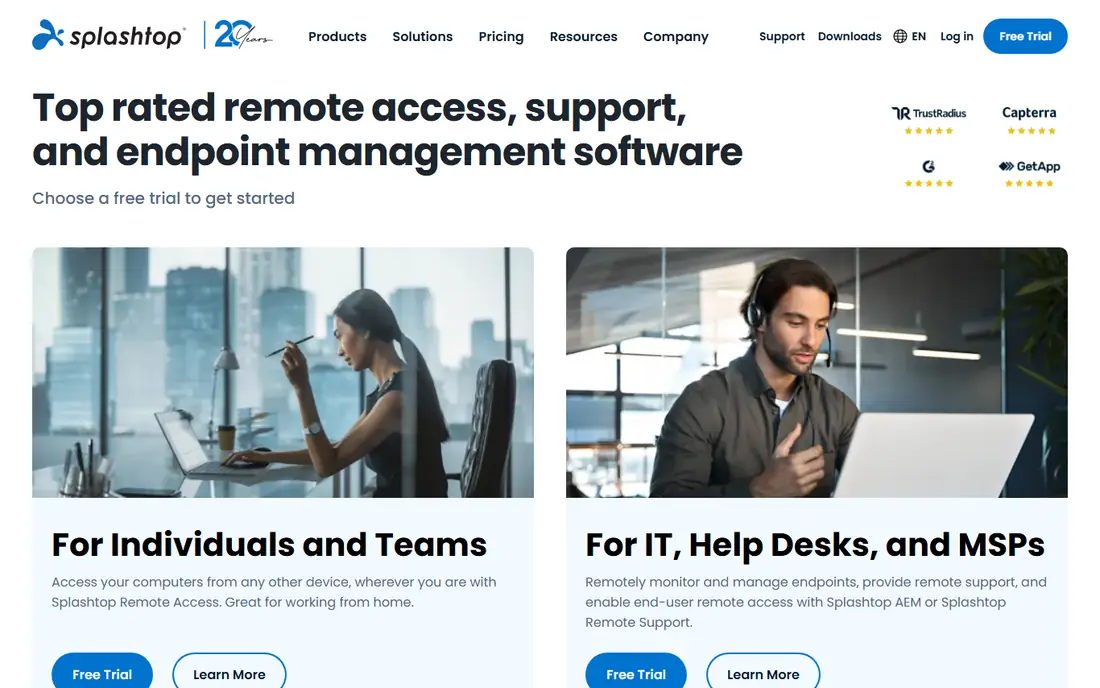
Splashtop undercuts most rivals on price for remote work access. Business Access starts at $5 per user per month, and the SOS product for on-demand support starts higher for technicians. Streaming quality is strong, with high-definition video and low latency that suit both office work and creative tasks.
The product range needs care. Business Access, SOS and Remote Support are different products, so confirm which one matches your job before you buy. For a small team that needs reliable access without TeamViewer prices, Splashtop is the value pick.
- Low per-user pricing for business access
- Fast high-definition streaming
- Separate support product for technicians
- Product range can confuse buyers
- Some features need higher tiers
RemotePC is the cheapest way to reach your own computers unattended. A plan for one computer starts at $2.95 per month on annual billing, and higher plans cover more computers and team features. Setup takes minutes, and file transfer, remote printing and chat cover the basics without clutter.
It is not the best support-team tool. Technicians who run many on-demand sessions a day will want Zoho Assist or ScreenConnect instead. For an owner who wants to reach an office PC from home, or check a shop computer from a phone, RemotePC is hard to beat on price.
- Very low annual cost for one computer
- Simple setup
- File transfer and remote printing included
- Less suited to large support teams
- Interface is plainer than rivals
Zoho Assist is the budget pick for support teams. A free plan covers one technician and five unattended computers, and paid Standard plans start at $10 per technician per month, with Professional and Enterprise tiers adding more sessions and features. It runs from a browser, so the person you help does not need to install much.
The free plan limits are real: one session at a time and fewer advanced features. Teams already using Zoho Desk or Zoho CRM get extra value from the integrations. For a small support team that needs a low starting cost, Zoho Assist is the sensible first choice.
- Free plan for one technician
- Low per-technician pricing
- Strong Zoho integrations
- Session recording and advanced features need higher tiers
- Less known for unattended fleet management
Chrome Remote Desktop is the free answer for personal use. Install the extension, sign in with a Google account, set a PIN, and you can reach that computer from another device through Chrome. There is no subscription, no per-computer fee, and setup takes only a few minutes.
The limits are clear. It has no technician console, no session reporting, and no fleet management, so it does not suit a support business. For reaching your own home or office PC, though, it is the tool we recommend trying first, because it costs nothing and does the core job well.
- Free for personal use
- Simple setup with a Google account
- Works from Chrome on most devices
- No support-team features
- Fewer admin controls than paid tools
RealVNC Connect is the classic VNC tool, still actively developed and still strong on cross-platform access. It covers Windows, Mac, Linux and Raspberry Pi, among others, and offers both cloud connections and direct connections for networks where cloud routing is not wanted. Security options include encryption and multi-factor authentication.
The experience is plainer than TeamViewer or Splashtop, and plan pricing depends on devices and features, starting at $8.25 per month for Essentials. For a technical user who wants a proven VNC tool with control over how connections route, RealVNC Connect remains a solid choice.
- Long-running VNC standard with broad platform support
- Direct and cloud connections
- Strong security options
- Interface feels plain next to newer tools
- Pricing varies by plan and device count
ScreenConnect, from ConnectWise, is built for managed service providers and IT departments. It handles multiple technicians, unattended machines, session recording and integrations with ticketing and management tools. A free option for a single technician makes it easy to test before a team commits.
Pricing starts around $27 per month for the ONE plan on annual billing, and larger teams pay more. Setup is heavier than a consumer tool, because it is designed for a support operation rather than a single user. If you support many clients or machines, that depth is the reason to pick it.
- Built for multi-technician support teams
- Session tools and integrations
- Free single-technician option
- Pricing rises with team size
- Setup takes more work than consumer tools
Parsec is the low-latency pick for creative work. It streams a remote desktop with minimal delay, which matters when you edit video, run design software or play games on a distant machine. Personal use is free, and the Teams plan at $9.99 per user per month adds admin controls for work use.
It is not an IT support tool first. Ticketing, unattended fleet tools and session reporting are thinner than on ScreenConnect or Zoho Assist. For a designer, editor or developer who needs a remote workstation to feel local, Parsec is the tool to try first.
- Very low latency for creative and gaming workloads
- Free personal use
- Simple sharing for guests
- Less focused on IT support workflows
- Business features need the Teams plan
How we picked these
We compared official feature and pricing pages, plus public reviews, for remote access tools still sold and supported in October 2026. We kept tools that cover personal access, support or unattended access, and we wrote See website where pricing varies by plan or region. We did not claim hands-on testing. Where third-party sources disagreed on a price, we used the most recent vendor-consistent figure and noted that plans change, so confirm before you buy.
How to choose the right remote access tool
Define the job first
Reaching your own PC suits RemotePC or Chrome Remote Desktop. Helping customers suits Zoho Assist or ScreenConnect. Creative remote work suits Parsec or AnyDesk. A general business need suits TeamViewer or Splashtop. Buying a support tool for personal access wastes money.
Lock down security before you share access
Use a strong unique password, turn on two-factor authentication, and limit unattended access to machines you own or manage. Never share access codes in public, and end sessions when the work is done. Remote access is powerful, so treat every session as a door into your network.
Test on your real connection
Speed claims mean little until you test on your own internet and hardware. Run a trial during a normal work session, try file transfer and multi-monitor work if you need them, and check how the tool behaves on a slower connection. A tool that stutters on your setup is the wrong tool, whatever its price.
Check commercial use rules
Free plans often cover personal use only, and vendors can block sessions they judge commercial. If you use remote access for work, pay for a plan that covers commercial use. The cost is small compared with a blocked session during a client emergency.
Frequently asked questions
What is the best app to remote access pc?
For most people, TeamViewer is the best app to remote access a PC because it covers personal access and support across many devices. If you want a free option, Chrome Remote Desktop covers personal access well. For the lowest paid cost, RemotePC starts at $2.95 per month for one computer.
Is remote access software safe?
Remote access software is safe when you use strong passwords, two-factor authentication and trusted tools, and when you only grant access to people and machines you trust. Risks rise when users share codes publicly, reuse passwords, or leave unattended access open on shared machines. Turn off access you do not need.
Can I access my PC from my phone?
Yes. TeamViewer, AnyDesk, Splashtop, RemotePC, Zoho Assist, RealVNC Connect and Chrome Remote Desktop all offer mobile apps for reaching a PC from a phone or tablet. Full desktop work is easier on a larger screen, but checking files, starting a job or fixing a quick problem works well from a phone.
Do I need unattended access?
You need unattended access if you want to reach a computer when nobody is sitting at it, such as an office PC from home. If someone is always at the remote machine to accept the session, on-demand access is enough and simpler to secure. Choose unattended access only for machines you control.
What is the cheapest remote access software?
Chrome Remote Desktop is free for personal use, which makes it the cheapest option overall. Among paid tools, RemotePC is cheapest for one computer at $2.95 per month on annual billing, and Splashtop Business Access is cheapest per user for team access at $5 per month. Compare what each plan includes before you judge on price alone.
Sources
See where you really rank - block by block
ProMapRanker scans Google Maps across a grid of your service area. Simple monthly plans from $19, white-label on every plan.
Start freeKeep reading
 who has best internet service
Who Has the Best Internet Service in 2026
Who has best internet service for US homes? We compare fiber, cable, fixed wireless and satellite providers on speed, price, availability and terms today.
Read → which survey tool has the best analytics
Which Survey Tool Has the Best Analytics in 2026
Find which survey tool has the best analytics in 2026, comparing Qualtrics, SurveyMonkey, Typeform, Alchemer, and more on reports, text, and stats today.
Read → which streaming service has the best movies
Which Streaming Service Has the Best Movies in 2026
Answering which streaming service has the best movies, with Netflix, Max, Criterion and more compared on libraries, prices and free options in this guide.
Read →