 ProMapRanker
Best Software for PNG to JPG Conversion in 2026

Key takeaways
- XnConvert and IrfanView are the best free desktop tools for batch PNG to JPG conversion on Windows, Mac, or Linux.
- CloudConvert and Convertio suit quick online conversions without installing software, with free limits for casual use.
- JPG does not support transparency, so transparent PNG areas become a solid background color in the output.
- For photos, JPG files are far smaller than PNG files, while text graphics and logos usually stay sharper as PNG.
Quick comparison
| Pick | Great for | Pricing starts at | Free tier | |
|---|---|---|---|---|
 XnConvert | Free batch conversion | Free | Yes | Visit |
 IrfanView | Fast Windows viewing and conversion | Free | Yes | Visit |
 CloudConvert | Online conversion with controls | Free | Yes | Visit |
 Convertio | Quick online PNG to JPG conversion | Free | Yes | Visit |
 Adobe Express | Editing plus conversion | Free | Yes | Visit |
 GIMP | Free editing and export | Free | Yes | Visit |
 Paint.NET | Simple Windows editing and export | Free | Yes | Visit |
 FreeConvert | Online batch conversion | Free | Yes | Visit |
 Squoosh | Browser compression and conversion | Free | Yes | Visit |
The best software for png to jpg conversion
PNG to JPG conversion changes a lossless image with possible transparency into a smaller, lossy JPG file that works almost everywhere. The best tool depends on how many files you have, if you need batch processing, and how much control you want over quality and background color. We compared desktop software and online converters that are available and working in October 2026.
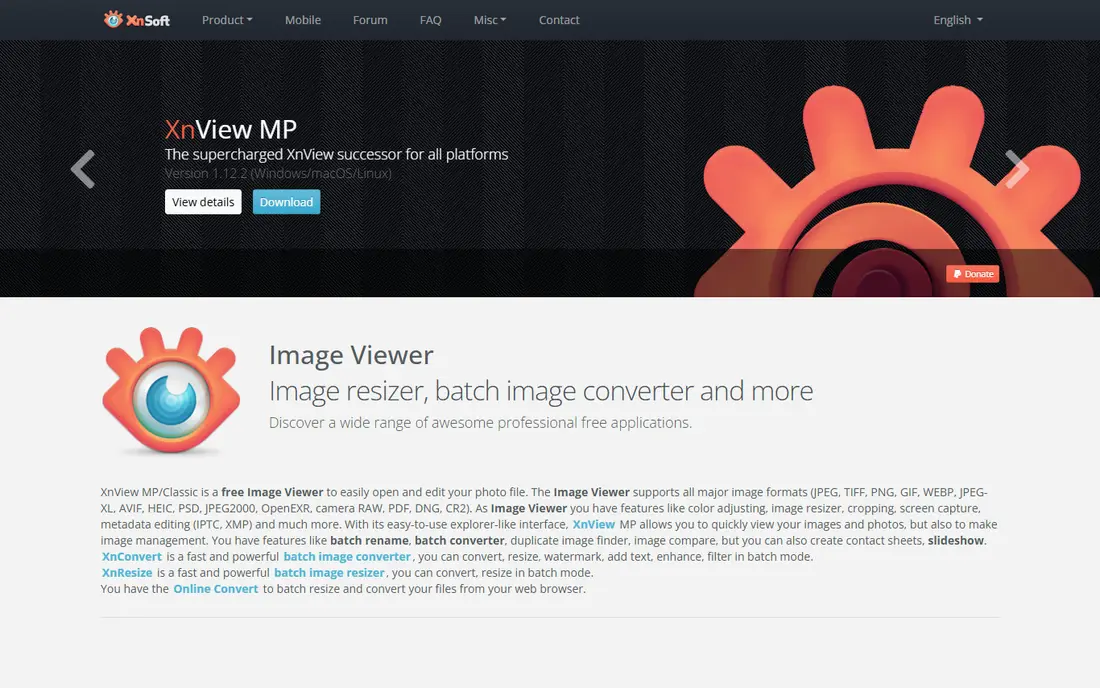
XnConvert is our top pick for batch work. It is free, cross-platform for Windows, Mac, and Linux, and it converts whole folders of PNG files to JPG in one run. You can add actions such as resize, crop, color adjustment, and watermarking, save those steps as a preset, and reuse the preset later. That makes it ideal for photographers, store owners, and content teams with many images.
The interface is functional rather than modern, and the long action list takes a short learning period. For a single quick conversion, an online tool may be faster. For repeated batch conversion with consistent settings, XnConvert is the most capable free tool in this guide.
- Free for personal use
- Batch conversion with resize, crop, and filters
- Supports more than 500 formats
- Interface looks dated
- Advanced actions take time to learn
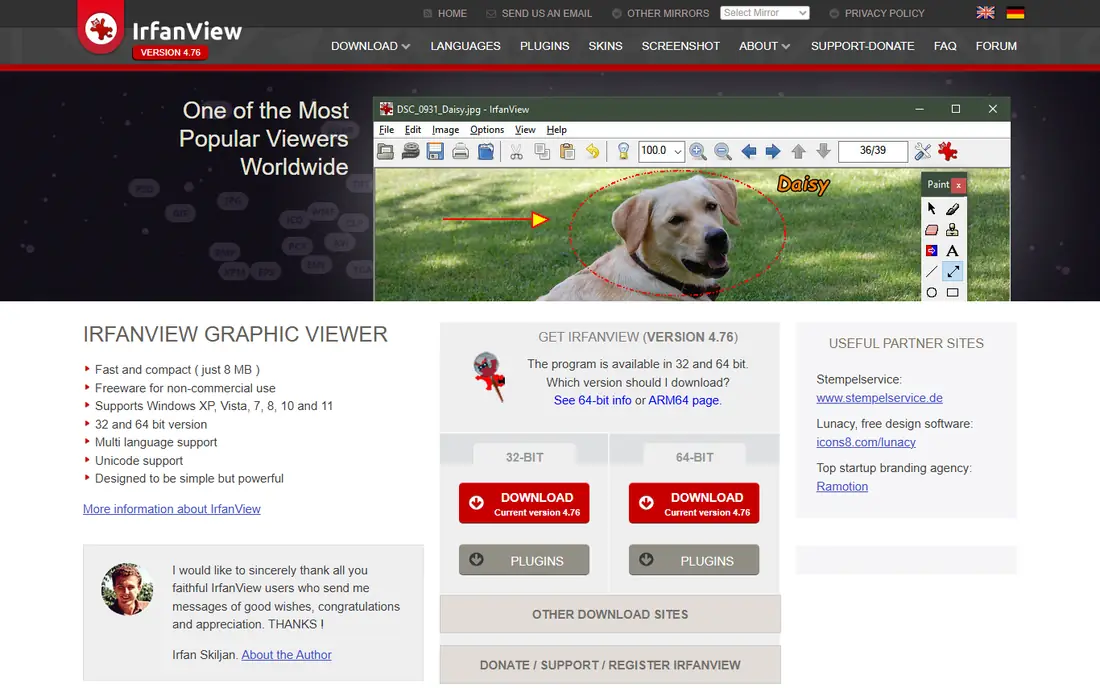
IrfanView has been a favorite Windows image viewer for years, and its batch conversion tool is still excellent for PNG to JPG work. Open a folder, pick the files, choose JPG output and quality, and convert in seconds. It is lightweight, so it runs well on older computers and large folders.
The trade-offs are platform and looks. IrfanView is Windows only, and its interface feels dated next to modern editors. Editing is limited to basic adjustments, so it is not a replacement for a full editor. For fast, free Windows batch conversion, it remains hard to beat.
- Very fast and lightweight
- Batch conversion built in
- Free for personal use
- Windows only
- Interface is old-fashioned
- Editing features are basic
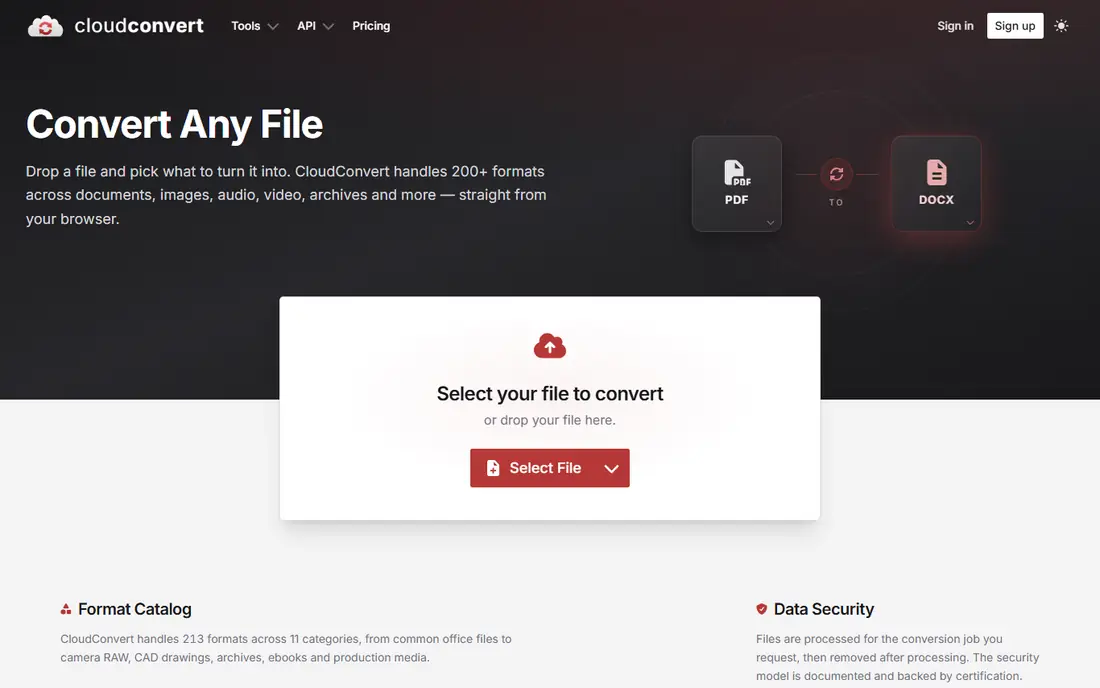
CloudConvert suits people who want online conversion with real controls. You can set JPG quality, resize images, choose a background color for transparent areas, and convert files from cloud storage or your computer. That control matters when you need consistent output for a website or a client.
Free use is limited by credits, so heavy or daily batch work will need a paid package or credits. Upload and download time also grows with file size. For occasional conversions with quality control, and for teams that want an API later, CloudConvert is a strong online choice.
- Wide format support
- Quality, resize, and background controls
- API for developers
- Free credits limit heavy use
- Large files take longer to upload and process
Convertio is the easiest online option for a quick conversion. Upload PNG files, convert, and download JPG files without installing anything or creating an account for basic use. The site explains clearly that JPG does not support transparency, so transparent areas become an opaque background.
Free conversions are limited by file size and daily volume, and batch processing and higher throughput need a paid plan. For one-off conversions and small batches, Convertio is fast and simple. For large daily batches, a desktop tool above will be cheaper and faster.
- No account needed for basic conversions
- Simple upload and download flow
- Batch uploads supported
- Free tier limits file size and daily conversions
- Advanced controls need a paid plan
Adobe Express suits people who edit an image and then export it as JPG. You can crop, resize, add text or graphics, and export the result in JPG format, all in the browser or app. Templates for social posts, web banners, and marketing graphics make it useful for content teams.
A paid plan adds premium templates, fonts, and features, while the free plan covers basic editing and export. Quality and batch controls are simpler than in XnConvert or CloudConvert. If conversion is part of a design task, Adobe Express is convenient. If you only need conversion, a dedicated tool is faster.
- Free plan for basic editing and export
- Templates for social and web use
- Cloud access from any device
- Full features need a paid plan
- Export controls are simpler than a dedicated converter
GIMP is a free, open-source image editor that exports PNG files to JPG with a quality slider and preview. That preview helps you balance file size against visible quality loss, which matters for photos destined for the web. You can also edit, retouch, and resize before exporting, all without paying.
The learning curve is the drawback. GIMP is a full editor, not a simple converter, and batch conversion needs a plugin or script. For a single edited photo, or for a user who already edits in GIMP, exporting to JPG is straightforward. For hundreds of untouched files, use XnConvert instead.
- Completely free and open source
- Full editing before export
- JPG quality slider on export
- Steeper learning curve
- No simple one-click batch conversion without a plugin
Paint.NET is a good middle ground for Windows users who want light editing plus JPG export. It offers layers, basic adjustments, and a clean interface that is easier to learn than GIMP. Saving a PNG as JPG gives a quality setting, so you can trade file size against quality.
Batch conversion is not built in and needs a plugin, and the app is Windows only. For a Windows user who edits a few images at a time and then saves them as JPG, Paint.NET is simple and free. For large batches, a dedicated batch tool will save more time.
- Free for Windows
- Simple layers and editing tools
- JPG quality setting on save
- Windows only
- Batch conversion needs a plugin
- Fewer features than GIMP
FreeConvert is a practical online alternative to Convertio for small batches. You can upload several PNG files, set quality and resize options, and download JPG files without installing software. The interface is clear, and the free tier covers casual use well.
Free limits apply to file size, number of files, and daily conversions, with larger work needing a paid plan. Upload time also matters for very large images. For a quick online batch from a shared computer or a phone, FreeConvert is a solid choice.
- Free online batch conversion
- Quality and resize options
- No install needed
- Free tier limits file size and daily use
- Larger files need a paid plan
Squoosh, built by Google, runs entirely in the browser and is excellent for tuning a single image. You can compare the original and the JPG output side by side, adjust quality, resize, and see the file size change live. That visual feedback helps you pick the smallest file that still looks good.
The limit is volume. Squoosh handles one file at a time, with no batch conversion, so it is not suited to folders of images. For a hero image, a product photo, or a blog image where quality matters, Squoosh gives more control than a one-click converter. For batches, pair it with a desktop tool for the rest of the set.
- Completely free in the browser
- Live quality and size preview
- Works offline after loading
- One file at a time
- No batch conversion
- Best for single-image tuning
How we picked these
We compared official product pages, download pages, and converter documentation for tools available in October 2026. We favored tools that convert PNG to JPG reliably, publish clear free or paid terms, and fit a distinct use, from batch desktop conversion to quick online conversion. We excluded tools with no working download or converter page, tools that only convert in one direction with heavy watermarks on free use, and mobile-only apps with no desktop or web option for batch work.
What to check before you convert PNG to JPG
Start with transparency. JPG has no transparent pixels, so any transparent area in a PNG becomes a solid color, usually white or black, unless you choose a background color in the converter. Keep the original PNG if you may need transparency later, because you cannot recover it from the JPG.
Quality, size, and photo type
Choose quality based on use. A quality setting near 80 to 90 often looks good for web photos at a much smaller size than PNG, while lower settings save more space but show artifacts, especially in skies and gradients. Photos shrink the most when converted, while flat graphics, logos, and text screenshots often stay sharper as PNG. Always check the JPG at full zoom before deleting the original.
Frequently asked questions
What is the best software for PNG to JPG conversion?
XnConvert is best for free batch conversion, IrfanView is best for fast Windows batch work, and CloudConvert and Convertio are best for quick online conversions. Squoosh is best for tuning a single image, while GIMP suits edited photos.
Does converting PNG to JPG lose quality?
Yes, JPG uses lossy compression, so some detail is discarded and cannot be recovered. A high quality setting keeps the loss hard to see for most photos, but repeated saving at low quality will degrade the image further.
What happens to transparency when converting PNG to JPG?
Transparent areas become a solid background color, because JPG does not support transparency. Choose a background color in your converter if the default white or black does not suit the image.
Can I convert many PNG files to JPG at once?
Yes, with batch tools. XnConvert and IrfanView handle folders of files on desktop, while CloudConvert, Convertio, and FreeConvert handle online batches within free tier limits. Squoosh handles one file at a time.
Is JPG better than PNG for photos?
For photos on the web, yes, because JPG files are far smaller and load faster, with little visible loss at a good quality setting. For logos, text graphics, and images that need transparency, PNG usually stays sharper and is the better choice.
Sources
See where you really rank - block by block
ProMapRanker scans Google Maps across a grid of your service area. Simple monthly plans from $19, white-label on every plan.
Start freeKeep reading
 top custom software development company
Top Custom Software Development Company in 2026
Looking for a top custom software development company? We compare 9 firms for web, mobile, and enterprise software, covering strengths and fit for 2026.
Read → tableau alternatives
Tableau Alternatives in 2026
Compare the best Tableau alternatives for 2026, from Power BI to Metabase, with prices, hosting options, and picks for small teams and enterprises today.
Read → microsoft teams alternatives
Best Microsoft Teams Alternatives in 2026
Looking for microsoft teams alternatives? We compare 9 chat and video tools for 2026, covering free plans, pricing, meetings, and integrations for teams.
Read →