 ProMapRanker
Best Software for Movie Clip Editing in 2026


Professional team editing · Pricing starts at: $22.99 per month
Key takeaways
- DaVinci Resolve gives the strongest free professional editor, while Premiere Pro leads for team work and industry workflows.
- Final Cut Pro suits Mac editors who want a one-time purchase, and CapCut suits fast short-form clips.
- For movie-style clips, color grading, sound design, and clean cuts matter more than templates or effects packs.
- Check your computer specs first, since professional editors need a strong processor, graphics card, and storage.
Quick comparison
| Pick | Great for | Pricing starts at | Free tier | |
|---|---|---|---|---|
| Adobe Premiere Pro | Professional team editing | $22.99 per month | Free trial | Visit |
 DaVinci Resolve | Free professional editing and color | Free | Yes | Visit |
 Final Cut Pro | Mac editors who want to buy once | $299.99 one-time | Free trial | Visit |
 CapCut | Fast short movie-style clips | Free | Yes | Visit |
 Filmora | Beginners who want templates and AI help | $49.99 per year | Yes | Visit |
 Clipchamp | Free Windows editing | Free | Yes | Visit |
 Movavi Video Editor | Quick desktop edits | $69.95 per year | Yes | Visit |
 Shotcut | Free open-source editing | Free | Yes | Visit |
 iMovie | Free simple Apple editing | Free | Yes | Visit |
 PowerDirector | Feature-rich enthusiast editing | $79.99 per year | Yes | Visit |
The best software for movie clip editing
Movie clip editing means cutting scenes, shaping pace, grading color, and mixing sound so a short clip feels like part of a film rather than a slideshow. We compared these tools on timeline control, color tools, audio tools, export quality, and price. Prices below are vendor list prices, and free versions often limit exports or add watermarks, so check the current terms before you start a project.
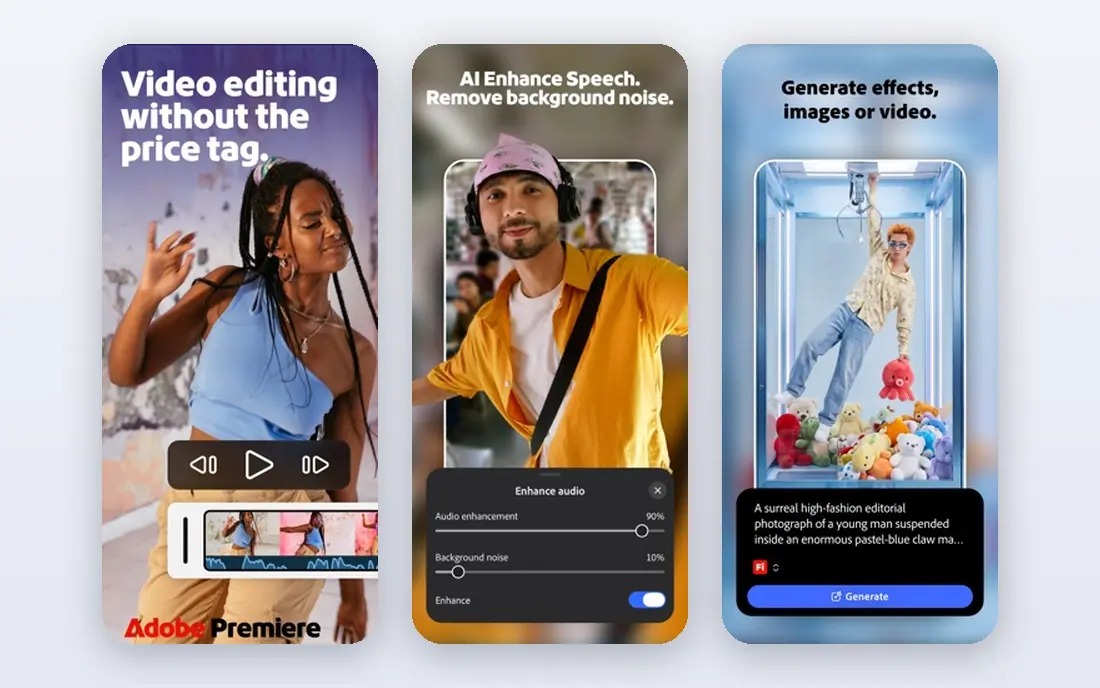
Premiere Pro is our pick for editors who work with clients or in teams. Its timeline, multicam tools, and shared project workflows match how many production teams work, and integration with After Effects for effects and Audition for sound keeps a project inside one ecosystem. Format support is broad, so footage from most cameras imports without conversion.
The cost is ongoing, since there is no one-time purchase, and 4K timelines demand a strong computer. Editors who only cut occasional clips may find the subscription hard to justify, but for regular client work, the workflow compatibility often pays for itself.
- Industry-standard timeline and workflows
- Strong integration with After Effects and Audition
- Broad format support
- Subscription only
- Needs a powerful computer for smooth 4K editing
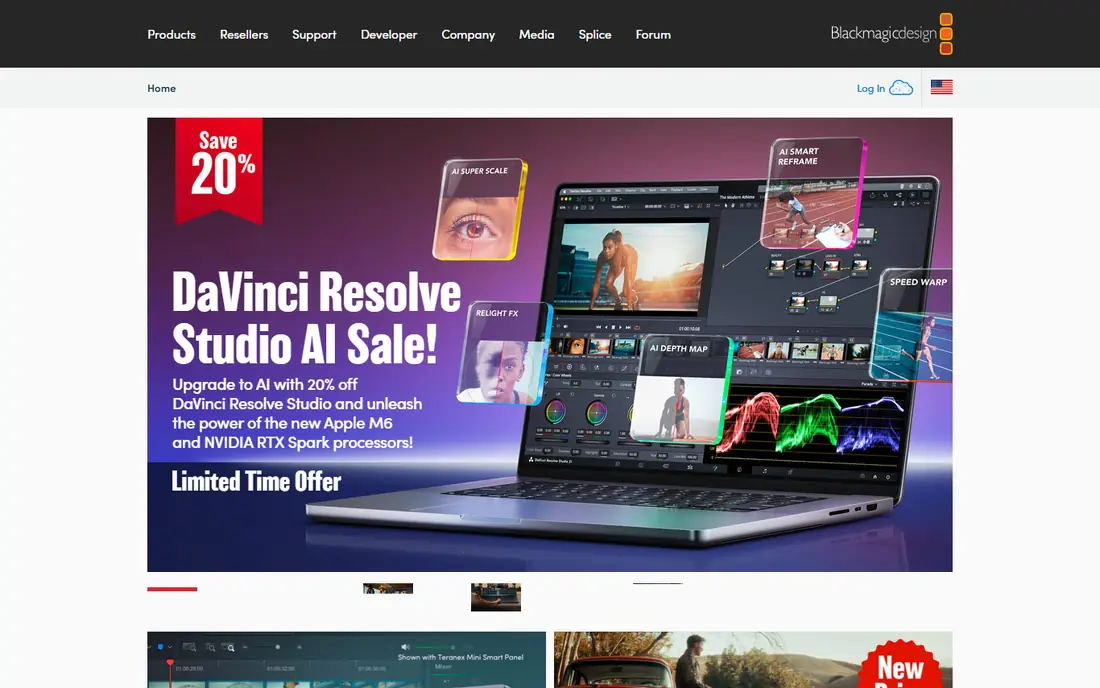
DaVinci Resolve is the strongest free option for movie-style work. The free version includes a full timeline editor, the color page that made Resolve famous, Fairlight audio tools, and Fusion effects, all without a watermark on exports. For an editor learning color grading, there is no better free classroom.
The learning curve is real, and the interface has many pages to master. The paid Studio version adds tools such as advanced noise reduction and stereoscopic support, but most editors can cut complete short films on the free version alone. A strong graphics card helps, especially for color work.
- Full free editor with no watermark
- Best-in-class color grading
- Editing, effects, and audio in one app
- Steep learning curve
- Studio version costs extra for some advanced tools
Final Cut Pro suits Mac owners who dislike subscriptions. The one-time price covers the full editor, and performance on Apple silicon is excellent, with smooth playback on timelines that stutter in other apps. The magnetic timeline, which pulls clips together as you cut, makes assembling a rough cut unusually fast.
The limits are platform and team workflow. Final Cut Pro runs only on Mac and iPad, and large multi-editor projects are less straightforward than in Premiere Pro. For a solo Mac editor cutting movie clips, those limits rarely matter, and the speed makes up for them.
- One-time purchase
- Very fast on Apple silicon Macs
- Magnetic timeline speeds assembly
- Mac only
- Fewer collaboration tools than Premiere Pro for large teams
CapCut is the fastest route to a polished short clip. It works on phone, desktop, and web, offers auto captions, speed controls, and templates, and exports directly in vertical and horizontal formats. For a 30-second movie-style teaser or a social cut of a longer scene, CapCut gets you from footage to finished clip in minutes.
For serious film work, CapCut falls short. Color grading is basic, audio mixing is limited, and some advanced effects require the Pro plan. Use CapCut for short-form cuts and social versions, and move to Resolve or Premiere Pro when a project needs careful color and sound.
- Fast mobile and desktop editing
- Auto captions and beat tools
- Large template library
- Color and audio tools are basic next to professional editors
- Some features sit behind Pro
Filmora bridges the gap between phone apps and professional editors. The interface is friendly, AI tools handle captions and simple object removal, and the effects library gives a beginner plenty of ways to shape a scene. For a hobbyist cutting movie-style clips for YouTube, Filmora offers enough control without a steep learning curve.
Free exports carry a watermark, so the paid plan is needed for finished work. Color grading and audio mixing are also simpler than in Resolve, which limits how far you can push a cinematic look. Filmora is a learning editor with real power, not a replacement for a professional suite.
- Friendly interface
- AI tools for captions and object removal
- Large effects and title library
- Free exports carry a watermark
- Professional color tools are limited
Clipchamp is the easiest free editor on a Windows PC. It is built into Windows 11, offers a simple timeline, templates, and stock media, and exports 1080p video without a watermark on the free tier. For a quick movie-style clip from phone footage, it takes very little setup.
The free tier limits 4K export, and some premium filters and stock assets need a subscription. Clipchamp is best for short, simple cuts rather than long scenes with careful color work. Windows users who want a free start before moving to Resolve will find it a useful first step.
- Free and built into Windows
- Simple timeline
- Stock media and templates included
- 4K export needs a paid plan
- Browser and desktop versions differ in features
Movavi suits editors who want a desktop timeline without professional complexity. Keyframe animation, chroma key, and stabilization are included, and rendering is fast on modest hardware. For family films, school projects, and short movie-style clips, Movavi covers the core jobs well.
The free version limits exports, so finished work needs a paid plan, and color tools do not match Resolve. Editors who want to learn grading or detailed sound design will outgrow Movavi, but for clean cuts, titles, and music, it is a dependable middle option.
- Simple timeline with keyframe animation
- Built-in effects and transitions
- Fast rendering on modest PCs
- Free version limits exports
- Advanced color tools are basic
Shotcut is a free, open-source editor that asks nothing in return. It supports a wide range of formats, offers filters, transitions, and keyframes, and exports without a watermark. For an editor on Linux, an older PC, or a tight budget, Shotcut is a genuine full editor rather than a trial.
The interface feels dated, and you will not find the template libraries or AI helpers of Filmora or CapCut. Learning takes patience, since help comes mainly from documentation and community forums. If you value free and open tools over polish, Shotcut rewards the effort.
- Completely free with no watermark
- Wide format support
- Runs on Windows, Mac, and Linux
- Interface feels dated
- Fewer templates and AI tools than commercial editors
iMovie is the right first editor for Apple users. It is free on every Mac, iPhone, and iPad, the interface is clear, and trailers, titles, and transitions make a short clip look finished with little effort. For a school project, a family film, or a first movie-style experiment, iMovie is enough.
The limits appear quickly for serious work. Only two video tracks are available, color control is basic, and audio mixing is simple. When a project needs layered sound, careful grading, or complex cuts, move to Final Cut Pro or Resolve, and keep iMovie for quick drafts.
- Free on Mac, iPhone, and iPad
- Very simple to learn
- Clean trailers and titles
- Only two video tracks
- Limited color and audio control
PowerDirector packs a large tool set into an enthusiast editor. AI tools, motion tracking, multicam editing, and a wide effects library give hobbyists room to grow, and it runs on both Windows and Mac. For an editor who wants more than Filmora without jumping to a professional suite, PowerDirector is a strong middle step.
The interface can feel crowded, since so many tools compete for space, and some features sit behind the subscription rather than a one-time purchase. Take time to learn the workspace layout first, and the depth becomes an advantage rather than a distraction.
- Large effects and AI tool set
- Multicam and 360-degree support
- Strong on Windows and Mac
- Interface can feel crowded
- Some features need the subscription tier
How we picked these
We compared official feature pages, pricing pages, and app store listings, plus public editor comparisons from 2026. We required each tool to edit video on a timeline, export finished clips, and work in October 2026. We favored tools with strong color and audio control for movie-style work, and we kept free, one-time, and subscription options so readers at different budgets all have a real choice.
How to choose movie clip editing software
Match the tool to the project length
Short social clips suit CapCut, Clipchamp, or iMovie, while scenes with careful color and sound suit Resolve, Premiere Pro, or Final Cut Pro. A tool that is fast for a 30-second clip can feel slow for a 10-minute scene, so judge the editor on your longest typical project, not your shortest.
Check color, sound, and export quality
For a movie feel, look for scopes and color wheels, audio keyframes and mixing, and export settings that keep quality high. A template library does not make a clip cinematic, but clean cuts, balanced sound, and consistent color do. Export a short test clip from each shortlisted editor and compare it on the screen where viewers will watch it.
Test on your own computer
Professional editors need a strong processor, a capable graphics card, and fast storage, especially for 4K footage. Use free trials and free versions to test playback on your own machine before you pay, and keep project files on a fast drive with backups. A cheaper editor that runs smoothly beats a powerful editor that stutters on your hardware.
Frequently asked questions
What is the best free software for movie clip editing?
DaVinci Resolve is the strongest free professional editor, with a full timeline, color grading, and audio tools and no watermark. Shotcut is a good free open-source alternative, and Clipchamp and iMovie suit simpler free projects on Windows and Apple devices.
Is Premiere Pro better than DaVinci Resolve?
Premiere Pro leads for team workflows and integration with other Adobe apps, while DaVinci Resolve leads for free color grading and all-in-one post work. The better choice depends on your team, your budget, and how much color work your projects need.
Can I edit movie clips on a phone?
Yes, CapCut, Filmora mobile, and iMovie on iPhone handle short clips well, with trimming, titles, music, and speed controls. For longer scenes, careful color grading, or detailed sound mixing, a desktop editor gives more control and a larger screen.
How much computer power do I need for 4K editing?
4K editing needs a modern multi-core processor, at least 16 GB of memory, a capable graphics card, and fast storage for smooth playback. Proxy editing, which uses lower-resolution copies for cutting, helps on weaker machines, but final exports still take time.
Should I buy software once or subscribe?
A one-time purchase, such as Final Cut Pro or DaVinci Resolve Studio, costs more upfront but nothing each month. A subscription, such as Premiere Pro, spreads the cost and includes updates, but stops working when you stop paying. Choose based on how often you edit and how long you plan to use the tool.
Sources
See where you really rank - block by block
ProMapRanker scans Google Maps across a grid of your service area. Simple monthly plans from $19, white-label on every plan.
Start freeKeep reading
 top custom software development company
Top Custom Software Development Company in 2026
Looking for a top custom software development company? We compare 9 firms for web, mobile, and enterprise software, covering strengths and fit for 2026.
Read → tableau alternatives
Tableau Alternatives in 2026
Compare the best Tableau alternatives for 2026, from Power BI to Metabase, with prices, hosting options, and picks for small teams and enterprises today.
Read → microsoft teams alternatives
Best Microsoft Teams Alternatives in 2026
Looking for microsoft teams alternatives? We compare 9 chat and video tools for 2026, covering free plans, pricing, meetings, and integrations for teams.
Read →