 ProMapRanker
Best Software for Dance Video Editing in 2026

Key takeaways
- Dance editing is judged on timing: beat sync, speed ramps, and clean cuts on the downbeat matter more than generic effects.
- CapCut leads for fast social dance clips, while VN Video Editor and LumaFusion give more manual control over timing.
- Slow motion, reverse, and mirror mode help dancers check form and teach moves, so look for those features specifically.
- Shoot in 60 frames per second or higher when you can, since smooth slow motion depends on the source footage, not only the editor.
Quick comparison
| Pick | Great for | Pricing starts at | Free tier | |
|---|---|---|---|---|
 CapCut | Fast beat-synced dance clips | Free | Yes | Visit |
 VN Video Editor | Precise manual dance timing | Free | Yes | Visit |
 InShot | Quick vertical dance posts | Free | Yes | Visit |
 KineMaster | Layered dance edits with effects | Free | Yes | Visit |
 Filmora | Dance templates and motion tracking | Free | Yes | Visit |
 LumaFusion | Professional mobile dance edits | See website | No | Visit |
 Splice | Clean mobile cuts with music | Free | Yes | Visit |
 PowerDirector | Speed ramps and motion tracking | $79.99 per year | Yes | Visit |
 Funimate | Fun dance effects and transitions | Free | Yes | Visit |
The best software for dance video editing
Dance videos live or die on rhythm. A cut that lands on the beat feels intentional, a speed ramp that follows a spin feels musical, and a mirrored clip helps a class follow the teacher. We compared these tools on beat sync, speed controls, slow motion quality, multi-angle handling, and vertical export for TikTok, Reels, and Shorts. Prices are vendor list prices, and free tiers may watermark exports or limit effects.
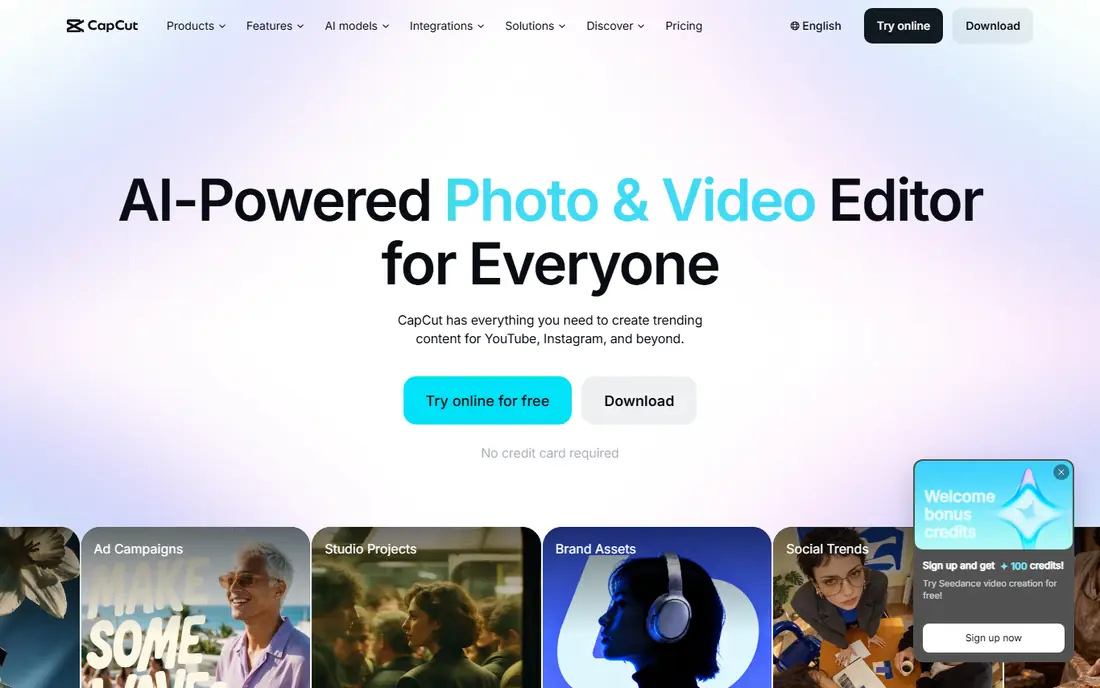
CapCut is our pick for most dance creators posting to social apps. Its beat tools can detect beats in a track and help place cuts on them, speed ramps let you slow a spin and snap back to full speed on the next beat, and templates built for dance trends speed up daily posting. Auto captions and background removal help when a clip needs text or a clean backdrop.
The trade is originality and depth. Heavy use of default templates can make many creators clips look alike, and some of the best effects sit behind the Pro plan. Use CapCut for fast drafts and trend posts, then add your own cuts, angles, and timing choices so the clip keeps your style.
- Automatic beat detection and sync
- Speed ramps and slow motion
- Large dance template library
- Some advanced effects need Pro
- Default templates can make clips look similar
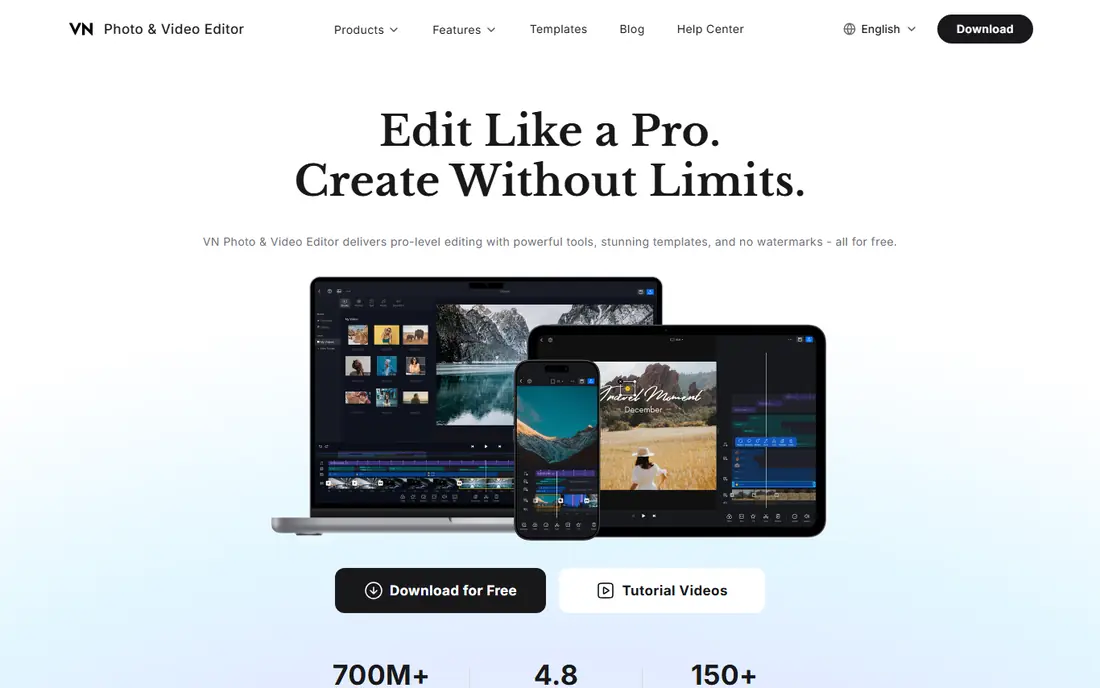
VN Video Editor suits dancers who want to control every cut by hand. The multi-track timeline, keyframe controls, and speed curves let you shape a ramp frame by frame, hold a freeze on a pose, and cut exactly on a beat marker you place yourself. That manual control matters for choreography videos, where an automatic beat tool may miss a half-beat or a syncopated rhythm.
VN offers fewer dance templates than CapCut, so you build more from scratch. The extra effort pays off in cleaner timing and a less generic look, especially for class recordings, audition tapes, and competition reels where precision matters more than speed.
- Multi-track timeline with keyframes
- Precise speed curves
- 4K export without watermark on many plans
- Fewer ready-made dance templates
- Learning curve is higher than CapCut
InShot is the quickest way to turn a rehearsal clip into a post. Trimming, splitting, speed changes, reverse playback, and music overlays all sit close at hand, and vertical canvas controls make Reels and TikTok exports simple. For a dancer posting daily practice clips, InShot removes almost all friction between filming and sharing.
The simpler timeline shows up on longer or multi-angle projects. Layering several clips, syncing two camera angles, and shaping complex speed curves are harder here than in VN or LumaFusion. Use InShot for daily posts, and switch to a deeper editor for polished performance videos.
- Very fast vertical editing
- Simple speed and reverse controls
- Easy music and text overlays
- Timeline is simpler than VN or LumaFusion
- Free exports may carry a watermark
KineMaster gives mobile editors a layer-based workspace that feels closer to desktop editing. You can stack video layers, add chroma key backgrounds, use blending modes for light effects, and animate with keyframes, which suits dance clips with picture-in-picture reactions, mirrored angles, or stylized overlays. The asset store adds music, stickers, and transitions without leaving the app.
Free exports carry a watermark, so finished posts need the paid plan. The interface also takes longer to learn than InShot, since layers add complexity. For dancers who want creative overlays on a phone, KineMaster is worth that learning time.
- Layer-based editing with chroma key
- Blending modes and keyframes
- Asset store for music and effects
- Free version adds a watermark
- Some advanced tools need a subscription
Filmora stands out for motion tracking in dance clips. Text, stickers, or graphics can follow a dancer across the frame, which helps for name tags, arrows pointing to footwork, and effects that track a spin. Beat tools and speed controls support musical cutting, and the same project can move between mobile and desktop versions.
As with other freemium editors, free exports carry a watermark, and the feature set differs between mobile and desktop. For tutorial clips where a graphic must follow the dancer, Filmora earns its place, but check which version carries the tracking tools you need.
- Motion tracking that follows a dancer
- Beat and speed tools on mobile and desktop
- Large effects library
- Free exports carry a watermark
- Desktop and mobile features differ
LumaFusion is the closest thing to a desktop editor on a phone or tablet. Its multi-track timeline, precise trimming, color tools, and audio mixing handle multi-angle dance shoots, where two or three cameras capture the same routine from different sides. For a polished recital or audition video edited entirely on an iPad, LumaFusion is the most capable mobile choice.
There is no free tier, so you pay before you test the full workflow, and there is no desktop version to move a project to later. Dancers who edit mainly on a tablet and want professional control will find the price fair, while casual posters should start with a free app first.
- Multi-track timeline with precise trimming
- Strong color and audio tools
- Good for multi-angle dance shoots
- Paid app with no free tier
- Mobile only, with no desktop version
Splice keeps dance editing simple and clean. The guided workflow helps you trim clips, add slow motion, layer music, and add text without learning a complex timeline. Exports look clean, and the music library helps when you need a track for a practice clip rather than a licensed song for a public post.
Full features need a subscription, and projects live on one device rather than syncing across devices. That limit matters if you start a clip on a phone and want to finish it on a tablet. For single-device dancers who want tidy clips fast, Splice is a dependable choice.
- Simple guided editing
- Slow motion and music library
- Clean high-resolution exports
- Subscription needed for full features
- Project stays on one device
PowerDirector brings desktop-level speed control to dance editing. Speed ramps can be shaped in detail, motion tracking follows a dancer for effects and text, and multicam support helps when a routine was filmed from several angles. The mobile app covers quick cuts, while the desktop version handles longer performance videos.
The interface packs many tools into one workspace, which can feel crowded at first. Some features also sit behind the subscription tier rather than a one-time purchase. Dancers who film full routines and want detailed control over pace will find the depth worth learning.
- Detailed speed ramping
- Motion tracking
- Strong on Windows, Mac, and mobile
- Interface can feel crowded
- Some features need the subscription tier
Funimate is built for playful dance content. Its effects, transitions, and text animations are designed for short social clips, and the sharing flow fits TikTok and Reels posting. For trend challenges, duets, and fun practice clips, Funimate gets a finished post out fast with a look that fits social feeds.
The playful style is less suited to formal audition tapes or competition reels, where clean cuts and natural color matter more than effects. Some effects also need a subscription. Use Funimate for social dance fun, and keep a cleaner editor ready for serious performance videos.
- Dance-focused effects and transitions
- Easy lip-sync style video tools
- Social sharing built in
- Effects can look less polished for formal auditions
- Some effects need a subscription
How we picked these
We compared official feature pages, app store listings, and public dance editing guides, with a focus on features dancers actually use: beat sync, speed ramps, slow motion, reverse, mirror mode, and vertical export. We required each tool to work in October 2026 and to handle music-backed video, and we favored tools that give manual timing control as well as automatic beat tools, since choreography does not always follow a simple beat grid.
How to edit a dance video that looks musical
Cut on the beat, not near it
Place markers on the downbeats before you cut, then trim each clip so the change of move lands on a marker. A cut one or two frames early feels rushed, while a cut late feels heavy, so nudge clips frame by frame until the move and the beat land together. For syncopated music, mark the beats you hear rather than trusting an automatic tool alone.
Use slow motion with purpose
Slow motion works best for a spin, a jump, or a footwork detail that viewers would miss at full speed. Shoot at 60 frames per second or higher for smooth slow motion, ramp into the slow section rather than jumping to it, and return to full speed on the next beat. Overusing slow motion makes a routine feel heavy, so save it for one or two moments per clip.
Film for the edit, not only for the dance
Film the full routine in one wide take for timing, then film close angles for detail, and keep the same music playing for every take so angles sync. Mirror mode helps classes follow a teacher, and a clean vertical export with safe margins keeps captions and text clear of app buttons. Back up the original footage before you start cutting, since re-edits are common for auditions.
Frequently asked questions
What is the best app for dance video editing on a phone?
CapCut is the best all-round phone choice for fast beat-synced clips, while VN Video Editor gives more manual timing control. InShot suits quick daily posts, and LumaFusion suits polished multi-angle videos edited on a tablet.
How do I sync dance moves to music?
Mark the beats in your editor first, then place cuts and speed changes on those markers. Automatic beat detection helps, but manual markers give cleaner results for complex choreography, since not every move falls on a simple beat.
What frame rate should I film dance videos at?
Film at 60 frames per second or higher when you plan slow motion, since higher frame rates give smoother slow playback. For normal-speed clips, 30 frames per second is fine, but keep the frame rate consistent across all angles in one project.
Can I use copyrighted music in dance videos?
Using a commercial song in a public post can lead to muting, blocking, or removal, depending on the platform and license. Use licensed music from the platform library, royalty-free tracks, or original audio for posts you plan to monetize or use in auditions.
What is mirror mode in dance editing?
Mirror mode flips a clip horizontally, so a teacher facing the camera appears to move in the same direction as a viewer following along. It helps class videos and tutorials, but flip only the teaching angle, not a performance clip where left and right matter for judging.
Sources
See where you really rank - block by block
ProMapRanker scans Google Maps across a grid of your service area. Simple monthly plans from $19, white-label on every plan.
Start freeKeep reading
 peec ai alternatives
Peec AI Alternatives in 2026
Compare the best peec ai alternatives for tracking brand visibility in AI answers, from Profound and Otterly to Scrunch, AthenaHQ, Goodie and more in 2026.
Read → janitor ai alternatives
Janitor AI Alternatives in 2026
Compare the best Janitor AI alternatives for character chat and roleplay, with pricing, safety notes, moderation practices, and honest trade-offs in 2026.
Read → best tools for seo e-commerce
Best Tools for SEO E-Commerce in 2026
We compared the best tools for SEO e-commerce, from keyword research and audits to product page optimization, with current pricing and store trade-offs.
Read →