 ProMapRanker
Best Screen Mirroring App in 2026

Key takeaways
- LetsView and Scrcpy are the strongest free starting points, one for easy wireless casting and one for wired Android control.
- AirDroid Cast suits people who want to mirror and control a phone from a PC browser or desktop app.
- Reflector and AirServer suit classrooms and meeting rooms, where a PC needs to receive AirPlay and Cast streams.
- Vysor suits Android users and developers who want keyboard and mouse control from a desktop.
- Check your phone, TV and network first, since some apps need the same Wi-Fi network or a cable.
Quick comparison
| Pick | Great for | Pricing starts at | Free tier | |
|---|---|---|---|---|
 LetsView | Free wireless phone to PC mirroring | Free | Yes | Visit |
 AirDroid Cast | Mirroring and controlling a phone from a PC | See website | Yes | Visit |
 ApowerMirror | Mirroring with recording and annotation | See website | Yes | Visit |
 Vysor | Android control from a desktop | $2.50 per month | Yes | Visit |
 Reflector | Receiving phone streams on a computer | See website | Free trial | Visit |
 AirServer | Meeting rooms and classrooms with mixed devices | See website | Free trial | Visit |
 Scrcpy | Free wired Android mirroring and control | Free | Yes | Visit |
 Mirroring360 | Simple phone to PC mirroring for one user | See website | Free trial | Visit |
The best screen mirroring apps
We compared official feature pages, pricing pages and app listings for tools that mirror a phone screen to a PC, Mac or TV. Some tools only show the screen, while others let you control the phone from a keyboard. The list below covers both kinds, so you can pick based on whether you present, play games or work from your phone on a larger screen.
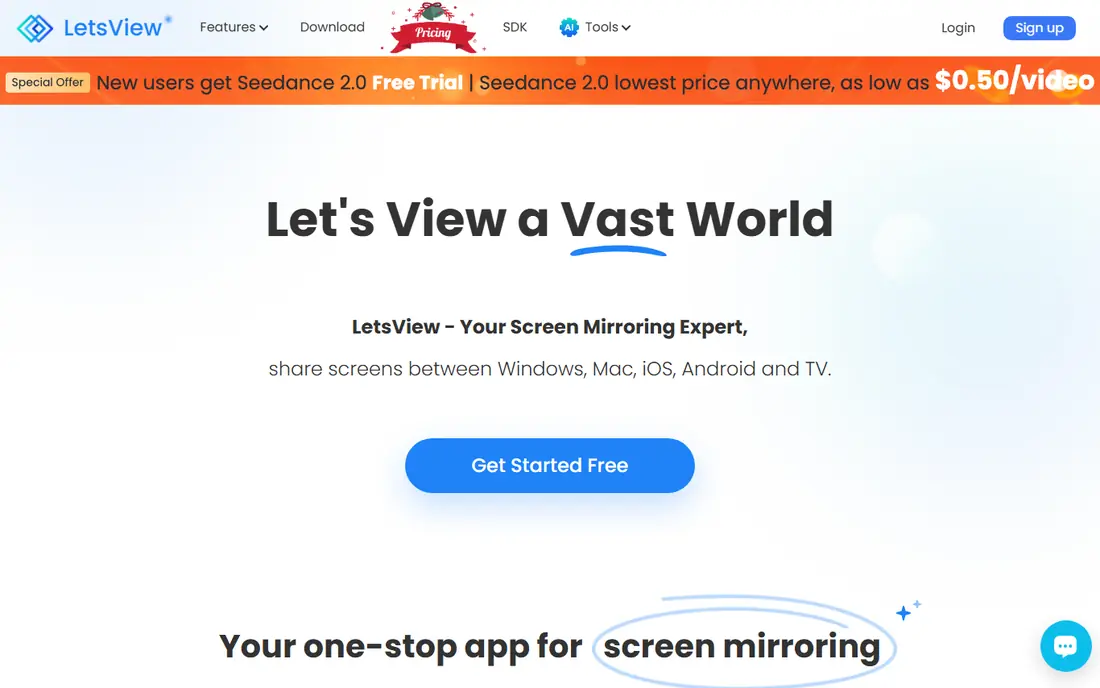
LetsView is the easiest free place to start. You install it on your phone and computer, connect on the same network, and your phone screen appears on the larger display. Teachers use it to show a phone screen to a class, and home users use it to watch photos or videos on a PC without a cable.
The free model is the appeal, and the catch is network quality. A weak Wi-Fi signal can cause lag or drops, which matters for games and fast video. If your network is solid and you mainly need to show a screen, LetsView covers the job at no cost.
- Free for basic mirroring
- Works across Android, iOS, Windows and Mac
- Includes recording and screenshots
- Needs a stable shared Wi-Fi network for best results
- Extra features vary by device
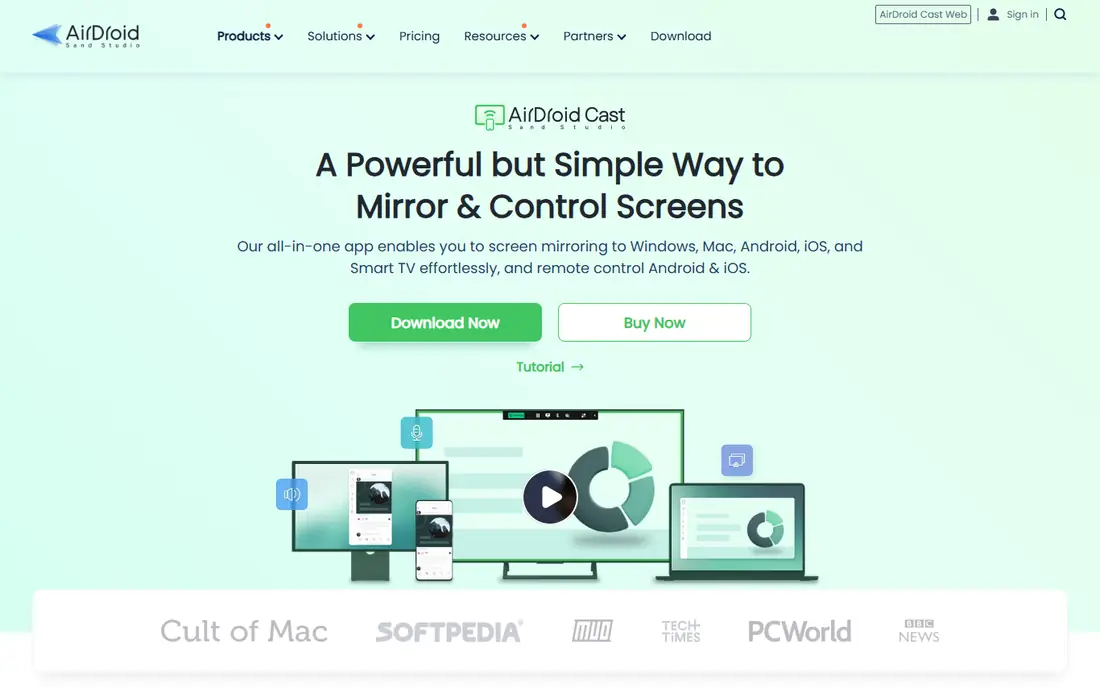
AirDroid Cast goes a step beyond showing your screen. On paid plans, you can click, scroll and type on your phone from your computer, which helps for replying to messages or testing an app without picking up the phone. You can also cast to a browser, which is handy on a shared or work computer.
Prices and plan limits have changed over time, so check the vendor site before you buy. The free tier is still useful for a quick mirror, but people who want full control should expect to pay. Keep your phone screen on during a session, as mirroring stops if the phone locks in some setups.
- Cast by code, USB or AirPlay
- Control Android and iOS from a PC on paid plans
- Works in a browser too
- Full touch control sits behind a paid plan
- Basic free mirroring is more limited
ApowerMirror suits people who want to do more than watch a screen. You can record a session, take screenshots and annotate, which helps for tutorials, demos and classroom work. Android users can also control the phone from the PC, so you can play a game or open apps with a mouse and keyboard.
The downside is the paywall. The free version shows what the tool can do, but recording limits and other full features sit behind a subscription. If you only mirror now and then, a free tool may be enough. If you record demos often, ApowerMirror earns its place.
- Mirrors Android and iOS to PC
- Screen recording and screenshots
- Android control from PC
- Full features need a paid plan
- Setup takes a few more steps than simpler free tools
Vysor puts your Android phone on your desktop and lets you use it with a mouse and keyboard. That is useful for typing long messages, testing apps and helping someone remotely. Developers like it because it feels closer to working on a real device than using an emulator.
The free version works, but picture quality is lower than paid plans, and some apps that block screen sharing will not mirror. That limit applies to most mirroring tools, and it covers banking apps and some protected video. For everyday Android control, Vysor remains a practical, low-cost pick.
- Control Android with mouse and keyboard
- Works on Windows, Mac and Linux
- Sharing option for remote help
- IOS support is limited compared with Android
- Higher video quality sits behind paid plans
Reflector turns a Windows or Mac computer into a receiver. Instead of installing a sender app and hunting for a TV, you cast from a phone or tablet to the computer, which is ideal for a classroom or meeting room with a projector. It can show several devices at once, which helps for side-by-side demos.
It is paid software, so it only makes sense if you receive streams often. Check the current one-time or subscription price on the vendor site, since past listings differ. If you only mirror your own phone to your own PC, a free sender tool is cheaper.
- Receives AirPlay, Google Cast and Miracast on one computer
- Multiple devices at once
- Recording built in
- Paid software with no lasting free tier
- Receiver only, so it does not send your PC screen to a phone
AirServer serves a similar job to Reflector, with a focus on rooms where iPhones, Android phones and Chromebooks all need to connect. It accepts common casting protocols, so guests do not need to install the same app on every phone. That matters in schools and offices where devices change each day.
Performance depends on the receiving computer. Several high-quality streams at once can strain an older machine, so test with your real setup before a big presentation. For a single home user, it is more tool than needed, but for shared rooms it is a solid choice.
- Receives AirPlay and Cast streams
- Supports multiple devices
- High-quality video on capable hardware
- Paid, with pricing that varies by edition
- Heavier on older computers with several streams
Scrcpy is the pick for Android users who do not mind a little setup. It mirrors over USB with low lag, and you can control the phone from your computer with no subscription and no account. It is open source, which means the code is public and there is no paid tier hiding the core features.
The trade-off is the interface. There is no polished app store installer for every step, and you need to enable developer options and USB debugging on the phone. Guides on the project page walk through it, but it is not a one-tap tool. If you want free, fast Android control and you can follow a setup guide, Scrcpy is hard to beat.
- Free and open source
- Low lag over USB
- Full mouse and keyboard control
- No account needed
- Command-line setup puts off some users
- Android only, with no iOS support
Mirroring360 keeps the job narrow: show a phone or tablet screen on a computer. That simplicity suits presenters who do not want extra menus or account steps. It works over Wi-Fi, so you can walk around a room with your phone while the screen stays on the projector.
It does not offer the deep control of Vysor or Scrcpy, and recording options are thinner than ApowerMirror. Check the current price on the vendor site before you rely on it for regular work. For occasional, simple mirroring, it does the job with little fuss.
- Mirrors iOS and Android to Windows or Mac
- Works over Wi-Fi
- Simple setup for presentations
- Fewer control and recording features than rivals
- Paid after the trial
How we picked these
We compared official feature pages, pricing pages and app listings, and we kept only tools that are live and mirror a real phone screen today. We looked for a mix of free and paid tools, sender and receiver apps, and Android and iOS support. We left out built-in TV casting alone, since this list covers apps you install when your TV or PC does not already handle the job. Prices can change, so check the vendor site before you buy.
What to check before you pick
Start with direction. Do you need to send your phone screen to a PC, or receive phone streams on a PC? Sender apps like LetsView and Scrcpy cover the first case, while Reflector and AirServer cover the second. Picking the wrong direction is the most common mistake.
Next, check your devices and network. iOS users need AirPlay support or an app that handles it, while Android users have more wired options. Wireless mirroring needs a stable shared network, while USB mirroring needs a cable and, for Scrcpy, developer settings. Finally, remember that some apps block mirroring for security or copyright reasons, so banking apps and some video services may show a blank screen even when the tool works fine elsewhere.
Frequently asked questions
What is the best free screen mirroring app?
LetsView is the best free wireless option for most people, while Scrcpy is the best free option for wired Android control. LetsView is easier to set up, and Scrcpy gives lower lag and fuller control once it is running.
What is the best screen mirroring app for iPhone to PC?
LetsView, ApowerMirror and AirDroid Cast all handle iPhone to PC mirroring, and Reflector or AirServer let a PC receive an AirPlay stream. If you want control from the PC, check the paid plan limits, since iOS control is more limited than Android control.
What is the best phone mirroring app for a TV?
If your TV already supports AirPlay or Chromecast, use that built-in option first. If it does not, mirror to a PC connected to the TV with LetsView or ApowerMirror, or use a receiver app on a PC linked to the TV.
Can I mirror my phone without Wi-Fi?
Yes, with a USB cable and a tool like Scrcpy for Android, or Vysor over USB. Wireless tools need a shared network, so a cable is the safer choice for a weak or public network.
Why does my screen go blank in some apps?
Some apps block screen sharing to protect payments, private messages or copyrighted video. That is normal, and it does not mean your mirroring app is broken. Try a different app, such as your photos or browser, to confirm the mirror itself works.
Sources
See where you really rank - block by block
ProMapRanker scans Google Maps across a grid of your service area. Simple monthly plans from $19, white-label on every plan.
Start freeKeep reading
 venmo alternatives
Venmo Alternatives in 2026: 8 Apps Compared
Venmo alternatives compared for sending money to friends, paying businesses and sending abroad, with fees, speed, limits and free plans explained here.
Read → splunk alternatives
Splunk Alternatives in 2026: 8 Tools Compared
Splunk alternatives compared for log search, observability and security analytics, with open source and managed options, free tiers and prices for teams.
Read → microsoft access alternatives
Microsoft Access Alternatives in 2026
Looking for microsoft access alternatives? We compare 8 database tools for teams that need web access, sharing, and apps without old desktop limits in 2026.
Read →