 ProMapRanker
Best Scanning App in 2026: 8 Apps Compared

Key takeaways
- Adobe Scan is our pick for most people, with clean PDFs and text recognition in a free app.
- Apple Notes and Google Drive are the best no-cost options if you already use those systems.
- Scanner Pro and Genius Scan suit users who want scans kept on device or exported without fuss.
- Microsoft Lens was retired in 2026, so do not build a new workflow around it.
Quick comparison
| Pick | Great for | Pricing starts at | Free tier | |
|---|---|---|---|---|
 Adobe Scan | Clean PDFs with text recognition | Free | Yes | Visit |
 Apple Notes | Free scanning built into iPhone and iPad | Free | Yes | Visit |
 Google Drive | Free scanning saved straight to Drive | Free | Yes | Visit |
 Scanner Pro | iPhone and iPad users who scan often | Free | Yes | Visit |
 Genius Scan | Fast scans with a light privacy footprint | Free | Yes | Visit |
 SwiftScan | Fast capture and automatic workflows | Free | Yes | Visit |
 CamScanner | Feature depth for difficult documents | Free | Yes | Visit |
 iScanner | Extra tools, signatures, and exports | Free | Yes | Visit |
The best scanning apps
These apps turn paper into searchable PDFs, and the best choice depends on your phone, your privacy needs, and how much editing you want after capture.
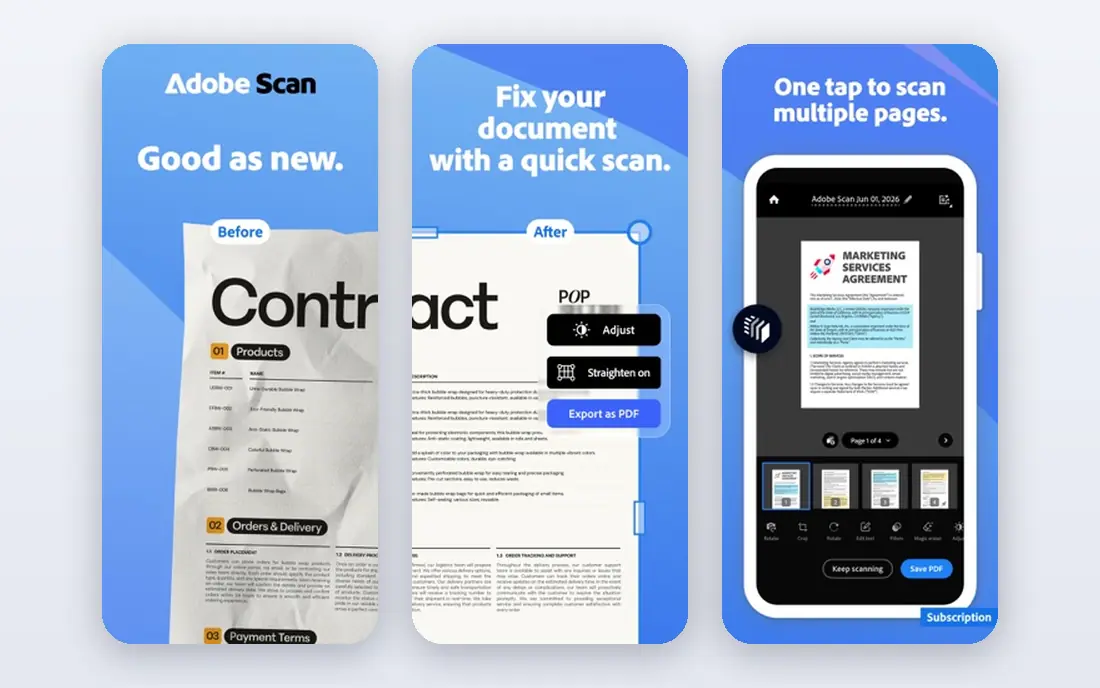
Adobe Scan is the most polished free scanner for general use. Point the camera at a page, and it finds the edges, flattens the image, cleans up shadows, and runs text recognition so you can search inside the PDF later. Multi-page documents, receipts, and forms all come out looking close to a flatbed scan, which matters when you send documents to a bank, a school, or an employer.
The free tier covers the core job well, but editing, extra storage, and the full Acrobat toolset sit behind a paid plan. If you already use Adobe products, that integration is a plus; if you prefer to keep scans local, another app on this list fits better. For most people who want a reliable free scanner, Adobe Scan is the first app to try.
- Automatic edge detection and cleanup
- Text recognition makes PDFs searchable
- No watermark on free scans
- Full Acrobat features need a paid plan
- Scans live in Adobe cloud by default
- Some features need an account
Apple Notes is easy to overlook because it is already on your phone. Open a note, choose the scan option, and the camera captures pages into a single document you can share as a PDF. Live Text also makes text inside scans selectable and searchable on device, which covers the most common reason people pay for a scanner app.
The limits show up with heavy use. Batch workflows, advanced PDF editing, and cloud destinations are thinner than in Scanner Pro or Adobe Scan, and Android users cannot use it at all. For occasional scans, receipts, and school forms, though, it is free, private by default, and always at hand. Try it before paying for anything else on iPhone.
- No extra app or subscription needed
- Document scanner built into Notes
- Text in scans is searchable on device
- IPhone and iPad only
- Fewer export and batch options than dedicated apps
- Organization depends on Notes folders
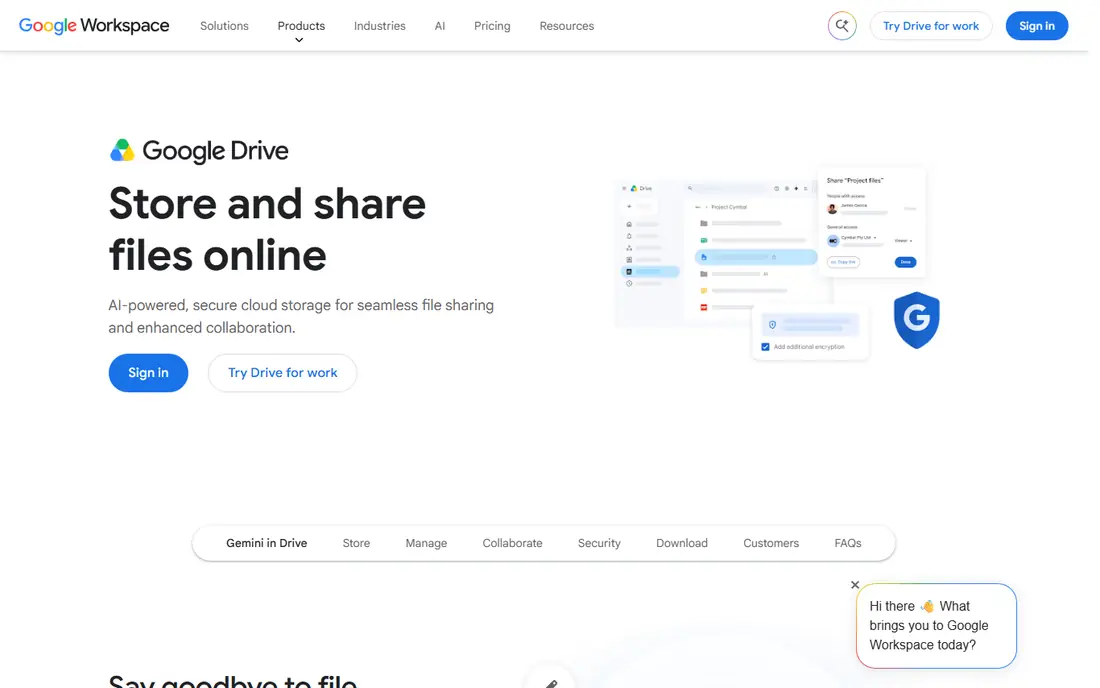
Google Drive gives Android users a built-in scanner that is hard to beat on price, because it costs nothing beyond the storage you already use. Capture a document in the Drive app, and it lands in the folder you choose, ready to share, print, or attach. Text recognition runs after upload, so many scans become searchable without extra steps.
It is not a full scanner studio. Edge handling, batch naming, and PDF editing are more basic than in paid apps, and sensitive documents deserve a check of sharing settings before you send a link. For students, small businesses, and anyone who already lives in Drive, it removes the need for a separate subscription while keeping scans easy to find.
- Free scanner in the Drive app
- Scans save directly to your Drive folders
- Text recognition after upload
- Fewer capture controls than dedicated apps
- Needs a Google account
- Sharing settings need care for sensitive documents
Scanner Pro, from Readdle, is the paid all-rounder for Apple users. Capture is fast, pages are cleaned up well, and folders, smart categories, and workflows help you file receipts, contracts, and notes without a separate filing step. The paid Plus plan adds on-device text recognition, full-text search, and automatic cloud upload, which matters if you scan every day.
The main change to note is pricing. Scanner Pro is now free to download, with paid features behind Scanner Pro Plus, rather than a single one-time purchase. That makes the free tier a fair trial, but long-term users should price the subscription, not an old one-time figure. If you scan on iPhone and want control over where files go, it is worth the test.
- Strong automatic cleanup and perspective correction
- On-device text recognition on paid plan
- Smart categories and workflows
- Apple platforms only
- Text recognition and full search need Scanner Pro Plus
- Subscription replaces the old one-time purchase
Genius Scan is the quiet workhorse of this list. It opens fast, finds page edges well, exports clean PDFs, and does not force you into an account or a cloud service to get started. That on-device approach suits legal, medical, and finance documents where you want to decide where a scan goes, rather than having it uploaded by default.
The trade-off is that text recognition is paid, so free scans are images rather than searchable text until you upgrade. Export and workflow options are also simpler than Scanner Pro or Adobe Scan. If your main need is a clean, fast PDF from a phone photo, with minimal fuss, Genius Scan is a strong, low-cost choice.
- Fast capture and good edge detection
- Scans can stay on device
- No watermark on free scans
- Text recognition sits on the paid tier
- Fewer cloud workflow options than larger apps
- Interface is plain
SwiftScan, formerly Scanbot, suits people who scan on the move and want files named and filed with little manual work. Capture feels quick, pages are straightened and cleaned, and cloud destinations and workflow rules can move scans to the right folder without repeated taps. For travelers and freelancers with a steady stream of receipts, that speed adds up.
The free tier is the catch. Watermarks and paid text recognition mean casual users may prefer Adobe Scan or a built-in option, and the subscription only makes sense if you scan often. Check the current in-app price before subscribing, since scanner pricing changes often. For frequent, workflow-heavy scanning, SwiftScan earns its place.
- Quick capture with good edge detection
- Cloud sync and workflow options
- Clean interface for frequent scanning
- Free scans can carry a watermark
- Full text recognition needs a paid plan
- Subscription cost adds up for casual users
CamScanner has the deepest feature set on this list, with batch scanning, PDF editing tools, and text recognition across many languages. That depth helps with long reports, mixed documents, and forms that simpler apps handle less well. If you scan varied material every week, the extra tools can save time.
The free experience is less clean. Ads and watermarks appear on free exports, and the full feature set needs a paid plan. Users with sensitive documents should also review privacy settings and cloud options before uploading. CamScanner is best for power users who need its tools and accept its trade-offs, not for someone who wants one clean scan a week.
- Wide range of PDF tools and export options
- Text recognition in many languages
- Batch scanning for long documents
- Free tier shows ads and can watermark exports
- Cloud storage raises privacy questions
- Interface can feel busy
iScanner bundles scanning with tools that many rivals sell separately, including signatures, PDF protection, and exports to Word, Excel, and PowerPoint on paid plans. That makes it useful for small business users who scan contracts, add a signature, and send a finished file in one flow. It runs on iPhone, iPad, Android, and the web, which also helps mixed-device households.
The free tier is a trial in practice, with limits and upsells, and the subscription is the real price of the full app. Privacy-minded users should check which features process files outside the device. If you need those export and signature tools often, iScanner is a capable pick; if you only need clean PDFs, a simpler free app will do.
- Wide export formats including Word and Excel on paid plans
- Signature tools
- Document protection with PIN and biometrics
- Subscription pricing is the main cost
- Some features send files to third parties
- Ads and upsells in the free tier
How we picked these
We compared current app store listings, vendor pages, and recent scanner guides, and we excluded apps that no longer work. That exclusion matters in 2026: Microsoft Lens was removed from app stores in February 2026 and stopped creating new scans in March 2026, so it does not appear here. We favored apps that are still maintained, scan on current phones, and offer a usable free tier or built-in option, and we noted where text recognition or watermark-free export needs a paid plan.
How to choose a scanning app
Start with what you already own. iPhone users should try Apple Notes first, and Drive users should try the Drive scanner, because both are free and cover occasional scanning well. Move to a dedicated app only when you need batch scanning, searchable text, workflow rules, or better PDF editing.
Checks before you scan sensitive papers
Check where scans are stored, whether text recognition runs on device or in the cloud, and how sharing links work before scanning identity documents, medical forms, or contracts. Turn off automatic cloud upload if you want scans to stay local, and test export quality on a real document, not a blank page. Good light and a flat surface still improve results more than any filter.
Frequently asked questions
What is the best free scanning app?
Adobe Scan is the best free third-party option for most people, thanks to clean PDFs and searchable text without a watermark. Apple Notes on iPhone and Google Drive on Android are equally good if you want a built-in option with no extra app. Choose the built-in tool first if you scan only now and then.
What is the best document scanning software for receipts?
Scanner Pro and SwiftScan handle receipts well because they clean up small, curled pages and file them quickly. Genius Scan is a good low-cost choice for simple receipt PDFs. Whichever app you pick, check that the total, date, and vendor name stay readable after export.
Is there a free app for scanning documents to PDF?
Yes. Adobe Scan, Apple Notes, Google Drive, Genius Scan, and the free tiers of Scanner Pro, SwiftScan, CamScanner, and iScanner all export PDFs. The differences are watermarks, text recognition, and batch limits, so check those points before settling on one.
Why is Microsoft Lens missing from this list?
Microsoft retired Microsoft Lens in 2026. It left app stores in February 2026 and stopped creating new scans in March 2026. Microsoft points users to the scan feature inside OneDrive instead. Do not install old copies from unofficial sources.
Do scanning apps read text from a photo?
Many do, through text recognition, but the feature is often paid. Adobe Scan includes it free, while Genius Scan, SwiftScan, and Scanner Pro put full text recognition behind paid plans. Apple Notes uses on-device Live Text, and Google Drive applies recognition after upload.
Sources
See where you really rank - block by block
ProMapRanker scans Google Maps across a grid of your service area. Simple monthly plans from $19, white-label on every plan.
Start freeKeep reading
 best subscription manager app
Best Subscription Manager App in 2026
Find the best subscription manager app for your budget with our 2026 comparison of 8 apps, covering automatic detection, renewal alerts and free plans.
Read → best stock picking service
Best Stock Picking Service in 2026
Compare the best stock picking service options for 2026, with 8 stock recommendation services for long-term, dividend, quant, growth and income investors.
Read → best software wallet
Best Software Wallet in 2026
Compare the best software wallet options for 2026, with 8 crypto wallets for desktop and mobile, covering self-custody, supported chains, fees and security.
Read →