 ProMapRanker
Best RGB Software in 2026: 10 Tools Compared

Key takeaways
- SignalRGB is our pick for most mixed-brand PCs, with cross-brand sync, a large effect library, and a free core version.
- OpenRGB is the best fully free and open source pick, with no account and no paid tier, though setup takes more patience.
- Vendor suites such as iCUE, Synapse, and Armoury Crate still win when most of your hardware comes from one brand.
- Running two RGB apps at once causes conflicts, so pick one controller per device and close the others fully, including background services.
Quick comparison
| Pick | Great for | Pricing starts at | Free tier | |
|---|---|---|---|---|
 SignalRGB | Cross-brand sync with effects | Free | Yes | Visit |
 OpenRGB | Free open source control | Free | Yes | Visit |
 Corsair iCUE | Corsair hardware owners | Free | Yes | Visit |
 Razer Synapse | Razer hardware owners | Free | Yes | Visit |
 ASUS Armoury Crate | ASUS hardware owners | Free | Yes | Visit |
 MSI Center | MSI hardware owners | Free | Yes | Visit |
 Logitech G Hub | Logitech hardware owners | Free | Yes | Visit |
 NZXT CAM | NZXT hardware owners | Free | Yes | Visit |
 Gigabyte Control Center | Gigabyte hardware owners | Free | Yes | Visit |
 SteelSeries GG | SteelSeries hardware owners | Free | Yes | Visit |
The best rgb software for pc
We compared these tools on device support, effect range, cross-brand sync, resource use, and price, using official product pages and current PC building guidance. Every tool below is free to download, since RGB software is normally bundled with hardware or offered as a free download, with paid extras only on SignalRGB Pro. The real cost is not money but conflicts, background services, and time spent troubleshooting.
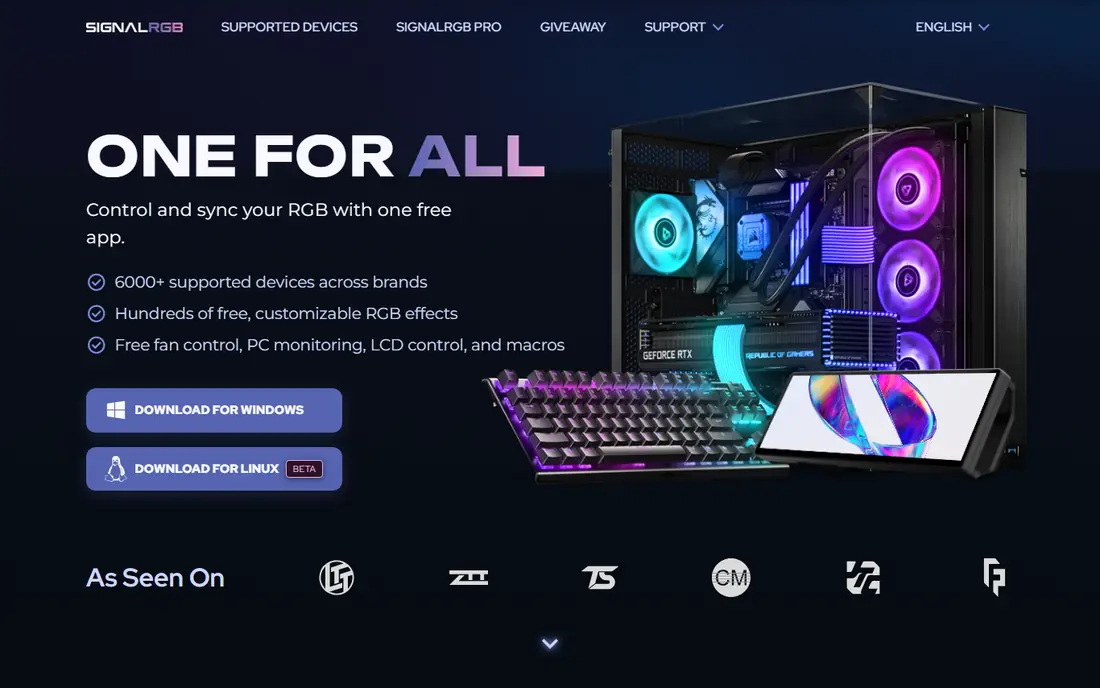
SignalRGB is the tool we recommend first for a PC built from parts by different brands. One app can control lighting on motherboards, memory, graphics cards, fans, keyboards, and mice from many makers, with a library of free effects and custom layouts that map effects to the physical position of each device. For a mixed rig, that single-app control replaces three or four vendor suites and their background services.
The core app and basic device control are free, with no paywall on core features, while SignalRGB Pro adds game integrations, audio visualisers, fan control, and extra effects behind a subscription. The app is Windows only, needs an account sign-in and internet on first launch, and recommends Windows 11 with 8 GB of memory. For most mixed-brand PCs, those trade-offs are worth it for the sync and effect range.
- Controls hardware from many brands in one app
- Large free effect library
- Custom device layouts
- Windows only
- Needs an account and internet on first launch
- Pro features need a subscription
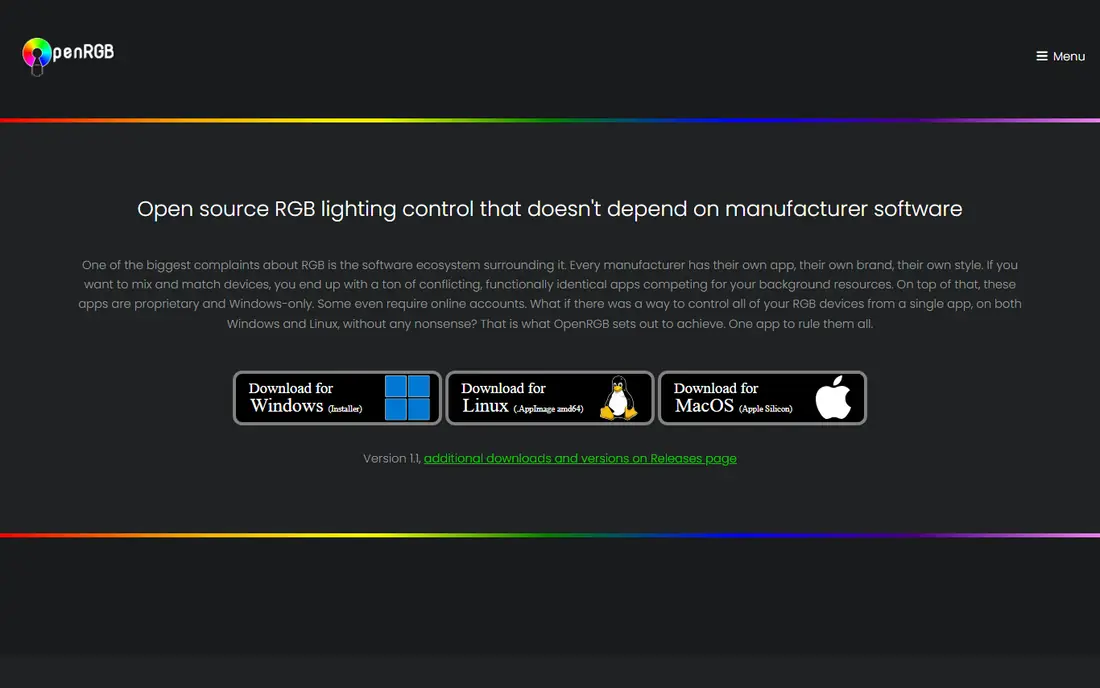
OpenRGB is the purist's choice: free, open source software under the GPL, with no account, no login, and no paid tier. It aims to control lighting across many brands from one lightweight interface, and it runs on Windows, Mac, and Linux, which no vendor suite matches. For a user who distrusts background services and telemetry, OpenRGB's transparency is a genuine advantage.
The cost is polish and coverage. Device support varies by exact model, so a new graphics card or motherboard may be partially supported until the community adds it, and the interface is plainer than SignalRGB or iCUE. Linux users also need to add USB access rules before some devices appear. Check the official supported-devices list for your exact hardware before removing a vendor app, and keep the vendor app handy for firmware updates.
- Completely free and open source
- No account or cloud sync
- Runs on Windows, Mac, and Linux
- Interface is plainer
- Device support varies by exact model
- Setup needs patience on Linux
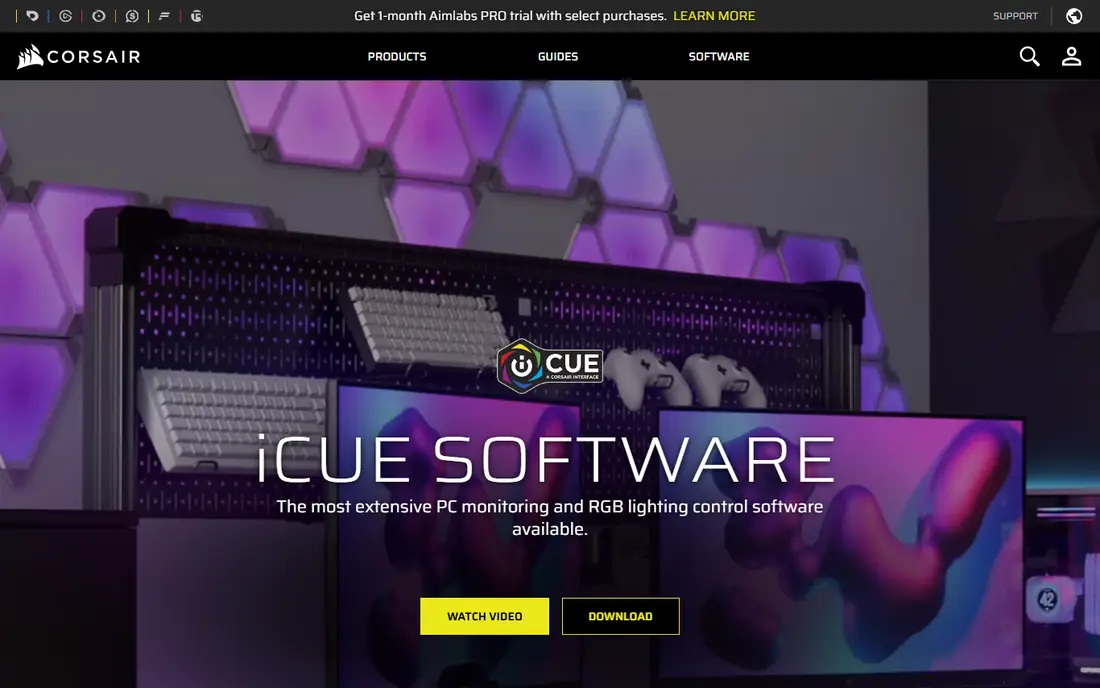
Corsair iCUE is the benchmark vendor suite, and Corsair owners get the most from it. Fans, lighting, liquid cooling, keyboards, mice, and headsets are controlled in one place, with detailed lighting layers, profiles, and cooling curves that go beyond simple colour picking. For an all-Corsair build, iCUE gives a level of integration that cross-brand tools struggle to match on Corsair's own controllers.
The limit is brand focus. iCUE controls Corsair hardware best, with limited help for other brands, and the suite can feel heavy, with several background services running. A mixed-brand PC will still need another tool or accept that non-Corsair parts stay on their own defaults. For a Corsair-heavy rig, though, iCUE is the right default.
- Deep control over Corsair fans, lighting, and cooling
- Detailed profiles and effects
- Strong peripheral support
- Corsair-focused
- Can feel heavy with many background services
- Cross-brand support is limited
Razer Synapse suits Razer peripheral owners who want per-key lighting, Chroma effects, and game integrations without a steep learning curve. Keyboards, mice, headsets, and laptops are managed in one app, with cloud profiles that follow the user between machines. Chroma Studio gives more control for users who want to design effects rather than pick presets.
Synapse is Razer-focused, so it will not control a competitor's motherboard or memory in the same way. Cloud features also need a Razer account, and the suite can feel heavy on older systems. For a Razer desk setup, with keyboard, mouse, and headset from one brand, Synapse is simple, capable, and free.
- Easy per-key and zone lighting for Razer devices
- Chroma effects and game integrations
- Cloud profiles
- Razer-focused
- Needs a Razer account for cloud features
- Can be heavy on older PCs
ASUS Armoury Crate is the all-in-one suite for ASUS hardware, covering Aura Sync lighting, fan control, performance profiles, and driver updates in one place. For an ASUS motherboard and graphics card build, it gives a single place to set lighting, check temperatures, and update firmware, which is convenient for a first-time builder. Aura Sync effects also extend to compatible partner devices.
The suite is ASUS-focused, so non-ASUS parts get limited help, and Armoury Crate has a reputation for feeling heavy, with several background services. Update quirks have also frustrated some users over the years. For an ASUS-heavy PC, the convenience outweighs those costs. For a mixed build, SignalRGB or OpenRGB is a lighter lighting-only choice.
- Controls ASUS motherboards, graphics cards, and peripherals
- Fan, performance, and driver tools included
- Aura Sync effects
- ASUS-focused
- Can feel heavy with many services
- Some users report update quirks
MSI Center, with its Mystic Light module, is the suite for MSI motherboard, graphics card, and peripheral owners. Lighting effects, fan curves, performance modes, and system monitoring sit together, with simple switching between silent, balanced, and performance profiles. For an MSI build, that single-app control is convenient and free.
Mystic Light coverage varies by exact model, so older or budget parts may offer fewer effects than flagship parts. The suite is also MSI-focused, with limited help for other brands, and it can feel large for users who only want lighting. For an MSI-heavy PC, MSI Center is the natural pick. For mixed hardware, a cross-brand tool will do the lighting job better.
- Mystic Light control for MSI parts
- Performance, cooling, and monitoring tools
- Simple mode switching
- MSI-focused
- Mystic Light coverage varies by model
- Suite can feel large
Logitech G Hub is the easiest vendor suite to recommend for peripheral owners, with a clean interface for keyboards, mice, headsets, and speakers. Per-key lighting, profiles per game or app, and macro assignment are all straightforward, and the app is widely praised for usability beside heavier suites. For a Logitech desk setup, G Hub is the obvious choice.
The limit is scope. G Hub controls Logitech peripherals, not motherboard, memory, or graphics card lighting inside the PC, so an internal lighting job still needs another tool. It is also Logitech-focused by design. Pair G Hub for peripherals with SignalRGB or a motherboard suite for internal parts, and close any overlapping lighting control to avoid conflicts.
- Intuitive interface for Logitech peripherals
- Per-key lighting and profiles
- Good game and app integrations
- Peripheral-only, not for internal PC lighting
- Logitech-focused
- Some users prefer the older software
NZXT CAM suits NZXT case, cooler, and fan owners who want monitoring and lighting in a clean, modern interface. Temperatures, fan speeds, and pump control sit beside lighting profiles, which makes CAM useful as a system monitor as well as a lighting tool. The interface is simpler than iCUE or Armoury Crate, which many users prefer.
CAM is NZXT-focused, so it will not control other brands' internal lighting in the same way, and some features need an NZXT account. For an NZXT build, with a case, cooler, and fans from one brand, CAM is a tidy and capable choice. For a mixed build, use CAM for NZXT cooling and a cross-brand tool for lighting, with care to avoid overlap.
- Clean monitoring and lighting for NZXT cases and coolers
- Fan and pump control
- Simple profiles
- NZXT-focused
- Account needed for some features
- Limited cross-brand lighting
Gigabyte Control Center, with RGB Fusion, is the suite for Gigabyte motherboard and graphics card owners. Lighting zones, fan control, and performance settings sit in one free download, with effects that sync across compatible Gigabyte parts. For a Gigabyte build, it gives the basic control most users need without a third-party tool.
The interface is less polished than iCUE or G Hub, and the effect range varies by model, with flagship parts offering more than budget parts. Cross-brand control is also limited. For a Gigabyte-heavy PC, Control Center is the practical default. For a mixed PC, SignalRGB or OpenRGB will give a wider effect range across brands.
- RGB Fusion lighting for Gigabyte parts
- Fan and performance tools
- One suite for Gigabyte boards and cards
- Gigabyte-focused
- Interface is less polished than rivals
- Effect range varies by model
SteelSeries GG suits SteelSeries keyboard, mouse, and headset owners who want Prism lighting plus useful extras in one app. Sonar audio mixing and Moments clip capture sit alongside lighting and profiles, which makes GG more than a lighting tool for streamers and gamers. The interface is clean, and per-device profiles are easy to set.
GG is peripheral-only, so internal PC lighting still needs another tool, and it is SteelSeries-focused by design. The extra features also add weight for a user who only wants lighting. For a SteelSeries desk setup, GG is a strong and free choice. For internal lighting, pair it with a motherboard suite or a cross-brand tool, and keep only one app controlling each device.
- Clean control for SteelSeries peripherals
- Prism lighting effects
- Sonar audio and Moments capture included
- Peripheral-only
- SteelSeries-focused
- Extra features add weight for lighting-only users
How we picked these
We compared official product pages, system requirements, and current PC building guidance for RGB tools live in October 2026, and we favoured tools that are free to download and actively maintained. We included two cross-brand tools and eight vendor suites, because the best RGB software for a PC depends on whether the hardware comes from one brand or many. We did not list discontinued sync tools as live picks, and we noted where a tool is Windows-only or peripheral-only rather than hiding that limit.
How to set up RGB software without conflicts
Start by listing every light in the PC: motherboard, memory, graphics card, fans, strips, keyboard, mouse, and headset. Then pick one controller for each device, and close every other lighting app fully, including its background services, before testing. Two apps writing to the same device at once is the most common cause of flicker, stuck colours, and devices disappearing from a list.
Next, check compatibility before uninstalling anything. OpenRGB and SignalRGB both publish device lists, and support varies by exact model, so confirm your graphics card, motherboard, and memory are covered. Keep the vendor app installed until the replacement controls everything you need, since vendor apps also deliver firmware updates that cross-brand tools do not.
Finally, save a static colour to hardware memory where your devices support it. That saved profile keeps a sane look even with no RGB app running, which is useful for troubleshooting and for gaming sessions where you want every background service closed. Test the saved profile with a reboot before relying on it.
Frequently asked questions
What is the best rgb software for pc with mixed brands?
SignalRGB is the best pick for most mixed-brand PCs, with cross-brand sync, a large free effect library, and custom layouts. OpenRGB is the best fully free alternative, with no account and no paid tier, though setup takes more patience. Both beat running several vendor suites at once for lighting alone.
Is there free rgb software for pc?
Yes, every tool on this list is free to download, including SignalRGB core, OpenRGB, iCUE, Synapse, Armoury Crate, and G Hub. SignalRGB Pro adds paid extras such as game integrations and audio visualisers, while OpenRGB has no paid tier at all. Vendor suites are free because they are bundled with the hardware they control.
What is the best rgb software for a single brand PC?
Use that brand's own suite: iCUE for Corsair, Synapse for Razer, Armoury Crate for ASUS, MSI Center for MSI, G Hub for Logitech, CAM for NZXT, Control Center for Gigabyte, and GG for SteelSeries. Vendor suites control their own controllers, cooling, and firmware best, which cross-brand tools cannot fully match.
Can one rgb software control all brands?
Partly. SignalRGB and OpenRGB control hardware from many brands, but support varies by exact model, and some devices need a vendor app for firmware or full effect range. Check the compatibility list for your exact motherboard, graphics card, and memory before committing to a single cross-brand tool.
Why does my RGB flicker or stop responding?
The most common cause is two lighting apps writing to the same device, so close all other RGB apps fully, including background services. Outdated firmware, a loose ARGB cable, or mixing 5V addressable and 12V non-addressable headers can also cause flicker. Update firmware with the vendor app first, then test with one controller only.
Sources
- https://signalrgb.com
- https://openrgb.org
- https://www.corsair.com/us/en/icue
- https://www.razer.com/synapse
- https://www.asus.com/us/support/armoury-crate/
- https://www.msi.com/Landing/MSI-Center
- https://www.logitechg.com/en-us/innovation/g-hub.html
- https://nzxt.com/software/cam
- https://www.gigabyte.com/Support/Utility
- https://steelseries.com/gg
- https://www.signalrgb.app/
- https://www.openrgb.app/
See where you really rank - block by block
ProMapRanker scans Google Maps across a grid of your service area. Simple monthly plans from $19, white-label on every plan.
Start freeKeep reading
 best tour operator software
Best Tour Operator Software in 2026
Compare the best tour operator software for bookings, channel management, waivers and payments, with pricing models for day tours and multi-day trips.
Read → best time clock app for small business
Best Time Clock App for Small Business in 2026
We compare the best time clock app for small business options, with free plans, GPS clock ins, scheduling and payroll links for hourly teams and payroll help.
Read → best test automation tools
Best Test Automation Tools in 2026
Compare the best test automation tools, from Playwright and Selenium to Cypress, Katalon and BrowserStack, with prices, languages and best uses explained.
Read →