 ProMapRanker
Best Remote Computer Software in 2026


All-round remote support and access · Pricing starts at: $24.90 per month
Key takeaways
- TeamViewer is our pick for most teams that need a well-known, cross-platform tool for support and remote work.
- Splashtop offers the best value for individuals and small teams who need remote access to their own computers.
- AnyDesk suits users who need fast, low-latency sessions, especially on slower connections.
- Chrome Remote Desktop and RustDesk cover free and self-hosted needs, while enterprise teams should look at ScreenConnect and RealVNC Connect.
Quick comparison
| Pick | Great for | Pricing starts at | Free tier | |
|---|---|---|---|---|
| TeamViewer | All-round remote support and access | $24.90 per month | Yes | Visit |
 AnyDesk | Fast low-latency access | $22.90 per month | Yes | Visit |
 Splashtop | Best value remote work access | $6 per month | Free trial | Visit |
 Chrome Remote Desktop | Free personal access | Free | Yes | Visit |
 Zoho Assist | Budget support for small teams | Free | Yes | Visit |
 ConnectWise ScreenConnect | IT support teams and MSPs | See website | Free trial | Visit |
 RealVNC Connect | Secure lightweight access | $8.25 per month | Yes | Visit |
 RustDesk | Self-hosted open source access | Free | Yes | Visit |
The best remote computer software
We compared these tools on speed, platform coverage, security, ease of setup, and pricing. Our pick for most users is TeamViewer, while Splashtop wins on value, AnyDesk wins on speed, and the free and self-hosted tools suit specific needs.
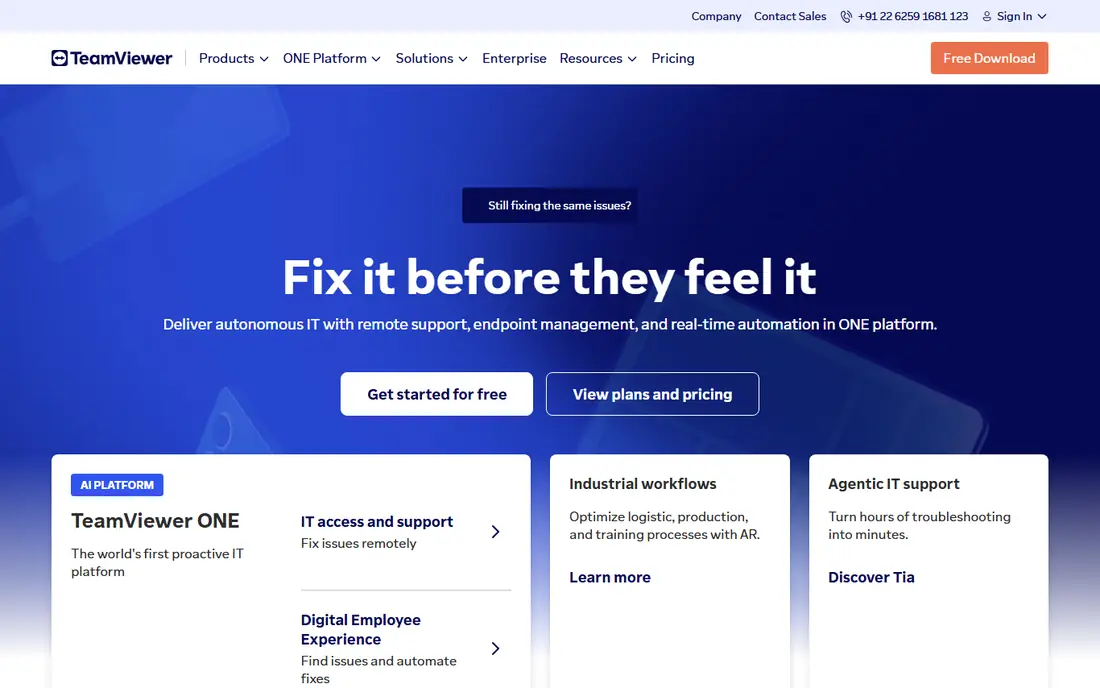
TeamViewer is the best-known tool on this list, and that familiarity helps when you support other people's computers. The other person only needs to share an ID and password, and you can connect, transfer files, print remotely and reboot and reconnect without a new session. Support for Windows, Mac, Linux, iOS and Android means one tool covers most devices a team will meet.
The main drawback is price for commercial use. The free tier is for personal, non-commercial use, and commercial plans start at a monthly price that rises with users and sessions. TeamViewer also flags sessions that look commercial, which can interrupt personal use if the pattern changes. For a team that needs a reliable, widely recognised support tool, it remains the safest choice.
- Cross-platform support for Windows, Mac, Linux and mobile
- Free tier for personal use
- File transfer, remote printing and session tools
- Strong security and compliance options
- Commercial pricing rises quickly with users
- Personal use detection can block commercial-looking sessions
- Interface has many features for simple use
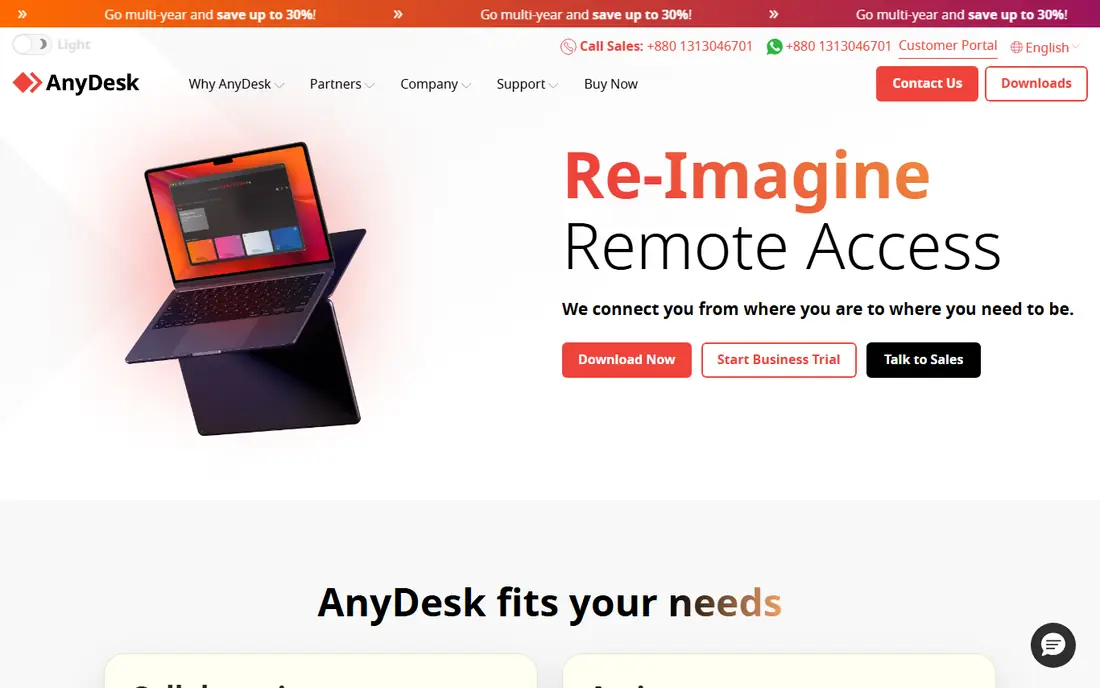
AnyDesk is built for speed. Its codec is designed to keep sessions responsive even on a slower connection, which matters when you work with graphics, video or a remote machine far away. The download is lightweight, setup is quick, and the interface focuses on connecting, not on a large set of extra tools.
The trade-off is breadth. AnyDesk covers remote access and support well, but enterprise features such as advanced session management, custom branding and detailed reporting sit in higher tiers. Pricing also varies by plan, so check the current page for your region. For freelancers and small teams who value speed above all, AnyDesk is an excellent choice.
- Fast performance on low-bandwidth connections
- Lightweight download
- Cross-platform access
- Free tier for personal use
- Commercial pricing varies by plan and region
- Session recording and advanced features need higher tiers
- Smaller feature set than TeamViewer for enterprise
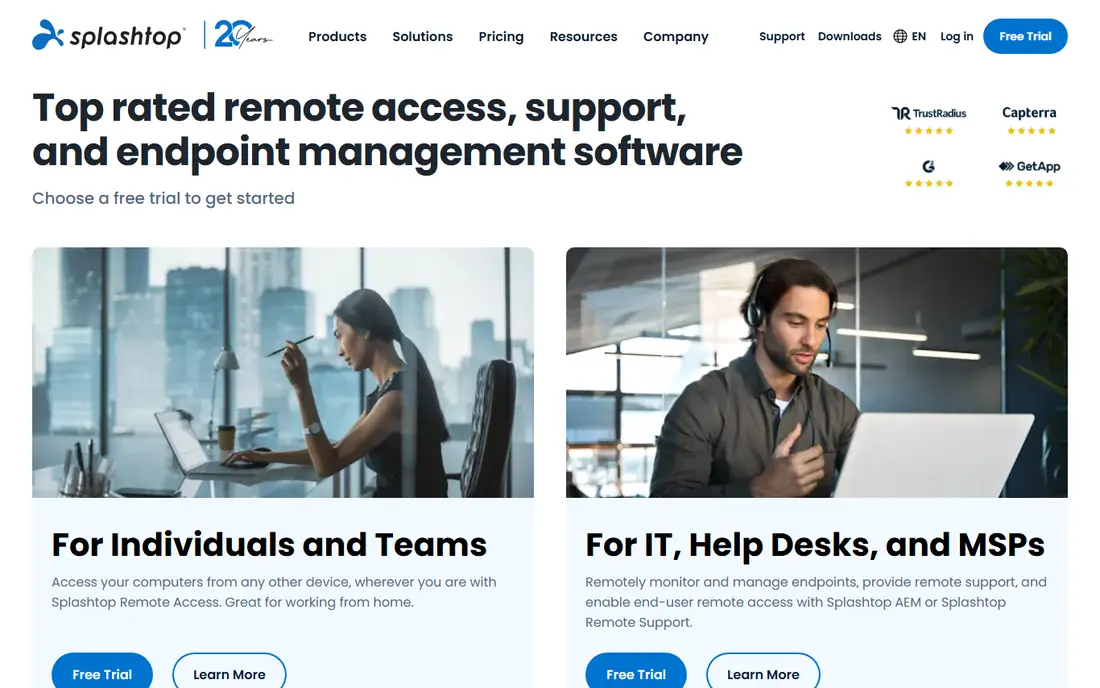
Splashtop is the value pick for remote work. The Solo plan, priced for a single user accessing their own computers, undercuts TeamViewer and AnyDesk by a wide margin, while still offering high-quality streaming, multi-monitor support and cross-platform apps. For a remote worker who needs to reach an office PC from home, that combination is hard to beat.
The limits appear for support teams. Features such as session recording, advanced compliance and large-scale deployment sit in higher plans, and some corporate IT teams may prefer a better-known brand. Splashtop also offers a free trial rather than a permanent free tier for business use. For individual remote access, it is our value recommendation.
- Low price for Solo remote access
- High-quality streaming and multi-monitor support
- Cross-platform apps
- Good for remote work from home
- Advanced support features need higher SOS or Enterprise plans
- Less name recognition in some corporate environments
- Free plan is a trial, not a permanent free tier
Chrome Remote Desktop is the simplest free option for personal use. Install the extension, link a Google account, and you can access your own computers from a browser on another device, or help a family member with a one-time access code. There is no subscription, no trial expiry and no complex setup.
The simplicity comes with limits. Chrome Remote Desktop lacks the session management, file transfer depth and support tools of paid rivals, and it is not designed for a support team handling many clients. It also requires a Google account, which may not suit every workplace. For free personal access to your own machines, it is the easiest choice on this list.
- Completely free
- Simple setup with a Google account
- Browser-based access from any device
- Good for personal use and family help
- Fewer support features than paid tools
- No advanced session management
- Requires a Google account and Chrome
Zoho Assist suits small teams that need remote support without a large budget. A free plan covers basic use, and paid plans add more concurrent sessions, custom branding and integrations with Zoho Desk, Freshdesk and other helpdesk tools. Browser-based sessions mean the person receiving help does not need to install a full app in many cases.
The trade-off is depth. Session recording, advanced reporting and large-scale deployment features sit in higher tiers, and the interface is simpler than TeamViewer's enterprise console. For a small business already using Zoho, or for a team that needs budget-friendly support, Zoho Assist is a practical and low-cost choice.
- Free plan for personal and basic use
- Browser-based support sessions
- Good value paid plans for small teams
- Integrations with Zoho and helpdesk tools
- Advanced features such as session recording need higher tiers
- Interface is simpler than enterprise rivals
- Large-scale deployment needs planning
ScreenConnect, from ConnectWise, is designed for IT support teams and managed service providers who handle many endpoints. It offers unattended access, so a technician can reach a machine without the user present, plus session management, custom branding and integrations with ticketing and remote monitoring tools. That structure suits a helpdesk that supports dozens or hundreds of machines.
The main drawback is complexity and price transparency. ScreenConnect is not a simple personal access tool, and pricing for larger teams is set by quote. Setup also takes time, with agents, permissions and integrations to configure. For an MSP or an internal IT team, that investment pays off. For a single remote worker, Splashtop or Chrome Remote Desktop will be simpler.
- Built for support teams and managed service providers
- Unattended access and session management
- Custom branding and integrations
- Strong for many endpoints
- Pricing is quote based for many teams
- More complex than a personal access tool
- Needs setup time for a full deployment
RealVNC Connect is a lightweight, secure option for users who want VNC-based access without a heavy client. It supports Windows, Mac, Linux and mobile, offers a free plan for personal use, and handles unattended access well for machines you return to regularly, such as a home server or an office PC. Security features, including encryption and two-factor authentication, are central to the product.
The interface is simpler than TeamViewer's, which some users will see as a benefit and others as a limit. Team features, session management and advanced controls sit in higher tiers, and initial setup can feel technical for a first-time user. For a user who values lightweight, secure access over a large feature set, RealVNC Connect is a solid choice.
- Lightweight and secure VNC access
- Free plan for personal use
- Cross-platform support
- Good for long-term unattended access
- Interface is simpler than TeamViewer
- Advanced team features need higher tiers
- Setup can feel technical for new users
RustDesk is the open source alternative for teams that want control over their data. The core software is free, and you can self-host the relay server, so remote sessions do not need to pass through a vendor's cloud. That model appeals to privacy-conscious teams, schools and small businesses that want to avoid subscription lock-in.
Self-hosting is also the main cost. You need to set up, update and secure the server, and support features such as advanced session management are thinner than in paid tools. A paid hosted option exists for teams that want RustDesk without running a server. For a technical team that values open source and self-hosting, RustDesk is the most flexible option here.
- Open source and self-hostable
- Free core use
- Cross-platform apps
- Data stays on your own server when self-hosted
- Self-hosting needs technical setup and maintenance
- Support features are thinner than paid rivals
- Smaller ecosystem than TeamViewer
How we picked these
We compared official product pages, pricing pages and public reviews, and we kept only tools that exist and work in October 2026 and that truly fit remote computer access or support. We favoured tools with cross-platform coverage, encryption and two-factor authentication, and we mixed free, budget and enterprise options so the list covers personal use, small teams and IT departments. Prices that could not be verified from a vendor page are listed as See website.
How to choose remote software safely
Start with the job. Personal access to your own PC needs only a free tool such as Chrome Remote Desktop or RustDesk. Supporting clients needs session management, unattended access and reporting, which points to TeamViewer, ScreenConnect or Zoho Assist. Remote work from home needs speed and multi-monitor support, which points to Splashtop or AnyDesk. Naming the job first prevents buying enterprise features you will never use.
Next, check security settings before you connect to anything sensitive. Turn on two-factor authentication, use strong, unique passwords for remote accounts, and limit unattended access to machines you control. Review who has access regularly, and remove old devices and users. A remote tool is powerful by design, so a weak account can give an attacker full access to a machine.
Finally, test speed on your real connection. Remote performance depends on bandwidth, latency and the codec, not just on the marketing claim. Connect to a real machine, open the apps you use daily, and check for lag, screen quality and file transfer speed. A tool that feels fast on a local network may feel slow over a home connection, so test in the conditions you will actually use.
Frequently asked questions
What is the best remote computer software?
TeamViewer is our pick for most teams, thanks to its cross-platform support and wide recognition. Splashtop offers the best value for individual remote work, while AnyDesk suits users who need low latency. Chrome Remote Desktop is the best free option for personal access. Choose by your job, not by brand alone.
Is there a free remote desktop tool?
Yes. Chrome Remote Desktop is free for personal use, RustDesk offers a free open source core, and TeamViewer, AnyDesk and RealVNC Connect offer free tiers for personal use. Free tiers usually exclude commercial use, so a business should check the terms and buy a commercial plan if it uses the tool for work.
What is the best remote access software for a small business?
Splashtop and Zoho Assist are strong value choices for a small business, with low starting prices and simple setup. TeamViewer suits a business that needs a widely recognised support tool, while ScreenConnect suits a business with a dedicated IT support function. Model the cost per user and per session before choosing.
Is remote desktop software safe?
Remote software can be safe when configured well, with encryption, two-factor authentication and strong passwords. Risk comes from weak accounts, unattended access left open, and social engineering, where an attacker tricks a user into granting access. Never grant remote access to an unsolicited caller, and review access permissions regularly.
Can I access my PC from my phone?
Yes, most tools on this list offer iOS and Android apps, including TeamViewer, AnyDesk, Splashtop, Chrome Remote Desktop and RealVNC Connect. Phone access works best for checking a machine or fixing a simple issue, rather than for long editing or coding sessions, where a larger screen and keyboard help.
What is the difference between remote access and remote support?
Remote access means reaching your own computer from another device, such as working from home on an office PC. Remote support means helping another person by connecting to their computer, often with a one-time code. Tools such as TeamViewer and ScreenConnect cover both, while Splashtop and Chrome Remote Desktop lean more toward personal access.
Sources
See where you really rank - block by block
ProMapRanker scans Google Maps across a grid of your service area. Simple monthly plans from $19, white-label on every plan.
Start freeKeep reading
 best tour operator software
Best Tour Operator Software in 2026
Compare the best tour operator software for bookings, channel management, waivers and payments, with pricing models for day tours and multi-day trips.
Read → best time clock app for small business
Best Time Clock App for Small Business in 2026
We compare the best time clock app for small business options, with free plans, GPS clock ins, scheduling and payroll links for hourly teams and payroll help.
Read → best test automation tools
Best Test Automation Tools in 2026
Compare the best test automation tools, from Playwright and Selenium to Cypress, Katalon and BrowserStack, with prices, languages and best uses explained.
Read →