 ProMapRanker
Best Python Tools for Beginners in 2026

Key takeaways
- Absolute beginners should start with Thonny or IDLE, because both keep setup simple and show errors in plain terms.
- Visual Studio Code and PyCharm are the tools most beginners grow into, and both are free for core use.
- Jupyter Notebook and Google Colab suit data work and learning by experiment, where running small code chunks matters more than building an app.
- Most beginner Python tools are free, so price should not decide the choice; ease of setup and clear error messages should.
- Pick one main editor and learn it well, rather than switching tools every week when a tutorial uses a different one.
Quick comparison
| Pick | Great for | Pricing starts at | Free tier | |
|---|---|---|---|---|
 Thonny | Absolute beginners | Free | Yes | Visit |
 IDLE | First steps with official Python | Free | Yes | Visit |
 Visual Studio Code | One editor to grow with | Free | Yes | Visit |
 PyCharm | Full Python IDE for larger projects | Free | Yes | Visit |
 Jupyter Notebook | Learning by running small chunks | Free | Yes | Visit |
 Google Colab | Browser notebooks with no setup | Free | Yes | Visit |
 Spyder | Beginners moving into data science | Free | Yes | Visit |
 Mu Editor | Young learners and simple projects | Free | Yes | Visit |
 Replit | Browser coding and sharing | Free | Yes | Visit |
The best Python tools for beginners
Python is a friendly first language, but the tool you choose can make the first week either smooth or frustrating. A good beginner tool installs easily, runs code with one click, shows errors clearly and does not hide Python behind complex project settings. The tools below meet those tests in different ways, and we compared official documentation, download pages and public feature lists to place each one.
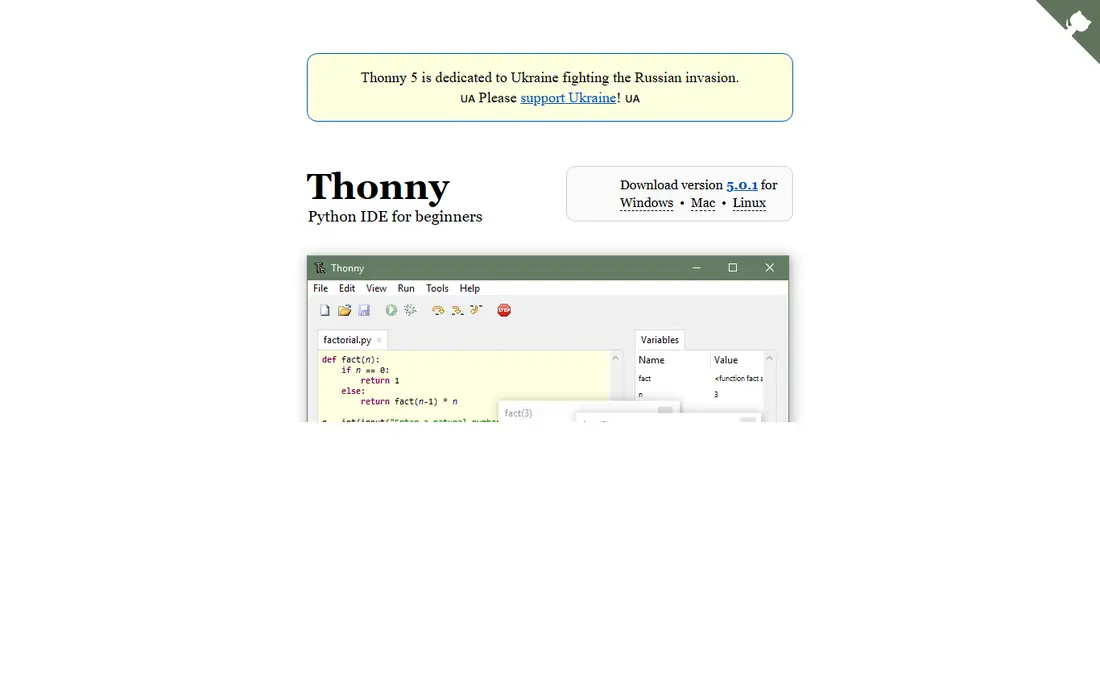
Thonny is built for people learning to program, and that focus shows in every part of its design. It bundles its own Python, so a beginner does not need to install Python separately and then guess which interpreter the editor is using. Its debugger lets you step through code line by line and see variable values change, which turns a confusing error into a visible process you can follow.
The limit is that Thonny is a learning tool, not a professional IDE. A beginner who moves to web apps, large data projects or team work will eventually want VS Code or PyCharm. That is fine. Thonny is meant to be outgrown, and starting there can make the later move easier because the Python concepts stay the same.
- Bundles Python so setup is simple
- Step-through debugger shows what code does line by line
- Clean, uncluttered interface
- Limited for large professional projects
- Fewer extensions than VS Code or PyCharm
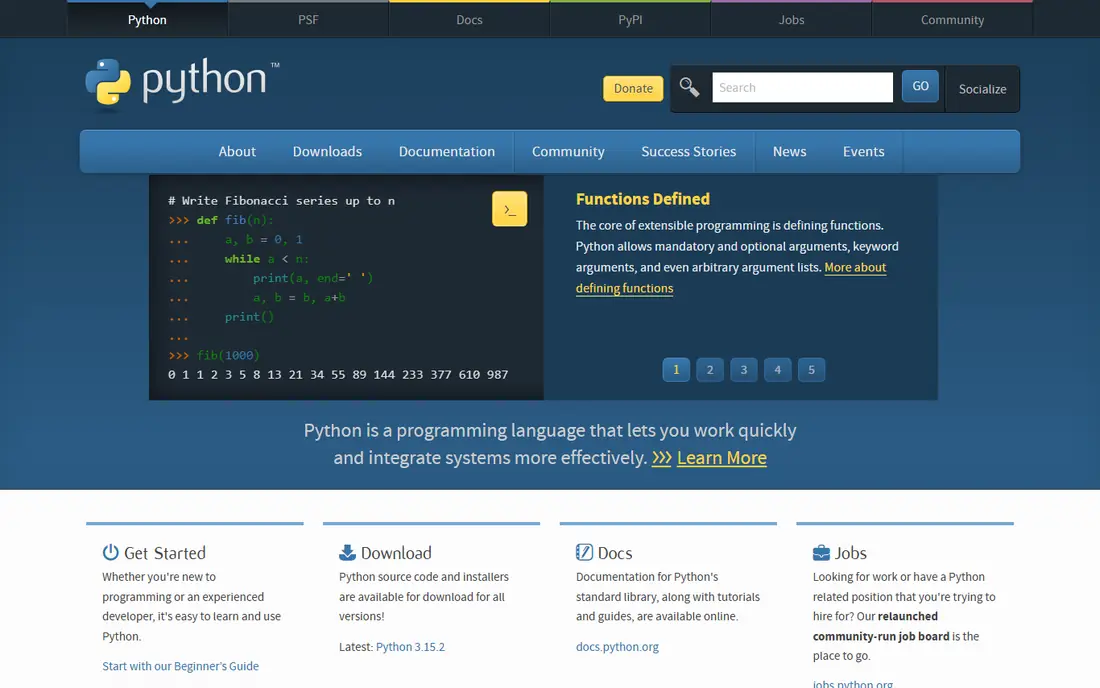
IDLE ships with Python itself, so anyone who installs Python from python.org already has it. It gives a simple editor for writing files and an interactive shell for trying one line at a time, which is ideal for following a first tutorial. There is no account, no extension setup and no project configuration to learn before writing code.
The trade-off is that IDLE is deliberately basic. It lacks the smart completion, refactoring and project tools that larger editors provide, and its interface feels dated next to VS Code. For the first few weeks, that simplicity is a benefit. Once a beginner starts building multi-file projects, moving to VS Code or PyCharm will save time.
- Ships with the official Python installer
- Simple editor and shell in one place
- No extra downloads needed
- Basic editor features
- No modern project tools or extension ecosystem
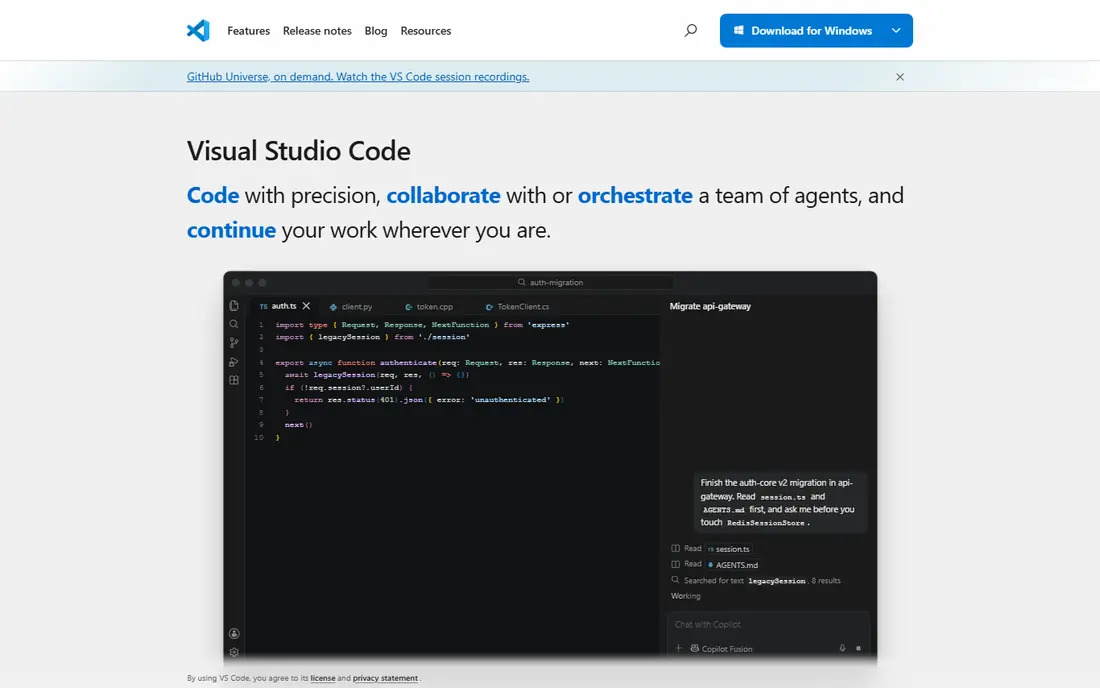
Visual Studio Code is our pick for most beginners who want one tool they will not outgrow quickly. It is free, fast and used across many languages, so skills learned here transfer to web development and other work. With the official Python extension, it adds debugging, linting, testing support and notebook handling, turning a light editor into a capable Python workspace.
Setup takes a little more care than Thonny. A beginner must install Python, add the extension and pick the right interpreter, and that step trips up some first-time users. Once that is done, VS Code is a strong long-term home. It suits learners who plan to build websites, automation scripts and data projects in the same editor.
- Free and widely used
- Python extension adds debugging, testing and notebooks
- Huge extension library
- Needs the Python extension and interpreter setup
- Can feel busy for a complete beginner
PyCharm is a full Python IDE, which means it is designed around Python from the start rather than added through extensions. Code completion, refactoring, debugging and version control work together without extra setup, and that integration helps once projects grow beyond a single file. Recent PyCharm versions have unified free and professional features in ways that make the free edition more capable than older community editions were.
The downside is weight and complexity. PyCharm uses more system resources than VS Code, and its many menus can distract a beginner who only needs to run a short script. It is best for a learner who already knows basic Python and wants a professional tool for larger work, or for a student following a course that uses PyCharm throughout.
- Deep Python support out of the box
- Smart code completion and refactoring
- Built-in debugger and version control
- Heavier than VS Code on older machines
- Full feature set can overwhelm a first-week learner
Jupyter Notebook changes how learning feels, because code runs in small cells with results shown right below each cell. A beginner can test one idea, see the output, fix it and move on, without rerunning a whole program. Notes, headings and charts can sit in the same document, which makes it popular in data science courses and tutorials.
The catch is that notebooks are not the best way to build a traditional app. Cells can be run out of order, which creates a state that is hard to reproduce, and larger programs are easier to manage as plain files in VS Code or PyCharm. Use Jupyter Notebook for exploration, data work and learning, and use an editor for finished programs.
- Run code in small cells and see results at once
- Mix code, text and charts in one document
- Widely used in courses
- Less suited to building full apps
- Notebook state can confuse beginners when cells run out of order
Google Colab is Jupyter Notebook in the browser, with no local Python install required. A beginner can open a notebook, run code and share it with a teacher or classmate through a link. That zero-setup start is valuable on a shared computer, a Chromebook or a machine where installing software is not allowed. Colab also offers access to hosted computing resources for data and machine learning experiments.
The limits are connection and quotas. Colab needs the internet, free sessions have time and resource limits, and heavy or long-running work may be cut off. For learning, short experiments and course work, those limits rarely matter. For a long project or offline work, a local tool such as VS Code or Jupyter Notebook is more reliable.
- Runs in the browser with no local install
- Free notebook environment
- Easy sharing with a link
- Needs an internet connection and a Google account
- Free resources have usage limits
Spyder is an IDE built for scientific work with Python, and it is often installed alongside Anaconda. Its variable explorer lets a beginner see tables, arrays and values without printing everything, which helps when learning data analysis with pandas and NumPy. Plots, consoles and editor panes sit together in one layout designed for exploration.
That specialization is also its limit. Spyder is less natural for web development or general app building, where VS Code or PyCharm fit better. It is a strong second tool for a beginner who has chosen data science as a direction, and a weaker first tool for a learner who does not yet know which Python path to follow.
- Built for scientific Python
- Variable explorer shows data clearly
- Integrated console and plots
- Less suited to web development
- Interface is more specialized than VS Code
Mu Editor is designed for education, with a clean interface and modes for different kinds of beginner projects, including Python, web code and microcontroller work. It keeps buttons and menus to a minimum, so a young learner or a complete beginner can focus on code rather than configuration. Its simplicity makes it a good classroom tool.
For older learners building larger projects, Mu will feel limited quickly. It does not offer the refactoring, testing and project tools of VS Code or PyCharm. Choose Mu when simplicity and a gentle start matter most, especially for younger learners, and move on when projects need more structure.
- Very simple interface
- Modes for Python, web and microcontrollers
- Designed for education
- Limited for professional projects
- Small extension and plugin range
Replit lets a beginner write and run Python in a browser, share a project with a link, and collaborate in real time. Templates for games, bots, data projects and web apps help a learner start from a working example rather than a blank file. That speed is useful for classes, coding clubs and quick experiments where installing software would slow everyone down.
The trade-off is dependence on the browser and the free tier. Private projects, heavier workloads and offline work suit a local editor better. Replit is best as a fast, shareable starting point, especially when a beginner wants feedback from a teacher or friend without sending files back and forth.
- No install needed
- Instant sharing and collaboration
- Templates for many Python project types
- Needs internet access
- Free tier limits for private and heavy work
How we picked these
We compared official documentation, download pages and public feature lists for Python tools that are still offered in October 2026, and we kept only tools a beginner can install or open without a paid license for core use. We favored clear setup, readable errors, debugging support and a path to larger work, and we mixed simple learning editors with full IDEs and notebooks. We did not claim hands-on testing. Check system requirements on the vendor page before installing on an older computer.
What to check before you buy
Start with your learning goal, not the tool list. A learner focused on data should start with Jupyter Notebook or Colab plus Spyder later. A learner focused on websites or automation should start with VS Code or PyCharm. A complete beginner with no goal yet should start with Thonny or IDLE, because both keep the first week simple.
Next, check setup on your own machine. Install Python from the official site if your editor needs it, and confirm the editor finds the right interpreter before you judge it. Many beginner problems are interpreter problems, not editor problems. A tool that cannot find Python will feel broken even when the tool itself is fine.
Finally, stick with one main tool for at least a few weeks. Switching editors every time a tutorial uses a different one wastes learning time on menus instead of Python. Once you can write, run, debug and fix small programs in one tool, adding a second tool for notebooks or data work becomes easy.
Frequently asked questions
What is the best Python tool for a complete beginner?
Thonny is the safest first choice for a complete beginner, because it bundles Python and its debugger shows code running line by line. IDLE is a close alternative, since it ships with Python and needs no extra install. Either one lets a beginner focus on Python itself in the first weeks.
Should beginners use VS Code or PyCharm?
Both are good, and the choice depends on the learner. VS Code is lighter, free and flexible across languages, so it suits most beginners who want one long-term editor. PyCharm offers deeper Python integration out of the box, so it suits learners who already know basic Python and want a full IDE for larger projects.
Is Python free to learn with these tools?
Yes, for core use. Python itself is free, and every tool in this list offers a free tier or a free download for the features a beginner needs. Some tools offer paid plans for teams, cloud resources or advanced features, but a beginner does not need those to learn Python.
Do I need to install Python separately for every tool?
No. Thonny bundles Python, and Colab and Replit run in the browser without a local install. VS Code, PyCharm, Spyder and Jupyter Notebook need a Python install on your machine, usually from python.org or through a distribution such as Anaconda. Check the tool docs for the exact step.
What is the difference between an editor and a notebook?
An editor works with plain code files that become programs, websites or scripts. A notebook works with cells that run one at a time, mixing code, results, text and charts in one document. Editors suit finished programs, while notebooks suit exploration, data analysis and learning by experiment.
How long should I stay with a beginner tool before switching?
Stay until you can write and debug small programs without fighting the tool, usually a few weeks of regular practice. Switching earlier often means relearning menus instead of learning Python. When a project needs features your current tool lacks, such as better refactoring or data views, that is the right time to move.
Sources
See where you really rank - block by block
ProMapRanker scans Google Maps across a grid of your service area. Simple monthly plans from $19, white-label on every plan.
Start freeKeep reading
 bitly alternatives
Bitly Alternatives in 2026: 8 Tools Compared
Compare the best Bitly alternatives for branded short links, with free tiers, custom domains, analytics, and pricing that suits creators and small teams.
Read → bill.com alternatives
Best Bill.com Alternatives in 2026
Looking for bill.com alternatives? We compared 9 bill pay and AP automation tools on price, approvals, and accounting sync to help you switch with confidence.
Read → betterhelp alternatives
BetterHelp Alternatives in 2026
We compared BetterHelp alternatives for online therapy, covering Talkspace, Grow Therapy, Rula, Brightside and more on price, insurance and format in 2026.
Read →