 ProMapRanker
Best Platform for PDF Insertion in 2026

Key takeaways
- Adobe Acrobat offers the most precise page insertion for business documents, while Smallpdf and iLovePDF suit quick jobs.
- PDFsam Basic is a strong free desktop option for offline merging and page work.
- Browser tools are fastest for small files, but check file size limits and privacy terms for sensitive documents.
- Always preview page order and check that inserted pages keep their layout before sharing the final file.
- For scanned documents, UPDF and PDFgear offer useful page organisation without a full desktop suite.
Quick comparison
| Pick | Great for | Pricing starts at | Free tier | |
|---|---|---|---|---|
 Adobe Acrobat | Precise business page insertion | See website | Yes | Visit |
 Smallpdf | Quick browser insertion | See website | Yes | Visit |
 iLovePDF | Clear thumbnail reordering | See website | Yes | Visit |
 PDFsam | Free offline page work | Free | Yes | Visit |
 Sejda | Privacy-conscious occasional jobs | See website | Yes | Visit |
 UPDF | Advanced page management | See website | Yes | Visit |
 PDFgear | Frequent free use | Free | Yes | Visit |
 Lumin | Browser editing plus Google Workspace | See website | Yes | Visit |
The best platforms for PDF insertion
Inserting pages into a PDF sounds simple, but the right tool depends on file size, privacy, frequency and how much control you need over page order. We compared official feature pages and recent tool guides for platforms available in October 2026, focusing on insertion, merging, reordering and preview. All eight tools below let you add pages from another PDF or file and place them where you want them.
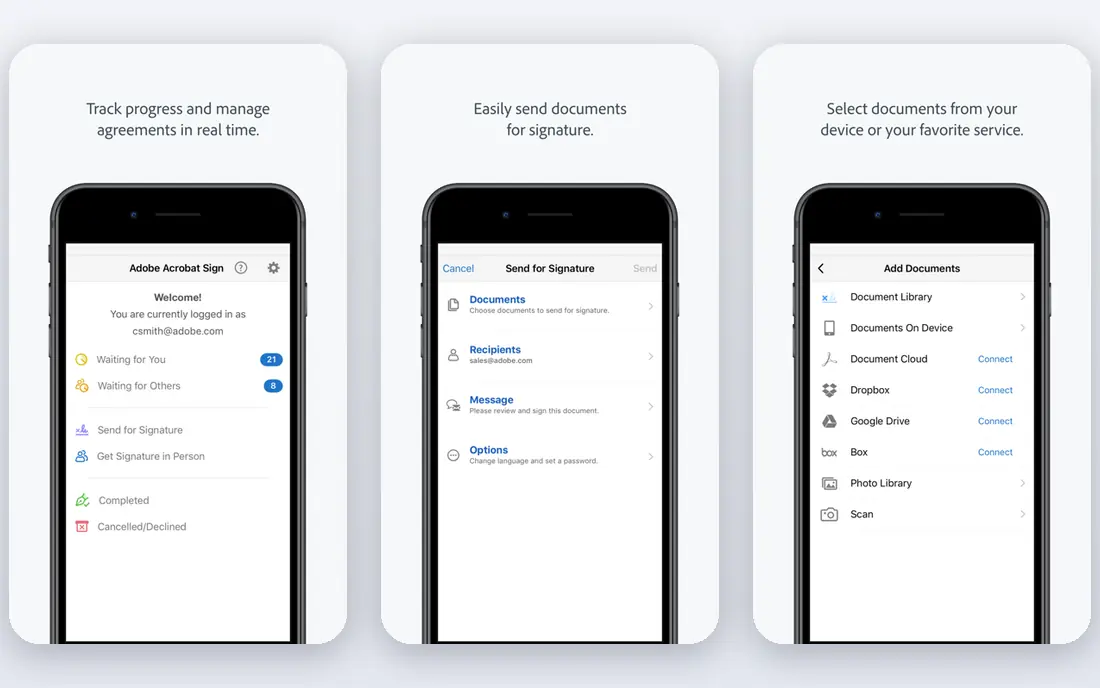
Adobe Acrobat is our pick for repeated or business-critical document work. Its Organize Pages view lets you insert pages from another PDF, choose the exact position, reorder thumbnails, rotate pages and delete unwanted pages, all with a clear preview. For proposals, reports and contracts where page order and layout must be exact, that control matters.
The catch is cost and weight. Acrobat is a subscription product, and occasional users may not need its full editing, signing and form tools. The free tier covers only limited tools, so confirm the current plan before buying. For daily PDF work, though, Acrobat earns its place through reliability, large-file handling and consistent output.
- Precise Organize Pages tools
- Handles large and complex documents
- Strong security and signing options
- Subscription cost is high for occasional use
- Interface can feel heavy for simple jobs
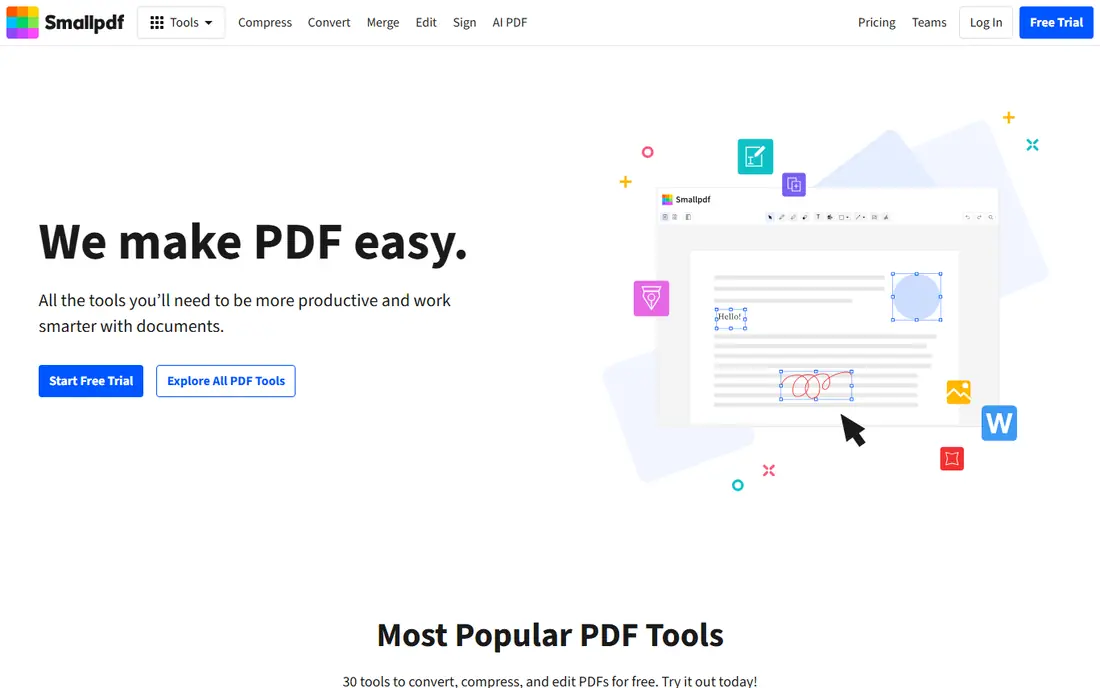
Smallpdf suits people who need to add pages occasionally without installing software. Upload a PDF, merge another file or insert pages, reorder the result, and download the finished document. The interface is clear, and most small jobs take only a few minutes.
The limits are usage caps and control. The free tier allows a limited number of tasks per day, and advanced page controls are lighter than in a desktop editor. For sensitive documents, also check the privacy terms and consider a desktop tool instead of uploading. For quick, low-risk jobs, Smallpdf is one of the friendliest options in this list.
- Simple drag-and-drop tools
- No install needed
- Merge and edit tools in one place
- Free tier has daily task limits
- Less granular control than Acrobat
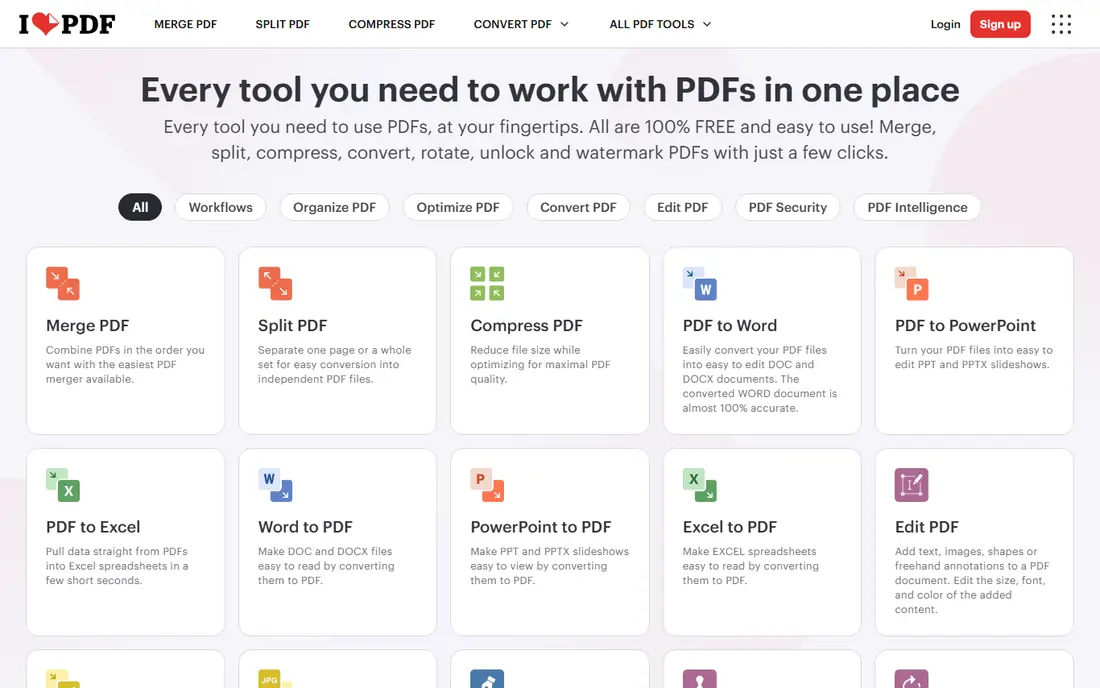
iLovePDF is a strong browser alternative, especially for users who think visually. Page thumbnails make it easy to see where an inserted page will land, drag pages into order, and check the final sequence before downloading. Merge, split, compress and convert tools sit alongside insertion, so one site covers many small PDF jobs.
As with Smallpdf, free use is limited per day, and heavy or large-file work pushes you toward a paid plan. Privacy also matters: avoid uploading highly sensitive documents to any browser tool unless you have checked its data handling. For everyday reports, school work and small business files, iLovePDF is fast and easy to learn.
- Clear page thumbnails
- Merge, split and reorder tools
- Easy for non-technical users
- Free tier has daily limits
- Larger files may need a paid plan
PDFsam Basic is the best free desktop option for page insertion and merging. It runs offline, so sensitive files never leave your computer, and it handles merging, splitting, extracting and reordering without a subscription. For high-volume or private document work, offline processing is a real advantage over browser tools.
The interface is more functional than polished, and new users may take a little time to learn its modules. The paid Enhanced edition adds visual editing and more advanced features, but Basic covers insertion and merging well. If you work with PDFs often and value privacy and cost control, start with PDFsam before paying for a browser suite.
- Free Basic version
- Offline processing
- Merge, split and page extraction
- Interface suits experienced users
- Paid Enhanced edition adds advanced features
Sejda is a good choice for occasional, privacy-conscious jobs. It offers a browser page editor for inserting, reordering and deleting pages, and it states that files are deleted from its servers after processing. That approach suits users who need a quick online fix but do not want files stored longer than needed.
The free tier is tight, with limits on daily tasks and file size, so it is not the tool for bulk work. Paid plans raise those limits, but frequent users may prefer a desktop tool such as PDFsam or a full suite such as Acrobat. For a one-off insertion on a personal document, Sejda is simple and reassuring.
- Browser tools with privacy focus
- Files deleted after processing
- Clear page editor
- Tight free limits on tasks and file size
- Not suited to heavy daily use
UPDF stands out for page management depth. It offers insertion from another PDF, images, clipboard content or blank pages, plus interleaving insertion that alternates pages from two files, which helps with double-sided scans. Smart selection lets you pick odd, even, wide or portrait pages in one action, and batch rotation, deletion and extraction save time on long documents.
That depth comes with a learning curve and a paid plan for full use. The free version lets you explore the tools, but regular page work will need a licence. For people who organise scanned reports, books or long forms often, UPDF offers more page control than most browser tools, without the full cost of Acrobat.
- Five insertion modes including interleaving
- Smart page selection
- Batch page actions
- Paid plan needed for full features
- Interface has many options to learn
PDFgear is useful for frequent use without strict free caps. It covers page insertion, merging, editing and conversion, with desktop and browser options, and it is often described as free for core tools. That makes it a practical choice for students, freelancers and small teams who insert pages often but do not want a subscription.
The trade is brand maturity and platform variation. PDFgear is newer than Adobe, and feature availability can differ between desktop and web versions, so check the version you plan to use. For most insertion jobs, though, it is capable and low friction. Test it on a sample file first, and check output quality before using it for client documents.
- Broad PDF tools without strict caps
- Page insertion and editing
- Desktop and browser options
- Newer brand than Adobe
- Advanced features vary by platform
Lumin suits teams that already work in Google Workspace and want PDF assembly in the browser. It lets you merge files, reorder pages, annotate and sign, and connect with Google Drive for storage and sharing. That integration saves time when documents move between Drive, email and review.
The free plan covers basic use, but larger files and advanced editing need a paid plan. Lumin is also less precise than Acrobat for very complex documents, so test it on your longest files before relying on it for business-critical work. For collaborative, Drive-based teams, Lumin is a convenient middle ground between simple browser tools and a desktop suite.
- Browser page assembly
- Google Workspace integration
- Annotation and signing tools
- Free plan has limits
- Full editing needs a paid plan
How we picked these
We compared official feature pages and recent tool guides for PDF platforms available in October 2026. We kept only tools that clearly support inserting pages from another PDF or file, plus reordering and preview, and we left out converters that only merge whole files without page control. Prices were taken from vendor pages where verified, and See website is used where pricing varied or could not be confirmed.
Buying guide for PDF insertion
Start with privacy and file size. For sensitive contracts, medical forms or legal documents, prefer a desktop tool such as PDFsam or Acrobat, where files stay on your computer. For small, low-risk files, a browser tool is faster and needs no install. Always check the free tier limits for daily tasks and file size before starting a large job.
Next, check insertion control. The best tools let you insert at the start, between pages or at the end, preview thumbnails, and reorder after insertion. If you work with scans, look for interleaving, blank page insertion and batch rotation, as offered by UPDF. If you insert pages daily, a desktop tool with no daily caps will save frustration.
Finally, verify output before sharing. Open the finished PDF, check page order, confirm inserted pages kept their fonts and images, and check file size. A quick preview prevents the common mistake of sending a document with pages in the wrong order or a blank page in the middle. Keep the original files until the final version is confirmed.
Frequently asked questions
How do I insert a page into a PDF?
Open the target PDF in a page editor, choose insert or add pages, select the source PDF or file, and pick the position, such as before, after or between pages. Preview the order, then save or download the new file. Steps vary slightly by tool, but the pattern is the same.
Can I insert pages for free?
Yes. PDFsam Basic and PDFgear cover core insertion for free, and Smallpdf, iLovePDF and Sejda offer limited free browser use. Free tiers may cap daily tasks or file size, so check limits for larger jobs.
Will inserted pages keep their formatting?
In most cases, yes, when the source PDF is well formed. Check fonts, images and page size after insertion, especially when mixing scanned pages with text-based PDFs. Re-export or compress only if the file size becomes a problem.
Is it safe to use a browser tool for sensitive PDFs?
Browser tools upload files for processing, so check privacy terms and deletion policies first. For sensitive documents, use a desktop tool that processes files locally. Delete downloaded files from shared computers after use.
Can I insert a blank page into a PDF?
Yes, most tools in this list support blank page insertion, including Acrobat, UPDF and PDFsam. Blank pages are useful for section breaks, notes or print layout, and you can set size and orientation in desktop editors.
What is the difference between merging and inserting pages?
Merging usually joins whole files end to end, while insertion places selected pages at a chosen position inside another document. For precise control over order, use a page editor with thumbnails rather than a simple merge tool.
Sources
- https://reportorbit.com/best-pdf-page-insertion-tools-2026/
- https://sqmagazine.co.uk/easiest-browser-pdf-tools-assemble-reorder-pages/
- https://updf.com/organize-pdf/pdf-manager/
- https://www.adobe.com
- https://smallpdf.com
- https://www.ilovepdf.com
- https://pdfsam.org
- https://www.sejda.com
- https://www.pdfgear.com
- https://www.luminpdf.com
See where you really rank - block by block
ProMapRanker scans Google Maps across a grid of your service area. Simple monthly plans from $19, white-label on every plan.
Start freeKeep reading
 best tour operator software
Best Tour Operator Software in 2026
Compare the best tour operator software for bookings, channel management, waivers and payments, with pricing models for day tours and multi-day trips.
Read → best time clock app for small business
Best Time Clock App for Small Business in 2026
We compare the best time clock app for small business options, with free plans, GPS clock ins, scheduling and payroll links for hourly teams and payroll help.
Read → best test automation tools
Best Test Automation Tools in 2026
Compare the best test automation tools, from Playwright and Selenium to Cypress, Katalon and BrowserStack, with prices, languages and best uses explained.
Read →