 ProMapRanker
Best Photo Editing Software for Beginners in 2026


Learning a proper photo workflow · Pricing starts at: $11.99 per month
Key takeaways
- Adobe Lightroom is our pick for most beginners who want a proper editing workflow, presets, and photo organization in one place.
- Photoshop Elements suits hobbyists who want guided edits and a one time style license instead of a monthly subscription.
- Snapseed and GIMP are the strongest free routes, with Snapseed best on phones and GIMP best for deeper desktop editing.
- Canva and Pixlr suit quick edits for social posts, while Luminar Neo suits fast AI assisted fixes for portraits and skies.
- Affinity Photo gives you professional tools without a subscription, but it expects more patience than the guided tools here.
Quick comparison
| Pick | Great for | Pricing starts at | Free tier | |
|---|---|---|---|---|
| Adobe Lightroom | Learning a proper photo workflow | $11.99 per month | Free trial | Visit |
 Photoshop Elements Photoshop Elements | Guided edits without a subscription | $99.99 one time | Free trial | Visit |
 Luminar Neo Luminar Neo | Fast AI assisted photo fixes | See website | Free trial | Visit |
 Affinity Photo Affinity Photo | Professional tools, one time purchase | See website | Free trial | Visit |
 Canva Canva | Quick edits and social designs | Free | Yes | Visit |
 Snapseed Snapseed | Free phone editing | Free | Yes | Visit |
 Pixlr Pixlr | Quick browser based edits | Free | Yes | Visit |
The best photo editing software for beginners
Beginner photo editing software should make a photo look better in minutes, while still teaching you what exposure, color, and cropping actually do. We compared desktop apps, browser editors, and phone apps, and we favored tools with clear controls, useful presets, and a path to grow as your skills improve. Prices below are starting prices where we could verify them, and we used See website where pricing varies by edition or region.
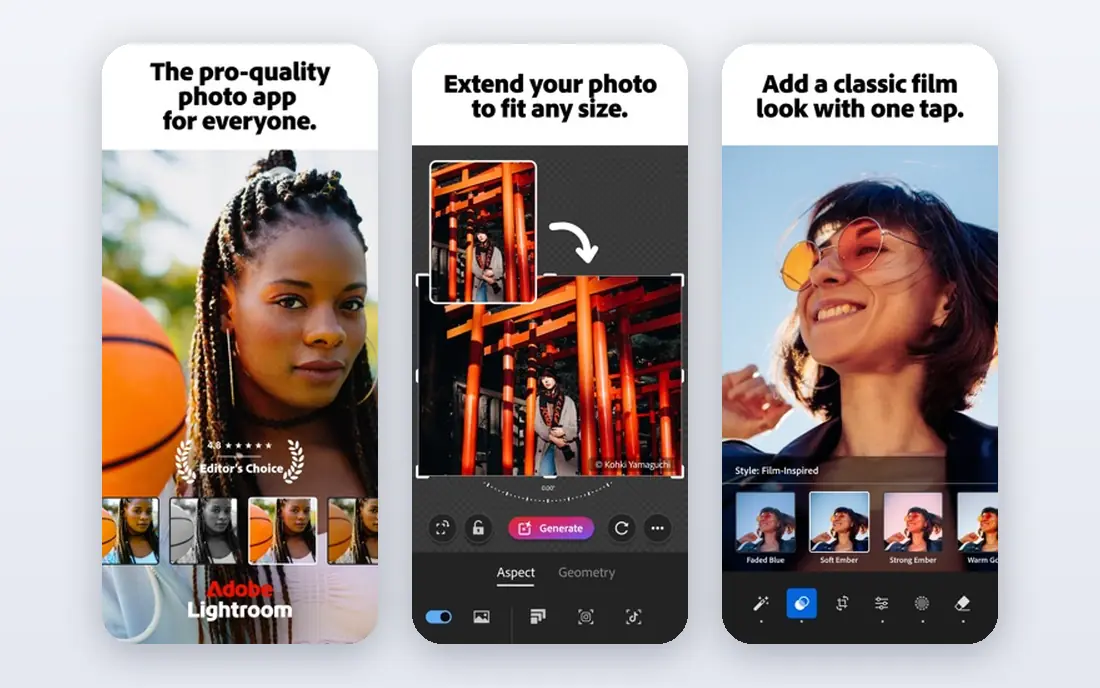
Lightroom is the best starting point if you want to learn editing properly rather than just apply a filter. You import photos, organize them into albums, and adjust exposure, color, and cropping with sliders that show their effect in real time. Presets give you a fast starting look, and you can then adjust that preset to suit your own photo, which teaches you how each control changes the result.
The subscription is the main drawback, and the mobile and desktop plans differ, so check which version you are buying. Lightroom also handles large photo libraries better than most beginner tools, with search, ratings, and batch edits that save time when you return from a trip with hundreds of shots. If you plan to edit regularly, that workflow is worth the monthly cost.
- Strong organization and batch editing
- Presets and AI masking help beginners
- Cloud sync across devices on some plans
- Monthly subscription cost adds up
- Full Photoshop style layers are not the focus
Photoshop Elements is built for hobbyists who want help, not a blank canvas. Guided Edits explain each step for tasks such as replacing a sky, removing an object, or creating a double exposure, so you learn the technique while you finish the photo. The organizer keeps photos searchable by people, places, and events, which matters once your library grows beyond a few folders.
It will not grow as far as Lightroom or Affinity Photo for professional work, and its AI tools are less advanced than full Photoshop. That trade is fair for most beginners, because Elements removes the intimidation of a professional interface while still producing clean, print ready results. It is a good pick for family photos, travel albums, and hobby printing.
- Guided Edits walk you through effects step by step
- Photo organizer with face recognition
- AI tools for selection and cleanup
- Less powerful than full Photoshop for advanced work
- New versions are separate purchases over time
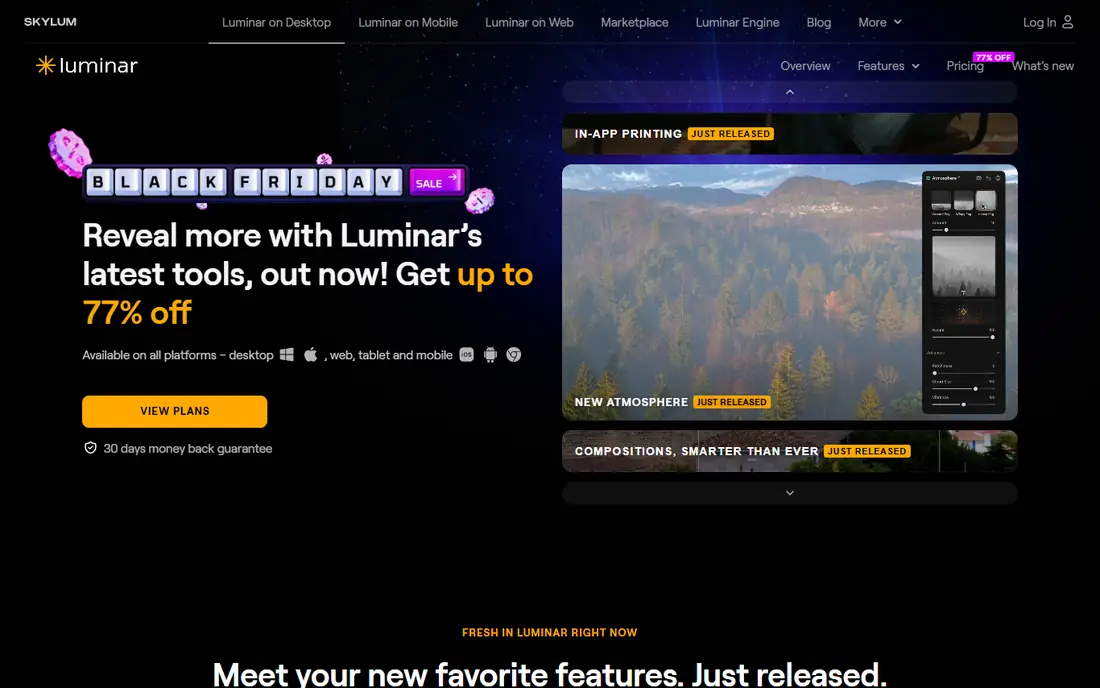
Luminar Neo is for beginners who want strong results with few sliders. Its AI tools can replace a dull sky, soften skin tones, remove power lines, and adjust lighting in a portrait, often in a couple of clicks. That speed helps when you have many photos to finish and do not want to learn masking and layers first.
The catch is control. When an AI tool guesses wrong, fixing its result can be harder than doing the edit manually in Lightroom or Affinity Photo. Luminar Neo also uses extensions and license options that change the total price, so check the current offer before buying. Use it as a fast finisher for portraits and travel shots, and keep a manual editor for photos that need careful work.
- AI sky replacement, portrait retouch, and relighting
- One click enhancements
- Works as a standalone app or plugin
- Less control for precise manual editing
- Pricing varies by license and extensions
Affinity Photo gives beginners a professional toolset at a price that does not require a subscription, which is rare in this category. You get layers, masks, RAW development, panorama stitching, and detailed retouching, all in one desktop app. That depth means you will not need to switch apps as soon as your skills improve, and your edits stay non destructive when you use adjustment layers.
It is less friendly on day one than Lightroom or Elements. There is no photo organizer, so you need a separate system for folders and backups, and the interface offers many panels that can feel busy at first. If you enjoy learning software and want to avoid monthly billing, Affinity Photo is the best long term value here. If you want guidance, start with Elements instead.
- Full layers, RAW editing, and retouching tools
- No monthly subscription on the standard license
- Strong value for the feature set
- No built in photo library
- Interface assumes more patience than guided beginner tools
Canva is not a traditional photo editor, but it is often the right tool for beginners who edit photos for social media, invitations, or small business posts. You can crop, adjust brightness and color, add text, and place a photo into a ready template in minutes, on a computer or phone. That speed matters when the goal is a finished post, not a perfect print file.
Its limits show up with RAW files and detailed retouching. Canva works best with JPEGs and phone photos, and some of its stronger AI tools sit behind the Pro plan. Use Canva when design and sharing are the goal, and use Lightroom, Snapseed, or Affinity Photo when the photo itself needs careful correction.
- Very easy drag and drop editor
- Templates for social posts and cards
- Background remover on paid plans
- Not a full RAW photo editor
- Best results need a paid plan for some AI tools
Snapseed remains one of the best free photo editing apps for beginners, especially on a phone. It offers selective edits, so you can brighten one part of a photo without changing the whole image, plus healing, perspective correction, and a wide set of filters that can be adjusted rather than just applied. The interface is clean, and there are no ads or subscription prompts in the way.
The main limit is platform. Snapseed is a phone app, so it does not suit large desktop libraries or batch editing hundreds of RAW files. For phone photos, travel snapshots, and quick social edits, it is hard to beat, and it pairs well with a desktop editor for your best shots. Start here if you want a free, capable editor today.
- Completely free with no subscription
- Selective adjustments and healing
- Film style filters and fine tuning
- Phone only, with no desktop version
- No cloud library or batch workflow
Pixlr suits beginners who do not want to install software. Open it in a browser, upload a photo, and use sliders, filters, and AI tools for background removal and object cleanup. It is useful on shared computers, Chromebooks, and older machines, and the free tier covers many everyday edits.
Browser editing has limits. Large files and RAW libraries are better handled in desktop apps, and the free tier includes restrictions that can interrupt a longer session. Treat Pixlr as a fast, accessible editor for web images and social posts, and move to Lightroom or Affinity Photo when you need a full library and print quality output.
- Runs in a browser with no install
- AI background removal and quick adjustments
- Free tier for casual use
- Free tier has limits and ads
- Advanced features need a paid plan
- Not ideal for large RAW libraries
How we picked these
We compared official feature pages, pricing pages, free plans and trials, and platform support, and we favored tools that are still available in 2026 and genuinely usable by a beginner. We included desktop, browser, and phone tools because beginners edit in different places, and we weighed guided help, preset quality, and organization alongside raw power. Where pricing varies by edition, we used See website rather than guessing a single figure.
How to choose your first editor
Start with where your photos live. If most photos are on your phone, Snapseed or Canva will get you editing today. If you shoot with a camera and want to learn properly, Lightroom or Photoshop Elements will teach a workflow that transfers to other tools. If you dislike subscriptions, Affinity Photo and GIMP style desktop tools deserve a closer look, even if they take longer to learn.
A simple first week plan
Pick one editor and edit ten photos with it before trying another tool. Learn exposure, white balance, cropping, and one preset or filter you like, and save both the original and the edited version. That habit teaches you what each control does, and it stops you from collecting apps you never learn. After a week, you will know whether you need more guidance, more power, or a faster social workflow.
Frequently asked questions
What is the best photo editing app for beginners?
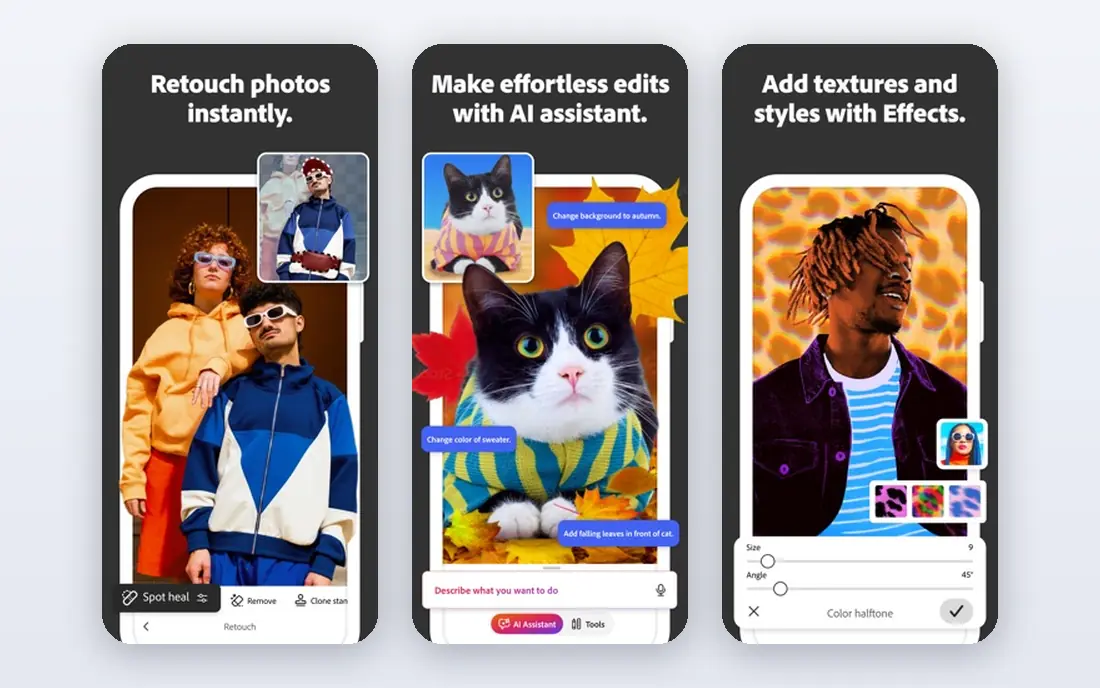
Adobe Lightroom is our pick for most beginners, because it combines editing, presets, and organization in a workflow you can grow with. Photoshop Elements is better if you want guided steps and no subscription, while Snapseed is the best free phone option. The best beginner photo editing software depends on whether you edit on a phone, in a browser, or on a desktop.
What is the best and easiest photo editing software?
For guided ease, Photoshop Elements leads, because Guided Edits explain each step as you work. For fast results, Luminar Neo and Canva are easier, because AI tools and templates do much of the setup. Easy does not always mean limited, but the easiest tools usually give you less manual control than Lightroom or Affinity Photo.
Is there a good free photo editing software for beginners?
Yes, Snapseed is free and capable on phones, Pixlr offers a free browser editor, and Canva has a useful free tier for social designs. On desktop, free open source editors exist, but they take more patience to learn. Start free if you are unsure how often you will edit, and pay only when a limit starts to slow you down.
Which photo editor is best for old photos?
Photoshop Elements and Affinity Photo both suit old photo restoration, because they offer healing, cloning, and careful color correction. Scan old prints at a high resolution first, save the scan as your original, and work on a copy. For quick fixes to faded phone scans, Lightroom presets and Snapseed tuning can also improve color and contrast without a complex workflow.
Do I need Photoshop to edit photos well?
No, most beginners do not need full Photoshop. Lightroom covers organization and color work, Elements covers guided edits, and Affinity Photo covers layers and retouching. Full Photoshop earns its cost for professional retouching, compositing, and design work, but it is more tool than most beginners need at the start.
What is the best photo editing software for PC beginners?
Lightroom and Photoshop Elements are the strongest PC choices, because both are built for Windows and Mac with clear workflows. Affinity Photo is a strong PC alternative without a subscription, while Pixlr works in a browser on any PC. Choose based on whether you want guidance, a subscription workflow, or a one time purchase.
Sources
See where you really rank - block by block
ProMapRanker scans Google Maps across a grid of your service area. Simple monthly plans from $19, white-label on every plan.
Start freeKeep reading
 zoominfo alternatives
ZoomInfo Alternatives in 2026
Compare the best ZoomInfo alternatives in 2026 for B2B contact data, enrichment, and prospecting, including Apollo, Lusha, and Clay tools, with pricing.
Read → best trip planning app
Best Trip Planning App in 2026
Compare the best trip planning apps in 2026 for itineraries, road trips, group travel, and bookings, from Wanderlog to TripIt and Roadtrippers, with pricing.
Read → best recruiting tools
Best Recruiting Tools in 2026
Compare the best recruiting tools in 2026, from Greenhouse and Lever to Workable and Ashby, for hiring, sourcing, and candidate tracking today, with pricing.
Read →