 ProMapRanker
Best Online Tool to Reduce PDFs in 2026

Key takeaways
- This guide is only about reducing PDF file size, not about viewing PDFs, so every tool below must compress a file you upload or open.
- iLovePDF and Smallpdf are the most convenient all-round compressors, while PDF24 and Sejda are strong free options with clear limits.
- Compression always trades size against quality, so scanned PDFs and image-heavy PDFs shrink less cleanly than text PDFs.
- Do not upload sensitive documents to a free online compressor without checking how long files are kept and how they are deleted.
- For regular work, a paid plan removes daily task limits and file caps that make free tiers frustrating.
Quick comparison
| Pick | Great for | Pricing starts at | Free tier | |
|---|---|---|---|---|
 iLovePDF | Everyday compression with many tools | Free | Yes | Visit |
 Smallpdf | Polished compression and cloud workflow | $12 per month | Yes | Visit |
 Adobe Acrobat Online | Adobe workflow and trusted output | Free | Yes | Visit |
 Sejda | Clear free limits and no account for most tools | Free | Yes | Visit |
 PDF2Go | Simple online compression | Free | Yes | Visit |
 PDF24 Tools | Free online tools with desktop option | Free | Yes | Visit |
 Soda PDF | Full PDF suite with compression | See website | Yes | Visit |
 Foxit PDF Editor | Compression inside a full editor | See website | Free trial | Visit |
 UPDF | Compression plus editing across devices | Free | Yes | Visit |
The best online tool to reduce PDFs
Reducing a PDF means making the same document smaller so it can be emailed, uploaded to a form, or shared without hitting a size limit. The tools below do that job online, by recompressing images, removing unused data or lowering quality to a level you choose. We compared official tool pages, pricing pages and public documentation, and we focused on free limits, compression choices and file handling.
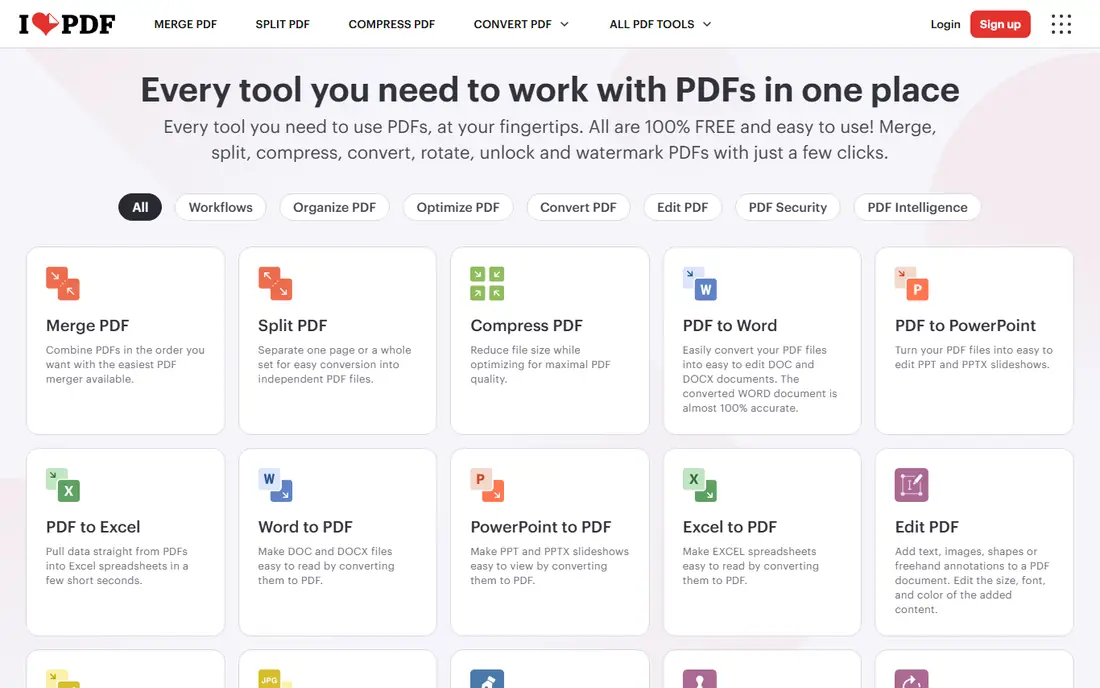
iLovePDF is the easiest all-round compressor for occasional use. You upload a PDF, choose a compression level, and download a smaller file, with options for extreme, recommended or less compression. That choice matters, because a light setting keeps quality high for print, while an extreme setting is better for a quick email attachment where perfect image detail is less important.
The free tier covers most everyday files, but it has limits on file size and batch work, and some features sit behind Premium. For a user who compresses a PDF every few weeks, the free tier is usually enough. For daily office work, the paid plan removes the friction of hitting limits in the middle of a task.
- Compression levels from light to extreme
- Batch tools on paid plans
- Apps for web, desktop and mobile
- Free tier has file and task limits
- Advanced editing needs a paid plan
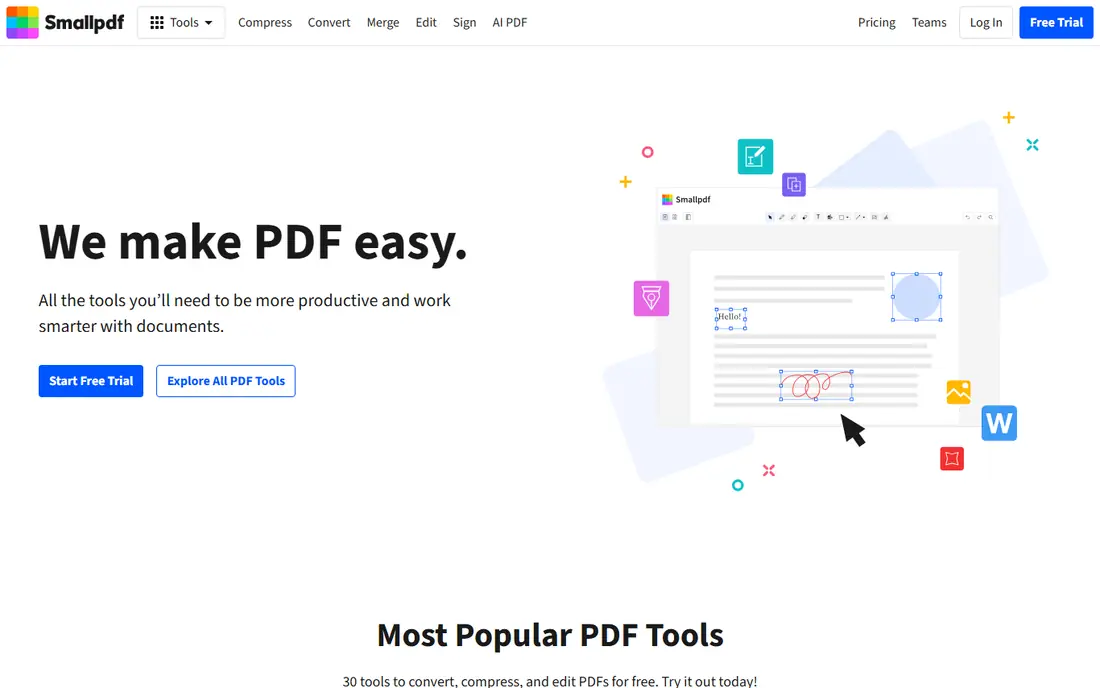
Smallpdf offers one of the smoothest compression experiences online, with a simple upload, a clear progress view and a download that is easy to find. Its integration with Google Drive and Dropbox helps teams that already store documents in the cloud, because files can move from storage to compression without a manual download and re-upload step.
The main drawback is the free tier. It allows only a small number of tasks per day, so a user who needs to compress several files in one sitting will hit the limit fast. Paid plans remove that limit and add batch tools, but at a higher monthly price than iLovePDF. Choose Smallpdf for polish and cloud workflow, not for heavy free use.
- Very clean interface
- Strong Google Drive and Dropbox integration
- Strong compression for many files
- Free tier allows only a small number of tasks per day
- Paid price is higher than some rivals
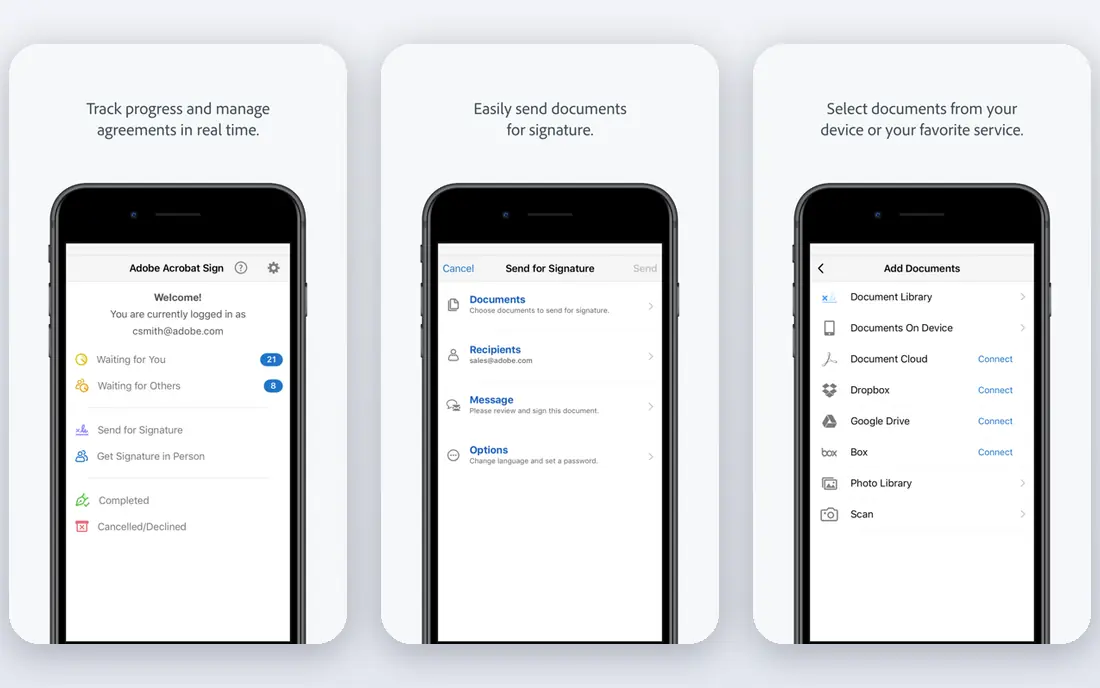
Adobe Acrobat Online is a natural choice for users who already trust Adobe for documents. Its online compressor reduces file size while keeping the document structure intact, and the output works well with other Adobe tools. For a business that already uses Acrobat, staying inside the same ecosystem avoids format surprises.
The free online tier is limited compared with a full Acrobat subscription, and advanced editing, OCR and batch features sit behind paid plans. Acrobat Pro is also one of the more expensive options in this list when bought for compression alone. Use the online tool for occasional compression, and buy Acrobat only if you need its wider editing and signing features.
- Made by the company behind PDF
- Reliable output quality
- Works alongside Acrobat desktop tools
- Free online tools are limited
- Full features need an Acrobat subscription
Sejda stands out for honesty about its free tier. Its site states limits on file size and pages, and most tools work without creating an account, which suits a quick one-off job. Compression options are clear, and the output is usable without a watermark in many free cases, which is not true of every online tool.
The free caps will block large scanned archives or design-heavy PDFs, and the paid web tier raises those limits for a monthly fee. For everyday documents under the free cap, Sejda is one of the best free choices. For large files, check the paid limits before you start, because a file that exceeds the cap will not compress at all on the free tier.
- Clear free limits published on its site
- No sign-up needed for most tools
- No watermarks on free output in many cases
- Free tier caps file size and pages
- Paid tier needed for larger files and heavy use
PDF2Go is a straightforward online compressor for users who want a quick result without learning a full PDF suite. You upload a file, pick a preset, and download the smaller version. It also supports uploads from cloud storage, which helps when the file is not on the local machine. For a single file that is too large to email, that simplicity is enough.
The limits are similar to other free tools: file size caps and task limits on the free tier, with a paid plan for larger and more frequent work. PDF2Go is less polished than Smallpdf, and its wider PDF suite is not as deep as iLovePDF. It earns its place for simple, fast compression rather than for advanced document work.
- Simple upload and compress flow
- Preset quality options
- Works with cloud storage uploads
- Free tier has file size and task limits
- Interface is less polished than Smallpdf
PDF24 Tools offers a free online compressor alongside a large set of other PDF tools, plus a desktop Creator for Windows users who prefer local processing. That combination suits a user who wants free online compression today and a local option later, without paying for a suite. The online tools are easy to find and use, with clear upload and download steps.
The main limit is platform focus for the desktop app, which is built for Windows, while Mac and mobile users will mainly use the online tools. Online processing also means files are uploaded, so sensitive documents need the same caution as with any online tool. For free, everyday compression, PDF24 is a strong and underrated choice.
- Online tools are free to use
- Desktop Creator available for Windows
- Wide range of PDF tools beyond compression
- Desktop app is Windows-focused
- Online free use still has practical file limits
Soda PDF suits a user who wants compression as one part of a wider PDF workflow, rather than as a single-purpose tool. Its online and desktop tools cover editing, conversion, merging and signing, so a compressed file can be edited or signed without moving to another service. That all-in-one flow helps office users who handle PDFs all day.
The free tier will not cover heavy compression work, and the best value comes from a paid plan that opens up the full suite. A user who only compresses one file a month will get more from a free tool such as Sejda or PDF24. A user who edits, converts and compresses daily may find Soda PDF a better single subscription.
- Compression inside a full online and desktop suite
- Editing, conversion and signing tools included in paid plans
- Free tier is limited
- Paid plans needed for regular batch compression
Foxit PDF Editor is a full PDF editor that includes file optimization and compression controls, which suits business users who need to reduce size as part of preparing a document for sharing. Optimization settings give more control over images and fonts than a simple online preset, which helps with large reports and scanned files. The editor also handles forms, signatures and collaboration in paid plans.
For a single quick compression, Foxit is more tool than needed, and its paid pricing reflects a full editor rather than a simple web compressor. It belongs in this list for users who already edit PDFs in Foxit and want compression in the same place. Casual users should start with a free online tool instead.
- Compression with full editing and optimization controls
- Good for business documents
- Desktop and cloud options
- Full editor is overkill for one-off compression
- Paid plans needed for sustained use
UPDF is a modern PDF app that runs on desktop and mobile, with compression as part of its editing and organization tools. Its clean interface suits users who want one app for reading, annotating, editing and shrinking PDFs across devices. Files can move between phone, tablet and computer without switching to a different vendor.
The trade-off is that UPDF is primarily an app, not a single-purpose online compressor, so a user who only needs a browser tool may prefer iLovePDF or Sejda. Paid plans add advanced features, while the free tier covers basic viewing and limited tools. For cross-device PDF work with occasional compression, UPDF is a practical pick.
- Works on Windows, Mac, iOS and Android
- Compression alongside editing and annotation
- Clean modern interface
- Some advanced features need a paid plan
- Online compression is less central than its apps
How we picked these
We compared official tool pages, pricing pages and public documentation for online tools that explicitly reduce PDF file size, and we kept only tools still offered in October 2026. We favored clear free limits, compression choices and reliable output, and we mixed free-first tools with full suites so different volumes can find a fit. We did not claim hands-on testing. Free limits change often, so check the vendor page before relying on a free tier for an urgent file.
What to check before you buy
First, test with your real file type. A text PDF, a scanned PDF and an image-heavy design PDF compress very differently. Scanned pages are images, so they shrink only when image quality is lowered, while text PDFs can shrink a lot with little visible change. Run a test file at each compression level and check readability before you send the result to a client.
Next, check privacy and retention. Online tools upload your file to a server, process it and delete it after a stated period, but that period and the server location vary. For contracts, medical forms or financial documents, prefer a desktop tool or a vendor with a clear deletion policy, and avoid free tools that do not state one. Never upload a document you would not email to a stranger.
Finally, count your volume honestly. One PDF a month suits a free tier. Several PDFs a day, batch work or large files need a paid plan or a desktop tool. A paid plan that removes daily task limits will save more time than a free tool that stops halfway through a deadline.
Frequently asked questions
How much can an online tool reduce a PDF?
It depends on the file. Text-heavy PDFs can shrink a lot with little visible change, while scanned or image-heavy PDFs shrink less unless image quality is lowered. A tool that promises a fixed percentage for every file should be treated with caution, because results vary by content.
Does compressing a PDF reduce its quality?
It can, especially at extreme settings that lower image resolution. Light or recommended settings usually keep quality high for screen reading and printing. Always check the compressed file, especially images and small text, before you send it to someone else.
Is it safe to compress a PDF online?
For non-sensitive documents, yes, with a reputable tool that states how long files are kept and when they are deleted. For sensitive contracts, financial or medical documents, prefer a desktop tool that processes files locally, or a vendor with a clear privacy policy. Avoid uploading sensitive files to an unknown free site.
What is the difference between compressing and optimizing a PDF?
Compression usually means reducing file size, often by lowering image quality. Optimization is broader and can include removing unused fonts, metadata and objects, plus recompressing images. Full editors such as Foxit and Acrobat offer optimization controls, while simple online tools offer preset compression levels.
Why does my PDF not shrink much after compression?
The file may already be compressed, or it may contain scanned images that need a lower quality setting to shrink. Try a stronger compression level, check whether embedded fonts or large images are the cause, and consider OCR or rescanning at a lower resolution for scanned documents.
Can I compress a PDF for free without an account?
Yes, with several tools in this list, including Sejda and PDF24 Tools, for files under their free limits. Smallpdf and iLovePDF also offer free tiers, but with task or file limits. For larger files or batch work, a paid plan or desktop tool is usually needed.
Sources
See where you really rank - block by block
ProMapRanker scans Google Maps across a grid of your service area. Simple monthly plans from $19, white-label on every plan.
Start freeKeep reading
 bitly alternatives
Bitly Alternatives in 2026: 8 Tools Compared
Compare the best Bitly alternatives for branded short links, with free tiers, custom domains, analytics, and pricing that suits creators and small teams.
Read → bill.com alternatives
Best Bill.com Alternatives in 2026
Looking for bill.com alternatives? We compared 9 bill pay and AP automation tools on price, approvals, and accounting sync to help you switch with confidence.
Read → betterhelp alternatives
BetterHelp Alternatives in 2026
We compared BetterHelp alternatives for online therapy, covering Talkspace, Grow Therapy, Rula, Brightside and more on price, insurance and format in 2026.
Read →