 ProMapRanker
Best Old Photo Restoration App in 2026

Key takeaways
- Remini is the fastest phone option for faces, while VanceAI gives the most restoration-specific workflow in a browser.
- MyHeritage fits family historians who already keep photos and trees in one place.
- Topaz Photo AI and AKVIS Retoucher suit users who want manual control over damage, rather than one-click fixes.
- Scan at high resolution first, keep the original file, and only restore photos you own or have clear permission to use, especially photos of people.
Quick comparison
| Pick | Great for | Pricing starts at | Free tier | |
|---|---|---|---|---|
 Remini | Quick mobile face restoration | See website | Yes | Visit |
 VanceAI Photo Restorer | Browser scratch and fade repair | See website | Yes | Visit |
 MyHeritage Photo Enhancer | Family history archives | See website | Yes | Visit |
 Topaz Photo AI | Desktop control and upscaling | See website | Free trial | Visit |
 Fotor | Budget browser editing | See website | Yes | Visit |
 Photomyne | Scanning whole albums | See website | Free trial | Visit |
 AKVIS Retoucher | Manual scratch repair | See website | Free trial | Visit |
 PhotoGlory | Desktop restoration workflow | See website | Free trial | Visit |
 PicWish | Batch enhancement | See website | Yes | Visit |
The best old photo restoration apps
We compared official feature pages, pricing pages and app store listings for restoration tools that are live in October 2026. The list below mixes one-click mobile apps, browser tools and desktop software, because light fading and heavy physical damage need different tools. Only legitimate creative tools are listed here. Do not use restoration tools to create misleading images of real people, and get consent before restoring or sharing photos of other people where consent is needed.
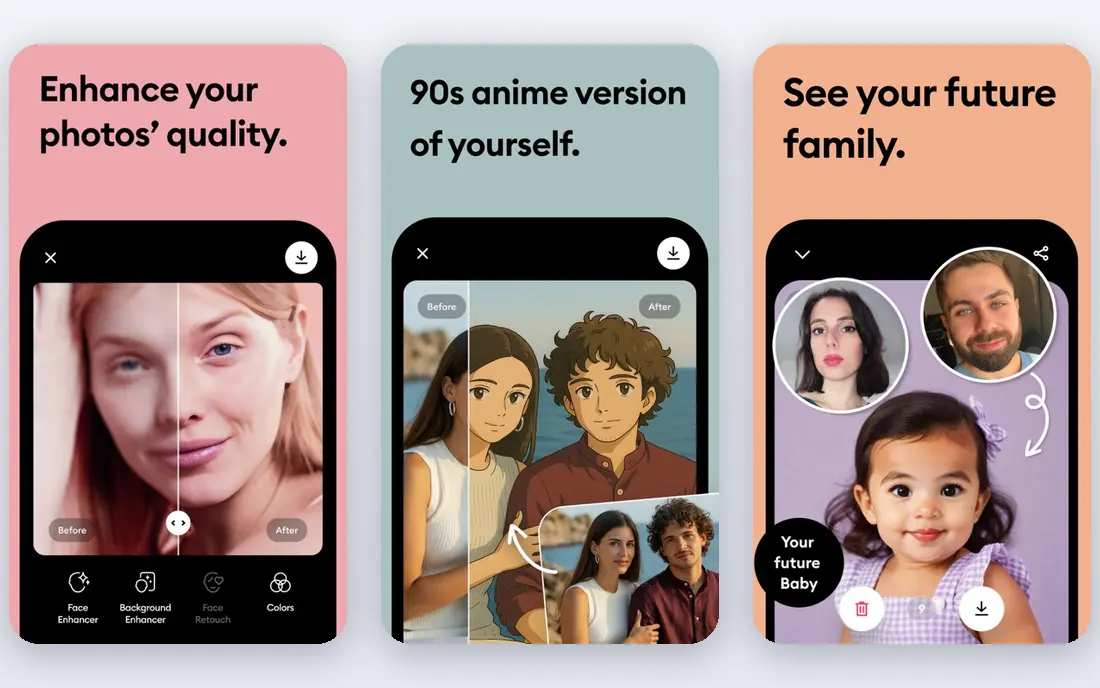
Remini is the easiest starting point if most of your old photos are portraits on your phone. You upload a scan, run the enhancement, and get a sharper face with improved color in a short time. That speed makes it practical for a single photo you want to share with family the same day.
The cost model is the catch. Weekly pricing can become expensive if you restore a whole album over several weeks, so plan your batch before you subscribe. Faces also remain the hardest part of restoration, so check eyes, teeth and hair at full zoom before you accept a result.
- Strong face enhancement on phones
- Fast one-tap workflow
- Color and blur repair in the same app
- Weekly pricing can add up for large archives
- Results vary on badly damaged faces
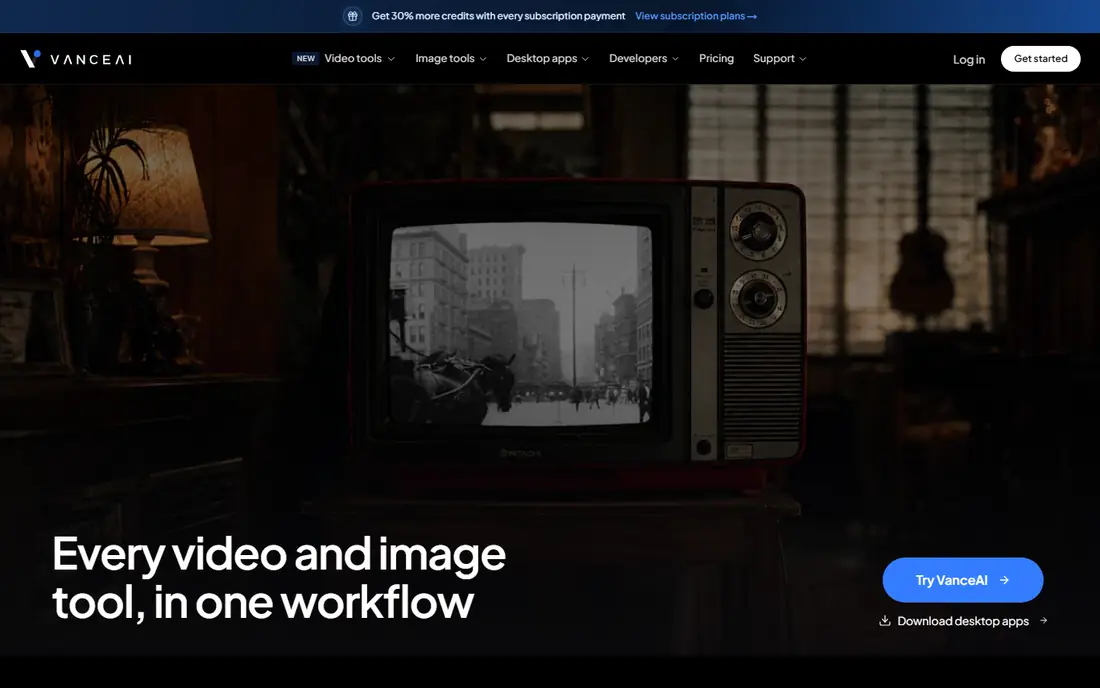
VanceAI Photo Restorer is built for the job rather than added to a general editor. Its browser workflow handles scratches, fading, blur and color in a focused set of steps, which helps when a photo has more than one kind of damage. Credits-based pricing also suits small projects, since you can buy only what you need for a batch.
Free credits run out quickly on a large album, so test it on your hardest photo first, not your easiest. Because processing happens online, avoid uploading sensitive photos you would not share, and read the vendor privacy page if the photos are private family material.
- Restoration-specific workflow
- Scratch, fade and color tools in one place
- Credits-based pricing
- Free credits are limited
- Web processing means uploads leave your device
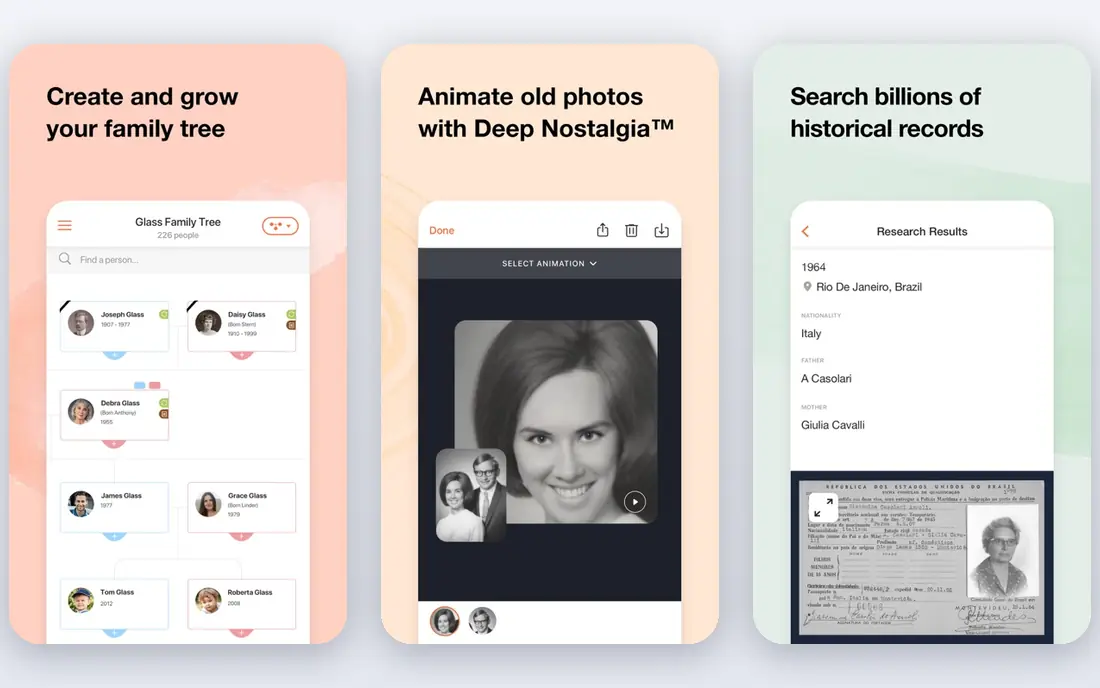
MyHeritage Photo Enhancer fits people who are already building a family tree. You can enhance and colorize portraits, keep them with names and dates, and share them with relatives in the same account. That context matters, because a restored photo is far more useful when you know who is in it and when it was taken.
The free limit is the main constraint. You can test the tool on a few photos, but a large archive will need a paid plan. Colorization also involves guesswork, since the tool cannot know the true colors of clothing or backgrounds, so treat colorized versions as interpretations, not records.
- Face enhancement and colorization
- Family tree and photo organization in one account
- Simple sharing with relatives
- Free photo count is limited
- Full value depends on a genealogy subscription
Topaz Photo AI suits users who want control and privacy. Because it runs on your desktop, your photos stay on your computer, and you can adjust denoise, sharpening and face recovery rather than accepting a single automatic result. Batch workflows also help when you have dozens of scans to process in a similar way.
The price and learning curve are real barriers. A beginner who only needs three photos restored may find a mobile or browser tool faster and cheaper. Topaz earns its place for photographers and archivists who restore often and want consistent, high-quality output.
- Desktop processing on your own computer
- Denoise, sharpening and face recovery
- Batch workflows
- Higher upfront cost
- Learning curve for beginners
Fotor is a good budget choice for light cleanup. Its old-photo repair, enhancement and color tools handle fading and minor scratches well enough for sharing, and the browser workflow means no install. The free tier lets you test results before you pay, which is useful for a small family project.
Heavy damage is where Fotor falls short. Large tears, stains and missing areas need manual repair or a dedicated restoration tool, and Fotor will often smooth over detail rather than rebuild it. Use it for photos that are faded or slightly damaged, and move to a specialist tool for harder cases.
- Free tier for basic restoration and editing
- Browser-based, no install
- Templates and design tools in one place
- Restoration is less specialized than dedicated tools
- Advanced features sit behind a paid plan
Photomyne solves the step many people skip: getting photos out of albums and into digital form. Its phone camera can scan several photos at once, crop them automatically, and organize them into albums you can share. That speed matters when you face boxes of prints rather than a handful of scans.
Restoration here is secondary to scanning. You get enhancement and colorization, but deep scratch or tear repair still needs a desktop tool. Start with Photomyne to digitize, then send only your best or hardest photos to a specialist tool for full repair.
- Fast multi-photo scanning with a phone
- Automatic cropping
- Album organization and sharing
- Paid plan needed for full use
- Restoration is part of a scanning workflow, not a deep repair tool
AKVIS Retoucher is for damage that automation handles badly. You paint over scratches, dust, stains and small tears, and the tool fills those areas based on nearby detail. That manual control gives better results on creases and spots where a one-click tool would invent the wrong texture.
The cost is time and skill. A beginner can spend a long while on a single badly damaged photo, and the interface assumes you know basic photo editing. Use AKVIS when a photo matters enough to justify careful work, and use a one-click tool for the rest of the album.
- Manual control over scratches, dust and stains
- Desktop processing
- Plugin and standalone options
- Requires patience and skill
- Interface feels technical for beginners
PhotoGlory bundles the main restoration steps into one desktop program: scratch removal, color correction, colorization and enhancement. That focused workflow helps users who want more than a phone app but do not want a full professional editor. Local processing also keeps private family photos off web servers.
Platform limits matter. PhotoGlory is Windows-focused, so Mac users need another tool from this list. The trial lets you test the workflow, but a full archive will need a paid license. Check system requirements before you buy, especially if you work on an older computer.
- Restoration-focused desktop workflow
- Colorization and scratch tools
- Photos stay on your computer
- Windows-focused
- Trial limits full use
PicWish suits small batches and quick sharing. Its free tier gives a few enhancements per day, and batch processing lets you run several photos through the same enhancement step. That makes it handy for cleaning up a set of scans before you share them with family.
The daily limit is the constraint for large projects, since a full album would take many days on the free tier alone. Deep damage also needs a specialist tool. Use PicWish for light enhancement and batch cleanup, then move hard cases to VanceAI, AKVIS or Topaz.
- Free daily enhancements
- Batch processing
- Simple browser and mobile workflow
- Free daily limit is small for large albums
- Deeper damage repair is limited
How we picked these
We compared official feature pages, pricing pages and app store listings for restoration tools live in October 2026. We kept tools that clearly handle old-photo problems such as fading, scratches, blur or color loss, and we favored a mix of mobile, browser and desktop options. We left out tools marketed for non-consensual imagery, and tools that had closed or stopped offering restoration features.
How to get a good restoration without losing the original
Scan before you restore. Use the highest resolution your scanner or phone allows, save the scan as a separate file, and never overwrite it with a restored version. Restoration tools invent detail when information is missing, so the original scan is your only true record. Keep both files, and label the restored copy clearly.
Match the tool to the damage. Fading and light scratches suit one-click tools. Heavy stains, tears and missing areas need manual repair, and sometimes a professional restorer is the honest answer. Check faces at full zoom, since AI tools make the most visible mistakes on eyes, mouths and hair. If a result looks too smooth or changes a face, try a lighter setting or a different tool.
Think about privacy and consent. Old photos often show people who cannot consent, or relatives who may not want images shared online. Restore for family use first, share privately where possible, and get consent before posting photos of living people in public. That care matters as much as the technical result.
Frequently asked questions
What is the best app for old photo restoration on a phone?
Remini is a strong phone-first choice, especially for faces. Photomyne is better if you still need to scan prints, and PicWish is handy for small batches. For deep damage, move the scan to a desktop tool after you digitize it.
Can AI restore a photo torn in half?
No one-click tool reliably rebuilds a photo torn in half or missing a large area. AI will invent plausible detail to fill the gap, which can look fine as a keepsake but is not a true record. Manual repair or a professional restorer is better for large missing areas.
Is colorization accurate?
No. Colorization guesses colors based on patterns in other photos, since black-and-white prints contain no color data. Clothing, skin tones and backgrounds may look plausible but wrong. Treat colorized photos as interpretations, and keep the original scan alongside them.
Can I restore old photos for free?
Yes, within limits. Remini, VanceAI, Fotor, MyHeritage and PicWish all offer free tiers or trials, but daily limits, photo counts or watermarks may apply. For a small project, free tiers may be enough. For a large album, plan for one paid month or a desktop license.
Should I upload private family photos to a web tool?
Web tools process photos on their servers, which is how their AI works. Desktop tools such as Topaz Photo AI, AKVIS Retoucher and PhotoGlory keep photos on your computer. Read the vendor privacy policy, and prefer local processing for photos you would not post publicly.
Sources
See where you really rank - block by block
ProMapRanker scans Google Maps across a grid of your service area. Simple monthly plans from $19, white-label on every plan.
Start freeKeep reading
 who has best internet service
Who Has the Best Internet Service in 2026
Who has best internet service for US homes? We compare fiber, cable, fixed wireless and satellite providers on speed, price, availability and terms today.
Read → which survey tool has the best analytics
Which Survey Tool Has the Best Analytics in 2026
Find which survey tool has the best analytics in 2026, comparing Qualtrics, SurveyMonkey, Typeform, Alchemer, and more on reports, text, and stats today.
Read → which streaming service has the best movies
Which Streaming Service Has the Best Movies in 2026
Answering which streaming service has the best movies, with Netflix, Max, Criterion and more compared on libraries, prices and free options in this guide.
Read →