 ProMapRanker
Best IP Sniffer Tool in 2026

Key takeaways
- Wireshark is our first pick for deep packet analysis, because it is free, cross-platform and supports a very wide protocol range.
- Tcpdump suits servers and remote work, where a command line capture is faster and lighter than a graphical interface.
- ManageEngine NetFlow Analyzer and Paessler PRTG suit ongoing monitoring better than one-off captures, since they work from flow data.
- GlassWire suits a single Windows user who wants to see which apps use the network, while Kismet suits wireless detection work.
- Only capture traffic on networks you own or have clear permission to test, and store captures carefully, since packets can hold passwords, tokens and personal data.
Quick comparison
| Pick | Great for | Pricing starts at | Free tier | |
|---|---|---|---|---|
 Wireshark | Deep packet analysis | Free | Yes | Visit |
 tcpdump | Command line capture | Free | Yes | Visit |
 SolarWinds Network Performance Monitor | Large network monitoring | See website | Free trial | Visit |
 ManageEngine NetFlow Analyzer | Flow-based bandwidth analysis | See website | Free trial | Visit |
 Paessler PRTG | All-round network monitoring | See website | Free trial | Visit |
 GlassWire | Personal Windows monitoring | See website | Yes | Visit |
 Kismet | Wireless detection | Free | Yes | Visit |
 Colasoft Capsa | Windows packet analysis | See website | Free trial | Visit |
The best ip sniffer tools
We compared tools for lawful network administration and testing on your own networks or networks you have clear permission to test. A packet sniffer, also called a network analyser, captures traffic so you can find faults, check performance and spot suspicious activity. Do not use these tools to intercept traffic on networks you do not own or have permission to test, since unauthorised interception can break the law and put other people's data at risk.
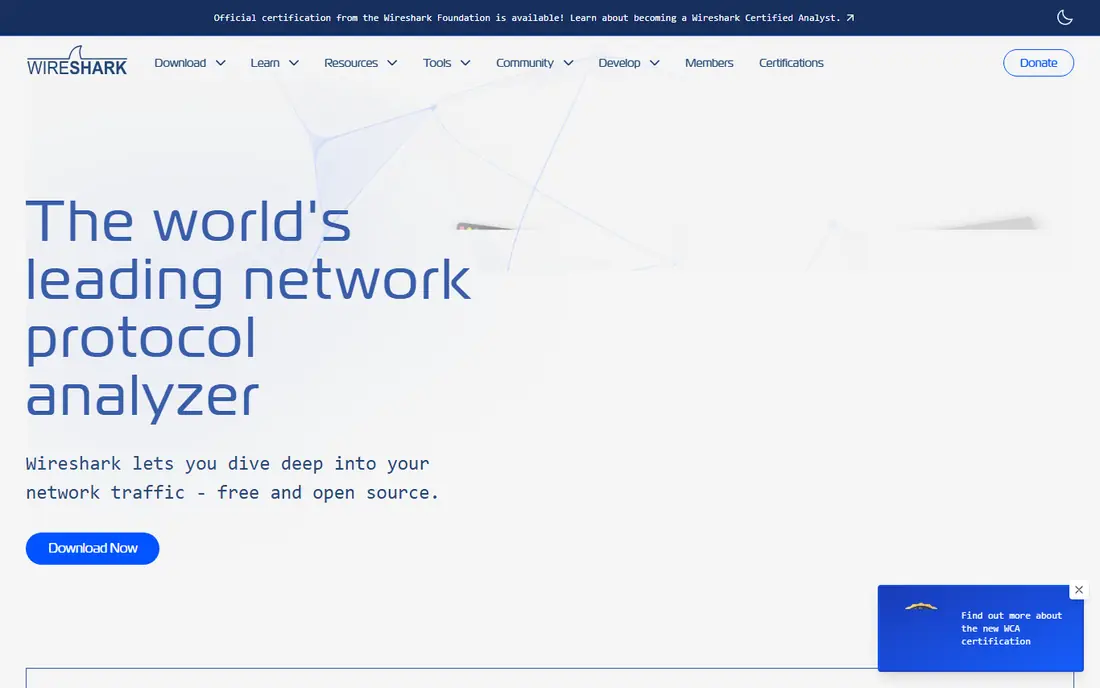
Wireshark remains the default for deep packet work, and for good reason. It runs on Windows, macOS and Linux, decodes hundreds of protocols, and lets you filter a capture down to the exact conversation, host or error you need. When a connection fails in a way logs do not explain, a Wireshark capture often shows the cause in the first few packets.
New users should expect a learning curve. The interface shows a lot of detail, and a busy network can produce a huge capture in minutes, so filter early and capture only the traffic you need. Used with permission on your own network, it is the most capable free analyser available.
- Free and open source
- Deep protocol decoding
- Powerful filters and live capture
- Learning curve for new users
- Captures can grow large fast
- Needs permission and care with sensitive data
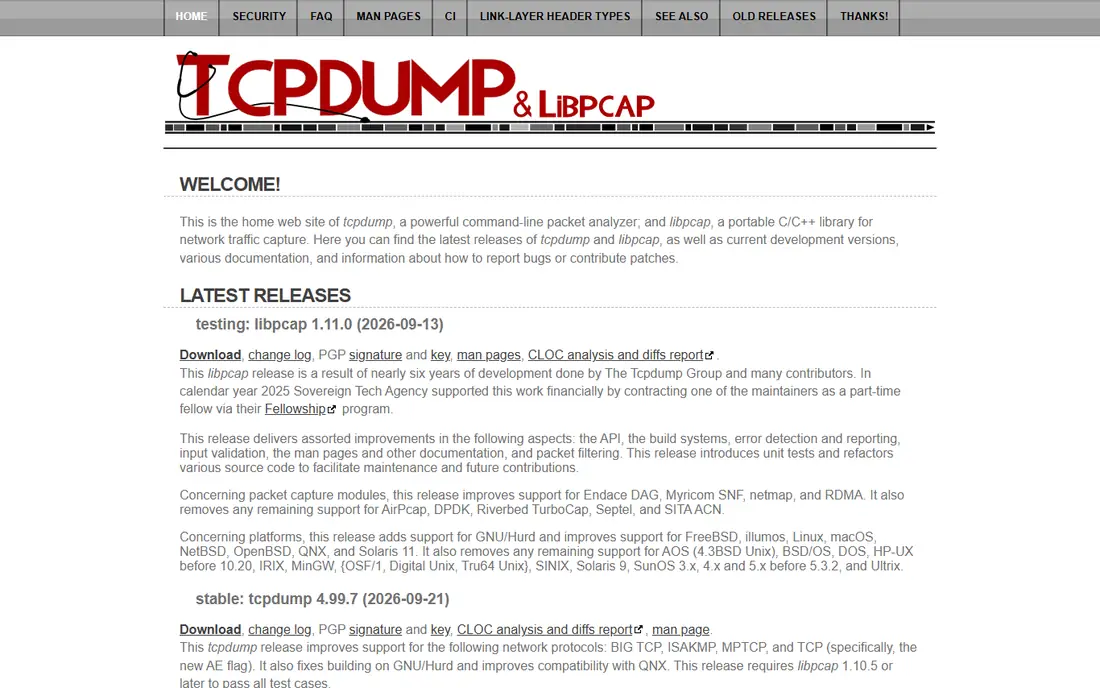
Tcpdump is the tool to reach for on a server. It captures from the command line, uses little resource, and can save a file you later open in Wireshark for detailed analysis. That split, capture on the server and analyse on a desktop, is a common workflow for remote troubleshooting.
The trade-off is readability. Tcpdump output is terse, and you need to know filters and flags to get a clean capture. If you work on servers often, that skill pays off quickly. If you mainly work on a desktop, start with Wireshark and use tcpdump when you need a remote or scripted capture.
- Lightweight and fast
- Ideal for servers and remote hosts
- Easy to script and save captures
- Command line only
- Reading output takes practice
- No built-in graphical analysis
SolarWinds Network Performance Monitor suits a larger IT team that needs ongoing visibility, not just a one-off capture. It monitors devices, maps networks, raises alerts and helps a team spot performance problems before users report them. Packet analysis sits inside that wider monitoring picture, rather than as a standalone job.
Small teams may find it heavy and costly, and pricing is quoted rather than published. We would shortlist it for mid-size and large networks where uptime, alerting and reporting matter daily, and pair it with Wireshark for deep packet checks when an alert needs detail.
- Broad monitoring for large networks
- Maps, alerts and performance views
- Packet and flow analysis options
- Pricing is quoted
- Setup for large networks takes planning
- More than a single user needs
ManageEngine NetFlow Analyzer answers a different question from Wireshark: who is using the bandwidth, and how has that changed over time. It collects flow data from routers and switches, then shows top applications, hosts and conversations in clear reports. For capacity planning and for finding a bandwidth hog, that view is faster than reading packets.
Flow data does not show packet payloads, so it will not replace Wireshark for a deep protocol fault. It also needs devices that export flow data, which is worth confirming before you buy. For ongoing bandwidth work, it is a strong, focused choice.
- Clear bandwidth and traffic views from flow data
- Alerts for top talkers
- Long-term trend reports
- Flow data is less detailed than full packets
- Pricing is quoted
- Setup needs flow-enabled devices
Paessler PRTG is an all-round monitor that includes packet sensors alongside device, bandwidth and application sensors. That breadth suits an IT team that wants one dashboard for servers, switches, traffic and services, rather than a separate tool for each job. Alerts and historical graphs help a team spot a trend before it becomes an outage.
Sensor-based pricing means the cost depends on how much you monitor, so count sensors before you budget. Packet capture inside PRTG is useful for targeted checks, but for deep analysis you will still open a capture in Wireshark. Choose PRTG when ongoing monitoring is the main job.
- Wide sensor range for devices and traffic
- Dashboards and alerts
- Packet sensors for targeted checks
- Pricing varies by sensor count
- Large setups need planning
- Packet features are one part of a larger system
GlassWire is the most approachable tool here for a single Windows user. It shows which apps connect, when they connect, and how much data they use, in a visual timeline that is easy to read. That makes it useful for spotting an unknown app, checking a suspicious connection, or simply learning what your own machine does online.
It is not a replacement for Wireshark or an enterprise monitor. Its strength is personal visibility, not deep protocol work or large-network alerting. For a home user or a small office Windows machine, it is a good first step into network awareness.
- Clear visual view of app network use
- Alerts for new apps and hosts
- Easy for non-experts
- Windows focused
- Free plan has limits
- Not a full enterprise analyser
Kismet suits wireless work that wired tools cannot cover. It detects wireless networks and devices, tracks clients and access points, and supports intrusion detection for wireless activity. A network admin checking for rogue access points, or a tester with permission to assess a wireless setup, will find it more useful than a general packet tool.
Hardware matters. Kismet needs a wireless adapter that supports monitoring, and setup takes more care than opening Wireshark on a laptop. Use it only on wireless networks you own or have permission to test, and keep its logs secure, since they can reveal nearby devices.
- Free and open source
- Wireless detection across Wi-Fi and other protocols
- Intrusion detection features
- Setup needs compatible wireless hardware
- Interface takes learning
- Focused on wireless, not wired capture
Colasoft Capsa gives Windows users a graphical packet analyser with dashboards, protocol breakdowns and diagnostic views. It is easier to approach than Wireshark for some users, since its summaries highlight top protocols, hosts and conversations without needing complex filters first. For a Windows admin who wants packet detail in a guided interface, that helps.
Wireshark still leads on protocol depth and community support, and Capsa's best features sit on paid editions. We would pick Capsa when a Windows team wants a guided packet tool, and Wireshark when depth and cross-platform use matter more.
- Windows packet capture with clear dashboards
- Protocol analysis and diagnostics
- Free edition for basic use
- Windows only
- Advanced features need paid editions
- Smaller community than Wireshark
How we picked these
We compared official product pages, pricing and trial terms, and public documentation for tools that capture packets or flow data and still work in October 2026. We favoured tools with a verifiable vendor site, a clear lawful use case for network administration and testing, and a current release path. Tools aimed at intercepting other people's traffic without permission were left out. Where pricing is quoted, we wrote See website.
Choosing the right sniffer for your network
Start with the question, not the tool. A single fault on one machine points to Wireshark or tcpdump. A bandwidth problem across a site points to flow tools such as NetFlow Analyzer or PRTG. A wireless concern points to Kismet, while a personal Windows check points to GlassWire. Matching the tool to the question avoids buying a large monitor for a one-hour fault.
Then set rules before you capture. Get permission in writing when the network is not yours, capture only the traffic you need, filter out sensitive data where possible, and store capture files in a secure place with limited access. Delete captures when the job is done. Good capture practice protects both the network and the people whose data may appear in a packet.
Frequently asked questions
What is the best ip sniffer tool for beginners?
Wireshark is our first pick for learning, because it is free, well documented and widely used, even though it takes time to learn. GlassWire is easier for a Windows user who only wants to see which apps use the network.
What are the best ip sniffer tools for servers?
Tcpdump is the standard for servers, since it is lightweight and scriptable, and its captures can be opened later in Wireshark. For ongoing server and network monitoring, PRTG or SolarWinds Network Performance Monitor add alerts and dashboards.
Is it legal to use a packet sniffer?
It is legal to capture traffic on a network you own or have clear permission to test, for administration, troubleshooting and authorised security testing. Capturing traffic on a network without permission, or intercepting other people's private data, can be unlawful, so get permission first and limit what you capture.
Do I need a paid tool, or is free enough?
Free tools cover most packet work. Wireshark and tcpdump handle deep analysis and server capture, while Kismet covers wireless detection. Paid tools add ongoing monitoring, alerts, dashboards and support, which matter more for larger networks.
What is the difference between packet capture and flow analysis?
Packet capture records full packet detail, which is best for deep faults. Flow analysis summarises conversations between hosts, which is best for bandwidth trends and long-term monitoring. Many teams use both: flow tools for trends, and packet tools for detail when a trend needs explaining.
Sources
See where you really rank - block by block
ProMapRanker scans Google Maps across a grid of your service area. Simple monthly plans from $19, white-label on every plan.
Start freeKeep reading
 who has best internet service
Who Has the Best Internet Service in 2026
Who has best internet service for US homes? We compare fiber, cable, fixed wireless and satellite providers on speed, price, availability and terms today.
Read → which survey tool has the best analytics
Which Survey Tool Has the Best Analytics in 2026
Find which survey tool has the best analytics in 2026, comparing Qualtrics, SurveyMonkey, Typeform, Alchemer, and more on reports, text, and stats today.
Read → which streaming service has the best movies
Which Streaming Service Has the Best Movies in 2026
Answering which streaming service has the best movies, with Netflix, Max, Criterion and more compared on libraries, prices and free options in this guide.
Read →