 ProMapRanker
Best Free Video Editing Software No Watermark in 2026

Key takeaways
- DaVinci Resolve is the most capable free editor with no watermark, with pro editing, colour, and audio tools.
- Shotcut, OpenShot, and Kdenlive are truly free and open source, with no watermark and no paid export gate.
- CapCut, Clipchamp, and iMovie are the easiest starts for beginners, but check free export limits and premium features.
- Lightworks free exports are limited to 720p in recent coverage, so check resolution before you pick it for 4K work.
Quick comparison
| Pick | Great for | Pricing starts at | Free tier | |
|---|---|---|---|---|
 DaVinci Resolve | Professional work | Free | Yes | Visit |
 Shotcut | All-round open source | Free | Yes | Visit |
 OpenShot | Simplest open source | Free | Yes | Visit |
 Kdenlive | Multi-track open source | Free | Yes | Visit |
 CapCut | Fast social video | Free | Yes | Visit |
 iMovie | Apple beginners | Free | Yes | Visit |
 Clipchamp | Quick Windows edits | Free | Yes | Visit |
 VSDC Free Video Editor | Low-spec Windows PCs | Free | Yes | Visit |
 Lightworks | Pro-style editing | Free | Yes | Visit |
The best free video editing software no watermark
A free editor is only truly free if your export has no watermark, no forced trial expiry, and no paywall on basic cutting and export. The tools below meet that test for their free tiers, with notes where a premium tier adds features or where resolution is limited. We compared them on ease of use, export quality, platform, and what a beginner can finish without paying.
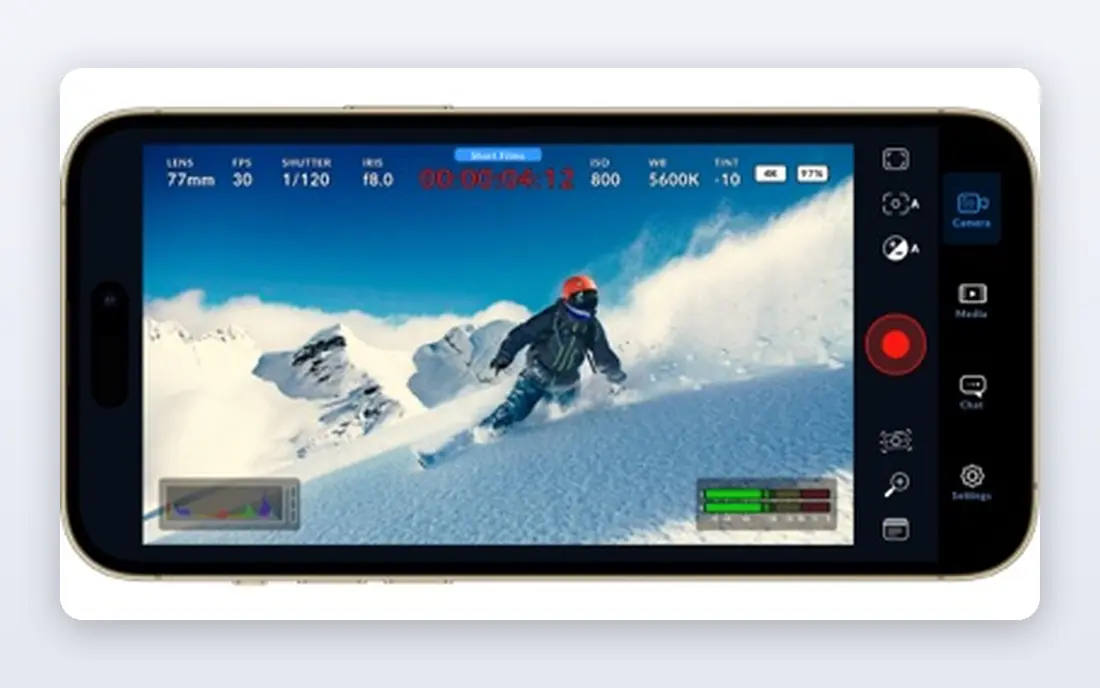
DaVinci Resolve is the clear top pick if you want professional power for free. The free version includes a full editor, colour grading tools used in broadcast work, a Fairlight audio suite, and effects, with no watermark on export. Recent coverage confirms free exports up to UHD 4K, which is rare for a free editor and enough for YouTube, client work, and short films.
The catch is hardware and learning time. Resolve is demanding, and a mid-range laptop without a discrete GPU may struggle with 4K timelines, though proxy editing helps. The interface also has several pages for editing, colour, effects, and audio, which can overwhelm a first-time editor. If you plan to edit often and want a tool you will not outgrow, Resolve is worth the learning curve. If you need a quick first video today, start with CapCut or iMovie and move to Resolve later.
- Full professional editing, colour, effects, and audio tools
- Exports up to UHD 4K on free tier in recent coverage
- No watermark and no time limit
- Steep learning curve
- Needs a modern PC with a discrete GPU for smooth 4K work
- Paid Studio adds advanced AI and collaboration features
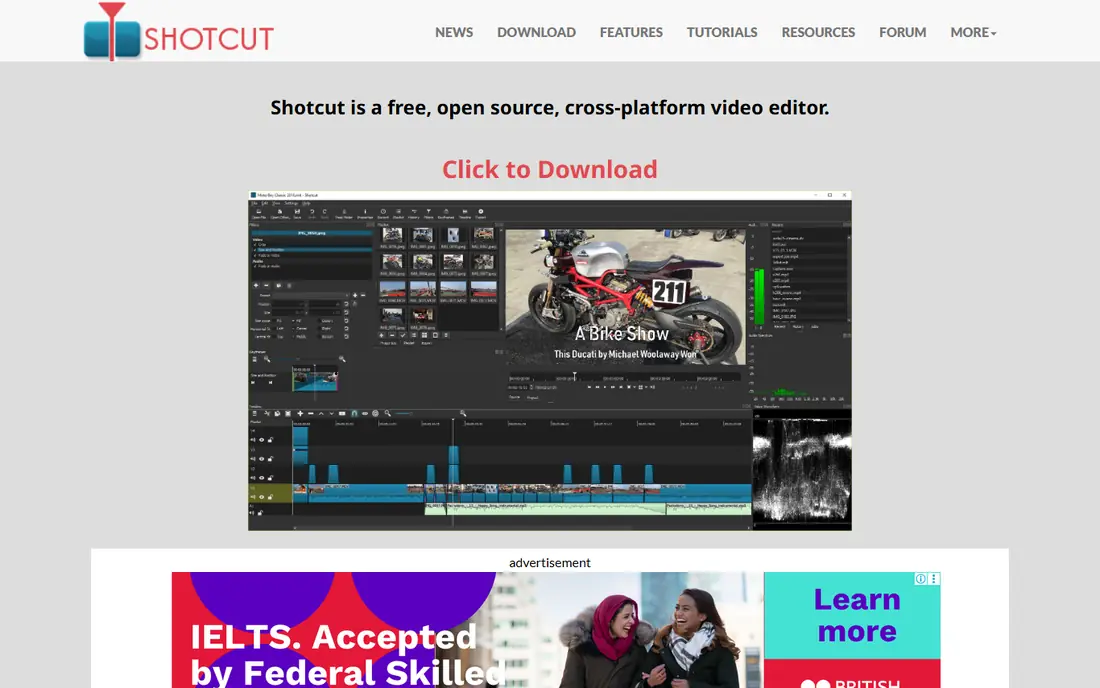
Shotcut is the best all-round free open source editor for most people who do not want Resolve complexity. It is free with no watermark, no trial, and no paid tier gating exports. You get multi-track editing, filters, transitions, audio tools, and 4K export, with support for a wide range of video formats. It runs on Windows, Mac, and Linux, so you are not locked to one system.
The interface is functional rather than polished, and beginners may need a tutorial for the first project. Shotcut also lacks the template library and AI helpers that CapCut and Clipchamp offer. For a creator who wants a free, honest editor that handles most projects without a watermark, Shotcut is a strong and reliable choice, especially on a mid-range PC.
- Fully free and open source
- No watermark
- 4K support
- Works on Windows, Mac, and Linux
- Wide format support
- Interface feels less polished than Resolve or iMovie
- Fewer templates and guided workflows for beginners
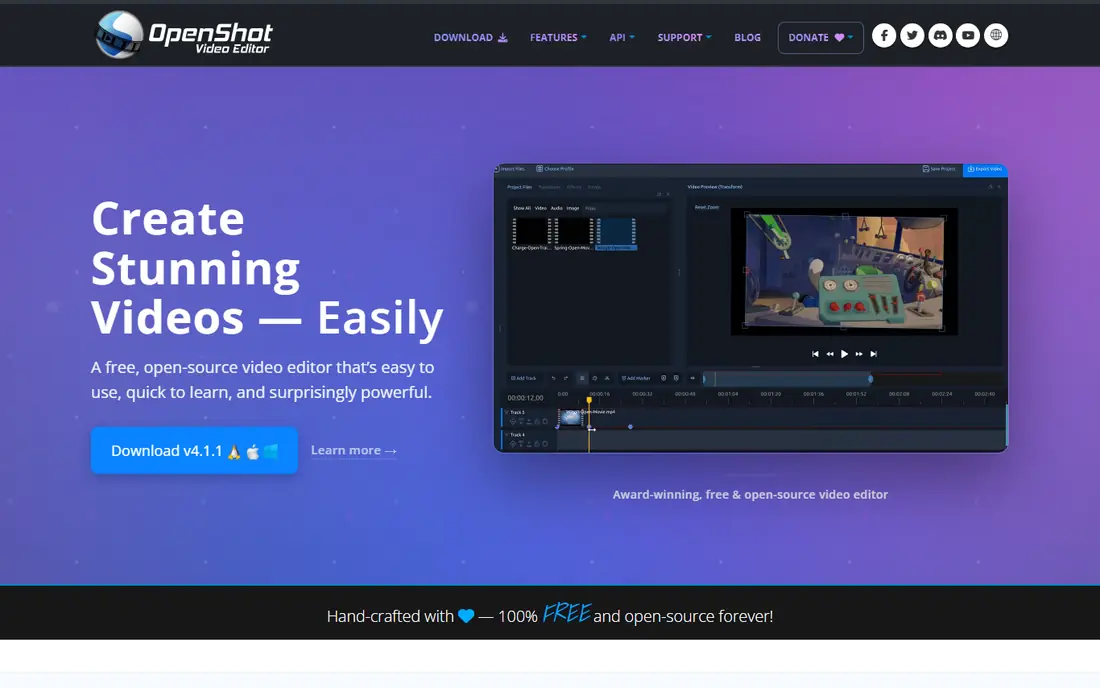
OpenShot is the easiest open source editor to learn. The timeline is clear, dragging clips, adding titles, and applying transitions feels direct, and there is no watermark or export paywall. Unlimited tracks let you layer video, audio, and titles without hitting a track limit, which is useful for simple YouTube videos, school projects, and family films.
OpenShot is not the best choice for a long or complex project with many effects, where Shotcut or Kdenlive will be faster and more stable. Performance can also lag on older machines with long timelines. For a beginner who wants a free editor that works today, with no watermark and no confusing setup, OpenShot is the gentlest start among open source tools.
- Gentlest open source editor for beginners
- No watermark
- Unlimited tracks
- Works on Windows, Mac, and Linux
- Less powerful than Shotcut or Kdenlive for complex projects
- Performance can lag on very long timelines
Kdenlive is a powerful open source editor that suits editors who want multi-track control without paying. It offers multi-track timelines, a wide effect set, audio scopes, and 4K export, with no watermark on free exports. It runs on Windows, Mac, and Linux, though it started on Linux and some workflows still feel more technical than Shotcut or OpenShot.
Beginners may find Kdenlive less welcoming than iMovie or CapCut, and there are fewer built-in templates for social video. For an editor who already knows timeline basics and wants a free tool that can handle a documentary, a short film, or a multi-camera project, Kdenlive is a strong step up from OpenShot. It rewards a little learning time with a lot of control.
- Strong multi-track editing
- No watermark
- 4K support
- Works on Windows, Mac, and Linux
- Flexible effects and scopes
- Interface can feel technical for beginners
- Linux roots show in some workflows
- Fewer templates than commercial editors
CapCut is the easiest pick for short-form video. Templates, auto-captions, trending effects, and a simple timeline let you finish a TikTok, Reel, or Short in minutes, on phone or desktop. Recent coverage lists CapCut among free editors that export without a watermark on basic free edits, which makes it a real free option, not just a trial.
Check the fine print before you rely on it for client work. Some templates and AI features are paid, and free exports are often capped at 1080p rather than 4K in recent coverage. That is fine for social feeds, but less ideal for a 4K YouTube master. Use CapCut for speed and social output, and Resolve or Shotcut for a 4K project that needs full control.
- Fastest start for short-form and social video
- Templates, captions, and effects
- Desktop and mobile versions
- Free exports without watermark on basic edits in recent coverage
- Some templates, effects, and AI features are paid
- Free exports are often capped at 1080p in recent coverage
- Cloud features need an account
iMovie is the best free start if you own a Mac or iPhone. It is free, polished, and easy to learn, with a magnetic timeline that makes cutting feel simple. You can edit and export 4K video with no watermark, add titles, transitions, and music, and use trailers and themes for a quick polished result. For school, family, and simple YouTube videos, iMovie is often enough.
The limits are platform and depth. iMovie is Apple only, and recent coverage notes a two video track limit, which restricts complex layering. Colour and audio tools are simpler than Resolve or Kdenlive. If you stay on Apple devices and want a fast, free editor with no watermark, iMovie is the obvious choice. If you switch to Windows or need multi-track depth, Shotcut or Resolve will fit better.
- Free on Mac and iPhone
- Polished and easy to learn
- 4K export
- No watermark
- Good trailers and themes for quick projects
- Apple only
- Limited to two video tracks in recent coverage
- Fewer advanced colour and audio tools than Resolve
Clipchamp is the quickest free editor for many Windows users because it is already on Windows 11 and runs in a browser. The timeline is clean, templates help with social and work videos, and recent coverage lists Clipchamp among free editors that export without a watermark on basic free plans. That makes it a good tool for a fast edit, a school project, or a short work video.
Free exports are often capped at 1080p, and some stock media, filters, and brand features sit behind a paid Premium plan. Large camera files can also be slow to upload in a browser workflow. For a quick 1080p edit, Clipchamp is hard to beat on Windows. For 4K or a long project, use a desktop editor such as Resolve or Shotcut instead.
- Built into Windows and available in a browser
- Easy timeline and templates
- Free exports without watermark on basic plans in recent coverage
- Good for quick work videos
- Free exports often capped at 1080p in recent coverage
- Some stock, filters, and premium features are paid
- Browser use can be slow with large files
VSDC Free Video Editor is built for Windows PCs that cannot run Resolve smoothly. It is free, exports without a watermark in recent coverage, and handles a wide range of formats on modest hardware. That makes it useful for older laptops, school computers, and creators who need a free editor that does not demand a new machine.
The interface is dated and less intuitive than iMovie or CapCut, and some advanced features, such as hardware acceleration and certain effects, sit in the paid Pro version. VSDC is Windows only, so Mac and Linux users should pick Shotcut or Kdenlive. If your PC is the limit, VSDC is a practical free choice that still gives you a clean export.
- Free version exports without watermark in recent coverage
- Runs well on older and low-spec Windows PCs
- Supports many formats
- Useful for simple edits
- Windows only
- Interface feels dated
- Free version lacks some advanced features of the Pro version
- Learning curve for first-time users
Lightworks is a professional editor with a free tier, and it has a long history in film editing. The free version offers a pro-style timeline, precise trimming, and a workflow that suits editors who want to learn professional cutting. Recent coverage lists Lightworks as exporting without a watermark on free tiers, which keeps it in this list.
Resolution is the main limit. Free exports are limited to 720p in recent coverage, with paid Pro needed for 1080p, 4K, and some export formats. That makes Lightworks a poor fit for a 4K YouTube channel, but a useful free learning tool for editing craft. If you want free 4K with no watermark, Resolve, Shotcut, Kdenlive, and iMovie are better picks.
- Professional timeline used in film editing
- Free version with no watermark in recent coverage
- Good trimming and editing workflow
- Free exports limited to 720p in recent coverage
- Paid Pro needed for higher resolution and some formats
- Steep learning curve
How we picked these
We compared official product pages and recent 2026 free editor roundups for tools with a free tier that exports without a watermark on basic edits. We favoured tools that are still maintained, run on current systems, and cover different needs, from pro work to beginner social video. We did not list editors that watermark every free export until you pay, and we noted resolution limits where coverage reported them. Prices and limits change, so check the official page for your platform before you start a paid project.
What to check before you pick
Check export resolution first. A free editor that exports at 720p may be fine for social clips, but it will look soft on a large screen or a 4K channel. Resolve, Shotcut, Kdenlive, OpenShot, and iMovie offer 4K free exports in recent coverage, while Clipchamp, CapCut, and Lightworks have free limits that matter for high-resolution work. Match the editor to the resolution you actually publish at, not the resolution you hope to use later.
Check your computer next. Resolve needs a modern PC with a discrete GPU for smooth 4K work, while VSDC, Shotcut, and OpenShot run better on older machines. A free editor that lags on your hardware will slow every project, even if its feature list looks better. Download two editors, import the same footage, and cut a one-minute test before you commit to a full project.
Beginner workflow
Start simple. Import footage into one folder, cut out dead parts first, then add titles, music, and transitions last. That order keeps projects tidy and avoids broken file links when you reopen a project months later. Save often, and export a test clip early to check sound levels, title legibility, and export quality before you spend hours on fine edits.
When to pay
Pay only when a free limit blocks real work, such as 4K export, a needed codec, or collaboration features. DaVinci Resolve Studio, at $295 once in recent coverage, adds advanced effects and collaboration, but most creators never need it. CapCut Pro and Clipchamp Premium add stock and AI features, but they are not needed for basic cutting. A free editor with no watermark is enough for most YouTube, school, and small business work.
Frequently asked questions
What is the best free video editing software for beginners no watermark?
CapCut and iMovie are the easiest starts, with OpenShot as the gentlest open source option. CapCut suits social video, iMovie suits Apple users, and OpenShot suits Windows, Mac, and Linux beginners who want a free editor with no watermark.
What is the best free editing software no watermark for 4K?
DaVinci Resolve is the best free 4K editor with no watermark, followed by Shotcut, Kdenlive, OpenShot, and iMovie. Check your PC specs first, since Resolve needs more power than the open source editors for smooth 4K timelines.
What is the best free video editing software with no watermark for Windows?
Shotcut and DaVinci Resolve are strong Windows picks, with Clipchamp for quick edits and VSDC for low-spec PCs. All export without a watermark on basic free plans in recent coverage, though Clipchamp free exports are often capped at 1080p.
What is the best free video editing app no watermark for phones?
CapCut is the most popular free phone editor for social video, with no watermark on basic free edits in recent coverage, while iMovie is free on iPhone. Check template and effect paywalls, since some phone features require a paid plan.
Does DaVinci Resolve really have no watermark?
Yes. The free version of DaVinci Resolve has no watermark, no time limit, and no export limit at UHD 4K in recent coverage. Paid Studio adds advanced effects, AI tools, and collaboration, but most editors can finish full projects without it.
Is Lightworks free without a watermark?
Recent coverage lists Lightworks free exports without a watermark, but limited to 720p. Paid Pro is needed for higher resolution and some formats, so Lightworks suits learning and 720p work better than 4K publishing.
Sources
- https://www.blackmagicdesign.com/products/davinciresolve
- https://www.shotcut.org/
- https://www.openshot.org/
- https://kdenlive.org/
- https://www.capcut.com/
- https://www.apple.com/imovie/
- https://www.clipchamp.com/
- https://www.videosoftdev.com/
- https://lwks.com/
- https://techtippr.com/free-video-editing-software-alternatives/
- https://rankite.com/blog/best-free-video-editing-software-for-pc
See where you really rank - block by block
ProMapRanker scans Google Maps across a grid of your service area. Simple monthly plans from $19, white-label on every plan.
Start freeKeep reading
 best tour operator software
Best Tour Operator Software in 2026
Compare the best tour operator software for bookings, channel management, waivers and payments, with pricing models for day tours and multi-day trips.
Read → best time clock app for small business
Best Time Clock App for Small Business in 2026
We compare the best time clock app for small business options, with free plans, GPS clock ins, scheduling and payroll links for hourly teams and payroll help.
Read → best test automation tools
Best Test Automation Tools in 2026
Compare the best test automation tools, from Playwright and Selenium to Cypress, Katalon and BrowserStack, with prices, languages and best uses explained.
Read →