 ProMapRanker
Best Free Video Editing Apps for Beginners in 2026


powerful free editing with room to grow · Pricing starts at: Free
Key takeaways
- Clipchamp and iMovie are the easiest first editors, since they come with Windows and Apple devices.
- CapCut is the fastest route to short-form social video on a phone, with a free tier for basic edits.
- DaVinci Resolve is the most powerful free editor, but it needs a stronger computer and more learning time.
- Shotcut, OpenShot, and Kdenlive are fully free and open source, with no watermark and no paid tier.
Quick comparison
| Pick | Great for | Pricing starts at | Free tier | |
|---|---|---|---|---|
| DaVinci Resolve | powerful free editing with room to grow | Free | Yes | Visit |
 CapCut | fast short-form video on phone and desktop | Free | Yes | Visit |
 Clipchamp | quick edits on Windows and in a browser | Free | Yes | Visit |
 iMovie | simple edits on Mac, iPhone, and iPad | Free | Yes | Visit |
 OpenShot | learning timeline basics on any computer | Free | Yes | Visit |
 Shotcut | wide format support on modest computers | Free | Yes | Visit |
 Kdenlive | open-source multi-track editing | Free | Yes | Visit |
 Canva | template-first video for non-editors | Free | Yes | Visit |
The best free video editing apps for beginners
Every editor here has a real free option, not just a short trial. The right pick depends on your device, your video length, and how much time you want to spend learning.
DaVinci Resolve is the best free editor in pure capability terms, and it is free to keep rather than a trial. Its Cut, Edit, Color, and Fairlight audio pages cover the full path from raw clips to a finished video, and the free version exports without a watermark. That makes it the editor to learn if you plan to edit regularly for months or years.
Beginners should expect a learning curve. The interface packs many panels into one screen, and 4K timelines need 16 GB of RAM for comfortable work. Start with the Cut page, learn trimming and titles first, and only move to color grading after your first few finished videos.
- Professional editing and color tools
- No watermark on free exports
- 4K export in the free version
- Steep learning curve
- Needs a capable computer
- Paid Studio version costs $295 for advanced tools
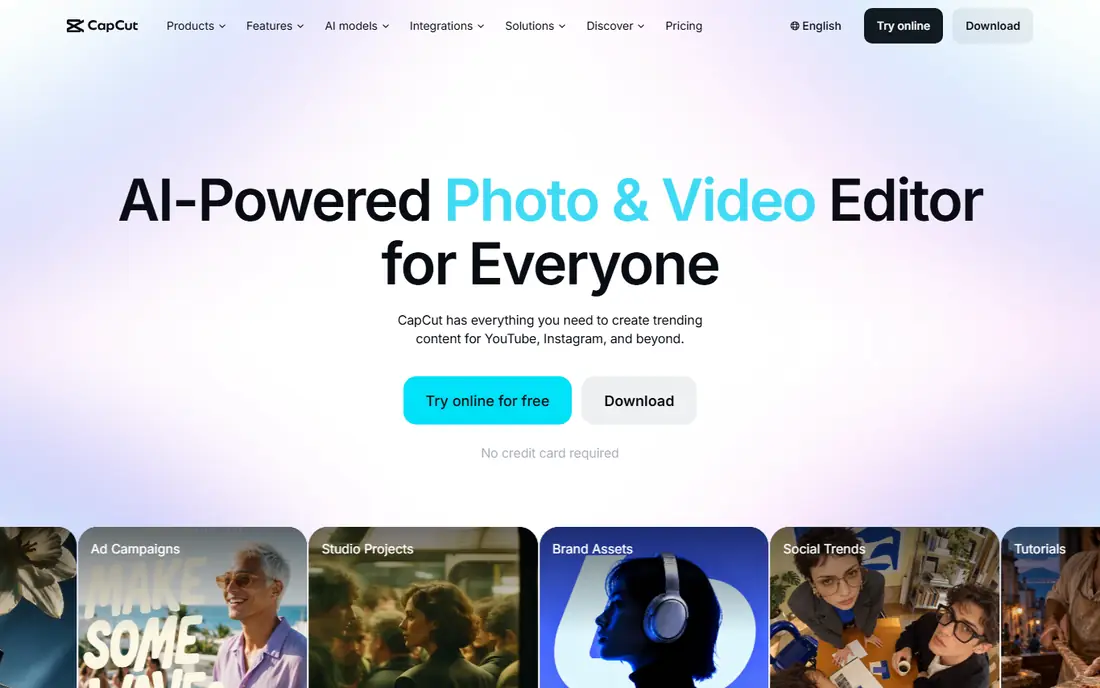
CapCut is the fastest way from phone clips to a finished short for TikTok, Reels, or Shorts. Templates, trending sounds, auto captions, and background removal cut editing time sharply, and the free tier covers basic cuts, text, and music. The Pro tier adds fuller asset access and higher-quality exports, so check current Pro pricing in the app before you pay.
The catch is export limits. Free exports are capped in ways that matter for longer or higher-resolution work, and some popular templates carry a watermark unless you pay. For short social clips, though, CapCut remains the easiest free start on a phone.
- Templates and auto captions
- Mobile, desktop, and web versions
- Fast social export
- 4K and watermark-free exports need a paid plan
- Some templates and assets are paid
- Free tier limits some effects
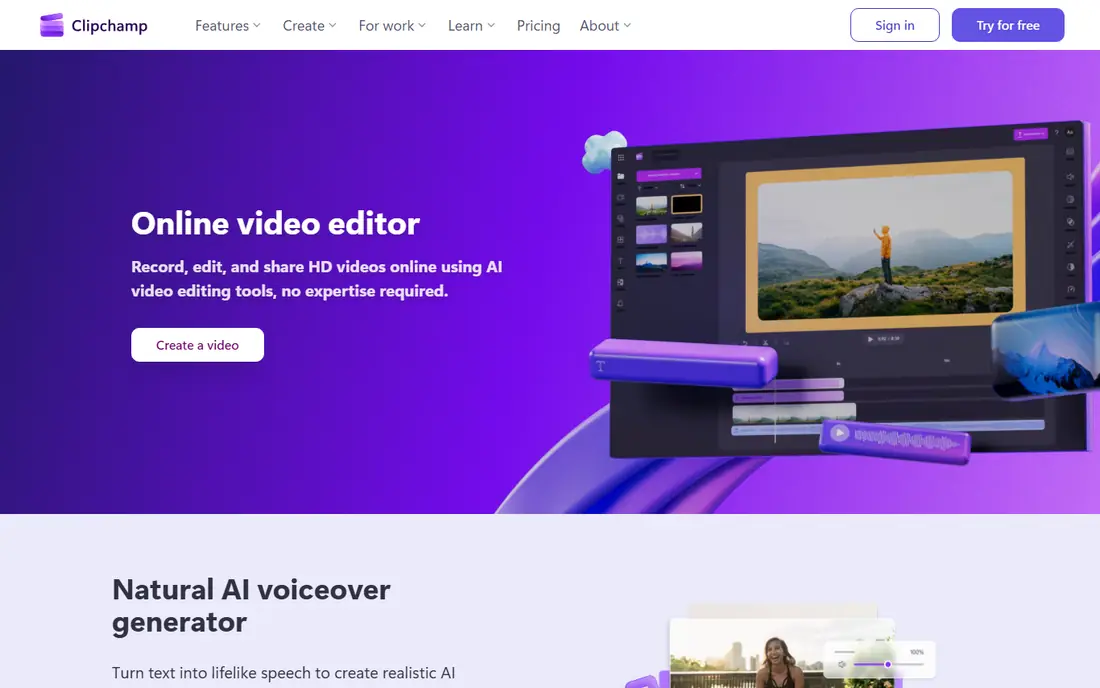
Clipchamp is our pick for Windows users who need a finished video today, not a new skill next month. It opens from Windows 11 or any modern browser, offers templates for social, work, and school videos, and exports 1080p without a watermark on the free plan. That combination makes it ideal for quick trims, slideshows with music, and short explainers.
Longer projects and heavy effects will feel slower in a browser than in a desktop editor, and 4K export sits behind paid plans. For a first edit, a birthday video, or a class project, those limits rarely matter.
- Built into Windows 11
- Free 1080p exports without a watermark
- Templates and stock assets
- 4K export needs a paid plan
- Browser workflow suits short videos best
- Some features push Microsoft 365
iMovie is the simplest true editor in this list, and it is already on most Macs, iPhones, and iPads. Drag clips onto a timeline, add titles and transitions, pick music, and export in 4K. There is no paid tier to learn around, and no watermark on exports, which keeps the whole process free from start to finish.
Advanced editors will outgrow it fast, since multi-track control, color tools, and audio mixing are basic. For a first video, a family film, or a school project on Apple hardware, iMovie is still the least stressful place to start.
- Free on Apple devices
- Very easy timeline
- 4K export
- No watermark
- Apple only
- Few advanced tools
- Limited export format control
OpenShot is the gentlest desktop editor for complete beginners who use Windows, Mac, or Linux. The timeline is clear, trimming and splitting are obvious, and titles, transitions, and basic effects cover most first projects. Since it is open source, every feature is free, with no account, no watermark, and no paid tier waiting behind a paywall.
It is not the right tool for long 4K films or complex effects work, where it can slow down. For short videos, class projects, and learning how timelines work, OpenShot gives a clean start without cost or clutter.
- Free and open source
- Works on Windows, Mac, and Linux
- Simple timeline with titles and transitions
- Not built for heavy 4K projects
- Fewer effects than Resolve
- Performance varies on older machines
Shotcut suits beginners who film in unusual formats or work on older computers. It opens a very wide range of video, audio, and image formats without conversion, and it does not impose a resolution cap on exports, so your computer and footage set the real limits. Filters, transitions, and multi-track timelines cover most everyday projects.
The interface is less friendly than Clipchamp or iMovie, so expect an hour of learning before your first smooth edit. If you value format freedom and a fully free tool over a polished first screen, Shotcut is a strong second desktop pick after OpenShot.
- Free and open source
- Very wide native format support
- No export cap imposed by the software
- Interface looks less polished
- Color tools are basic next to Resolve
- Learning curve is steeper than OpenShot
Kdenlive is the open-source editor for beginners who want a normal multi-track timeline without paying. It handles several video and audio tracks, titles, transitions, and effects, and its proxy workflow helps lower-spec machines edit smoother footage. Linux users in particular will find it well supported and actively maintained.
It sits between OpenShot and Resolve in difficulty: easier than Resolve, harder than OpenShot. If you plan to edit weekly and want a free tool that grows with you, Kdenlive is a better long-term bet than the simplest editors, as long as you accept a learning weekend at the start.
- Free and open source
- Proper multi-track timeline
- Proxy workflow for lower-spec machines
- Interface takes learning
- Effects are basic next to Resolve
- Best on Linux and Windows, with Mac builds varying
Canva is not a traditional editor, and that is its strength for non-editors. Pick a template for a social post, a presentation video, or a slideshow, drop in photos and clips, add text and music, and export in the right size for each platform. The free plan covers many templates and basic video tools, with paid plans adding fuller asset access.
People who need precise cuts, color grading, or audio mixing will outgrow Canva fast. For a small business owner who needs a tidy promo video in an hour, though, Canva is often faster than learning a full editor.
- Huge template library
- Drag-and-drop timeline
- Social sizes built in
- Video tools are simpler than a real editor
- Best templates and assets are paid
- Exports suit social, not cinema
How we picked these
We compared official product pages, free plan terms, and export limits for editors that still work in October 2026 on phones, browsers, or desktops. We kept only tools with a real free option, no forced trial expiry, and a beginner-friendly path to a finished export, and we noted where watermarks or resolution caps apply.
Choosing your first free editor
Match the editor to the video you need this week. For a phone short, start with CapCut. For a Windows quick edit, start with Clipchamp. For a Mac first film, start with iMovie. For a desktop project you want to keep free forever, start with OpenShot or Shotcut, and move to DaVinci Resolve when you want professional color and audio tools.
Hardware matters more than brand loyalty at this stage. Resolve needs a stronger computer and more RAM, while Clipchamp, iMovie, and Canva run well on modest machines because much of the work is simpler or browser-based. Test with a short clip before you commit hours to a long project, and check the export for watermarks, resolution, and audio sync.
A simple first-project plan
Import three clips, trim each to its best few seconds, and arrange them in story order before you add anything else. Add one title at the start, one transition style throughout, and one music track at low volume, then export and watch the result on a phone. That short loop teaches trimming, timing, and export in under an hour, and it shows whether the editor fits your computer before you invest in a longer film.
Frequently asked questions
What is the best free video editing software for beginners?
Clipchamp on Windows and iMovie on Mac are the easiest true beginner editors, both free. On mobile, CapCut is the fastest path from clips to a finished short, while OpenShot is the simplest free desktop editor across platforms.
Can I edit videos for free without a watermark?
Yes. DaVinci Resolve, Shotcut, OpenShot, and Kdenlive export without watermarks, and Clipchamp exports 1080p without a watermark on its free plan. CapCut and Canva add watermarks to some free exports, so test a short export before a long project.
What is the best free editing video software for YouTube beginners?
DaVinci Resolve is the best long-term free pick for YouTube, with professional tools and no watermark, but it needs learning time and a capable computer. Beginners who need a video this week should start with Clipchamp, iMovie, or CapCut and switch later.
How much RAM do I need for free video editing?
For 1080p editing in beginner tools, 8 GB of RAM works, while 16 GB is the comfortable minimum for DaVinci Resolve or 4K timelines. Keep project files on an SSD if you can, since slower drives slow down editing noticeably.
Is CapCut really free?
CapCut has a free tier that covers basic editing, templates, and social exports, with a paid Pro tier for fuller assets and higher-quality exports. Check the current Pro price in the app, since it varies by region and billing term.
Sources
- https://www.blackmagicdesign.com/products/davinciresolve
- https://www.capcut.com
- https://clipchamp.com
- https://www.apple.com/imovie/
- https://www.openshot.org
- https://shotcut.org
- https://kdenlive.org
- https://www.canva.com
- https://www.smashingapps.com/best-free-video-editing-software/
- https://techdows.com/the-best-free-video-editing-software-for-windows-or-mac.html
See where you really rank - block by block
ProMapRanker scans Google Maps across a grid of your service area. Simple monthly plans from $19, white-label on every plan.
Start freeKeep reading
 best tour operator software
Best Tour Operator Software in 2026
Compare the best tour operator software for bookings, channel management, waivers and payments, with pricing models for day tours and multi-day trips.
Read → best time clock app for small business
Best Time Clock App for Small Business in 2026
We compare the best time clock app for small business options, with free plans, GPS clock ins, scheduling and payroll links for hourly teams and payroll help.
Read → best test automation tools
Best Test Automation Tools in 2026
Compare the best test automation tools, from Playwright and Selenium to Cypress, Katalon and BrowserStack, with prices, languages and best uses explained.
Read →