 ProMapRanker
Best Free Apps to Remove People From Photos in 2026

Key takeaways
- Google Photos and Snapseed are the strongest fully free starting points, since both offer removal tools at no cost.
- AI erasers in PhotoDirector, PicsArt and YouCam Perfect handle larger background figures better than a manual healing brush.
- Browser tools such as Cleanup.pictures are useful when you do not want to install an app for a one-off edit.
- Only edit photos you own or have permission to edit, and never use these tools to alter photos of other people without consent.
Quick comparison
| Pick | Great for | Pricing starts at | Free tier | |
|---|---|---|---|---|
 Google Photos | Quick one-tap removal | Free | Yes | Visit |
 Snapseed | Free manual healing | Free | Yes | Visit |
 PhotoDirector | AI removal plus editing | Free | Yes | Visit |
 PicsArt | Creative editing plus removal | Free | Yes | Visit |
 YouCam Perfect | Portrait and object cleanup | Free | Yes | Visit |
 Fotor | Simple web and mobile cleanup | Free | Yes | Visit |
 Cleanup.pictures | No-install browser edits | Free | Yes | Visit |
 Pixlr | Browser editing with heal tools | Free | Yes | Visit |
The best free apps to remove people from photos
We compared free tiers, removal quality, ease of use and export limits across apps that can remove a person from a photo at no cost. Every app below offers a genuinely free tier, though some limit resolution, exports or advanced AI features. A plain warning applies throughout: use these tools only on your own photos, or photos you have clear permission to edit, and do not use them to create misleading images of other people.
Google Photos is the easiest first try for most people, because the app is already on many phones. Its Magic Eraser tool can suggest stray people in the background, and you can also circle a figure yourself before tapping erase. The app fills the gap from surrounding pixels, which works best when the person stands against a simple background such as sky, sand or a plain wall.
The limit shows up in crowded scenes. A person overlapping another subject, or standing in front of detailed patterns, can leave a smudge or a warped edge that needs a second pass in smaller sections. Saving a copy rather than overwriting the original avoids losing a good photo while you test. For quick cleanups of holiday and family shots, it is hard to beat for speed and cost.
- Magic Eraser is free in the app
- Suggests people and objects to remove
- Saves a copy so the original stays intact
- Results vary on busy backgrounds
- Some advanced editing features need a paid plan on certain devices
Snapseed is Google's free photo editor, and its Healing tool is the manual route to removing a person. You zoom in, brush over the figure in small sections, and let the tool sample nearby pixels to fill the area. That control suits careful editors who want to fix one small passerby without letting an AI guess the whole scene.
Patience is the price. A large figure in the middle of a photo can take many strokes, and rushing with a big brush often leaves visible patches. Snapseed has no ads and no paid tier to open, which makes it a strong long-term choice for people who edit often. Pair it with a quick AI eraser for large jobs, then use Snapseed for fine cleanup.
- Completely free with no subscription
- Healing tool gives precise control
- Full editor with tuning and filters
- Manual work takes patience
- Large figures need many small strokes
- No AI one-tap person removal
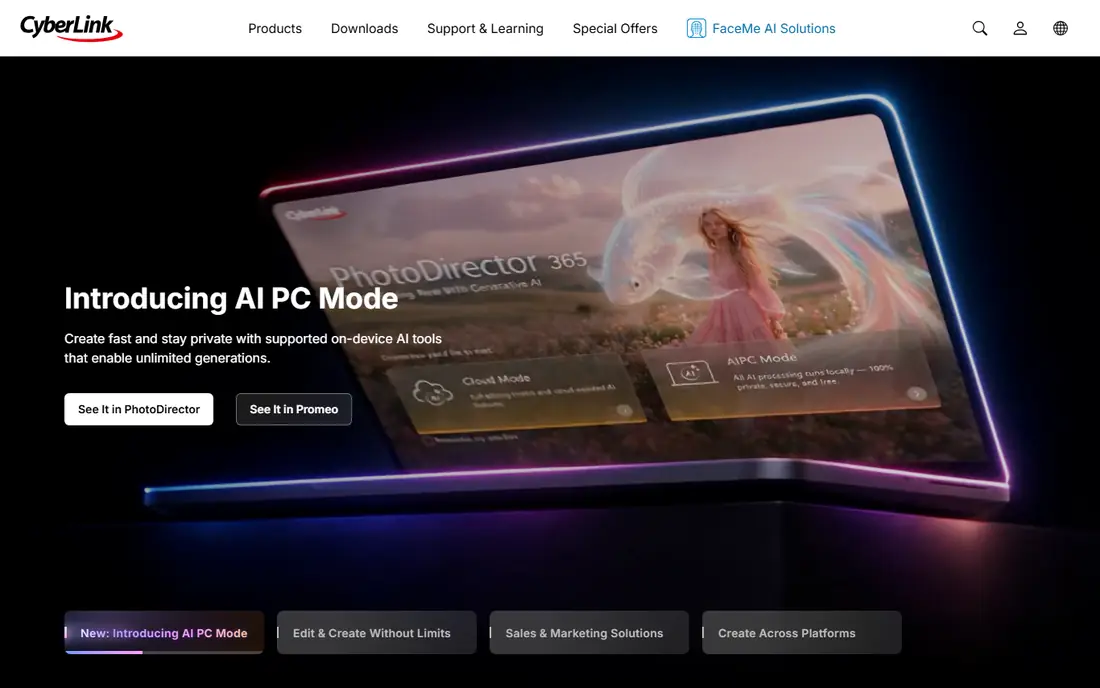
PhotoDirector combines an AI removal brush with a full photo editor, which makes it a good all-round free choice. You paint over the person you want gone, and the app fills the area while you keep the rest of the edit, from light tuning to cropping, in the same app. That single-app flow saves time compared with exporting between tools.
The free tier covers basic removal, but heavier AI use and some export options are paid, so check what your edit needs before you start. The interface also packs in many tools, which can feel crowded on a small phone screen. For users who want one free app for removal plus general editing, PhotoDirector is a strong pick.
- AI removal tool with brush control
- Full mobile editor
- Free tier covers basic removal
- Some AI features and high-resolution exports sit behind a paid plan
- App can feel busy
PicsArt suits people who want removal as part of a wider creative edit. Its removal tool sits alongside filters, stickers, text and collage options, so you can clean up a photo and turn it into a social post without switching apps. The free tier is genuinely usable for basic edits, which is why it stays on this list.
The trade-off is the freemium model. Ads appear in the free version, and some premium tools and export options need a subscription. Removal quality is good for small and mid-size figures, but complex backgrounds can still need a second tool. Use PicsArt when the final image is a creative post, and use a simpler eraser when you only need a clean photo.
- Object removal in a broad creative editor
- Stickers, filters and collage tools
- Large template library
- Free tier includes ads and some watermarked exports
- Best AI removal features may need a paid plan
YouCam Perfect is best known for portrait editing, and its object removal tool fits naturally into that workflow. You brush over a background person or stray object, and the app fills the space while you adjust skin, light and color in the same edit. For selfies and portraits with a distracting passerby, that combination is practical.
Free users will see subscription prompts, and the most advanced AI removal may sit behind a paid plan, so test the free result on your own photo before committing to an edit. Removal works best on simple backgrounds, and busy scenes may need smaller brush strokes. For portrait-focused users who already edit in this app, it is a convenient free starting point.
- AI object removal with a simple brush
- Strong portrait and selfie tools
- Free tier for basic edits
- Subscription prompts are frequent
- Some removal quality depends on the paid AI tier
Fotor offers a dedicated AI remover that can target people as well as objects, on the web and on mobile. The interface is simple: upload a photo, brush over the figure, and download the cleaned version. That simplicity suits beginners who do not want to learn a full editor just to fix one photo.
The free tier is limited, with daily removal limits and lower resolution on free exports in many cases, so it is not the best choice for a large batch of photos. For a single holiday shot or a product photo with a stray figure, it works well. Check the export size before you finish, since a low-resolution free export may not suit printing.
- Dedicated people and object remover on web and mobile
- Simple interface
- Free daily use for basic edits
- Free tier limits daily removals and resolution
- Advanced batch tools are paid
Cleanup.pictures is the best no-install option on this list. Open the site, upload your photo, brush over the person, and download the result without creating an account or installing an app. That speed makes it ideal for a one-off fix on a shared computer or a phone with little storage left.
Free exports are capped at a standard resolution, with higher resolution behind a paid plan, so it suits social sharing more than large prints. It also lacks the tuning, cropping and filter tools of a full editor, so you may still finish the photo elsewhere. For a fast, free cleanup, it is one of the simplest tools available.
- Works in a browser with no install
- Fast brush removal
- Free tier for standard-resolution edits
- Free exports are capped in resolution
- No full photo editor built in
Pixlr is a full browser-based editor with heal and clone tools that can remove a person with manual control. It also offers layers, adjustments and text, so a user who wants to clean a photo and design around it can stay in one tab. The free tier is usable without a subscription, which keeps it on this list.
The catch is that removal here is more manual than in a dedicated AI eraser, so larger figures take more brush work and patience. Ads appear in the free version, and some AI tools are paid. Pixlr suits users who already edit in a browser and want control, rather than users who want a single tap to erase a crowd.
- Free browser editor with heal and clone tools
- Layers and adjustments included
- No install needed
- Ads in the free version
- AI removal is less automatic than dedicated erasers
How we picked these
We compared official product pages, app store listings and free-tier details for tools that can remove a person from a photo in October 2026. We kept only tools with a genuinely free tier for removal, and we noted where resolution, daily limits or AI features are paid. We excluded tools that only remove backgrounds, tools that require a paid plan for any removal, and any tool marketed for altering images of people without consent.
How to get a clean result for free
Start with the smallest figure and the simplest background, since every free tool struggles with people who overlap the main subject. Work in small sections rather than painting over a whole person at once, and zoom in to check edges before exporting. Save a copy of the original first, so a bad erase never costs you the only version of a photo.
If one tool leaves a smudge, try a second free tool on the same copy, since AI fill and manual healing fail in different ways. For printing, check export resolution before you finish, and use a tool with a higher free limit or a paid export only if the print size truly needs it. Finally, keep consent in mind: edit your own photos, or photos you have permission to change, and do not share an altered photo in a way that misleads others about who was there.
Frequently asked questions
What is the best free app to remove people from photos?
Google Photos is the fastest free option for simple background figures, while Snapseed gives more manual control at no cost. PhotoDirector is a good middle ground when you also want a full editor. The best choice depends on the size of the figure and the background behind it.
Can I remove people from photos for free without installing an app?
Yes, Cleanup.pictures and Pixlr both work in a browser with a free tier. Cleanup.pictures is faster for a one-off erase, while Pixlr adds a fuller editor. Free browser exports may be capped in resolution, so check the download size before printing.
Why does removal leave a blurry patch?
AI fill guesses what should sit behind the person from nearby pixels, so busy patterns, faces and overlapping subjects are hard to rebuild. Smaller brush strokes, a simpler background and a second pass often improve the result. Manual healing in Snapseed or Pixlr can also clean up edges.
Is it okay to remove someone from a photo?
It is fine to remove a stranger from the background of your own photo, or to edit a photo you own for personal use. Do not edit photos of other people without their permission, and do not share an altered photo in a way that misrepresents an event or a person.
Do free photo erasers work on large groups?
Free tools handle one or two background figures far better than a large crowd. Removing many people at once often leaves visible artifacts, since the app must rebuild a large part of the scene. For crowded shots, accept a partial cleanup or choose a different photo.
Sources
See where you really rank - block by block
ProMapRanker scans Google Maps across a grid of your service area. Simple monthly plans from $19, white-label on every plan.
Start freeKeep reading
 who has best internet service
Who Has the Best Internet Service in 2026
Who has best internet service for US homes? We compare fiber, cable, fixed wireless and satellite providers on speed, price, availability and terms today.
Read → which survey tool has the best analytics
Which Survey Tool Has the Best Analytics in 2026
Find which survey tool has the best analytics in 2026, comparing Qualtrics, SurveyMonkey, Typeform, Alchemer, and more on reports, text, and stats today.
Read → which streaming service has the best movies
Which Streaming Service Has the Best Movies in 2026
Answering which streaming service has the best movies, with Netflix, Max, Criterion and more compared on libraries, prices and free options in this guide.
Read →