 ProMapRanker
Best Education Software in 2026


schools using Google Workspace · Pricing starts at: Free
Key takeaways
- Google Classroom is the simplest starting point for schools already using Google Workspace, while Canvas and Blackboard suit larger institutions with deeper course structures.
- Moodle remains the low-cost, self-hosted option for teams with technical support, but it needs hosting and upkeep.
- Kahoot, Nearpod, and Seesaw are lesson tools rather than full learning systems, so they work best alongside a main platform.
- Check student data rules, device access, and total admin time before you pick, since the headline price rarely tells the full story.
Quick comparison
| Pick | Great for | Pricing starts at | Free tier | |
|---|---|---|---|---|
| Google Classroom | schools using Google Workspace | Free | Yes | Visit |
 Canvas | colleges and large schools | See website | No | Visit |
 Moodle | self-hosted learning teams | Free | Yes | Visit |
 Blackboard Learn | large institutions | See website | No | Visit |
 Schoology | K-12 districts | See website | No | Visit |
 Kahoot | classroom games and review | $3 per month | Yes | Visit |
 Seesaw | elementary classrooms | See website | Yes | Visit |
 Nearpod | interactive lessons | $159 per year | Yes | Visit |
The best education software
We compared full learning platforms with lesson tools, so you can match the choice to your class size, budget, and support team.
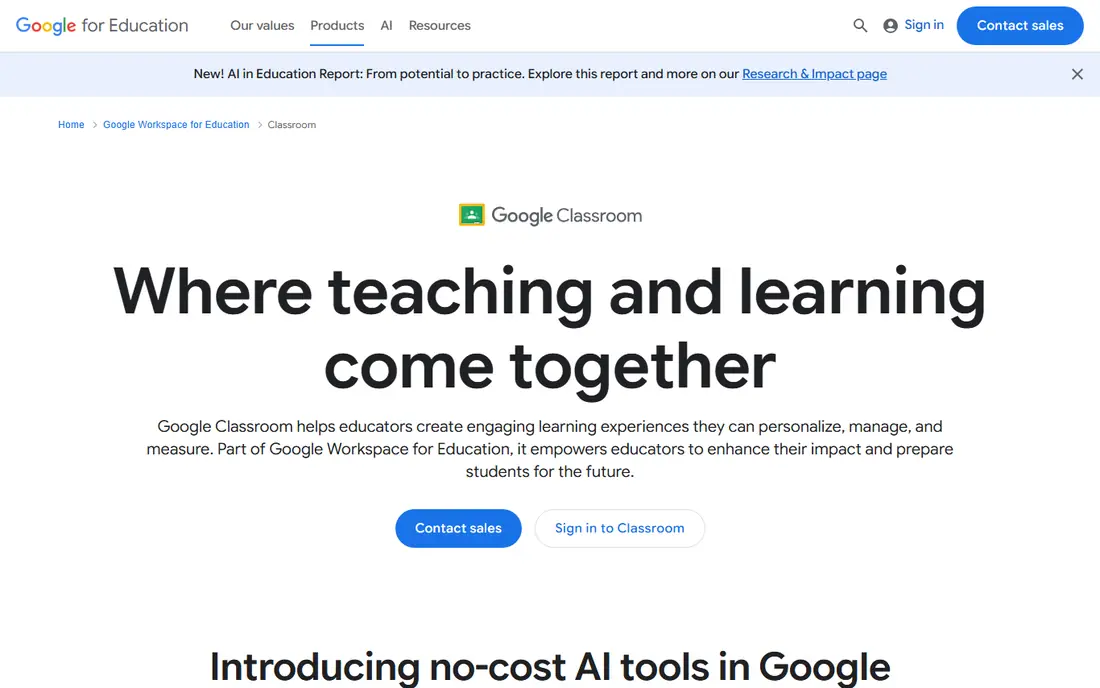
Google Classroom fits teachers who want to hand out work, collect it, and give feedback without a long setup process. The layout stays close to the tools many schools already use, so new teachers can start in a single afternoon. That simplicity is also its main limit, since structured courses with branching paths or detailed outcomes need a fuller platform.
For a small school or a single department, the free version for qualifying institutions covers a lot of daily work. Larger schools should check the paid Google Workspace for Education tiers for added storage, security controls, and support. If your district already runs on Google accounts, this is our pick for most people.
- Simple assignment workflow
- Works with Docs, Drive, and Meet
- Quick setup for teachers
- Limited built-in course design tools
- Weaker analytics than a full learning system
Canvas suits institutions that run many courses, need consistent templates, and track learning outcomes across departments. SpeedGrader and the module system give teachers a clear way to build a course once and reuse it. The integration library also helps schools connect student records, video tools, and plagiarism checks.
The catch is cost and rollout time, since pricing is quoted per institution and training matters. A pilot with one department will show if the extra structure helps your teachers or just adds clicks. For universities and large districts, that depth is often worth the effort.
- Strong course structure and grading tools
- Wide integration options
- Solid mobile apps
- Institution pricing is not published
- Setup takes more planning than a simple classroom tool
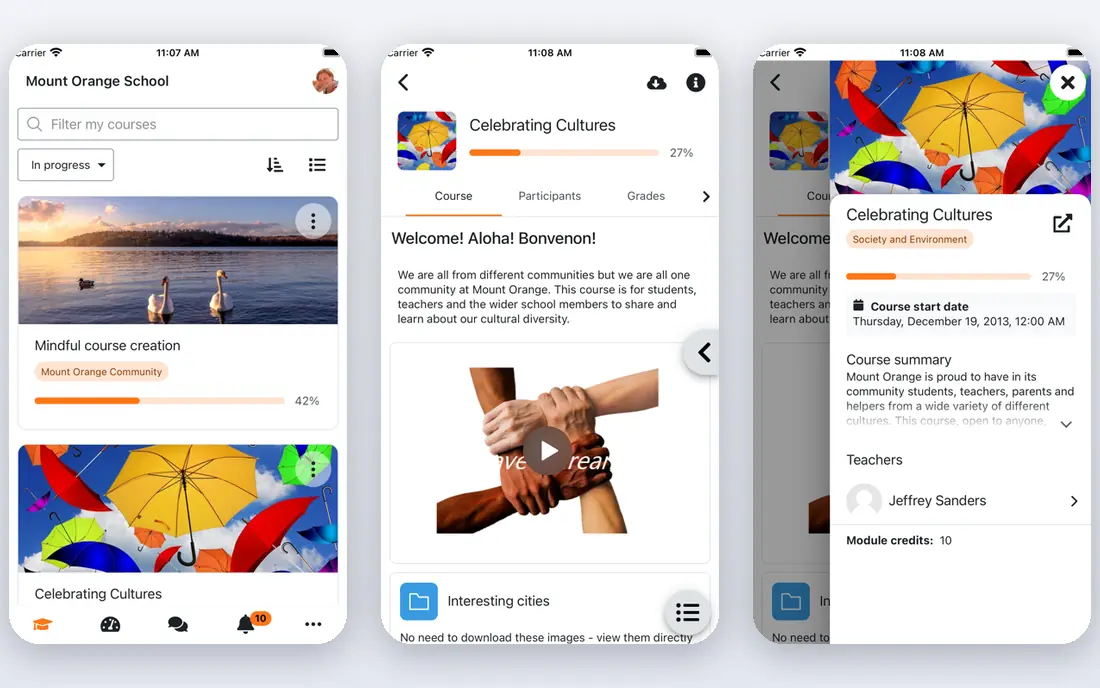
Moodle gives schools control that hosted platforms do not, since you can host it, extend it, and keep data on your own servers. The plugin library covers quizzes, forums, gradebooks, and enrolment tools, and the community has years of guides to draw on. That freedom suits universities and training teams with IT staff.
Without that staff, the workload grows fast, because updates, backups, and security patches are yours to manage. Budget for hosting and for someone to own the system, not just the licence cost. If you have that support, Moodle is hard to beat on price and flexibility.
- Open-source software with no licence fee
- Large plugin library
- Full control over hosting and data
- Hosting, updates, and support fall on your team
- The interface feels dated in places
Blackboard Learn is built for institutions that need formal assessment, accessibility controls, and reporting at scale. The Ultra experience is cleaner than older versions, and the platform handles large courses and complex grading schemes well. Schools with strict compliance needs often value that structure.
Small schools may find it more system than they need, and the quoted pricing makes early budgeting harder. Ask for a full quote that includes implementation and training, then compare it with Canvas on total cost. For a large university, it remains a serious shortlist option.
- Deep assessment and analytics options
- Built for large enrolments
- Long track record in higher education
- Pricing is quoted, not published
- The interface can feel heavy for small teams
Schoology works well in K-12 districts because students, teachers, and parents get one place for work, messages, and grades. The feed style feels familiar, which can help younger students find assignments and join discussions. Districts also get tools to manage many schools from one admin view.
Pricing is quoted, so districts should request a quote early and check what sits in the base plan. Schools already using PowerSchool get an extra reason to look closely, since the connection can cut down on duplicate data entry. For a district-wide rollout, Schoology deserves a pilot.
- Social-style interface familiar to students
- Strong district management tools
- PowerSchool connection
- Pricing is not published
- Some advanced features sit in higher tiers
Kahoot turns review sessions into a live game, and that energy is real in a classroom. Teachers can build a quiz in minutes or adapt one from the library, then run it live or assign it for self-paced play. Reports after a game show which questions tripped students up, which helps with the next lesson.
The format has limits, since quick-fire questions suit recall and checking understanding more than long written work. Use it as a warm-up or a review tool, not as your only assessment method. For engagement at a low price, it earns its place on this list.
- Fast to run live quizzes
- Students join with a simple code
- Large library of ready games
- Game format suits review better than deep teaching
- Free tier limits some features
Seesaw is designed for younger learners who may not type well yet, since they can draw, record their voice, or take a photo to show their work. Teachers can assign activities, comment on student posts, and share progress with families in the same place. That loop helps parents see learning without a separate reporting tool.
Older students and secondary courses will outgrow it, since it is not built for exams, gradebooks, or long essays. Pricing for paid school plans should be confirmed with the vendor before budgeting. For early years classrooms, it is one of the kindest tools here for both students and families.
- Easy for young students to share drawings, voice, and video
- Family messages built in
- Simple portfolio view
- Paid pricing is not clearly published for all plans
- Less suited to older students and complex courses
Nearpod lets a teacher run a lesson where every student device shows the same slides, polls, and activities in step. That control helps in class and in remote sessions, since the teacher can see answers as they arrive and adjust on the spot. The ready library also saves prep time for common topics.
The free Silver plan is a good trial, but its limits push active teachers toward the paid Gold plan. A weak connection will also hurt live lessons, so check your classroom wifi before a whole-school rollout. For teachers who want interaction in every lesson, Nearpod is a strong pick.
- Live polls, quizzes, and video inside one lesson
- Real-time view of student answers
- Large ready lesson library
- Free plan limits lesson storage and class size
- Needs reliable internet for live sessions
How we picked these
We compared official product pages, pricing pages, and app listings, and we kept only tools that are live and widely used in schools and colleges in October 2026. We favoured a mix of full learning systems and lesson tools, since most schools need both, and we noted where pricing is quoted rather than published. We did not claim hands-on classroom testing, and we left out tools with unclear availability or a poor fit for general education use.
What to check before you buy education software
Start with who will use the tool every day, not with the feature list. A platform that pleases an admin team but slows teachers down will sit unused, while a simple tool that teachers enjoy will get used even if it lacks some reports. Run a pilot with two or three real classes, and ask teachers to grade, message students, and pull a report before you sign.
Next, check data and access. Ask how student accounts are created, what data the vendor stores, and how parents can see progress. Check device access too, since a tool that works well on a laptop but poorly on a shared tablet will frustrate younger students. Also confirm support hours and training, because a rollout without training is a common reason good software fails.
Finally, add up total cost. Include hosting for self-hosted tools, paid tiers for lesson tools, and staff time for setup and training. A free tool with heavy admin time can cost more than a paid tool that saves teachers an hour a week. Get the quote in writing, check renewal terms, and keep a simple exit plan for your course content.
Frequently asked questions
What is the best education software for a small school?
Google Classroom is often the best starting point for a small school on Google Workspace, since it is free for qualifying institutions and quick to learn. Add Kahoot or Nearpod for interactive lessons if teachers want more engagement. A full learning system only makes sense once course structure and reporting needs grow past simple assignments.
Is Moodle really free?
The Moodle software itself is free to download, but hosting, security updates, backups, and support are not free in staff time or server costs. Schools with IT support can keep total cost low, while schools without that support may pay a hosting partner. Always budget for upkeep, not just the download.
What is the difference between a learning system and a lesson tool?
A learning system like Canvas or Blackboard manages whole courses, enrolment, grading, and reports across a school. A lesson tool like Nearpod or Kahoot runs single lessons, polls, and games inside a class. Most schools use one main system plus one or two lesson tools, rather than trying to make one tool do every job.
Which education software works best for elementary students?
Seesaw is built for younger students, with drawing, voice, and photo sharing that does not depend on strong typing skills. Google Classroom also works well in primary schools when teachers keep assignments simple. Check family messaging and portfolio features, since parents value seeing student work directly.
Do I need to pay for Kahoot or Nearpod?
Both offer a free plan that works for occasional use, with paid plans that raise limits on features, storage, and class size. Teachers who run games or interactive lessons most days will likely need a paid plan. Start free, track how often you hit a limit, and upgrade only when the limit affects real lessons.
Sources
See where you really rank - block by block
ProMapRanker scans Google Maps across a grid of your service area. Simple monthly plans from $19, white-label on every plan.
Start freeKeep reading
 twitch alternatives
Twitch Alternatives in 2026
Explore the best Twitch alternatives in 2026 for live streaming, with free platforms, monetisation options, audiences, chat tools, and tips for new streamers.
Read → firebase alternatives
Best Firebase Alternatives in 2026
Looking for Firebase alternatives? We compare 9 backend platforms for auth, databases, realtime, storage, functions, self-hosting, and pricing for your app.
Read → companies with best work life balance
Companies With Best Work Life Balance in 2026
See companies with best work life balance in 2026, ranked by employee ratings, with flexible work options, benefits, and what to check before applying.
Read →