 ProMapRanker
Best Document Scanner Apps in 2026

Key takeaways
- Adobe Scan is our pick for most people who want searchable PDFs without paying, while Genius Scan suits readers who want a plain scanner with no watermark on free scans.
- Free tiers differ in ways that matter: some add watermarks, some limit text recognition, and some push scans to a cloud account by default.
- If you scan sensitive papers, check where scans are stored and whether the app works offline before you choose.
- Microsoft Lens is not a live option in October 2026, since Microsoft retired it in early 2026, so former Lens users need a replacement such as OneDrive scanning.
Quick comparison
| Pick | Great for | Pricing starts at | Free tier | |
|---|---|---|---|---|
 Adobe Scan | Searchable PDFs for most people | Free | Yes | Visit |
 CamScanner | Feature-rich scanning and sharing | $4.99 per month | Yes | Visit |
 SwiftScan | Fast everyday scanning on the move | See website | Yes | Visit |
 Genius Scan | Simple scanning without watermarks | $39.99 per year | Yes | Visit |
 TurboScan | One-time purchase fans | See website | No | Visit |
 Scanner Pro | Apple users who want polished PDFs | See website | No | Visit |
 QuickScan | Private, on-device scanning on iPhone | Free | Yes | Visit |
 Microsoft OneDrive | Former Lens users in the Microsoft world | Free | Yes | Visit |
The best document scanner apps
We compared the scanner apps below on capture quality, text recognition, export options, pricing, and where your scans end up.
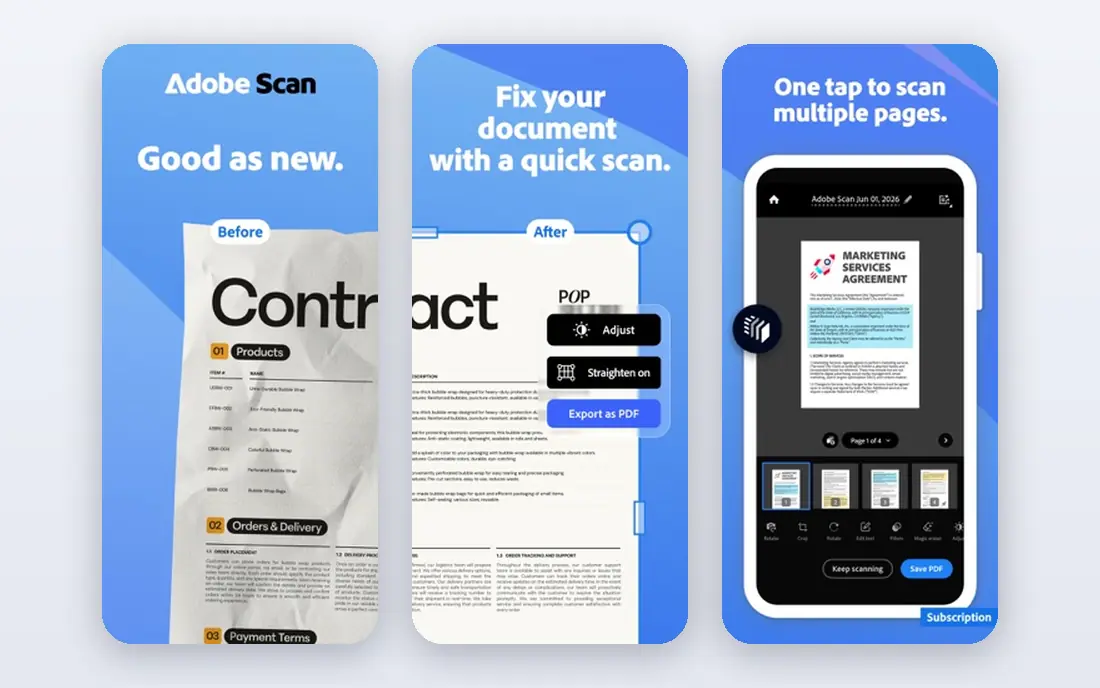
Adobe Scan is the safest starting point for most readers. Point the camera at a page and the app finds the edges, straightens the image, and cleans up shadows before it builds a PDF. The result reads well on a phone screen and prints well enough for receipts, forms, and school notes. Text recognition makes the PDF searchable, which helps when you need to find a contract clause or a receipt total weeks later.
The trade is the Adobe account and cloud storage that sit behind the app. That is a plus if you already use Acrobat on a desktop, since scans show up across devices. It is less appealing if you want scans to stay only on your phone. Paid Acrobat features, such as full text editing and larger recognition limits, sit behind a subscription, so check the current limits in the app before you scan a long archive.
- Strong automatic edge detection
- Searchable PDFs
- Clean image cleanup
- Advanced PDF editing needs a paid Acrobat plan
- Scans tie into an Adobe account and cloud
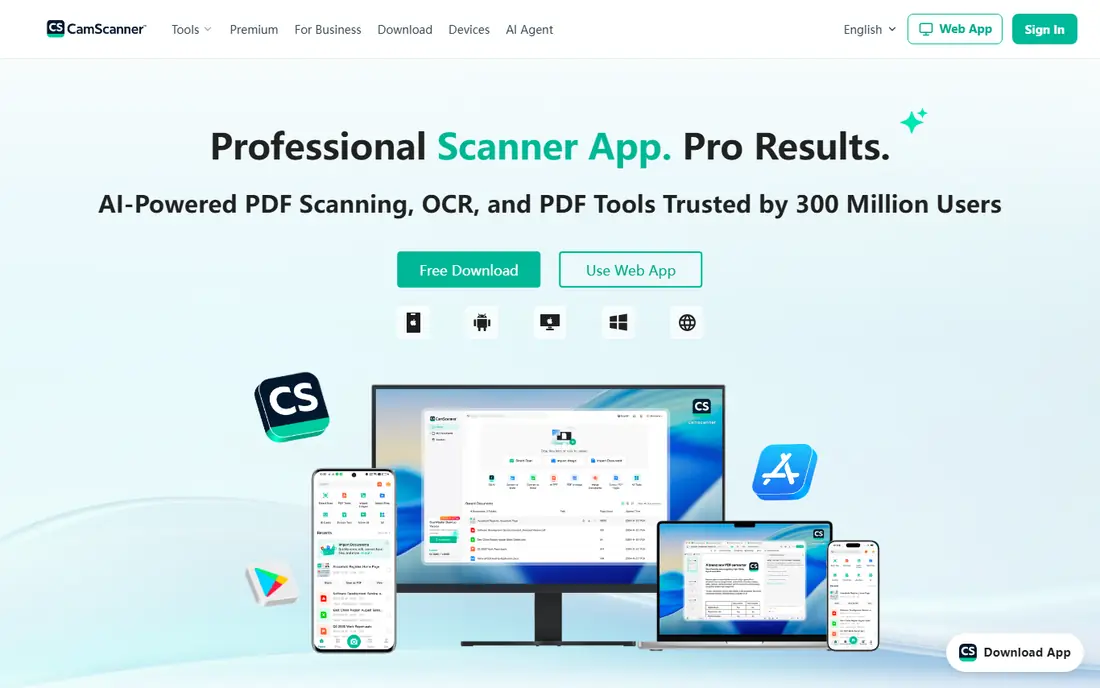
CamScanner packs in more tools than most rivals, from batch capture to document sharing, annotation, and electronic signatures on paid plans. That breadth suits small teams that scan, mark up, and pass documents around in one place. The app also works on both iPhone and Android, and a web view lets you open scans from a computer after signing in.
The free tier is usable for occasional scans, but the watermark and ads make it a poor fit for client-facing paperwork. Paid plans remove those limits and add stronger text recognition and more cloud space. Readers who handle medical or legal papers should read the privacy policy first, since CamScanner stores scans in its own cloud service and is not presented as a health-care compliant tool.
- Wide feature set
- Batch scanning on paid plans
- Cloud access across devices
- Free scans carry a watermark
- Free tier shows ads
- Past security incident still worries some users
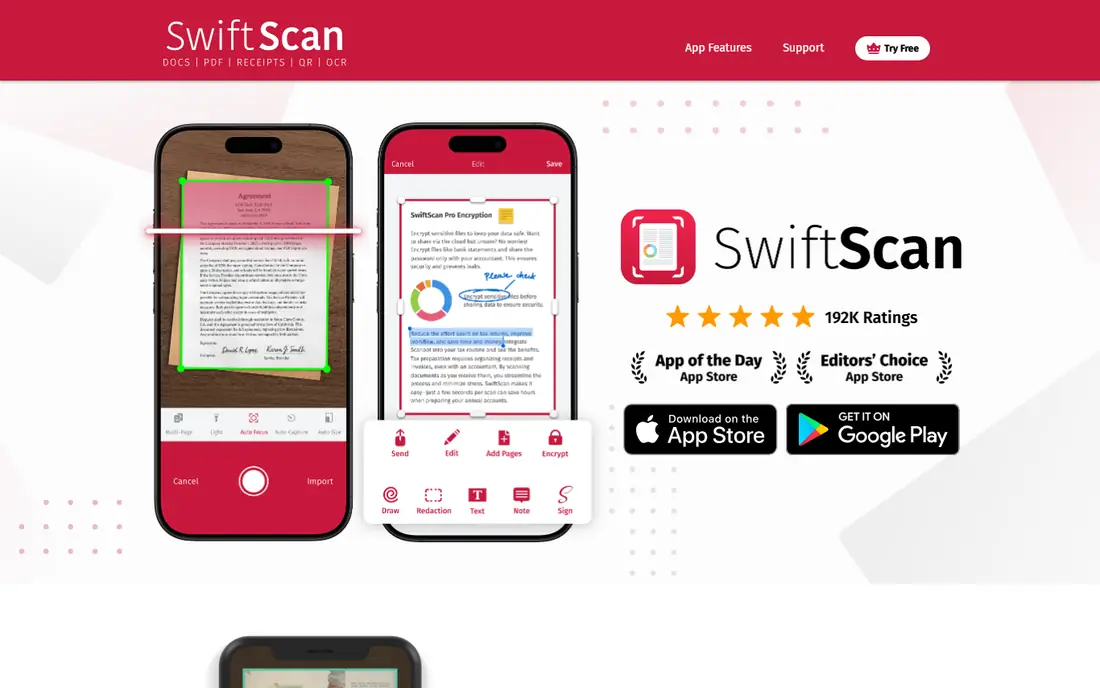
SwiftScan, formerly Scanbot, is built for speed. Open it, capture a page, and move on, with automatic edge detection doing most of the work. The interface stays out of the way, which matters when you are scanning a stack of receipts at a counter or a set of notes between meetings. Exports to cloud services and email cover the usual sharing routes, and a fax option helps for offices that still ask for one.
The catch is the subscription wall. Text recognition and the cleanest exports sit in paid tiers, and free scans can carry a watermark depending on the plan shown in your store. If you scan daily, that cost may be worth it for the speed alone. If you scan once a month, a free option with no watermark will serve you better.
- Quick capture and clean interface
- Fax option in the app
- Cloud exports to major services
- Free tier carries limits and watermarks on some exports
- Full features need a subscription
Genius Scan keeps the job narrow, and that focus is its strength. It detects pages, corrects perspective, and builds multi-page PDFs without pushing a long list of office tools at you. Free scans come without a watermark, which is rare in this group and makes it a strong choice for anyone who sends scans to clients or schools. The app also stays simple enough that a new user can scan a clean document on the first try.
Paid Ultra adds text recognition, cloud exports, and stronger security options such as encrypted PDFs. If you only need readable PDFs, the free tier may be all you need. If you need to search inside hundreds of scans, budget for Ultra or pick an app that includes recognition free.
- Free scans without a watermark
- Focused scanning workflow
- PDF encryption on paid plans
- Text recognition needs the paid Ultra plan
- Fewer PDF editing tools than full suites
TurboScan has been around for years, and it shows in a practical way: capture is fast, multi-page documents are easy to assemble, and sharing by email or cloud service takes a few taps. It suits readers who dislike subscriptions and would rather pay once for an app that does one job well. The app also handles receipts and small documents without fuss, which covers most home use.
The downside is that there is no free tier to test before paying, so you buy on the strength of the store listing and reviews. The design is plain compared with newer apps, and text recognition is not its headline feature. If polished design and free recognition matter more than a one-time price, look at Adobe Scan or Genius Scan first.
- Fast multi-page scanning
- Email and cloud sharing
- No monthly fee model on its paid app
- No free tier to try first
- Interface looks dated next to newer rivals
Scanner Pro, from Readdle, is a strong pick if you live in the Apple world. Scans look clean, pages are easy to reorder and adjust, and sharing to mail, cloud services, and other apps is smooth. It fits students and professionals who scan on an iPhone or iPad and want the finished PDF to look like it came from a desk scanner. The workflow tools, such as naming and folder handling, help when scans pile up.
The limits are clear. It is not an Android app, and it is a paid product rather than a free download with a trial tier in every store listing. That makes it a poor fit for a household with mixed phones, or for someone who scans only a few pages a year. For Apple-only users who scan often, the polish can justify the price.
- Polished output on iPhone and iPad
- Good workflow tools
- Strong sharing options
- Apple only
- Paid app, so check the current store price before buying
QuickScan is the privacy-first pick in this list for iPhone users. Scans stay on the device, text recognition runs on the device, and the free app for personal use has no ads. That setup suits anyone scanning tax papers, medical forms, or work documents that should not pass through a vendor cloud by default. You can still send scans to your own cloud storage, email, or file services when you choose to.
The trade is platform. QuickScan is an Apple app, so Android users need another pick. It also lacks the team sharing and comment features of CamScanner, which will not matter for most personal use. If your main concern is keeping scans local and avoiding an account wall, QuickScan is hard to beat.
- No account needed for personal use
- Scans stay on the device
- No ads in the free app
- IPhone and iPad only
- Cloud destinations need your own accounts
OneDrive earns a place here because Microsoft points former Lens users to it. Open the app, tap the plus button, and choose the scan option to capture a document, whiteboard, or card. Scans land in OneDrive, where they can be opened from a PC or shared with colleagues. For workplaces that already store files in OneDrive, this keeps scanning inside one system.
The limits follow from that cloud-first design. Microsoft notes that OneDrive scanning does not save scans locally on the device, so readers who want local-only storage should pick QuickScan or Genius Scan instead. You also need a Microsoft account and enough OneDrive space for a large archive. For Office users, though, the convenience is real.
- Built-in scanning in a widely used cloud app
- Direct save to OneDrive
- Good for Office users
- Scans save to the cloud, not locally by default
- Needs a Microsoft account
How we picked these
We compared official feature pages, app store listings, and pricing pages for scanner apps that still work in October 2026. We left out Microsoft Lens as a live option because Microsoft retired it in early 2026 and removed it from app stores in February 2026. We also left out apps that only scan barcodes or photos, since this article is about documents. Price figures come from vendor or store listings where we could confirm them, and we wrote See website where listings conflicted or changed by store.
What to check before you pay
Start with the free tier, then check the watermark
Scan a test page and export it before you commit. A watermark on a free scan may be fine for personal notes and a problem for client paperwork. Check whether text recognition, batch capture, and cloud exports are free or paid, since those three features decide most upgrade choices.
Decide where scans should live
Some apps store scans in their own cloud by default, while others keep them on the device until you share them. If you scan sensitive papers, prefer on-device storage or a cloud service you already trust, and turn off auto-upload where the app allows it. Also check whether you need an account just to open the camera, since a few apps gate basic scanning behind sign-in.
Match the app to the document type
Receipts and single pages suit almost any app here. Books, multi-page contracts, and whiteboards benefit from book mode, batch capture, and stronger image cleanup. If you scan books often, look for a mode that splits a spread into two pages. If you scan whiteboards, look for glare handling and contrast controls.
Frequently asked questions
What is the best free PDF scanner app?
Adobe Scan and Genius Scan are the strongest free starting points. Adobe Scan gives you searchable PDFs free, while Genius Scan gives you watermark-free scans free. QuickScan is the best free pick for iPhone users who want scans to stay on the device.
What are the best document scanner apps for iPhone and Android?
Adobe Scan, CamScanner, SwiftScan, and Genius Scan all work on both iPhone and Android. Scanner Pro and QuickScan are Apple only, so Android users should start with the cross-platform options. Check the store listing for your phone model before paying, since features can vary by platform.
Is there good best document scanner software for a desktop?
Most apps in this list are mobile first, since the phone camera does the capture. Desktop software such as VueScan suits people with a flatbed scanner, but it is a different tool from a phone app. For phone capture with desktop access, pick an app with cloud sync or a web view, such as Adobe Scan, CamScanner, or OneDrive.
What happened to Microsoft Lens?
Microsoft retired Microsoft Lens in early 2026. Support ended and the app left app stores in February 2026, and new scans stopped in March 2026. Microsoft points users to scanning inside OneDrive. Old scans may still be viewable on a device where the app remains installed and signed in, but it is not a choice for new scanning.
Does a scanner app need text recognition?
It depends on how you use scans. If you only need a readable copy, recognition is optional. If you search across many scans, copy text, or file documents by content, recognition saves real time. Check whether recognition is free or paid, and whether it has a page limit on the free tier.
Can I scan without creating an account?
Yes, with some apps. QuickScan works for personal use without an account, and Genius Scan lets you scan without the cloud push of larger suites. Adobe Scan, CamScanner, and OneDrive are tied to accounts and cloud services, so read the sign-in screen before you scan sensitive papers.
Sources
- https://www.adobe.com
- https://www.camscanner.com
- https://swiftscan.app
- https://www.geniusscan.com
- https://www.turboscanapp.com
- https://readdle.com
- https://www.quickscanapp.com
- https://www.microsoft.com
- https://support.microsoft.com/en-gb/office/screen-reader-support-for-microsoft-lens-0e3493fb-56c1-4ddd-a7db-8a3eb898b0ea
See where you really rank - block by block
ProMapRanker scans Google Maps across a grid of your service area. Simple monthly plans from $19, white-label on every plan.
Start freeKeep reading
 best freelance platforms for beginners
Best Freelance Platforms for Beginners in 2026
Best freelance platforms for beginners compared, with fees, job types, and first-gig tips to help new freelancers pick a strong starting place in our guide.
Read → best foreign language apps
Best Foreign Language Apps in 2026
Best foreign language apps compared in 2026: Duolingo, Babbel, Rosetta Stone, Pimsleur and more, with prices, free plans and honest trade-offs for learners.
Read → best foraging apps for plant identification
Best Foraging Apps for Plant Identification in 2026
These 8 best foraging apps for plant identification help you name wild plants, but never eat a plant based on an app alone. Check our safety notes first.
Read →