 ProMapRanker
Best Coding Tools for Kids in 2026

Key takeaways
- Scratch is still the best free starting point for most children aged 8 and up.
- ScratchJr and Kodable suit younger children who cannot yet read fluently.
- Tynker and CodeCombat give a clearer path from blocks to typed Python or JavaScript.
- Check privacy settings, chat controls, and account rules before a child joins any community feature.
Quick comparison
| Pick | Great for | Pricing starts at | Free tier | |
|---|---|---|---|---|
 Scratch | Free creative coding for ages 8 and up | Free | Yes | Visit |
 ScratchJr | First coding for ages 5 to 7 | Free | Yes | Visit |
 Tynker | Block-to-text path with games | See website | Yes | Visit |
 CodeCombat | Typed Python and JavaScript through a game | See website | Yes | Visit |
 Blockly Games | Free puzzle-based first steps | Free | Yes | Visit |
 Kodable | Early coding for ages 4 to 10 | See website | Yes | Visit |
 Lightbot | Logic puzzles without reading pressure | See website | Yes | Visit |
 Minecraft Education | Coding inside Minecraft | See website | No | Visit |
The best coding tools for kids overall
The best coding tools for kids start with Scratch for free creative coding, then branch by age and by how much structure a child wants.
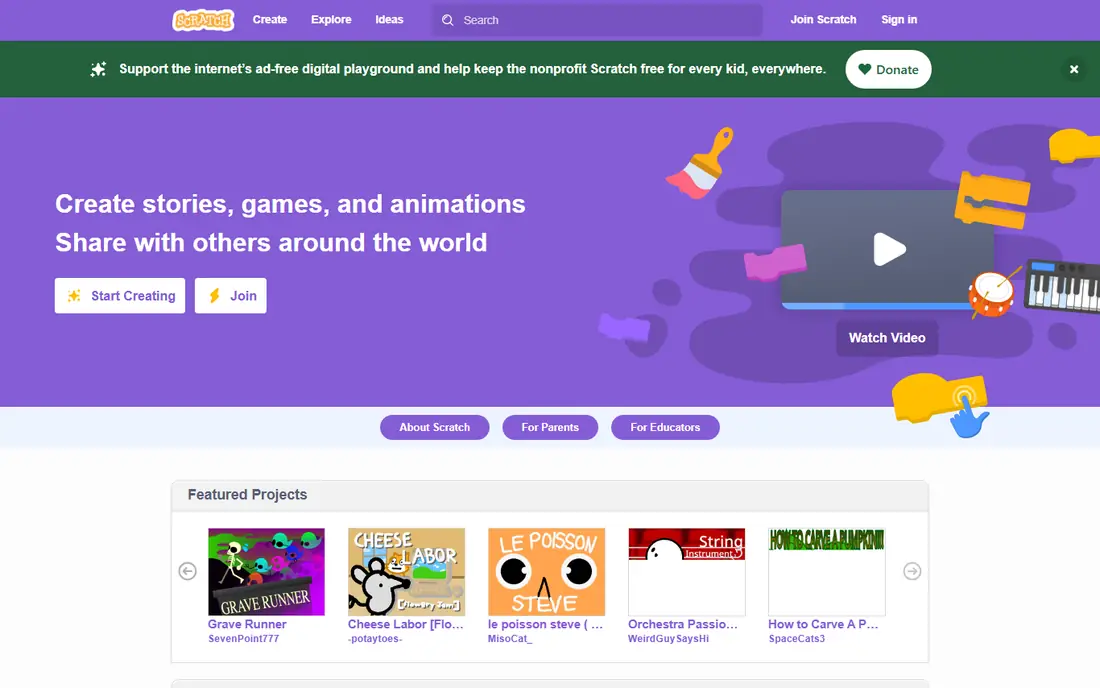
Scratch is where most children should start, because it is free, visual, and genuinely creative. Children snap blocks together to make games, stories, and animations, and they can remix other projects to see how code works.
The open community is both a strength and a watch point, so parents should review sharing settings and keep an eye on comments and contacts. It suits children who like to build their own ideas rather than follow a fixed lesson path.
Scratch is free, made by MIT, and runs in a browser, with an offline editor for desktop use. For most readers in this group, Scratch is worth a trial before you commit to a paid plan or a long program, because fit shows up faster in use than in a feature list.
- Completely free
- Huge library of shared projects
- Block coding removes syntax errors
- Open community needs moderation care
- No built-in path to typed code
- Progress can feel unstructured
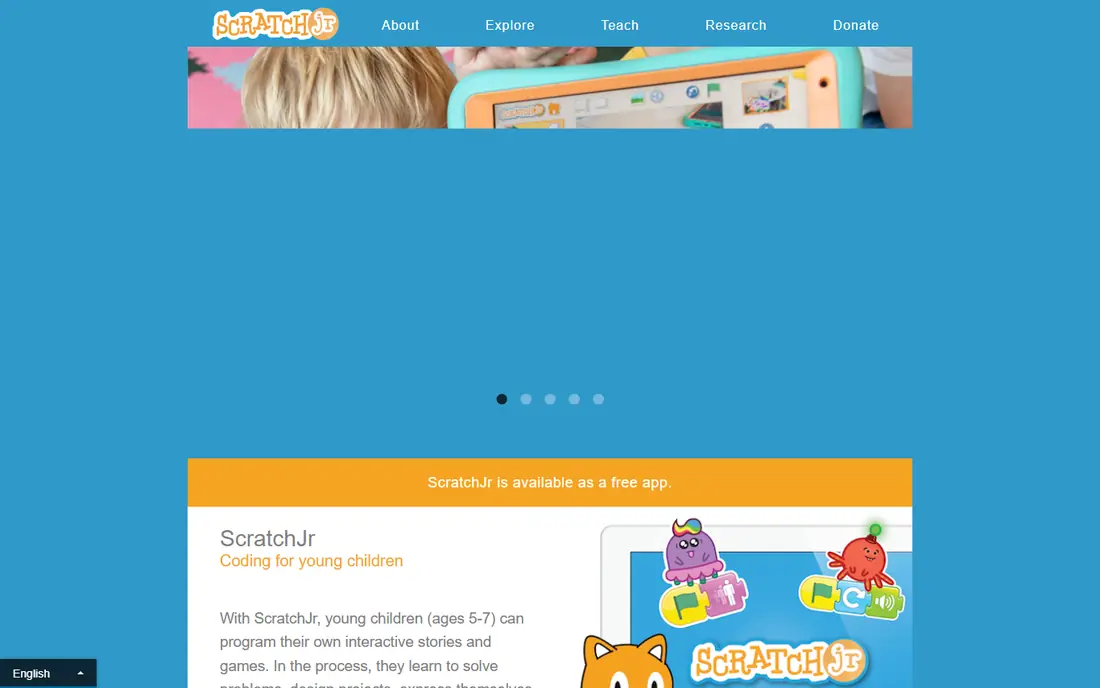
ScratchJr strips coding down to pictures, which is exactly right for a five-year-old. Children drag picture blocks to move characters, add sounds, and build short scenes, with no reading required.
The limit is time. Most children outgrow it within a year or two, and there is no direct bridge to Scratch inside the app. It suits preschool and early primary children, especially on a shared family tablet.
ScratchJr is free on tablets, with no subscription and no account needed to start. For most readers in this group, ScratchJr is worth a trial before you commit to a paid plan or a long program, because fit shows up faster in use than in a feature list.
- No reading needed
- Picture blocks suit pre-readers
- Completely free
- Very simple, so children outgrow it fast
- Tablet only
- No typed coding path
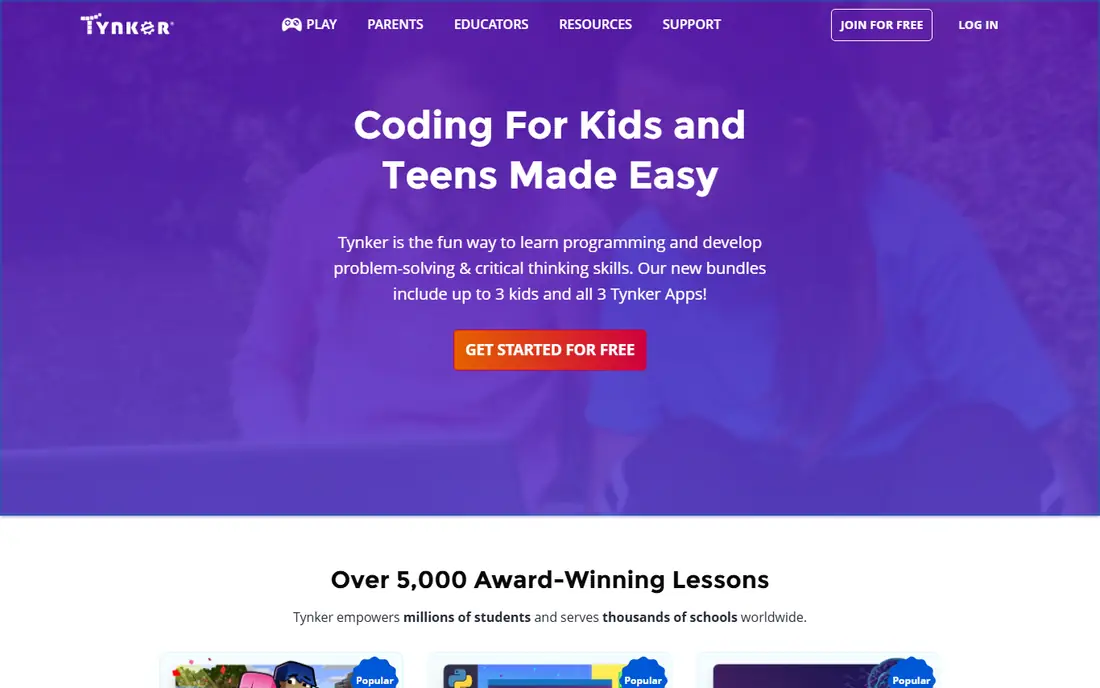
Tynker is the pick when a child wants lessons, levels, and a visible path forward. Courses use puzzles and projects, then move from blocks toward Python and JavaScript as skills grow.
The catch is price. The free starting content is limited, and the full course library needs a paid plan, so check the current plan before you commit. It suits children who like game-style progress and parents who want structure.
Tynker offers a free start, with paid plans for full courses, and it runs on the web and on mobile devices. For most readers in this group, Tynker is worth a trial before you commit to a paid plan or a long program, because fit shows up faster in use than in a feature list.
- Clear path from blocks to Python and JavaScript
- Game-based courses
- Minecraft-linked activities
- Full courses need a paid plan
- Free tier is limited
- Some lessons feel long for younger children
CodeCombat works best for a child who is ready to type code and wants a game around it. Players write Python or JavaScript to move a hero through levels, so code has an immediate, visible result.
The weakness is the entry bar. Children who cannot yet type with ease may struggle, and the free levels only cover the start. It suits ages 8 and up, and it fits well as a next step after Scratch.
CodeCombat offers free starting levels, with paid plans for full access, and it runs in a browser. For most readers in this group, CodeCombat is worth a trial before you commit to a paid plan or a long program, because fit shows up faster in use than in a feature list.
- Teaches real typed code
- Game story keeps older children engaged
- Classroom options exist
- Typing can frustrate younger children
- Full levels need a paid plan
- Pacing suits ages 8 and up
Blockly Games is a quiet, useful tool for a first taste of logic, with no account and no cost. Each puzzle asks a child to solve a maze or pattern with blocks, then shows the matching JavaScript code beside it.
The limit is scope. It is a set of puzzles, not a course or a community, so children will finish it and want a bigger tool next. It suits a first week of coding, a classroom warm-up, or a child who likes puzzles more than open building.
Blockly Games is free and open source, and it runs in a browser with no sign-up. For most readers in this group, Blockly Games is worth a trial before you commit to a paid plan or a long program, because fit shows up faster in use than in a feature list.
- Completely free
- Puzzle format teaches logic step by step
- Shows JavaScript beside blocks
- No accounts or progress tracking for home use
- Short scope
- No community projects
Kodable starts earlier than most tools, with friendly characters and short levels for young children. Early levels use simple commands, then later work introduces JavaScript concepts in small steps.
The catch is that the fuller curriculum sits behind a paid plan, so the free start is best treated as a trial of the style. It suits ages 4 to 10, and it works well in classrooms where a teacher manages accounts.
Kodable offers a free start, with paid plans for schools and families, and it runs on tablets and the web. For most readers in this group, Kodable is worth a trial before you commit to a paid plan or a long program, because fit shows up faster in use than in a feature list.
- Gentle start for young children
- Moves toward JavaScript
- Teacher and parent tools included
- Full curriculum needs a paid plan
- Game style suits younger children best
- Some content needs guidance
Lightbot teaches the thinking behind coding before any code appears on screen. Children guide a robot with commands, then learn loops and procedures by solving harder puzzles with fewer steps.
The limit is breadth. It is a puzzle game, not a coding studio, so it pairs best with Scratch or Tynker rather than replacing them. It suits children who like puzzles, and parents who want short, focused sessions.
Lightbot offers a free web demo, with paid apps on mobile stores, so check the store listing for the current price. For most readers in this group, Lightbot is worth a trial before you commit to a paid plan or a long program, because fit shows up faster in use than in a feature list.
- Teaches loops and procedures through puzzles
- Short sessions suit busy days
- Free demo available
- Full app is paid
- Scope is puzzles only
- No project building or community
Minecraft Education turns a game many children already love into a coding classroom. Lessons use MakeCode blocks inside Minecraft, then move toward Python, so code changes the world a child can see.
The downside is access. Most families and schools need a licence, and setup takes more steps than opening Scratch in a browser. It suits Minecraft fans, classrooms, and children who learn best inside a world they can explore.
Minecraft Education is paid in most cases, with school and family licensing options listed on its site, and it runs on computers, Chromebooks, and mobile devices. For most readers in this group, Minecraft Education is worth a trial before you commit to a paid plan or a long program, because fit shows up faster in use than in a feature list.
- Familiar Minecraft world keeps children engaged
- MakeCode blocks lead to Python
- Classroom controls help teachers
- Needs a paid licence in most cases
- Setup is heavier than a browser tool
- Best with teacher or parent guidance
How we picked these
We started from official feature pages, pricing pages, app store listings, and privacy policies, then checked those claims against public reviews and help docs. Products that were discontinued, unavailable, or missing a clear fit for the topic were left out, even when they appeared on older lists.
We also weighed the limits that matter in daily use, such as free-tier caps, account rules, and what a paid plan actually adds. A product earned a place when its core job was clear, its pricing was checkable, and its weakness could be stated plainly.
How to choose a coding tool for your child
Match the tool to reading level first, not to age alone. A child who reads with ease can handle Scratch, while a pre-reader does better with picture blocks in ScratchJr or Kodable. Look for a clear next step, such as blocks leading to Python, so progress does not stall after the first projects. Check safety before you buy: look for moderated communities, no open chat with strangers, and a parent or teacher dashboard. Start free where you can, watch two or three sessions, and only pay when a child asks for the next level on their own.
Revisit the choice after a month of real use. The best tool on paper is not always the one you open each week, and a simpler pick you actually use beats a larger tool that sits idle.
Frequently asked questions
What age should a child start coding?
Children aged 4 to 7 can start with picture blocks and simple sequences. Children aged 8 and up usually do well with Scratch, and typed languages tend to fit best from around age 10, depending on reading skill and patience.
Is Scratch really free?
Yes. Scratch is free to use, with no paid tier needed for its core editor and community projects. ScratchJr is also free.
Do these tools keep children safe online?
Safety varies, so check each tool. Prefer moderated projects, closed classrooms, and accounts managed by a parent or teacher, and turn off open chat or public sharing where that control exists.
Will block coding help with real programming?
Yes, up to a point. Blocks teach loops, conditions, and sequencing without syntax errors. Tools like Tynker and CodeCombat then bridge to typed Python or JavaScript, which is the step to watch for.
Does my child need a computer?
A computer or Chromebook works best for Scratch and typed coding. ScratchJr and Kodable run well on tablets, which suits younger children.
Which tool is best for Minecraft fans?
Tynker is the natural pick, because it offers Minecraft-linked coding activities alongside its own courses. Minecraft Education also teaches coding through MakeCode blocks and Python.
Sources
See where you really rank - block by block
ProMapRanker scans Google Maps across a grid of your service area. Simple monthly plans from $19, white-label on every plan.
Start freeKeep reading
 top custom software development company
Top Custom Software Development Company in 2026
Looking for a top custom software development company? We compare 9 firms for web, mobile, and enterprise software, covering strengths and fit for 2026.
Read → tableau alternatives
Tableau Alternatives in 2026
Compare the best Tableau alternatives for 2026, from Power BI to Metabase, with prices, hosting options, and picks for small teams and enterprises today.
Read → microsoft teams alternatives
Best Microsoft Teams Alternatives in 2026
Looking for microsoft teams alternatives? We compare 9 chat and video tools for 2026, covering free plans, pricing, meetings, and integrations for teams.
Read →