 ProMapRanker
Best Apps to Edit Saree Color to Blue in 2026

Key takeaways
- No app in this list has a saree-only button, and any app that claims one should be treated with care, so we list general photo editors that can recolor clothing.
- YouCam Perfect and PicsArt are the easiest starting points, because they offer clothing and selective color tools without needing desktop software.
- For the most natural blue, use a selective edit on the saree only, then adjust hue and saturation, rather than shifting the whole photo.
- A sharp, well-lit photo with a clear saree edge gives a far cleaner result than any app can rescue from a blurry or dark image.
Quick comparison
| Pick | Great for | Pricing starts at | Free tier | |
|---|---|---|---|---|
 YouCam Perfect | AI clothing color changes | Free | Yes | Visit |
 PicsArt | Selective recolor and stickers | Free | Yes | Visit |
 Adobe Lightroom | Precise HSL color control | Free | Yes | Visit |
 Snapseed | Free selective color edits | Free | Yes | Visit |
 Facetune | Portrait and clothing retouching | Free | Yes | Visit |
 PhotoRoom | Clean cutouts and color edits | Free | Yes | Visit |
 Fotor | Browser and mobile color tools | Free | Yes | Visit |
 Canva | Simple edits and sharing | Free | Yes | Visit |
The best apps to edit saree color to blue
Changing a saree to blue in a photo is a clothing recolor job, not a special saree feature. The apps below can select clothing, shift its hue, or repaint it, and the best result comes from editing only the saree and keeping skin, background and jewellery untouched.
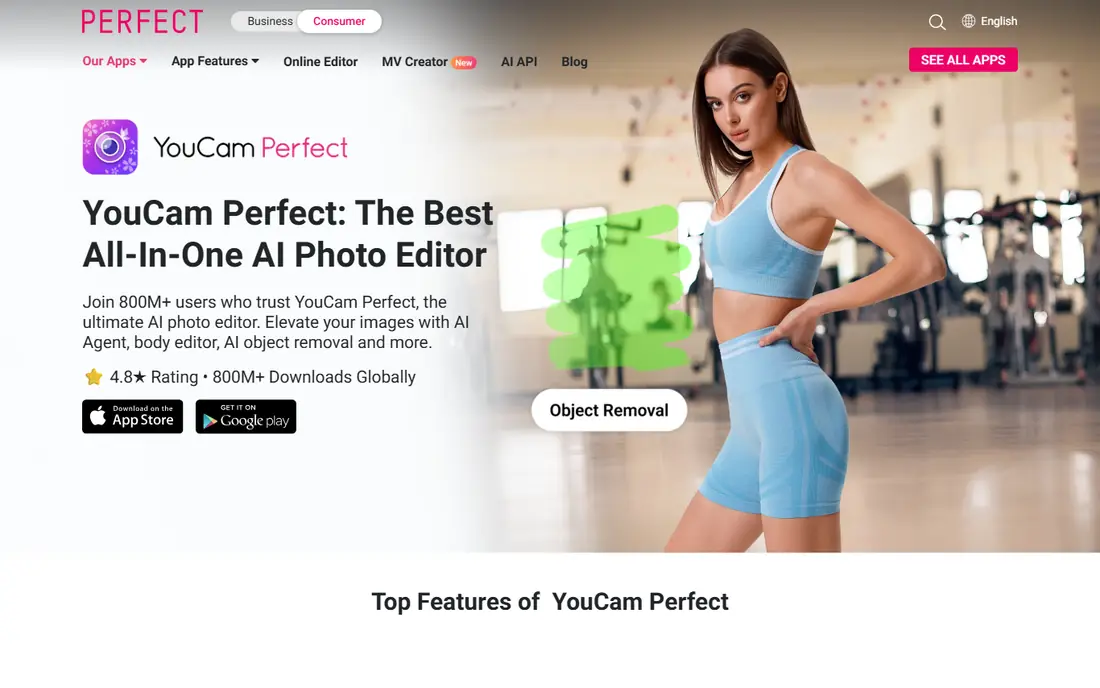
YouCam Perfect is our first pick for this job, because it includes an AI clothes tool that detects clothing in a photo and lets the user change its color. That is closer to the task than a general filter, since the edit starts from the garment rather than the whole image. The app also offers HSL controls and a cutout tool, so a user can refine the blue by hand if the automatic result looks flat or spills over an edge.
The catch is control. Automatic clothing detection works best on a clear, front-facing photo with good light, and it can struggle with patterned sarees, draped fabric or busy backgrounds. A paid plan may be needed for the full set of clothing tools, and free use includes ads. We would start here for a quick blue saree preview, then check edges at full zoom before sharing.
- AI clothes tool detects clothing and offers color changes
- Cutout and HSL tools for manual control
- Easy sharing to social apps
- Best clothing features sit behind a paid plan in some cases
- AI results can bleed onto nearby skin or background
- Ads on the free tier
PicsArt suits a user who wants to paint the blue in by hand. Its selective tools and brushes let you mask the saree, shift its hue toward blue, and adjust saturation until the shade looks natural. That manual approach takes longer than an AI clothes tool, but it gives more control over borders, pleats and patterns, which is where automatic edits often fail.
The app is crowded, with templates, stickers and paid offers competing for attention, so a first-time user should search for the recolor or selective color tool rather than browsing the home feed. Advanced features sit behind a subscription, though basic recoloring is possible on the free tier. We would pick PicsArt when the saree has a complex drape or pattern that an automatic tool keeps getting wrong.
- Selective color and brush tools for clothing
- Large sticker and background library
- Easy export for social sharing
- Many advanced tools need a paid plan
- Interface is busy with templates and offers
- Brush edits take patience on detailed fabric
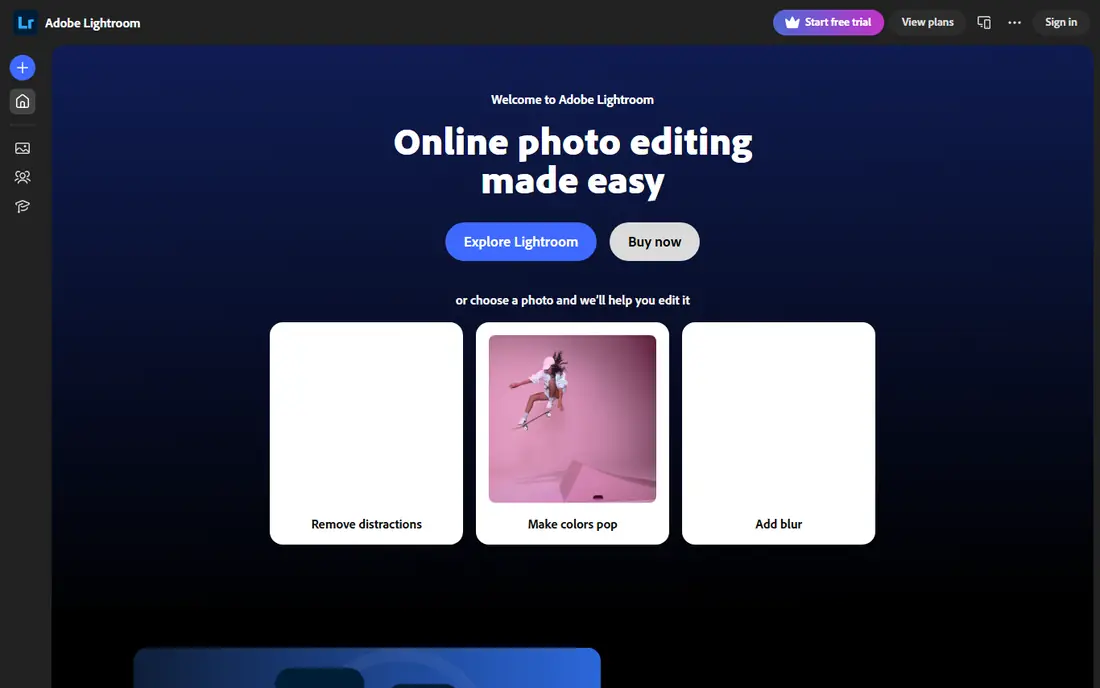
Lightroom is the best choice for a natural-looking blue, provided the user is willing to learn masking. Its HSL panel lets you shift a specific colour range toward blue, and its masking tools can limit that shift to the saree alone. Because edits are non-destructive, the original photo stays safe, and the blue can be tuned in small steps rather than applied in one bold move.
The learning curve is real. Selecting a draped saree with a brush or automatic mask takes patience, and a heavy saturation boost will make fabric look flat and digital. Lightroom also reserves some tools for paid plans, though the mobile app offers a useful free set. We would pick Lightroom when the photo matters, such as a wedding or portrait shot, and the user wants the blue to look like real fabric.
- HSL sliders give precise hue control
- Masking tools can target the saree
- Non-destructive edits keep the original safe
- Masking a saree takes practice
- Full features need a paid plan
- Colour shifts can look unnatural if saturation is pushed too far
Snapseed is the best fully free option here, and it remains popular because its core tools cost nothing. Its selective tool adjusts colour in a chosen area, and its brush tool can paint saturation or warmth changes onto the saree. For a user who does not want a subscription, Snapseed can produce a clean blue with patience and a steady hand.
There is no AI clothes tool, so the work is manual. Brushing a large saree takes time, and a missed edge will show as a coloured fringe. Snapseed also offers no step-by-step recolor guide, so a beginner should watch for the selective tool and practise on a copy first. We would pick Snapseed for a free, no-subscription edit, and accept the slower manual process.
- Free with no subscription needed for core tools
- Selective and brush tools for local edits
- Fine tune controls for colour and tone
- No AI clothing detection
- Brush work is manual and slow on large areas
- Interface has no guided recolor workflow
Facetune is known for portrait retouching, but its colour and detail tools can also adjust clothing in a portrait photo. That matters for saree photos, which are often portraits or half-length shots where the face and the saree share the frame. The app makes it easy to compare before and after, so a user can stop before the blue looks painted on.
Clothing is not its main focus, so there is no dedicated garment recolor workflow, and the full toolset sits behind a subscription. A user who pushes colour too far will also get a plastic look, especially on silk or satin fabric that needs subtle shading. We would pick Facetune when the photo is a portrait and the saree edit is part of a wider retouch, rather than as a first choice for a full-length outfit shot.
- Portrait editing tools with smooth controls
- Colour and detail tools for clothing areas
- Easy before and after comparison
- Main focus is faces, not clothing
- Full toolset needs a paid plan
- Heavy edits can look artificial if overused
PhotoRoom is useful because a clean cutout makes a recolor easier. If the person is separated from the background, the user can adjust the subject without shifting the colours behind them. That separation helps when the background shares tones with the original saree, which is a common cause of messy recolors in other apps.
Draped fabric still needs care, because a cutout can clip a pallu edge or include a shadow as part of the garment. PhotoRoom also gives less fine colour control than Lightroom, so the final blue may need a second pass in another app. We would use PhotoRoom to isolate the subject, then refine the blue in Lightroom or Snapseed if the first result is not clean enough.
- Automatic cutouts separate a person from the background
- Colour tools can adjust the isolated subject
- Clean export for listings and social posts
- Cutout edges need checking on draped fabric
- Advanced export and batch tools need a paid plan
- Less control than Lightroom for fine colour work
Fotor suits a user who prefers editing on a computer browser rather than a phone screen. Its colour tools include HSL-style controls, and the larger screen makes it easier to see saree edges and check for colour spill. A user can upload a photo, adjust the saree colour, and export a shareable version without installing an app.
The free tier covers basic edits, but AI tools and higher-quality exports sit behind paid plans, and the interface includes many design tools that can distract from a simple recolor. Upload quality also matters, since a compressed upload will limit the final result. We would pick Fotor for a desktop edit of a saree photo, especially when the phone screen feels too small for careful masking.
- Works in a browser as well as on mobile
- HSL and colour tools for targeted edits
- Templates for social sharing
- Advanced AI tools need a paid plan
- Browser editing depends on upload quality
- Interface mixes many tools beyond photo editing
Canva is the simplest option here, and that simplicity is its strength for a quick social post. Its photo editor offers colour adjustments, filters and basic selective tools, and a finished image can be placed in a post design with text in the same app. A user who wants a blue saree preview for sharing, rather than a print-quality retouch, can get there quickly.
Colour control is coarser than Lightroom or Snapseed, so a precise shade of blue is harder to hit, and there is no clothing-specific tool. Canva is best treated as a finishing app: do the careful recolor elsewhere, then use Canva for layout and sharing. We would pick Canva when speed and sharing matter more than a perfect fabric match.
- Simple photo editing with colour adjustments
- Easy to add text and share a finished design
- Free tier covers basic edits
- No dedicated clothing recolor tool
- Colour control is coarser than Lightroom
- Best for social posts rather than detailed retouching
How we picked these
We compared official feature pages, app store listings and colour-change guides, and we kept only photo editors that are available now and can recolor clothing through selective colour, HSL, masking, brush or AI clothes tools. We checked prices against vendor pages and recent guides, and we used See website where a price was not clear. We did not claim hands-on testing, and we excluded apps that claim a saree-only feature without a verifiable tool, because no such feature was confirmed on an official page.
How to get a natural blue saree result
Start with the best photo you have, with even light and a clear edge between saree and background. Select only the saree, using an AI clothes tool where available or a mask or brush where not, and zoom in to check the border before changing colour. Shift hue toward blue in small steps, then lower saturation slightly, because a fully saturated blue often looks flat on fabric.
Keep the original shading. A real blue saree still has darker folds and lighter highlights, so avoid flattening those tones with a single solid colour. Check skin, jewellery and background after the edit, since a hue shift that spills onto skin is the clearest sign of a bad recolor. Save a copy, compare it with the original at full size, and redo the mask if any edge looks coloured.
Frequently asked questions
Is there an app that only edits saree colour?
No verified app in this list offers a saree-only feature. General photo editors with clothing, selective colour or HSL tools do the job, and any app that advertises a saree-only button should be checked against its official description before installing.
How do I change a saree to blue without changing my skin colour?
Select only the saree with a mask, cutout or AI clothes tool, and keep skin outside the selection. After shifting hue, zoom in on hands, neck and face edges, and erase any blue spill before exporting.
Which blue shade looks most natural?
A medium or deep blue with slightly reduced saturation usually looks more natural than a bright, fully saturated blue. Match the shade to the lighting in the photo, and keep fold shadows darker than flat areas so the fabric still looks like fabric.
Can I do this for free?
Yes. Snapseed offers free selective and brush tools, and YouCam Perfect, PicsArt, Lightroom, PhotoRoom, Fotor and Canva all offer free tiers. Paid plans add AI tools, higher exports or extra features, but a basic blue recolor is possible without paying.
Will the edit work on a patterned saree?
Patterned sarees are harder, because a hue shift changes every colour in the selection, including borders and motifs. Use a mask that covers only the main fabric colour, or accept that the pattern colours will shift too, and check the result at full size.
Is it safe to share an edited saree photo?
An edited photo is still a photo of you, so share it only where you are comfortable being seen, and check the app privacy settings before uploading. Avoid apps that ask for broad photo library access when a single-photo import will do.
Sources
See where you really rank - block by block
ProMapRanker scans Google Maps across a grid of your service area. Simple monthly plans from $19, white-label on every plan.
Start freeKeep reading
 best chat tool for website
Best Chat Tool for Website in 2026
Best chat tool for website owners compared, with live chat, AI agents, free plans, and pricing for small stores, SaaS teams, and support teams of all sizes.
Read → best birdwatching app
Best Birdwatching App in 2026
Best birdwatching app picks for 2026: nine free and paid apps for bird ID by sight and sound, checklists, hotspots, and finding birds near you for all birders.
Read → best bird identification app
Best Bird Identification Apps in 2026
Find the best bird identification app for photos, songs and calls. We compare 9 bird apps, including Merlin, BirdNET and Audubon, to help you choose today.
Read →