 ProMapRanker
Best App to Edit Photos in 2026

Key takeaways
- Snapseed is the best free starting point for precise phone edits, with no subscription and no watermark on exports.
- Lightroom is the strongest choice if you edit RAW files and want the same tools on phone and desktop.
- VSCO, Picsart, and Afterlight suit stylized looks, collages, and social sharing more than careful color work.
- Canva, Pixlr, and Photopea are better when you need text, layers, or web editing alongside photo fixes.
Quick comparison
| Pick | Great for | Pricing starts at | Free tier | |
|---|---|---|---|---|
 Adobe Lightroom | RAW editing and presets | See website | Yes | Visit |
 Snapseed | Free precise phone editing | Free | Yes | Visit |
 VSCO | Film-style presets | See website | Yes | Visit |
 Picsart | Creative edits and collages | See website | Yes | Visit |
 Adobe Photoshop Express | Quick fixes and social edits | Free | Yes | Visit |
 Canva | Photos with text and design | Free | Yes | Visit |
 Pixlr | Browser editing with layers | Free | Yes | Visit |
 Polarr | Masks and selective edits | See website | Yes | Visit |
 Photopea | Free web editor for PSD files | Free | Yes | Visit |
 Afterlight | Clean presets and textures | See website | Yes | Visit |
The best apps to edit photos
We compared editing depth, RAW support, presets, layers, export quality, and free limits. All ten apps below are available today, and we note where the free tier stops and a subscription starts.
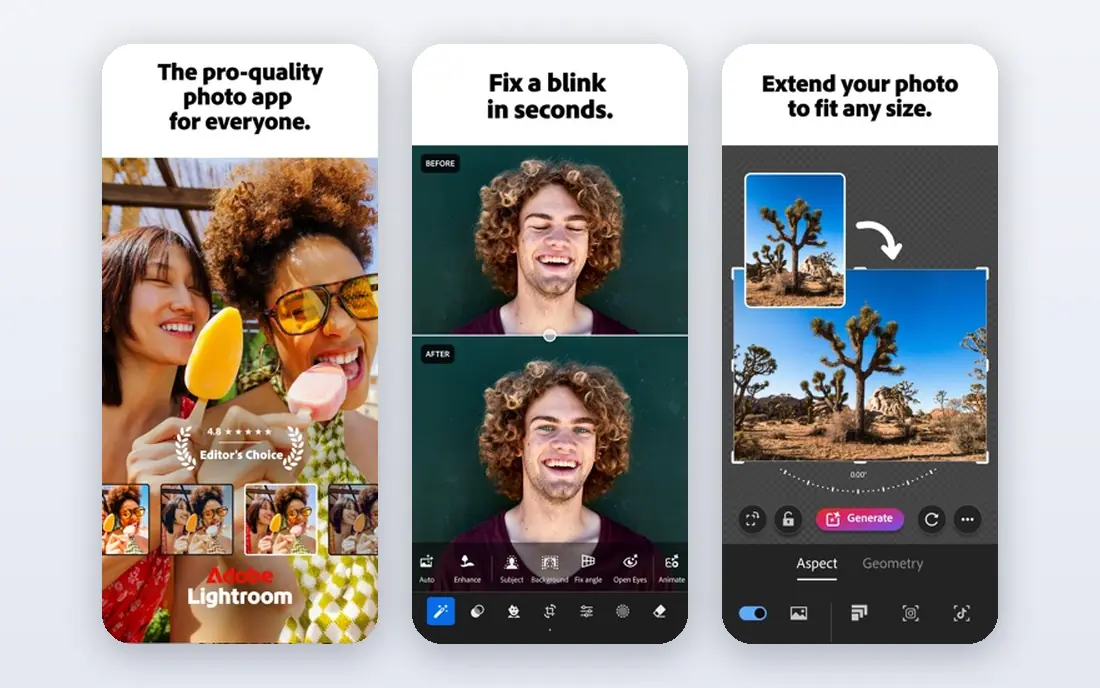
Lightroom is the most complete photo editor in this list for people who care about color, tone, and RAW files. The free mobile tier covers exposure, contrast, highlights, shadows, color, curves, and crop, with full-resolution exports, which is enough for many everyday edits. Presets let you apply a consistent look fast, and edits stay non-destructive, so you can revisit a photo later.
The free tier has clear edges. Local masking, the healing brush, and several AI features sit behind a subscription, and cloud sync across devices is limited without paying. If you shoot RAW often or edit on both phone and computer, the paid plan is worth pricing. If you only edit JPEGs on a phone, Snapseed gives you more for free.
- Strong RAW tools and presets
- Syncs across phone and desktop
- Non-destructive edits
- Advanced masking and healing tools need a paid plan
- Cloud sync is limited on the free tier
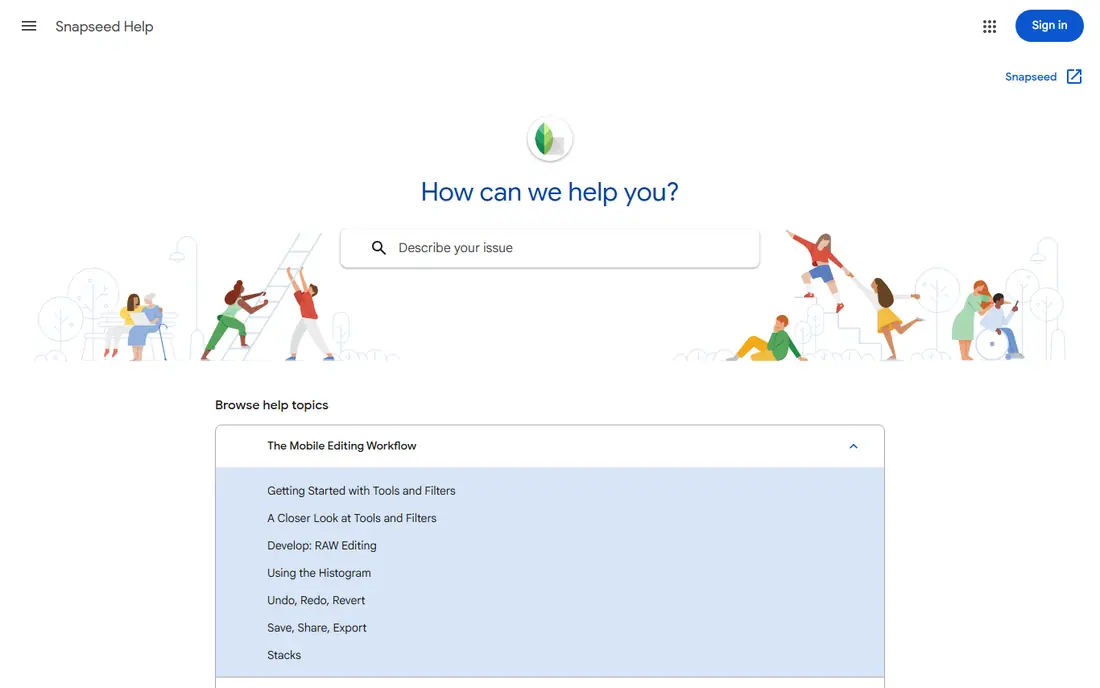
Snapseed remains the best free photo editor for careful work on a phone. It offers selective adjustments that let you brighten or darken one area of a photo, plus a wide set of tools for tone, color, cropping, and perspective, all without a subscription, ads, or watermark. Recent versions added a rebuilt interface, masking, and broader RAW file support, which keeps it current in 2026.
The limits are about workflow, not editing power. There is no cloud catalog or desktop version, so organizing a large library takes another tool. The gesture-based controls also take a little practice. For single-photo edits on a phone, though, few paid apps beat it.
- Free with no subscription
- Selective adjustments
- RAW support on many files
- No cloud sync or desktop version
- Interface takes a short time to learn
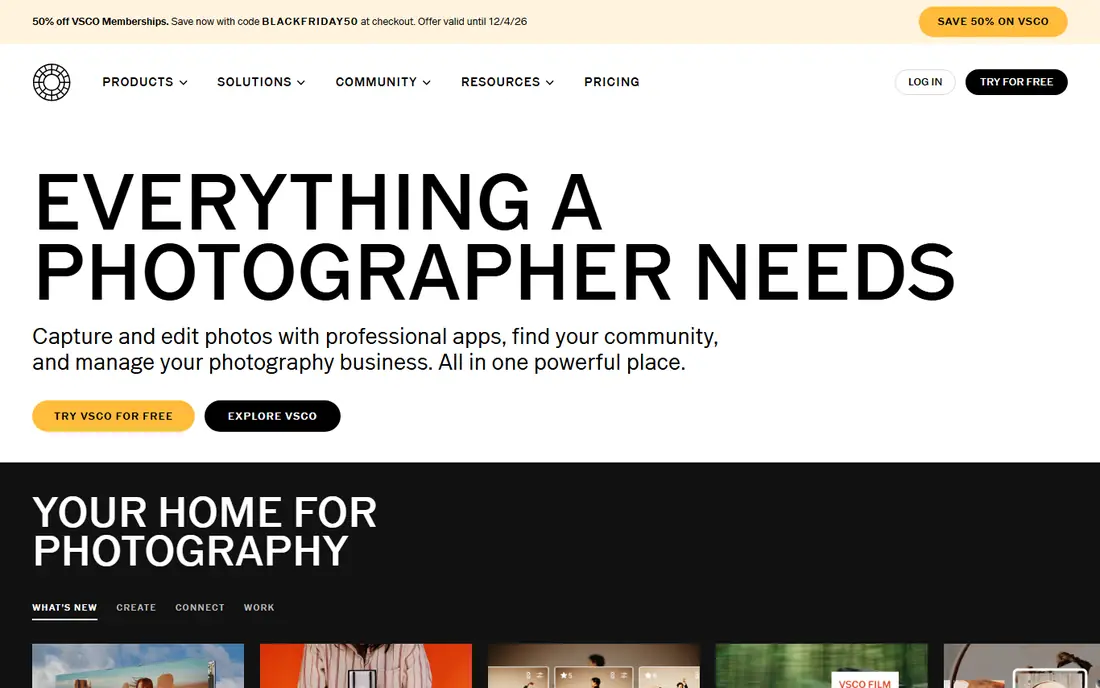
VSCO is built around a look. Its presets give photos a film-style finish that is hard to copy with basic sliders alone, and the editing tools cover exposure, contrast, color, and cropping in a calm interface. The community side lets you share work and follow other photographers, which suits people who post regularly.
The free tier is a sampler, not the full library. Many of the most useful presets and advanced tools need a paid plan, and RAW support varies by device, so test a file from your camera before paying. If you want one consistent style for social posts, VSCO is a strong pick. If you want precise local edits, pair it with Snapseed or Lightroom.
- Distinctive film-style presets
- Clean editing tools
- Community for sharing work
- Best presets need a subscription
- RAW support is limited to eligible devices
Picsart is the most playful editor here. Beyond basic exposure and color fixes, it offers collages, stickers, text, cutouts, and AI tools for background removal and image changes, plus templates for social posts. That range suits creators who make shareable images, memes, or product graphics, not just cleaned-up photos.
The trade-off is focus and cost. The free tier carries ads and locks some tools behind a subscription, and the interface can feel busy if you only want a quick fix. For straightforward photo correction, Lightroom or Snapseed will feel calmer. For creative social content, Picsart is the better toolbox.
- Collages, stickers, and text tools
- AI background tools
- Large template library
- Free tier includes ads and limits
- Many AI features need a subscription
Photoshop Express packs a surprising amount of Photoshop-style editing into a free phone app. You get core exposure and color controls, a heal tool for blemishes and distractions, collage tools, and templates for social posts, without paying for the basics. Quick actions can handle common jobs, such as smoothing skin or reducing noise, in one tap.
The catch is that the newest AI features and some premium effects need a subscription, and you need an Adobe account to use the app. For a free, fast editor with a familiar Adobe feel, it is a solid middle ground between Snapseed and full Lightroom. For deep RAW work, Lightroom remains the stronger Adobe choice.
- Free core tools
- Heal and retouch options
- Collages and social templates
- Some AI features need a paid plan
- Requires an Adobe account
Canva is not a pure photo editor, and that is its strength for many users. It lets you place a photo into a template, add text, shapes, and branding, and export a finished social post, flyer, or presentation slide. The free tier covers a large template library and basic photo adjustments, which is enough for everyday design work.
If your main job is correcting color, fixing exposure, or editing RAW files, Canva will feel limited. Its photo tools are simpler than Lightroom or Snapseed, and the background remover and brand tools sit behind a paid plan. Use Canva after you edit the photo, or for posts where design matters more than pixel-level correction.
- Easy text, templates, and layouts
- Background remover on paid plans
- Works on web and mobile
- Photo correction tools are basic
- Best features need a subscription
Pixlr is a useful choice when you want layer-based editing without installing desktop software. It runs in a browser, offers layers, masks, and a wide set of adjustments, and the free tier covers the core tools for retouching, cropping, and compositing. That makes it handy on a shared computer or a Chromebook.
The free experience includes ads, and some AI tools and extra content require a paid plan. It also lacks the catalog and RAW workflow of Lightroom. For quick web edits, social graphics, and layered composites, though, Pixlr is one of the most capable free options available.
- Works in a browser with no install
- Layers and masks
- Free tier covers core tools
- Free tier includes ads
- Advanced AI tools need a subscription
Polarr sits between Snapseed and Lightroom for selective editing. It offers masks, local adjustments, and custom filters, which let you change one part of a photo without affecting the rest. The web and mobile versions make it flexible, and the free tier gives you a useful set of tools to test before paying.
The learning curve is steeper than VSCO or Photoshop Express, because masking and local edits take practice to use well. Some advanced tools and filter packs also need a subscription. If you enjoy careful, local edits and want more control than a preset app gives, Polarr is worth trying.
- Strong masking and selective tools
- Custom filters
- Works on web and mobile
- Interface can feel technical
- Some tools need a subscription
Photopea is the closest free web equivalent to a desktop layer editor. It opens PSD files and other common formats, supports layers, masks, selections, and retouching, and runs entirely in a browser. That makes it a strong choice for editing a layered file on a computer where you cannot install software.
It is not a phone-first photo app, and the free tier is ad-supported. It also needs a stable connection, since it runs online. For desktop-style editing, compositing, and retouching without a subscription, Photopea is hard to beat. For quick phone edits, use Snapseed or Lightroom instead.
- Free in a browser
- Opens PSD and other layered files
- Layers, masks, and retouching
- Ad-supported free tier
- No mobile app with the same depth
- Needs an internet connection
Afterlight is a calm, fast editor for people who want a good look without a long workflow. Its presets are clean rather than extreme, and textures, frames, and basic adjustments let you finish a photo in a few taps. The interface stays out of the way, which suits daily posting and travel photos.
The toolset is smaller than Lightroom or Polarr, so it is not the pick for heavy retouching or RAW workflow. Some preset packs and features also need a purchase or subscription. As a second editor for style and finishing, though, Afterlight earns its place alongside a more precise tool.
- Clean preset library
- Textures and frames
- Simple and fast to use
- Smaller toolset than Lightroom
- Some packs need a purchase or subscription
How we picked these
We compared official feature pages, app store listings, and pricing pages, and we kept only editors that work today on phone, web, or desktop. We favored apps with a real free tier or a clear paid plan, honest RAW and layer support, and exports without a forced watermark on the free tier where stated. We left out desktop-only suites that are not practical as a phone app, except where a web editor clearly fits the topic.
How to choose the right photo editor
Start with the file you edit most. If you shoot RAW, prioritize Lightroom, Snapseed, or Polarr, and test one of your own files before paying. If you shoot JPEGs for social posts, presets and speed matter more, so VSCO, Afterlight, or Photoshop Express may serve you better. If you design posts with text, Canva or Picsart will save time.
Check exports before you commit
Open an edited photo at full size and check for watermarks, compression, and color shifts, since free tiers vary. Also check whether edits stay non-destructive, so you can undo a change later, and whether the app keeps your original file safe. A clean export matters more than a long feature list, especially if you print or post at large sizes.
Frequently asked questions
What is the best app to edit photos for free?
Snapseed is our free pick for precise edits, with no subscription and no watermark. Photopea and Pixlr are strong free choices on the web, while Lightroom and Photoshop Express offer useful free tiers with paid upgrades. The best free app depends on whether you edit on a phone or a computer.
What is the best app to retouch photos?
Lightroom and Photoshop Express offer the most useful retouching tools in this list, including healing and local adjustments. Snapseed also handles selective retouching well for free. For portrait work, check skin tools carefully, since heavy smoothing can look unnatural, and keep edits light for a natural result.
What are the top 10 photo editing software options for beginners?
Beginners should start with Snapseed for phone edits, Canva for posts with text, and Photopea or Pixlr for web editing. Add Lightroom once you want presets and RAW control, and VSCO or Afterlight for a consistent style. Trying two apps for a week each will tell you more than a long feature list.
What is the best photo edit app for social media?
Picsart and Canva are best for social posts, because they combine photo edits with templates, text, and collages. VSCO and Afterlight suit a consistent feed style. Edit the photo first in Snapseed or Lightroom if color matters, then finish the post in a design app.
Do free photo editors add a watermark?
Snapseed, Lightroom free exports, and Photopea standard exports do not add a watermark, based on their current listings. Some free tools add watermarks to premium templates or AI exports, so check the export before sharing. If a watermark appears, try a different export option or a different app for that edit.
Sources
See where you really rank - block by block
ProMapRanker scans Google Maps across a grid of your service area. Simple monthly plans from $19, white-label on every plan.
Start freeKeep reading
 best chat tool for website
Best Chat Tool for Website in 2026
Best chat tool for website owners compared, with live chat, AI agents, free plans, and pricing for small stores, SaaS teams, and support teams of all sizes.
Read → best birdwatching app
Best Birdwatching App in 2026
Best birdwatching app picks for 2026: nine free and paid apps for bird ID by sight and sound, checklists, hotspots, and finding birds near you for all birders.
Read → best bird identification app
Best Bird Identification Apps in 2026
Find the best bird identification app for photos, songs and calls. We compare 9 bird apps, including Merlin, BirdNET and Audubon, to help you choose today.
Read →