 ProMapRanker
Best AI Video Upscaling Tools in 2026


Maximum quality on a strong PC · Pricing starts at: $59 per month
Key takeaways
- Topaz Video is our pick for maximum quality on a strong desktop, but it needs a capable graphics card and patience for long renders.
- Cloud tools such as TensorPix, Nero AI, Remini, and Vmake suit weaker computers and quick jobs, since the heavy work happens on remote servers.
- Free options exist, yet most free tiers limit resolution, add watermarks, or cap how much video you can process each month.
- The right tool depends on your source footage, because old home video, animation, and phone clips respond to different models.
- Always keep the original file, and check a short test export at full size before you process a whole archive.
Quick comparison
| Pick | Great for | Pricing starts at | Free tier | |
|---|---|---|---|---|
| Topaz Video | Maximum quality on a strong PC | $59 per month | Free trial | Visit |
 HitPaw VikPea | One-click desktop enhancement | $42.99 per month | Free trial | Visit |
 Nero AI Video Upscaler | Quick desktop upscales with presets | $84.95 per year | Free trial | Visit |
 AVCLabs Video Enhancer AI | Desktop repair and enhancement | $39.95 per month | Free trial | Visit |
 UniFab | Upscaling plus conversion and editing | See website | Free trial | Visit |
 TensorPix | Cloud upscaling on weak hardware | See website | Yes | Visit |
 Pixop | Broadcast and media company pipelines | See website | Free trial | Visit |
 Remini | Fast phone and web enhancements | $9.99 per month | Yes | Visit |
 Vmake | Short social and product clips | $9.99 per month | Yes | Visit |
The best ai video upscaling tools
Old footage does not have to stay small and soft. These tools use trained models to rebuild detail, reduce noise, and raise resolution, and the best ones also handle faces, motion, and color with care.
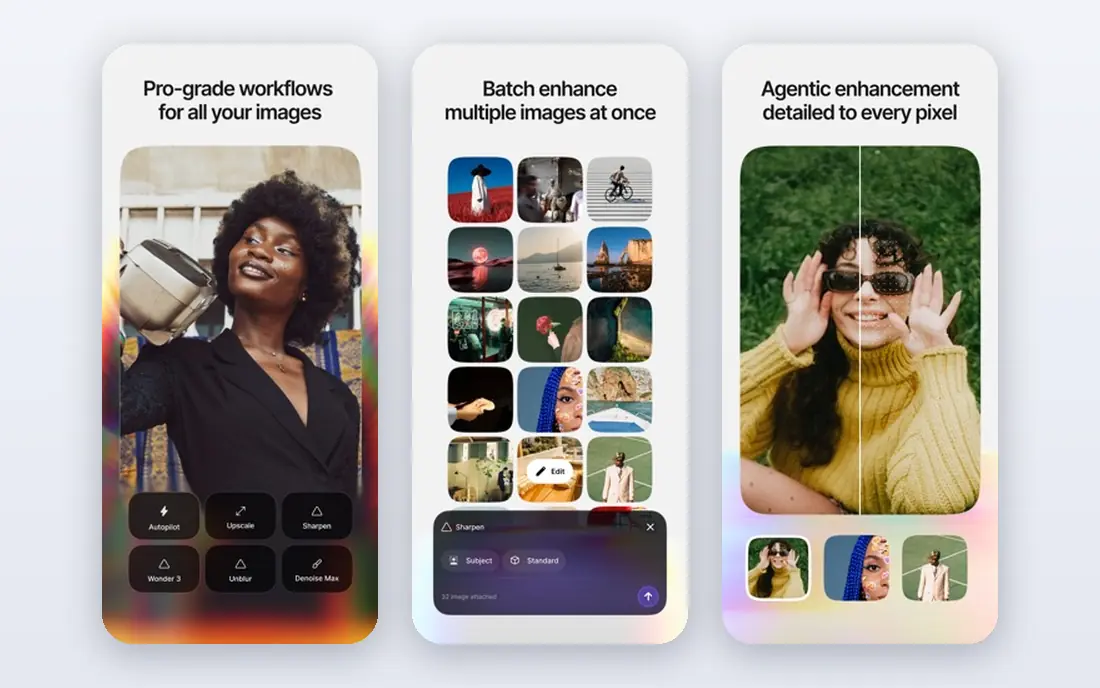
Topaz Video is the name most serious users compare everything else against, and that reputation is earned. Its model library covers general enhancement, faces, noise, detail recovery, and deblurring, so you can match the model to the problem in front of you instead of applying one generic filter to every clip. When the source is decent and the settings are right, the result often looks like a genuinely higher quality recording rather than a sharpened copy.
The cost of that quality is hardware and time. Topaz renders locally, so a modest laptop can take hours for a few minutes of 4K output, and the subscription now runs monthly or annually rather than as a one-time purchase. If you upscale regularly and own a good graphics card, it is worth the money. If you upscale twice a year on a thin laptop, a cloud tool will serve you better, and you should test the trial on your own footage first.
- Wide model library for different footage types
- Frame interpolation and stabilization included
- Unlimited local rendering on paid plans
- Demanding on graphics hardware
- Monthly cost adds up
- Model choice can overwhelm beginners
HitPaw VikPea, also sold as HitPaw Video Enhancer, is built for creators who want results without a manual full of settings. You import a clip, pick an enhancement model, and let it work, which makes it a good fit for YouTube creators, sellers, and anyone cleaning up phone footage for social posts. It also handles related jobs such as restoring old video, improving faces, and smoothing motion, so one app can cover several small fixes.
The honest catch is that ease comes with less fine control than Topaz, and a poor source still limits what any model can rebuild. Preview a demanding section with movement and faces before you commit to a full export, and check the export size, because 4K and 8K files grow fast.
- Simple interface for creators
- Upscales to 4K and 8K
- Includes face repair, colorizing, and stabilization tools
- Monthly price is high for occasional use
- Quality varies by model and source
- Large files need plenty of disk space
Nero AI Video Upscaler keeps the workflow short: import, choose a model and output size, preview, and export. Its models include options for faces and animation, which matters because a model tuned for live action can make cartoons look waxy, while an animation model can miss detail in real faces.
Batch processing helps when you have a folder of clips rather than one hero video, and saved presets keep repeat jobs consistent. The Windows-only limit is the main drawback, and Mac users will need another tool on this list.
- Several models for faces, animation, and general footage
- Batch processing and custom presets
- Frame interpolation up to 120 frames per second
- Windows only
- Annual price still needs a trial check on your footage
- Heavy jobs need a capable graphics card
AVCLabs Video Enhancer AI is a desktop all-rounder that focuses on the problems that make old video hard to watch: blur, noise, low resolution, and dull color. Its face recovery tools are the standout for interviews, vlogs, and family footage, where a soft face draws the eye more than a soft background. You can also upscale, denoise, and adjust color without moving the clip between several apps.
It is not the cheapest way to fix a single clip, and the monthly plan only makes sense if you have a backlog or a steady stream of work. On an older machine, render times will test your patience, so start with a short test and watch how the face model handles glasses, hats, and side profiles. Those edge cases separate a good result from an odd one.
- Face recovery for portraits and interviews
- Noise reduction and sharpening in one pass
- Works on Windows and Mac
- Monthly cost is high for one-off jobs
- Rendering can be slow on older machines
- Results depend heavily on source quality
UniFab suits people who need more than an upscaler. If you also convert formats, trim clips, or prepare files for different platforms, having those tools in one program saves time and avoids repeated re-encoding. Its upscaling models cover general enhancement and detail work, and batch queues let you line up a set of clips and leave the machine to work through them.
The trade-off is focus. A dedicated tool such as Topaz gives you deeper model control, while UniFab gives you breadth. Check the current plan page carefully, because the suite is sold in several forms and the lifetime option has changed over time. For a creator who already converts and edits video daily, the bundle logic is easy to defend.
- Upscaling bundled with conversion, editing, and other video tools
- Lifetime purchase option has been offered
- Batch workflows for large libraries
- Upscaling is one part of a larger suite
- Interface covers many tools at once
- Pricing varies by plan and term
TensorPix moves the hard work to the cloud, which changes who can upscale video. A Chromebook, an old laptop, or a work machine without a strong graphics card can still produce a sharper clip, because your computer only uploads and downloads.
Upload time is the catch for long or high resolution sources, and privacy matters too, so avoid uploading footage you do not have rights to share or that contains sensitive personal material. For a short clip, a test, or an occasional job, TensorPix is one of the most practical free starting points on this list.
- Nothing to install and no graphics card needed
- Free previews help you judge quality before paying
- Useful for short clips and tests
- Cloud processing means upload and wait times
- Free tier is limited
- Long videos cost more in credits or plan time
Pixop is the odd one out here, and it belongs on the list for a clear reason: some readers are not fixing one clip, they are preparing a catalog. Broadcasters, archives, and media companies use Pixop for managed upscaling pipelines, where consistency, format handling, and volume matter more than a one-click phone app. It processes video in the cloud with professional controls, which suits teams with standards to meet.
Casual creators will find it overpowered and probably overpriced for their needs, and the sales-led pricing means you should request a quote rather than guess at cost. If you run a media library, a streaming catalog, or an archive project, talk to Pixop before you buy a stack of desktop licenses. For everyone else, the desktop and consumer cloud tools above are a better fit.
- Built for professional media workflows
- Handles large volumes and broadcast standards
- Managed processing for teams
- Priced and pitched for professional use, not casual creators
- Less suited to a single home video
- Setup takes more planning
Remini made its name on phones, where it turns blurry old photos and short videos into sharper versions in seconds. That speed is its real strength: you can test a clip while you are still deciding whether it is worth a full desktop upscale. The web version extends the same idea to a browser, so you do not need to install anything to try it.
The limit is control. Remini does not give you the model-by-model tuning of Topaz or Nero, and pushing a face too far can produce a smooth, artificial look that is worse than a soft original. Use it for short clips, social posts, and quick checks, and move to a desktop tool when a clip deserves careful work. For the price and speed, it earns its place as a first test.
- Very fast for short clips and photos
- Simple phone-first workflow
- Free tier lets you try it with ads or limits
- Less control than desktop tools
- Best for short clips, not long films
- Heavy enhancement can look artificial on faces
Vmake targets sellers and social creators who need a product clip or a short promo to look clean without opening an editor. Upload a short video, enhance it, and export a version ready for a store page or a feed. That narrow focus is a strength when your clips are under a minute and your goal is a sharper, brighter result, not a film restoration.
Long videos, dark footage, and fast action expose its limits faster, and the free tier will not carry a full content calendar. Treat Vmake as a production shortcut for short-form work, and keep a desktop tool for anything longer or more precious. Priced from about ten dollars a month, it is easy to test for a month and drop if it does not fit.
- Web-based and quick for short videos
- Tools for product clips and social content
- Free tier for trying the workflow
- Not built for long-form restoration
- Free tier limits output
- Quality varies with fast motion and low light
How we picked these
We compared official feature pages, pricing pages, and app store listings, plus public reviews, for tools that are still sold and supported in October 2026. We favored tools with a clear upscaling job, a working free trial or free tier where claimed, and an official homepage we could verify. We left out tools that only sharpen a still image, tools that had stopped selling, and general editors whose upscaling is a minor filter rather than a trained model.
We did not claim hands-on lab testing. Our comparisons rest on published models, output limits, platform support, and pricing, and we note where a trial or preview is the right way to judge quality on your own footage. Prices change, so check the vendor page before you buy, and use "See website" entries as a prompt to confirm the current plan.
What to check before you pay
Start with the source, not the price. A clean 1080p clip upscaled to 4K will usually look better than a heavily compressed 360p clip pushed to the same size, because the model has more real detail to work from. Look at faces, text, and fast motion in your test export, since those areas show artifacts first. If the model invents strange textures on skin or turns text into mush, try another model or a lower target resolution.
Match the tool to your hardware and your volume. Desktop tools reward a strong graphics card and a backlog of clips, while cloud tools reward occasional use and weak hardware. Count your minutes honestly: a monthly plan looks cheap until you pay for twelve months to process twenty clips. For archives, batch support and preset saving matter more than a flashy demo. For one wedding video or one family tape, a trial or a single month is often enough.
Watch the output settings as well. Higher resolution is not always better, especially for delivery on phones or social feeds where compression will crush fine detail anyway. Export a short section, watch it on the device your audience will use, and compare it side by side with the original.
Frequently asked questions
What is the best free ai video upscaling tool?
TensorPix, Remini, and Vmake all offer free tiers or free previews, and they are the best starting points if you want to test upscaling without paying. Free tiers limit length, resolution, or monthly volume, and some add watermarks or ads, so read the current terms before you plan a large job around a free plan.
Is Topaz Video AI worth it for beginners?
Topaz Video can be worth it if you upscale often and own a capable PC, but beginners should expect a learning curve around model choice and render settings. Start with the trial, use the general enhancement model on a short clip, and only buy a subscription once you have seen a result you like on your own footage.
What is the best ai video upscaling software for old home videos?
For old home video, Nero AI and Topaz Video are strong choices because their face and noise models suit tapes and early digital clips. HitPaw VikPea is a simpler alternative if you want one-click work, while Remini is useful for a quick phone test before you commit to a full desktop process.
Can AI upscaling really turn 720p into 4K?
It can produce a 4K file from a 720p source, and the result often looks sharper and cleaner than a simple resize. It cannot recover detail that was never recorded, so faces, small text, and fast motion may still look soft or slightly artificial, and a careful test export is the honest way to judge it.
Do I need a powerful computer for AI video upscaling?
You need one for desktop tools such as Topaz Video, Nero AI, and AVCLabs, which render locally on your graphics card. Cloud tools such as TensorPix, Pixop, Remini, and Vmake shift that work to remote servers, so they suit weaker computers, at the cost of upload time and per-video limits.
Which tool is best for upscaling video for social media?
For short social clips, Remini and Vmake are the fastest and cheapest routes, because they are built around quick web and phone workflows. If a clip will also run on a website hero or a larger screen, run it through a desktop tool as well and compare the two exports before you publish.
Sources
See where you really rank - block by block
ProMapRanker scans Google Maps across a grid of your service area. Simple monthly plans from $19, white-label on every plan.
Start freeKeep reading
 top custom software development company
Top Custom Software Development Company in 2026
Looking for a top custom software development company? We compare 9 firms for web, mobile, and enterprise software, covering strengths and fit for 2026.
Read → tableau alternatives
Tableau Alternatives in 2026
Compare the best Tableau alternatives for 2026, from Power BI to Metabase, with prices, hosting options, and picks for small teams and enterprises today.
Read → microsoft teams alternatives
Best Microsoft Teams Alternatives in 2026
Looking for microsoft teams alternatives? We compare 9 chat and video tools for 2026, covering free plans, pricing, meetings, and integrations for teams.
Read →