 ProMapRanker
Best AI Generative Expand Tools in 2026

Key takeaways
- Adobe Photoshop Generative Expand is the strongest pick for layered, print-ready work, because expanded content sits on a separate layer you can refine.
- Canva Magic Expand suits designers who already work in Canva, since the expanded photo stays inside the design file.
- Fotor, Picsart, Pixelcut and Photoroom suit quick web and product work, but check watermark, export and commercial-use limits.
- Generated expansion invents new scene content, so keep the original, check edges and hands, and use only your own photos or photos you have permission to edit.
Quick comparison
| Pick | Great for | Pricing starts at | Free tier | |
|---|---|---|---|---|
 Adobe Photoshop | Layered professional expansion | See website | Free trial | Visit |
 Canva | Design files and social layouts | $15 per month | Yes | Visit |
 Fotor | Fast web expansion | $8.99 per month | Yes | Visit |
 Picsart | Mobile expansion and editing | See website | Yes | Visit |
 Pixelcut | Simple uncrop for sellers | $10 per month | Yes | Visit |
 Photoroom | Product photo expansion | $7.50 per month | Yes | Visit |
 Magic Hour | Browser expansion with side control | See website | Yes | Visit |
 Adobe Firefly | Web-based generative expansion | See website | Yes | Visit |
The best ai generative expand tools
Generative expand widens a photo by creating new content beyond its edges, rather than stretching or blurring the existing pixels. That helps when a photo is too tight, the wrong shape for a banner, or missing background for text. The tools below differ in control, output quality, price and commercial terms, so pick by how the expanded photo will be used.
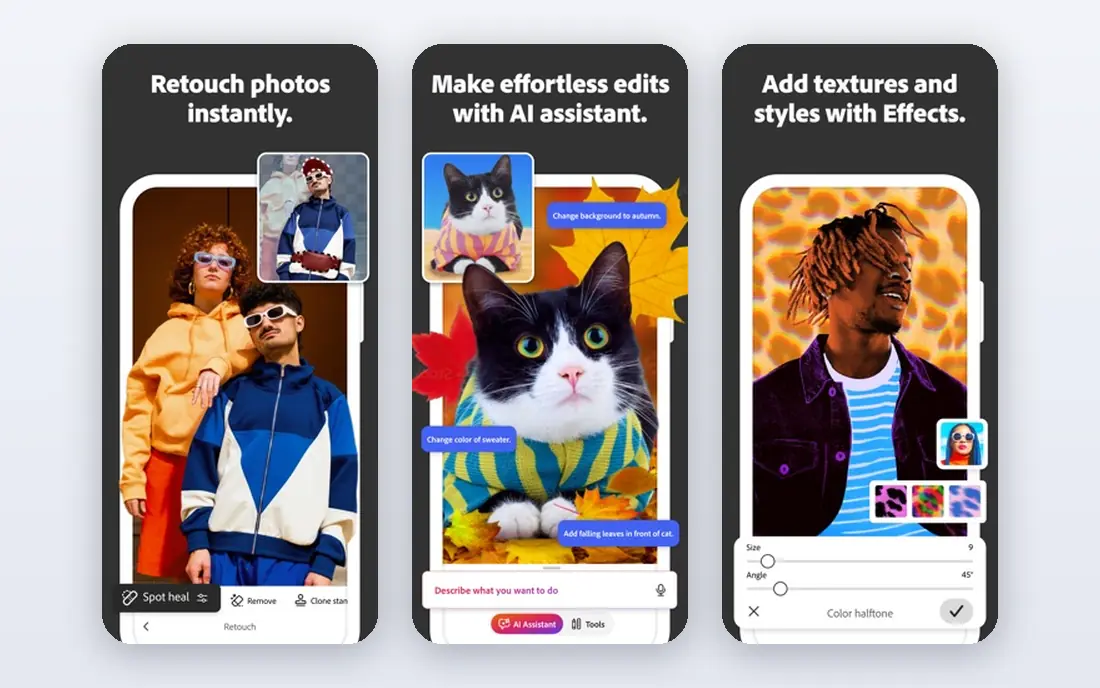
Photoshop Generative Expand is the reference tool for serious expansion work. Select the Crop tool, drag beyond the original canvas, and generate new scene content with or without a prompt. The result lands on a generative layer, so you can mask, retouch, adjust colour and try new variations without harming the original photo. That layered control matters for print, advertising and client work where an edge flaw must be fixable.
The cost and learning curve are the barriers. Photoshop is a subscription product, and new users need time to learn layers, masks and export settings. It is also not a one-click fix for every photo: complex scenes, hands, text and repeating patterns can still produce odd results. For professional work, though, no other tool in this list gives the same combination of control, resolution and refinement.
- Generative Expand inside the Crop tool
- Non-destructive generative layers
- Prompt control with or without text
- Subscription cost
- Learning curve
- Best results need a current Photoshop plan

Canva Magic Expand suits people who already build banners, posters and social posts in Canva. Expand a photo inside the editor, pick from several generated options, and keep working on text, templates and layout without exporting to another app. That flow saves time for marketing teams and creators who need many sizes from one photo.
The limit is control. Canva offers fewer refinement tools than Photoshop, and Magic Expand itself requires a Pro plan, even though Canva has a free plan for basic design. If you already pay for Canva Pro, Magic Expand is a natural addition. If you need print-grade retouching, use Canva for layout and Photoshop for the final expansion.
- Magic Expand inside the design editor
- Multiple expansion options
- Expanded photo stays in the layout
- Magic Expand is a Pro feature
- Less pixel control than Photoshop
- Free plan limits AI use
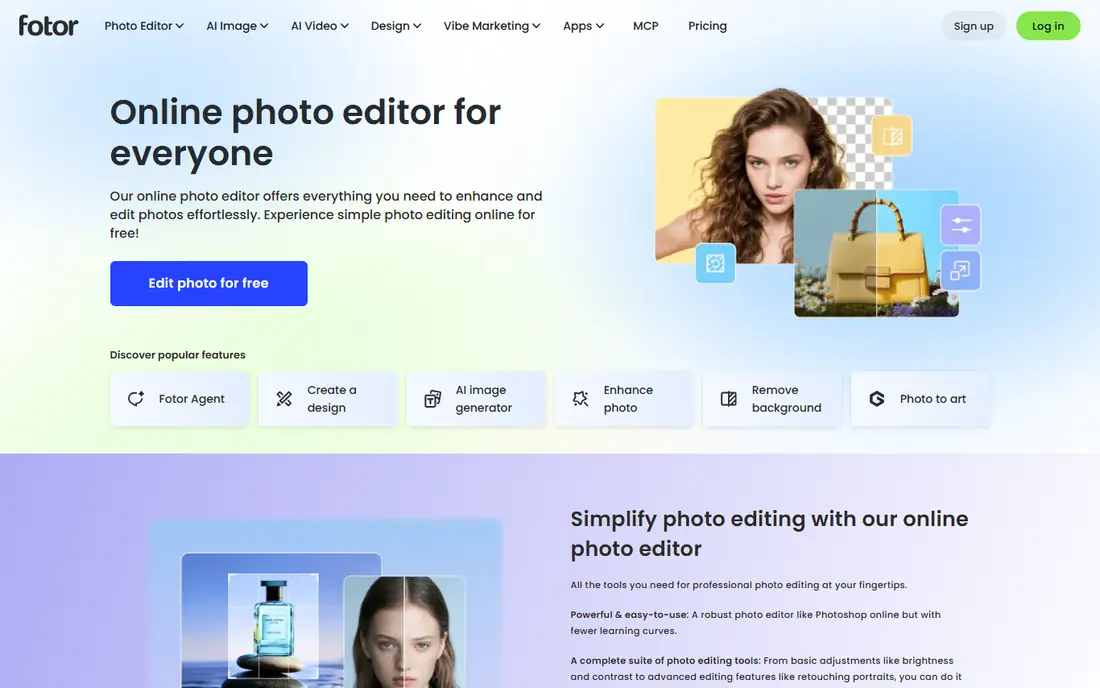
Fotor is a good pick when speed matters more than fine control. Upload a photo, expand it, and download a wider version without creating a full project first. That simplicity helps for a one-off banner, a blog header or a social post where the expanded area is mostly sky, wall or blurred background. The wider Fotor editor also covers cropping, colour and templates.
The trade-off is depth. Fotor expansion works best on simple backgrounds and can struggle with detailed scenes, people and text near the edge. Free use also carries limits that vary by feature and export, so check watermark and size rules before you publish. For quick jobs, it is efficient. For client or print work, verify the result at full size or use Photoshop.
- Fast web workflow
- Simple upload and expand steps
- Wider editing tools in the same app
- Free exports may carry a watermark
- Less control than Photoshop
- Quality varies on complex scenes
Picsart suits phone users who want to expand a photo and finish the edit in one app. Its AI expand tools sit alongside cropping, filters, background tools and design templates, so a tight phone photo can become a wider social post without moving to a computer. The free plan covers basic editing, which helps for testing the workflow.
The limits are control and consistency. Expansion quality and feature availability can differ between web, iOS and Android, and paid plans vary by platform. Picsart is strong for social content, but it does not replace Photoshop for layered print work. Check the plan on the device you use most, and review expanded edges at full size before posting.
- Mobile AI expand alongside full editing
- Templates and social sizes
- Easy sharing
- Expansion depth varies by plan and platform
- Less control than desktop tools
- Paid features differ by device
Pixelcut is built for sellers and creators who need a clean uncrop without learning a full editor. Its AI expand tool widens a product or lifestyle photo to fit a marketplace, banner or social size, and the wider app covers background removal and product staging. That focus helps small shops that prepare many listing images each week.
The free version is limited, and the Pro plan starts at $10 per month, so occasional users should test the free tier first. Pixelcut also works best when the expanded area is simple background rather than a busy scene with people or text. For product photos, it is a practical, low-friction pick. For complex editorial photos, a desktop tool gives more control.
- Simple uncrop workflow
- Product photo focus
- Web and mobile access
- Free version is limited
- Less design depth than Canva
- Complex scenes can produce flaws
Photoroom suits sellers who already use it for cutouts, shadows and product staging. Its fill and expand tools can widen a product photo for a listing or banner, and paid plans add batch processing and higher export allowances. That product focus helps when the expanded area must stay clean and the product itself must stay untouched.
The free plan limits matter. Photoroom describes its free plan as personal and non-commercial, and free exports are capped in number and size. Paid plans separate AI credits from exports, so check both limits before you plan a large catalog update. For commercial product work, use a paid plan and review each expanded image before listing it.
- Fill and expand tools for product photos
- Batch handling on paid plans
- Shopify and marketplace focus
- Free plan is for personal non-commercial use
- Export caps apply
- Credit and export limits need checking
Magic Hour is a browser tool for people who want a direct expansion workflow without installing software. It lets you control padding on each side, which helps when a photo needs more room on one side for text or a different aspect ratio. That side control is useful for banners and thumbnails where the subject must stay off-centre.
The trade-off is ecosystem. Magic Hour is not a full photo editor or design suite, so colour work, retouching and layout still need another app. Pricing and usage limits should be checked on its site before a large project, because browser AI tools often meter generations. For a focused expansion job in a browser, it is a clear and usable option.
- Browser-based expansion
- Independent side padding control
- Clear expand workflow
- Newer and less widely known than Adobe or Canva
- Pricing and limits need checking on the site
- Not a full editor
Adobe Firefly gives web users a generative expand workflow without opening Photoshop. Expand a photo in the browser, review generated options, and download the result with content credentials attached for transparency. Adobe positions its training data as commercially safer than some rivals, which matters for businesses that publish expanded images in ads or client work.
The limits are credits and control. Firefly uses generative credits, and higher or repeated generations can use them faster than expected. It also lacks the full layered editing of Photoshop, so detailed cleanup still needs a desktop edit. If you want an Adobe expansion in a browser and care about commercial terms, Firefly is a sound pick. If you need layered refinement, use Photoshop.
- Web-based generative expand
- Adobe content credentials on outputs
- Licensed training approach for commercial use
- Web credits and plan limits apply
- Less layered control than Photoshop
- Needs an Adobe account
How we picked these
We compared official feature pages, pricing pages and expand workflows for tools that offer a real generative expand function in October 2026, not just cropping or stretching. We favoured a mix of professional, design, product and browser tools, and we excluded tools focused on undressing, non-consensual imagery or face swapping without consent. Prices vary by plan, platform and credits, so check the vendor page for the current expand allowance before you buy.
How to get a clean expansion
Start with the highest-resolution original you have, and expand in small steps rather than doubling the canvas in one go. Simple backgrounds such as sky, sea, walls and blurred scenes expand more cleanly than faces, hands, text and repeating patterns near the edge. Generate several variations, view them at full size, and check the seam where old and new content meet.
Next, check the commercial terms. Some free plans restrict commercial use, add watermarks or cap exports, while paid plans may still limit credits or generations. Keep the original file, save the expanded version separately, and disclose AI generation where a client, publisher or platform requires it. Use only your own photos or photos you have permission to edit, and do not expand images of other people in ways that mislead viewers.
Frequently asked questions
What are the best ai generative expand tools for beginners?
Canva Magic Expand and Fotor are good starting points because they keep expansion inside a familiar editor and offer guided options. Photoshop gives more control but takes longer to learn, so start simple and move to Photoshop when you need layered refinement.
What is the top ai generative expand software for professional work?
Adobe Photoshop is our pick for professional work, because Generative Expand creates a separate layer you can mask and retouch, and it handles larger, print-ready files well. Adobe Firefly is a useful web companion when you need a quick Adobe expansion without opening Photoshop.
Can generative expand fix a photo that is cropped too tight?
Often, yes, if the missing area is background or a simple scene. It can also rebuild part of a subject, but that invented content may not match the real scene, so check faces, hands and objects carefully and do not present an expanded photo as an unedited original.
Is generative expand free?
Some tools offer free tiers or trials, including Canva, Fotor, Picsart, Pixelcut, Photoroom, Magic Hour and Adobe Firefly, but AI expand often requires a paid plan or uses credits. Check watermark, export, commercial-use and credit limits on the plan you use.
How is generative expand different from upscaling?
Upscaling increases resolution and sharpness within the existing frame, while generative expand adds new content beyond the original edges to change the shape or framing. Many tools offer both, but they solve different problems, so pick the function that matches your photo.
Can I use expanded photos for commercial work?
It depends on the tool and plan. Adobe tools position their training data as commercially safer, while some free plans restrict commercial use. Read the licence for your plan, keep records of the tool and settings used, and check client or platform rules before publishing.
Sources
See where you really rank - block by block
ProMapRanker scans Google Maps across a grid of your service area. Simple monthly plans from $19, white-label on every plan.
Start freeKeep reading
 best tour operator software
Best Tour Operator Software in 2026
Compare the best tour operator software for bookings, channel management, waivers and payments, with pricing models for day tours and multi-day trips.
Read → best time clock app for small business
Best Time Clock App for Small Business in 2026
We compare the best time clock app for small business options, with free plans, GPS clock ins, scheduling and payroll links for hourly teams and payroll help.
Read → best test automation tools
Best Test Automation Tools in 2026
Compare the best test automation tools, from Playwright and Selenium to Cypress, Katalon and BrowserStack, with prices, languages and best uses explained.
Read →