 ProMapRanker
Which Video Editing App Has the Best AI Features in 2026

Key takeaways
- Descript is our pick for talking-head and podcast video, since editing the transcript edits the video, and filler removal saves real time.
- Adobe Premiere Pro leads for professional timelines, with generative extend, text-based editing and strong audio cleanup in one app.
- DaVinci Resolve gives the strongest free starting point, with Studio adding its full AI toolset for a one-time licence.
- CapCut and OpusClip lead for short-form social video, with auto captions, reframing and long-to-short clipping built in.
- Use only your own footage or footage you have a clear licence for, and get clear consent before using a real face or voice in AI edits or clones.
Quick comparison
| Pick | Great for | Pricing starts at | Free tier | |
|---|---|---|---|---|
 Descript | Talking-head and podcast video | See website | Yes | Visit |
 Adobe Premiere Pro | Professional timelines | $22.99 per month | No | Visit |
 DaVinci Resolve | Free professional editing | Free | Yes | Visit |
 CapCut | Short-form social video | Free | Yes | Visit |
 Wondershare Filmora | Beginner-friendly desktop editing | See website | Yes | Visit |
 VEED | Browser editing and captions | See website | Yes | Visit |
 Kapwing | Browser collaboration and rough cuts | See website | Yes | Visit |
 OpusClip | Long video into social clips | See website | Yes | Visit |
 Runway | Generative edits to existing shots | $12 per month | No | Visit |
The best video editing apps with AI features
AI features in video editors fall into three groups: tools that cut and caption your footage, tools that clean audio and picture, and tools that generate or change shots. We compared official feature pages and pricing pages for each tool, and we kept only legitimate creative editors that work on your own footage. We did not list Sora as a live standalone app, and we treated credit limits as part of the price, since a low monthly fee means little when AI work runs out mid-project.
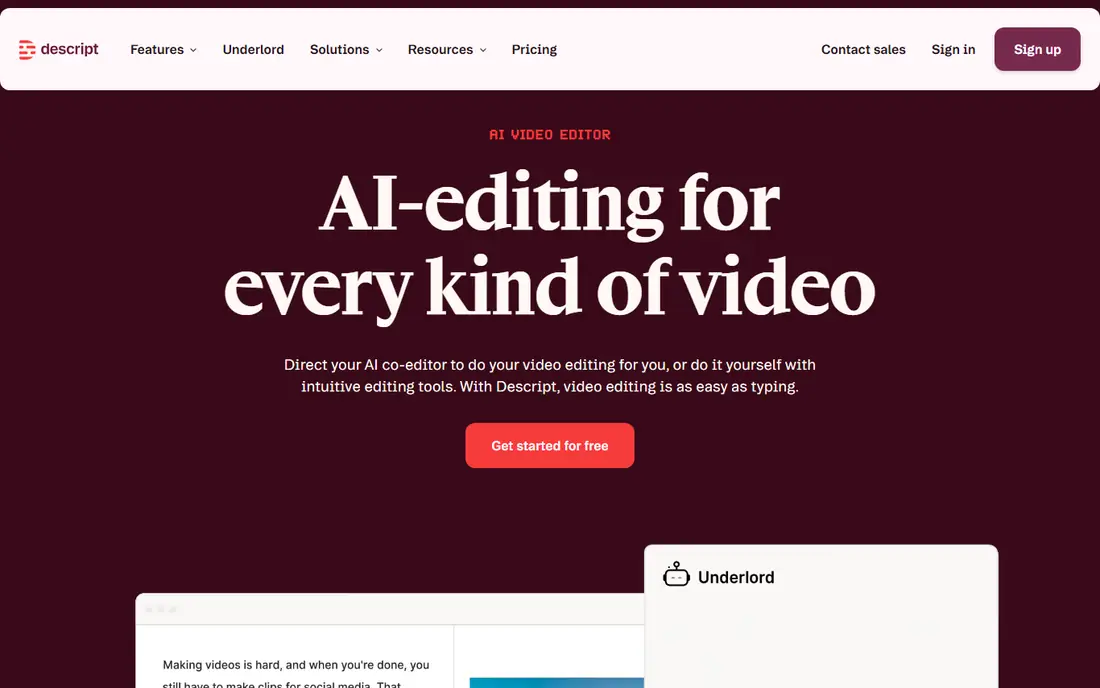
Descript changes the editing surface itself. You edit a transcript, delete a sentence there, and the video follows, which makes cutting an interview or a podcast far faster than scrubbing a timeline. Filler removal and silence trimming handle the repetitive first pass, and the Underlord assistant can build a rough cut from plain instructions. For a creator who records talking-head video every week, that workflow is the main time saving.
The limits are credit-based and craft-based. AI features draw on a monthly allowance, so a heavy month can run short, and aggressive filler removal can clip natural pauses if you do not review the result. Always proofread the transcript before you export, since a caption error becomes a cut error. For long-form film work, a traditional timeline still gives more control.
- Edit video by editing the transcript
- Filler-word and silence removal
- Studio Sound cleanup and clip creation
- AI work is metered by credits on paid plans
- Less suited to complex multi-track film editing
- Best results need a clean transcript check
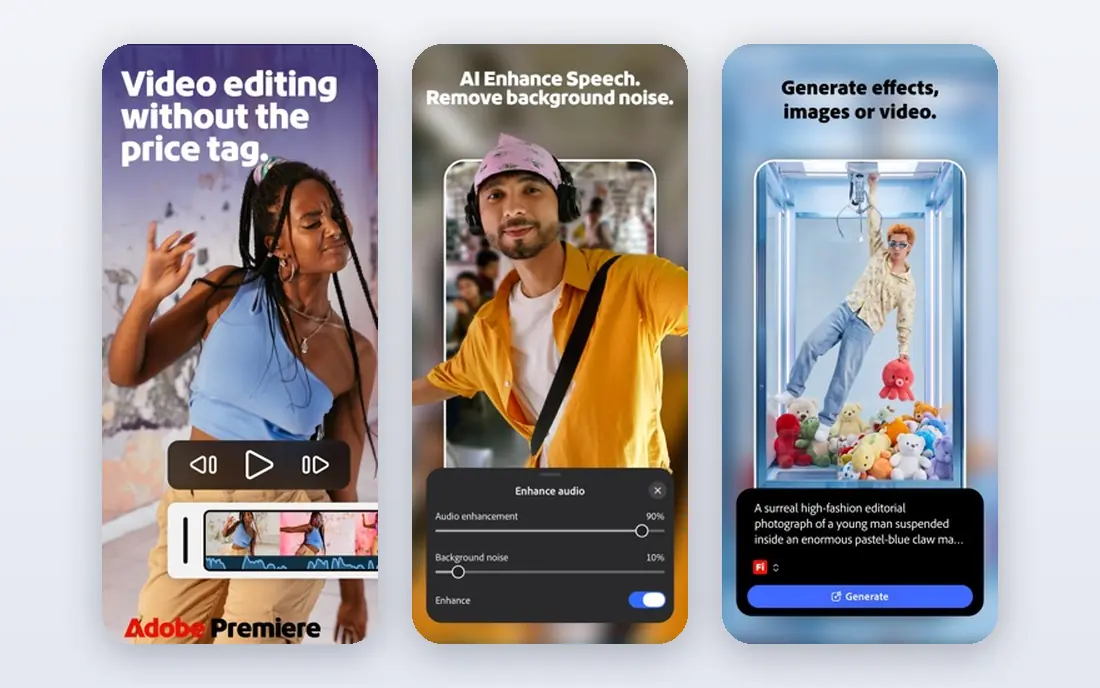
Premiere Pro is the strongest all-round professional choice when AI must sit inside a full timeline. Text-based editing lets you cut from a transcript, auto reframe adapts a sequence for vertical formats, and Enhance Speech can rescue noisy location audio. Generative extend can add a few frames to a clip that ends just short of a transition, which solves a common editing frustration without a reshoot.
The cost and the learning curve are real. Premiere Pro is a subscription with a trial only, and its depth can slow a beginner who only needs captions and cuts. Generative results also need a frame-by-frame check, since extended frames can warp hands, text or fast motion. Use it when you already work in a professional timeline and need AI to speed that work, not replace your judgment.
- Text-based editing and media search
- Firefly generative extend for short shots
- Enhance Speech and object removal
- Subscription cost adds up
- Trial only, no free plan
- Generative features need a careful review for artifacts

DaVinci Resolve is the best free starting point for serious editing, and its AI story splits cleanly between editions. The free edition handles professional editing, color and audio work without a subscription, while Studio adds the AI tools most buyers ask about, including Magic Mask, voice isolation, IntelliSearch and advanced noise handling. That split makes the one-time Studio licence easy to judge: buy it when you need those tools often, not before.
The trade-off is complexity. Resolve rewards time spent learning its pages for editing, color and audio, and a weaker computer will struggle with high-resolution projects. If you only need quick social clips, CapCut will get you there faster. If you want a professional tool without a monthly fee, Resolve is hard to beat.
- Full-featured free edition with no watermark on most work
- Studio adds Magic Mask, voice isolation and IntelliSearch
- Strong color tools
- Full AI toolset needs the paid Studio licence
- Learning curve is steep for beginners
- Needs a capable computer for heavy projects
CapCut is the fastest route from a phone clip to a finished short. Auto captions, background removal, templates and reframing cover the jobs that take up most short-form editing time, and the mobile app means you can edit where you shoot. For TikTok, Reels and Shorts, that speed matters more than a deep color page.
The limits appear when a project grows. Pro features, higher export options and some AI tools sit behind a paid tier, and the timeline is simpler than a professional editor. Check the current Pro price and the commercial terms for your region before you build a client workflow on it. For personal and small-business social video, the free tier is a strong start.
- Auto captions and templates
- Background removal and smart reframing
- Strong mobile and desktop apps
- Advanced AI features sit on the paid Pro tier
- Export and template rules need a check before commercial use
- Desktop depth is below Premiere Pro
Filmora sits between CapCut and a professional editor. You get a real desktop timeline, plus AI tools for captions, smart cutout, audio denoising and auto reframing, without the steep learning curve of Resolve. That balance suits creators, educators and small teams who outgrow phone editing but do not need a broadcast timeline.
The catch is the credit and watermark system. Free use is for learning and testing, since exports carry a watermark, and some AI work draws on credits even on paid plans. Read the current plan page for credit allowances before you buy, and test a full project, including export, before you commit to a yearly plan.
- Approachable timeline with AI captions, cutout and audio tools
- Good template and effects library
- Desktop apps for Windows and Mac
- Free exports carry a watermark
- AI tools are partly credit-based
- Less depth than Premiere Pro or Resolve for pro work
VEED suits teams that edit in a browser and share links for review. Auto subtitles, translation options and cleanup tools cover the core needs of marketing and training video, and the lack of an install makes it easy to start on any computer. Collaboration and commenting fit naturally into that browser workflow.
The limits are export and scale. Free exports carry a watermark, and a long or effects-heavy project will feel slower in a browser than on a desktop timeline. Use VEED when captions, quick edits and team review matter most, and use a desktop editor when a project needs deep color or complex effects.
- Browser editing with no install
- Auto subtitles in many languages
- Eye contact and audio cleanup tools for talking-head video
- Free exports carry a watermark
- Browser editing needs a steady connection
- Less suited to heavy multi-track film work
Kapwing stands out for its chat-based rough cut tool, which takes plain instructions and carries out several edits in a row. That helps when you have a long recording and need a first cut fast, or when a team needs to agree on structure before fine editing. Captions, reframing and templates cover the rest of the social and marketing workflow.
Free limits are the main friction. Export length, storage and AI credits all cap what you can do without paying, so check the current plan before you start a series. Kapwing is a strong browser choice for rough cuts and team edits, and a weaker choice for a finished feature-length project.
- Browser timeline with AI rough cuts from chat instructions
- Captions and reframing
- Easy sharing and team review
- Free plan limits export length and storage
- AI credits apply to heavier work
- Desktop editors offer more depth for long projects
OpusClip does one job well: turning a long recording into short clips. It scores moments, reframes the speaker for vertical video and adds captions, which saves hours when a podcast or webinar needs to become a week of social posts. For creators who already record long-form content, that repurposing step is often the bottleneck, and OpusClip targets it directly.
The catch is judgment. An AI highlight score does not know your brand tone, a sensitive moment or a joke that needs context, so every clip needs a human review before posting. Treat the output as a draft list, not a finished feed, and keep a full timeline editor for any clip that needs careful cutting.
- Picks highlights from long video and reframes them for vertical formats
- Auto captions and clip scoring
- Fast for podcasts and webinars
- Clip choices need human review for tone and context
- Free plan limits minutes and exports
- Not a full timeline editor
Runway is the generative specialist on this list. Its tools can transform an existing shot, remove or change elements, and generate new visual material from a prompt or image, which suits b-roll, visual experiments and short effect shots. For a creator who needs a shot that does not exist, Runway offers options a timeline editor cannot match.
The price model needs care. Runway plans are credit-based, and heavier generative work can use credits fast, so a monthly fee alone does not describe the full cost. Generative output also needs a close check for warped faces, hands and text. Use Runway for shots you own and have a licence for, and get clear consent before using a real face or voice in a generated or altered clip.
- Text and image to video tools
- Inpainting and motion tools for changing existing shots
- Strong fit for visual experiments and b-roll
- No free plan in the sense of ongoing free credits
- Generative work is credit-based and can cost extra
- Results need careful review for artifacts
How we picked these
We compared official feature pages and pricing pages for editors that are live in October 2026 and that edit footage you already own. We favored tools with a named AI feature that saves time, such as transcript editing, auto captions, reframing, cleanup or generative shot changes, and we left out pure generation tools that do not edit a timeline. We did not list Sora as a live standalone app, and we did not claim hands-on lab testing. Where pricing was credit-based or region-dependent, we wrote See website rather than guessing a figure.
What to check before you pay
Start with credits, since credits are now the hidden price in this category. A plan price tells you the entry fee, but the credit allowance tells you how much AI work you can actually do in a month. Check how captions, cleanup, generation and rough cuts each draw on credits, and whether unused credits roll over. Then test with your own footage, including hard audio, fast motion and a second speaker, since demo footage hides the weak spots.
Consent and ownership come next. Use only your own footage or footage you have a clear licence for, and get clear consent before using a real face or voice in AI edits, dubbing or clones. That rule holds even when a tool makes the edit easy, and it matters most for training, marketing and client work. Finally, check export rules: resolution, watermark, commercial terms and file format. A tool that edits well but exports with a watermark on the free tier is a testing tool, not a publishing tool.
Frequently asked questions
Which video editing app has the best AI features overall?
For most creators, Descript leads for talking-head work and Premiere Pro leads for professional timelines. Descript saves the most time when the source is speech, while Premiere Pro covers the widest range of AI tools inside a full editor. The best pick depends on your source footage, not on a single feature list.
Is there a good free AI video editor?
DaVinci Resolve is the strongest free editor, though its full AI toolset needs Studio. CapCut and Kapwing offer AI tools on free plans with export limits, and OpusClip offers limited free minutes for clipping. Test export rules before you rely on a free tier for publishing.
Do AI captions need proofreading?
Yes, always. Accents, crosstalk, jargon and names trip every caption tool, and an error in a transcript can become a cut error in Descript or a visible subtitle error elsewhere. Proofread captions on any video that matters, especially for accessibility and for client work.
Can AI edit a full video on its own?
Only for short clips. Tools can build a rough cut, pick highlights and add captions, but story, pacing and tone still need a human editor. For a longer video, treat AI output as a first draft and review every cut before you publish.
Should I worry about AI credits?
Yes, check them before you subscribe. Many plans include a monthly credit budget, and heavy AI work can use it fast. Compare credit allowances alongside the monthly fee, and note whether credits roll over or expire at month end.
Sources
See where you really rank - block by block
ProMapRanker scans Google Maps across a grid of your service area. Simple monthly plans from $19, white-label on every plan.
Start freeKeep reading
 worlds best local seo company
8 Worlds Best Local SEO Companies for Map Pack Growth in 2026
Compare the worlds best local seo company options for Google Business Profile work, citations, reviews, and multi-location rankings and reporting in 2026.
Read → world's best web hosting company
World's Best Web Hosting Company in 2026
Searching for the world's best web hosting company? We compared 10 hosts on price, renewal rates, speed, and support to help you choose well today in 2026.
Read → who's got the best nanny tax services
Who's Got the Best Nanny Tax Services in 2026
We answer who's got the best nanny tax services, comparing full filing, back taxes, software, and pricing so families can handle nanny taxes correctly.
Read →