 ProMapRanker
Which App Is Best for PDF Editing for Free in 2026

Key takeaways
- PDFgear is our pick for most people, since it offers full editing free with no watermark in its published free offer.
- Sejda is the best browser option for real text edits, but its free use is limited to a small number of tasks per day.
- PDF24 and PDF-XChange Editor are strong desktop choices, especially if you prefer to keep files on your own computer.
- Adobe Acrobat free online tools cover annotation and signing, but editing existing body text requires the paid Pro plan.
Quick comparison
| Pick | Great for | Pricing starts at | Free tier | |
|---|---|---|---|---|
 PDFgear | Full free editing | Free | Yes | Visit |
 Sejda | Browser text edits | Free | Yes | Visit |
 Smallpdf | One quick browser task | Free | Yes | Visit |
 ILovePDF | Quick online PDF tools | Free | Yes | Visit |
 PDF24 | Free desktop toolkit | Free | Yes | Visit |
 PDFescape | Simple browser forms | Free | Yes | Visit |
 Adobe Acrobat | Annotation and signing | Free | Yes | Visit |
 Foxit PDF Editor | Paid-grade features on trial | See website | Free trial | Visit |
 PDF-XChange Editor | Windows desktop editing | Free | Yes | Visit |
The best free pdf editing apps
We focused on tools that let you actually change a PDF for free, not only view it. That includes editing text, filling forms, signing, merging, and compressing files. For sensitive documents, prefer a desktop app that processes files locally over an online tool that uploads them.
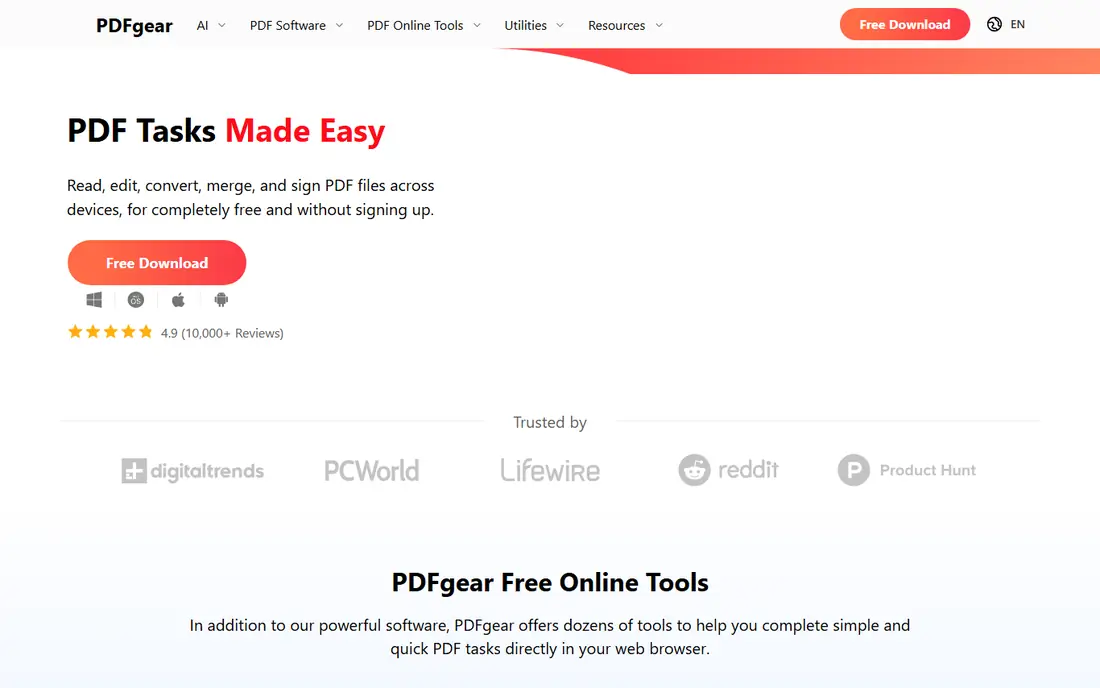
PDFgear stands out because its free offer is unusually complete. You can edit text, convert files, merge pages, sign documents, and annotate PDFs without paying, and its published offer includes no watermark. That makes it the first tool to try when you need a real edit and do not want to buy software for a one-off job.
The main caveat is age. PDFgear is younger than Adobe or Foxit, so it has less history in large workplaces. For personal use, school, and small business documents, that matters less than the breadth of the free tools. If you edit PDFs often, it is a strong daily default.
- Free editing, conversion, merging, signing, and annotation
- No watermark in its free offer
- Apps for Windows, Mac, iOS, and web
- Newer product with a shorter track record
- No enterprise support tier for large teams
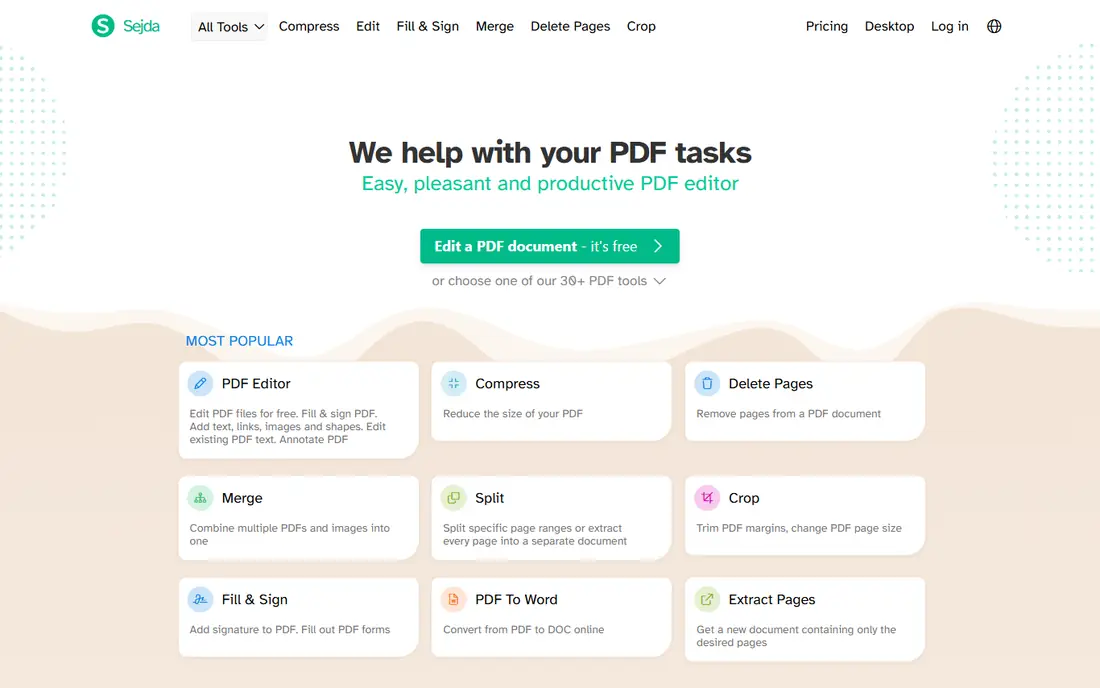
Sejda is the browser editor we trust most for changing text that is already in a PDF, which is the feature many free tools omit. The web version is easy to use, and the desktop app is a better choice for private files because it keeps work on your computer. Files uploaded to the web version are deleted after a short period, according to Sejda help pages.
Free limits are the catch. Desktop free use covers three tasks per day in published descriptions, with file size and page caps. That is fine for occasional edits, but not for a full day of document work. Paid plans remove those limits if you need them later.
- Real editing of existing text in the browser
- Desktop app processes files locally
- No watermark on free output
- Free use limited to a small number of tasks per day
- Larger files and OCR have size limits
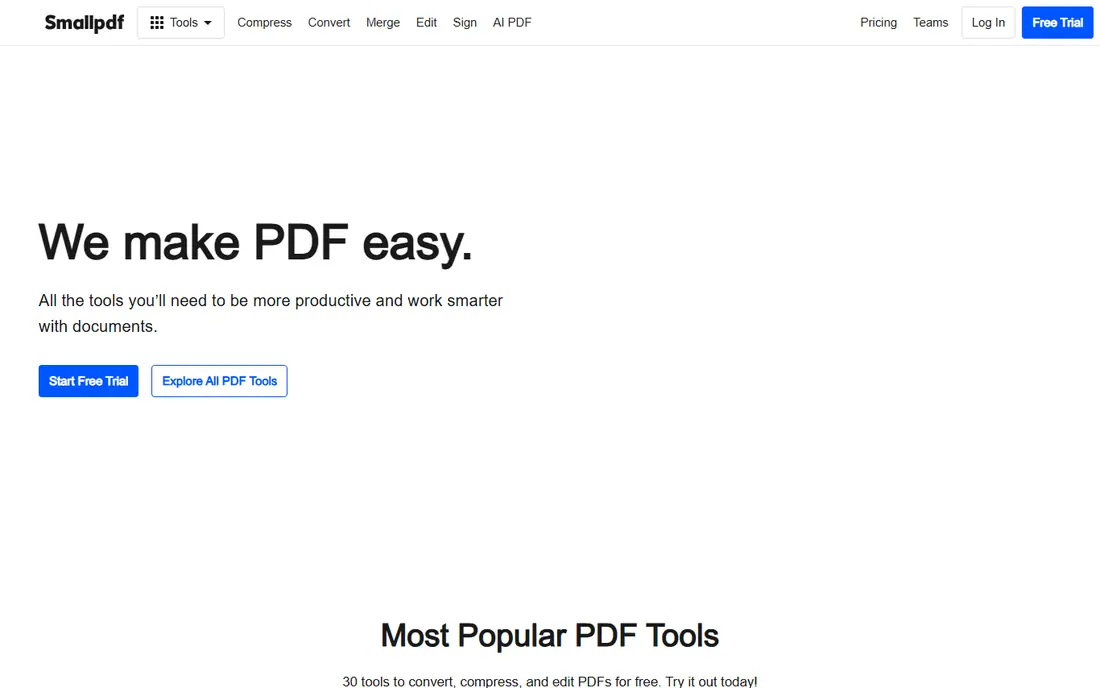
Smallpdf is best when you have one job and want it done in a minute. Compress a file, merge two PDFs, convert a document, or sign a form, then move on. The interface is clean, and you do not need to learn a desktop app to use it.
It is not the best choice for repeated free editing, since the free tier caps daily tasks. Heavy users will hit the limit quickly and need to wait or pay. For occasional, simple jobs, though, Smallpdf is fast and hard to misuse.
- Very simple interface
- Many tools in one place
- No install needed
- Free tier limited to a small number of tasks per day
- Full editing needs a paid plan
ILovePDF is a reliable online toolkit for the jobs most people actually do with PDFs. Merging, splitting, compressing, converting, and signing are all straightforward, and the site is easy to follow even if you rarely edit documents. Mobile apps extend the same tools to a phone.
It is less strong for deep text editing inside a document. If you need to rewrite paragraphs in an existing PDF, start with PDFgear or Sejda instead. For file handling and simple edits, ILovePDF is a dependable free option.
- Wide set of online tools
- Easy merge, split, compress, and convert
- Mobile apps available
- Free tier has limits
- Full text editing is more limited than in Sejda or PDFgear
PDF24 is a good pick for people who want a free tool without a subscription trap. The online tools cover a wide range of jobs, and the desktop creator lets you work offline, which helps with privacy and with large files. There is no premium tier hiding behind the free tools in the same way as many rivals.
The design feels functional rather than polished, and advanced features like redaction and form design are not as deep as in paid editors. For everyday PDF work at no cost, PDF24 offers strong value, especially on Windows.
- Completely free toolkit with many tools
- Desktop creator works offline
- No watermark and no sign-up for basic use
- Interface is less polished than paid rivals
- Some tools are simpler than Acrobat equivalents
PDFescape has been a free browser option for a long time, and it still covers the basics well. You can fill forms, add text, annotate, and rearrange pages without installing software. That makes it useful on shared or locked-down computers where you cannot install a desktop app.
Free limits apply to page counts and file sizes online, so long documents may need the desktop version or another tool. The interface is also older than Smallpdf or ILovePDF. For simple form work, it remains a practical free choice.
- Free browser editing without an install
- Form filling and annotation
- Desktop app available for larger files
- Free online version has page and file size limits
- Interface looks dated
Adobe Acrobat online tools are worth trying if you already have an Adobe account or work with files others send you. Free tools cover comments, highlights, text boxes, form filling, and signatures, which covers a large share of everyday PDF work. File handling is also reliable across complex documents.
The key limit is clear in Adobe own description: free tools do not edit existing body text. Changing text or fonts needs Acrobat Pro, which offers a trial. If your main need is annotation and signing, the free tools are enough. If you need to rewrite text, pick PDFgear or Sejda first.
- Reliable file handling
- Free annotation, fill, and sign tools online
- Strong paid Pro tools if you upgrade later
- Free version does not edit existing body text
- Sign-in required to download edited files
Foxit PDF Editor is included because many readers ask about it when they outgrow free tools, and the trial lets you test full editing before paying. It handles text editing, forms, comments, and collaboration well, and it is often cheaper than Acrobat for small teams. That makes it a sensible upgrade path rather than a free daily editor.
Do not count on it as a permanent free editor. Once the trial ends, full editing needs a paid plan, so check current pricing on the Foxit site. If you edit PDFs daily for work, it is worth comparing with Acrobat Pro on price and on the features you actually use.
- Close to Acrobat for many editing jobs
- Good form and collaboration tools
- Perpetual license option in some plans
- Full use requires payment after trial
- Free reader alone does not cover full editing
PDF-XChange Editor is a strong desktop choice for Windows users who want local editing without uploading files. The free build covers a large share of everyday features, including annotation, form filling, and basic editing. That local processing is a real privacy advantage for sensitive documents.
The catch is that features reserved for the paid Plus edition can add watermarks, so test your exact workflow before relying on it for client files. It is also Windows focused, so Mac users should pick PDFgear or Sejda instead. For Windows users, it is one of the best free desktop editors available.
- Large share of features free, including for commercial use in published descriptions
- Files stay on your computer
- Fast on Windows
- Windows only for the full editor
- Some advanced features watermark output unless you buy Plus
How we picked these
We compared official pricing and feature pages, help documentation, and public reviews, and we kept only tools that are live in October 2026 and that offer a genuine free path to editing, annotation, or signing. We favored tools with clear limits stated on their own pages, and we treated third-party price claims as leads to check rather than facts. We did not claim hands-on testing, and we noted where free plans limit tasks, pages, or features.
How to choose the right free PDF editor
Match the tool to the hardest job in your document. If you need to change existing text, start with PDFgear or Sejda. If you only need to merge, compress, or sign, Smallpdf, ILovePDF, or PDF24 will be faster. If the document is sensitive, use a desktop app like PDF-XChange Editor or Sejda Desktop so the file never leaves your computer.
Check limits before you start
Free plans differ in ways that matter. Some limit tasks per day, some limit pages or file size, and some limit OCR. Read the pricing page before you begin a long document, and keep a backup copy of the original file. That way, a limit or a failed edit does not cost you the only copy.
Know when to pay
Paying makes sense when you edit PDFs daily, need redaction for legal or medical work, or need accessibility checks and form design. In those cases, Acrobat Pro or Foxit PDF Editor offer stronger controls and audit trails. For occasional personal edits, a free tool is usually enough, and paying would add cost without adding value.
Frequently asked questions
Which app is best for pdf editing for free?
PDFgear is our pick for most people, since it offers broad editing free with no watermark in its published offer. Sejda is better if you want browser-based text editing with a desktop option for private files. Try both on a copy of your document before you settle on one.
What is the best free software for editing pdfs on Windows?
PDF-XChange Editor and PDF24 are strong Windows choices, and PDFgear also works on Windows. PDF-XChange Editor keeps files local, which helps with privacy, while PDF24 offers a wide offline toolkit. Pick PDF-XChange Editor for editing depth and PDF24 for breadth.
What are the best free pdf editing apps for forms?
PDFescape, Adobe Acrobat free online tools, and ILovePDF all handle form filling and signing well. PDFgear also covers forms plus full text editing, which makes it a good all-round choice. For a form with sensitive personal data, use a desktop app rather than an online upload.
Can I edit a PDF for free without a watermark?
Yes, with the right tool. PDFgear, Sejda, PDF24, and ILovePDF publish no-watermark free output for their free tiers, though limits still apply. Some desktop trials do watermark advanced features, so test the exact feature you need before you send the file to someone else.
What is the best app for pdf editing free on a phone?
ILovePDF and PDFgear both offer mobile apps for quick edits, merging, and signing. Smallpdf also works well in a mobile browser for single tasks. For longer text edits, a desktop or tablet with a larger screen is usually easier than a phone.
Sources
See where you really rank - block by block
ProMapRanker scans Google Maps across a grid of your service area. Simple monthly plans from $19, white-label on every plan.
Start freeKeep reading
 zscaler alternatives
Best Zscaler Alternatives in 2026
Looking for zscaler alternatives? We compare 9 SASE and zero trust platforms on architecture, data protection, pricing, and fit for your network and team.
Read → zapier alternatives free
Best Zapier Alternatives Free in 2026
Nine automation tools for zapier alternatives free in 2026, all with genuinely free tiers, plus free plan limits, starting prices and upgrade paths explained.
Read → which platform is best for online reputation
Which Platform Is Best for Online Reputation in 2026
Wondering which platform is best for online reputation? We compare 8 review, listing, and response tools for small and multi-location businesses and agencies.
Read →