 ProMapRanker
Best Software for Editing PDFs in 2026


regulated work and full PDF control · Pricing starts at: $19.99 per month
Key takeaways
- Adobe Acrobat Pro is the fullest choice for regulated work, but PDFgear and Smallpdf cover many everyday tasks for free.
- PDFelement and Foxit offer the best balance of desktop editing power and price for most professionals in this list.
- PDF Expert is the clear pick for Apple-only users, while Sejda suits a quick, privacy-minded browser fix.
- Check OCR, signing, and batch limits on the plan you will buy, because those features often sit behind a higher tier.
- A free tier is enough for merging and light annotation, but scanned documents and redaction usually need a paid editor.
Quick comparison
| Pick | Great for | Pricing starts at | Free tier | |
|---|---|---|---|---|
| Adobe Acrobat Pro | regulated work and full PDF control | $19.99 per month | Free trial | Visit |
 PDFelement PDFelement | budget buyers who want desktop editing plus AI help | See website | Free trial | Visit |
 Foxit PDF Editor Foxit PDF Editor | professionals who want Adobe-level tools for less | See website | Free trial | Visit |
 Nitro PDF Pro Nitro PDF Pro | Windows and Mac teams that sign and share contracts | See website | Free trial | Visit |
 PDF Expert PDF Expert | Mac and iPad users | See website | Free trial | Visit |
 Sejda Sejda | privacy-minded users and occasional edits | See website | Yes | Visit |
 Smallpdf Smallpdf | quick browser tasks and conversions | See website | Yes | Visit |
 PDFgear PDFgear | free desktop editing without a subscription | Free | Yes | Visit |
The best software for editing PDFs
We compared desktop and web PDF editors on text editing, forms, signing, OCR for scanned pages, and price, using vendor pages, pricing pages, and app store listings.
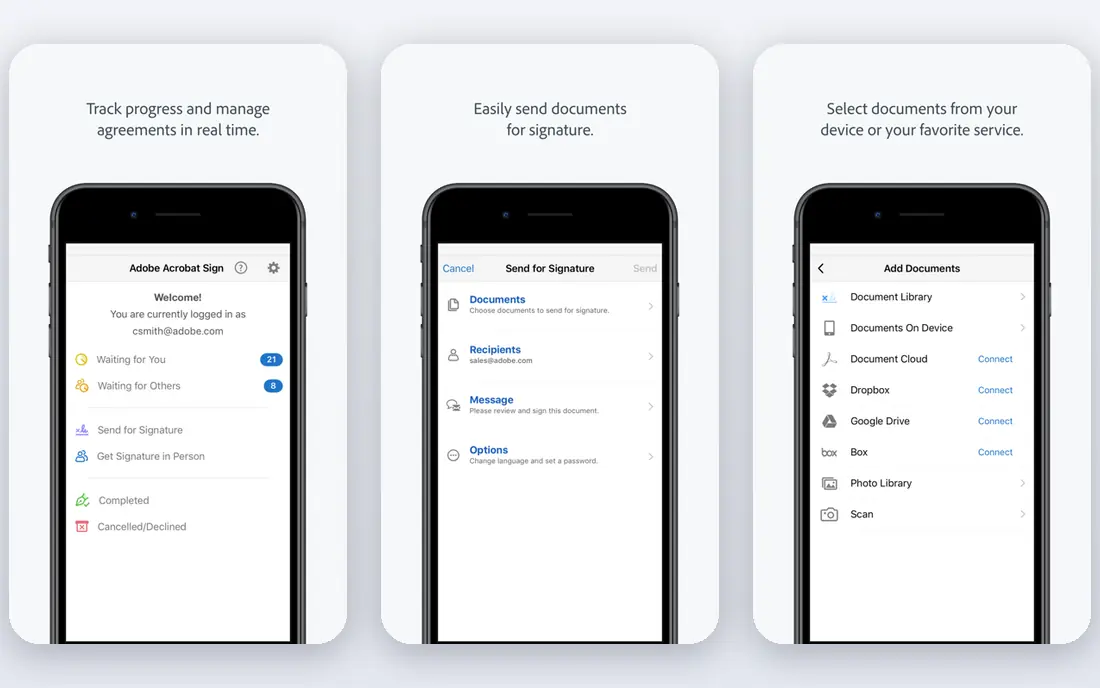
For legal, finance, and compliance teams, Adobe Acrobat Pro is a practical starting point because it keeps the core workflow in one place. It is built around direct text and image editing, redaction, and form tools in one desktop app. The design favours routine use over occasional use, which matters when a tool only helps if people return to it every week. What stands out in Adobe Acrobat Pro is accessibility checks and PDF standards support for formal documents. It also helps a team keep one version of the truth, instead of keeping the same detail in email, chat, and a spreadsheet at the same time. The catch is the monthly cost is hard to justify for occasional edits. A short trial with real data gives a clearer answer than a feature list alone.
- Most complete editing, redaction, and accessibility tools
- Strong OCR for scanned documents
- Wide integration with document workflows
- Highest price in this list
- Heavier install and learning curve for light use
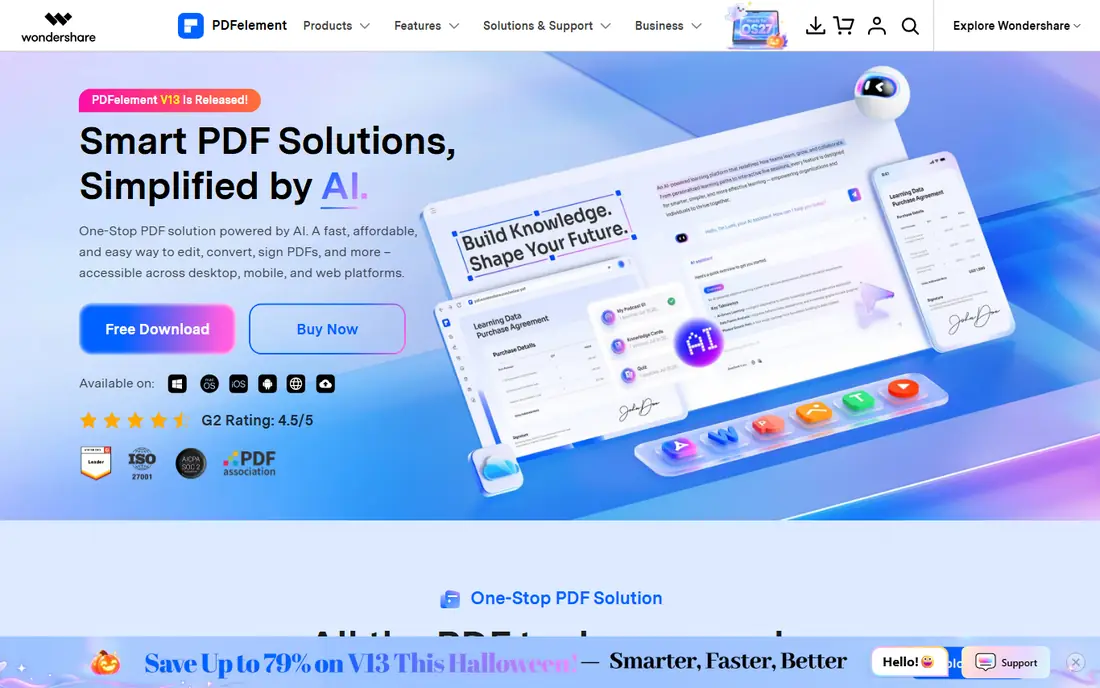
If students, freelancers, and small teams need a tool that is easy to explain to a new team member, PDFelement deserves a close look. It is built around cross-platform editing, conversion, and form creation. The design favours routine use over occasional use, which matters when a tool only helps if people return to it every week. What stands out in PDFelement is AI summaries and document help inside the editor. It also helps a team keep one version of the truth, instead of keeping the same detail in email, chat, and a spreadsheet at the same time. The catch is check whether OCR and batch tools are in the plan you buy. A short trial with real data gives a clearer answer than a feature list alone.
- Full desktop editing across Windows, Mac, and mobile
- AI features in current plans
- Lower subscription cost than Adobe in published comparisons
- Some advanced features sit in higher tiers
- AI quality varies by document type
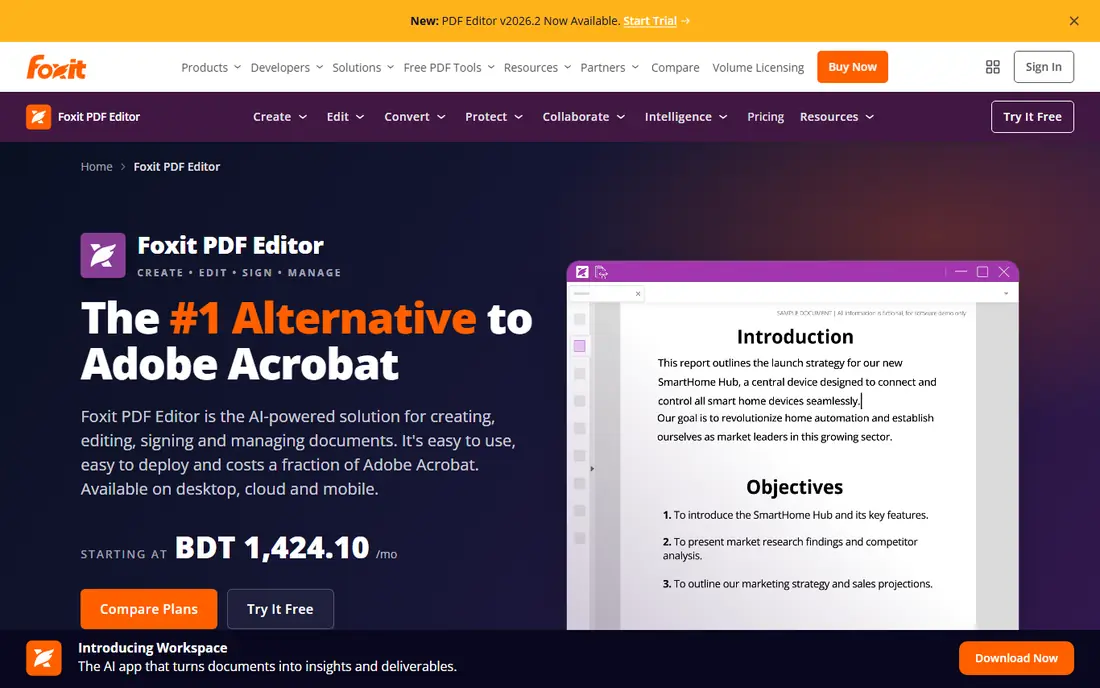
A good fit when business professionals and small firms want depth without a long setup, Foxit PDF Editor focuses on the work that matters most. It is built around professional editing, commenting, and e-signing for business documents. The design favours routine use over occasional use, which matters when a tool only helps if people return to it every week. What stands out in Foxit PDF Editor is shared review and commenting for team documents. It also helps a team keep one version of the truth, instead of keeping the same detail in email, chat, and a spreadsheet at the same time. The catch is teams that need deep Adobe integrations should test those first. A short trial with real data gives a clearer answer than a feature list alone.
- Lighter and faster than Adobe for many daily tasks
- Strong editing, signing, and collaboration tools
- Perpetual licence option in published comparisons
- Smaller integration range than Adobe
- AI credits are limited on the base plan in published comparisons
Teams that value clarity over a long feature list often settle on Nitro PDF Pro after a short trial. It is built around document signing, editing, and sharing for team workflows. The design favours routine use over occasional use, which matters when a tool only helps if people return to it every week. What stands out in Nitro PDF Pro is batch processing and document comparison for contract work. It also helps a team keep one version of the truth, instead of keeping the same detail in email, chat, and a spreadsheet at the same time. The catch is confirm the exact team price before a rollout. A short trial with real data gives a clearer answer than a feature list alone.
- Familiar ribbon layout for Office users
- Signing, collaboration, and batch tools
- Team plans for shared work
- Price is often quote-based for teams, so budgeting takes a sales check
- Mac and Windows feature parity should be checked
When Mac and iPad users need to move from scattered files to one shared record, PDF Expert makes that shift plain. It is built around annotation, editing, and signing tuned for Apple devices. The design favours routine use over occasional use, which matters when a tool only helps if people return to it every week. What stands out in PDF Expert is smooth reading and markup on iPad with a pencil. It also helps a team keep one version of the truth, instead of keeping the same detail in email, chat, and a spreadsheet at the same time. The catch is buyers outside the Apple range should pick a cross-platform editor. A short trial with real data gives a clearer answer than a feature list alone.
- Clean Mac and iPad experience
- Fast annotation and form filling
- Good Apple Pencil support on iPad
- Windows and Android coverage is limited compared with cross-platform rivals
- Some pro features need a paid plan
For casual users and privacy-minded readers who want a clear daily routine, Sejda puts the next step in front of the user. It is built around browser-based editing with a desktop option for local files. The design favours routine use over occasional use, which matters when a tool only helps if people return to it every week. What stands out in Sejda is a simple layout that suits a quick fix without a long install. It also helps a team keep one version of the truth, instead of keeping the same detail in email, chat, and a spreadsheet at the same time. The catch is heavy, complex documents may still need a desktop suite. A short trial with real data gives a clearer answer than a feature list alone.
- Web editor plus a desktop app that can process files locally
- Simple editing, merging, and form tools
- Short-term passes in published comparisons
- Free web use has limits on tasks per hour in published guides
- Deep desktop editing is lighter than Adobe or Foxit
A steady choice for students and occasional users, Smallpdf balances useful controls with a layout that stays readable. It is built around browser-based PDF tools for common daily tasks. The design favours routine use over occasional use, which matters when a tool only helps if people return to it every week. What stands out in Smallpdf is compression and conversion tools that work from any device. It also helps a team keep one version of the truth, instead of keeping the same detail in email, chat, and a spreadsheet at the same time. The catch is large or sensitive files may suit a desktop tool instead. A short trial with real data gives a clearer answer than a feature list alone.
- Fast browser tools for merging, compressing, converting, and signing
- No install for most tasks
- Clear free tier with limits
- Free tier has daily limits
- Deep text editing is weaker than a desktop editor
If budget users and students care most about follow-through, PDFgear is built to turn a plan into visible progress. It is built around free desktop PDF editing with annotation and conversion. The design favours routine use over occasional use, which matters when a tool only helps if people return to it every week. What stands out in PDFgear is a no-cost path for readers who only need core editing. It also helps a team keep one version of the truth, instead of keeping the same detail in email, chat, and a spreadsheet at the same time. The catch is teams that need admin controls should check the paid options first. A short trial with real data gives a clearer answer than a feature list alone.
- Free core editing, annotation, conversion, and signing tools
- Desktop apps for Windows and Mac
- No subscription for the core set
- Advanced team controls and some AI features are limited
- Support range is smaller than large vendors
How we picked these
We compared official feature pages, pricing pages, app store listings, privacy policies, and public reviews for each product in this guide. We checked whether each product exists and works in October 2026, whether it fits the topic, and whether its price, free tier, and plan limits could be confirmed from a vendor source or a recent published guide. We did not claim hands-on testing, and we did not invent awards, user counts, ratings, or features. Where a price could not be confirmed from a vendor page at the time of writing, we wrote See website, so a reader can check the live price before buying. Prices and plan limits change, so the vendor page remains the final source.
How to choose a PDF editor without overpaying
Start with the document you edit most. A scanned contract, a fillable form, and a report with charts each need a different strength, and the cheapest editor that handles your main task well is usually the right buy.
Match the editor to the document
If most files are scanned, OCR quality matters more than a long feature list. If most files are forms, test form filling, signing, and export before you pay. If most files are long reports, test text reflow, image handling, and search on a real file, not a sample page.
Weigh desktop power against browser speed
Desktop editors handle large files, offline work, and complex layouts better. Browser editors win for a quick merge, a signature, or a conversion on a shared computer. Many readers end up with one of each: a desktop editor for heavy work and a browser tool for quick tasks.
Check the true cost over a year
Compare annual billing, perpetual licences where offered, and the cost of adding seats. Also check what happens to files and signatures if you cancel. A low monthly headline can still cost more over two years than a one-time licence.
Frequently asked questions
What is the best software for editing PDFs overall?
For most readers, the answer depends on platform and budget. Adobe Acrobat Pro offers the fullest toolset, Foxit and PDFelement offer strong desktop editing for less, and PDFgear covers core editing for free. Pick by the task you repeat most.
Can I edit a PDF for free?
Yes, for many tasks. PDFgear offers free core desktop editing, Smallpdf and Sejda offer free browser tiers with limits, and most paid editors offer a trial. Free tiers usually limit batch work, OCR, or advanced signing.
Do I need OCR in a PDF editor?
You need OCR only for scanned pages or image-based PDFs, where text is not selectable. If your PDFs come from Word, a browser, or a design tool, direct text editing is enough. Test OCR on your own scan before you buy.
Is a browser PDF editor safe for sensitive files?
It depends on the vendor and the document. For sensitive contracts, prefer a desktop app that processes files locally, or check the vendor privacy policy for upload, storage, and deletion rules. Sejda offers a desktop option for local processing.
What is the difference between a PDF reader and a PDF editor?
A reader mainly opens, views, and annotates a PDF. An editor also changes text, images, page order, forms, and file structure. If you only need to highlight and comment, a reader may be enough.
Sources
See where you really rank - block by block
ProMapRanker scans Google Maps across a grid of your service area. Simple monthly plans from $19, white-label on every plan.
Start freeKeep reading
 zendesk alternatives
Best Zendesk Alternatives in 2026
Compare the best Zendesk alternatives in 2026, from budget help desks to AI-first support tools, with current pricing, free plans, and honest trade-offs.
Read → wordpress alternatives
Best WordPress Alternatives in 2026
Looking for the best WordPress alternatives? We compare 8 free and paid options for blogs, business sites, stores, and developer-led projects in 2026.
Read → which real estate company has the best training
Best Real Estate Company Training in 2026
Compare which real estate company has the best training, from Keller Williams and eXp to Compass and Coldwell Banker, by program, mentor, and fit in 2026.
Read →