 ProMapRanker
What Is the Best Customizable Worksheet App in 2026

Key takeaways
- Canva and Adobe Express suit polished, visual worksheets, while Liveworksheets suits interactive, self-marking sheets.
- Google Sheets and Microsoft Excel suit data, tables and auto-marked practice, especially for maths and tracking.
- WorksheetWorks, Super Teacher Worksheets and Education.com suit fast printable practice, with less design control.
- The best choice depends on whether you need print, interactive answers, or a mix, and on the age of your learners.
Quick comparison
| Pick | Great for | Pricing starts at | Free tier | |
|---|---|---|---|---|
 Canva | Visual worksheet design | Free | Yes | Visit |
 Adobe Express | Quick visual worksheets | Free | Yes | Visit |
 Google Sheets | Data and auto-marked practice | Free | Yes | Visit |
 Microsoft Excel | Advanced tables and formulas | See website | No | Visit |
 Liveworksheets | Interactive self-marking sheets | Free | Yes | Visit |
 WorksheetWorks | Fast printable generators | Free | Yes | Visit |
 Super Teacher Worksheets | Ready printable practice | Free | Yes | Visit |
 Twinkl Create | Classroom templates and resources | See website | No | Visit |
 Education.com | Worksheet generator for younger learners | See website | No | Visit |
The best customizable worksheet apps
A customizable worksheet app should let you change the content, layout and difficulty without rebuilding the sheet from scratch. We compared design tools, spreadsheet tools and worksheet generators, and we checked current sites before listing them.
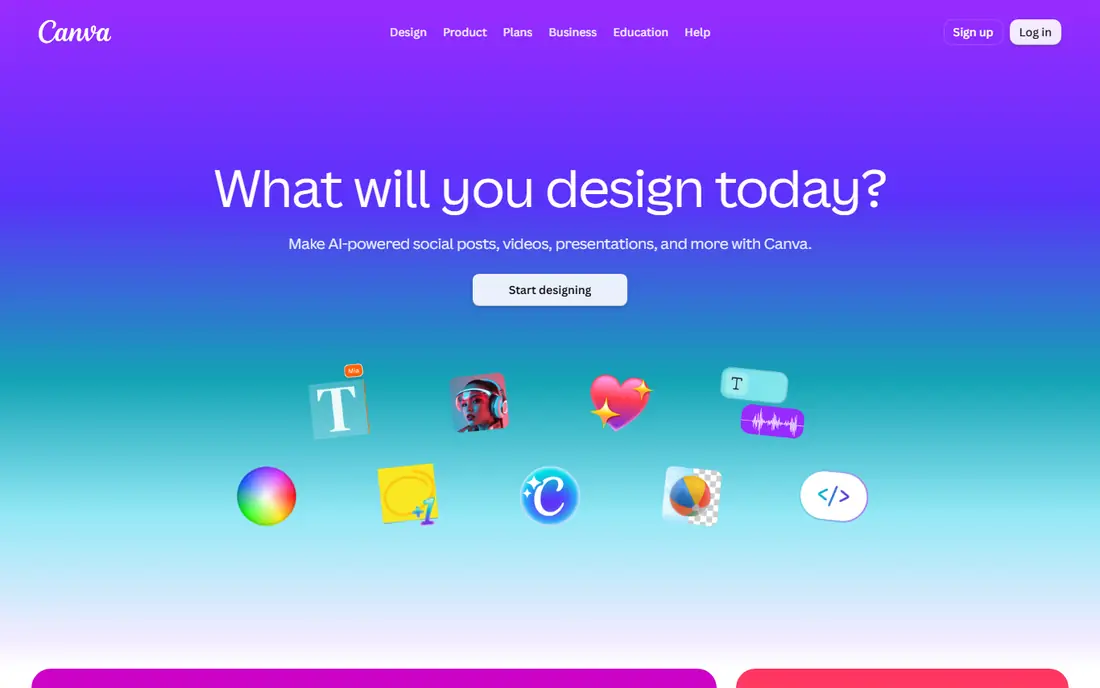
Canva is the easiest way to make a worksheet look polished. Start from a worksheet template, change text, colours, images and layout, and download a PDF for printing or sharing. Teachers can also use Canva for Education, where eligible, to access Pro features for classroom use.
Canva does not auto-mark answers, so it suits print-and-complete work rather than interactive grading. For a visually clear sheet that learners enjoy opening, though, its template range and simple editor are hard to beat.
- Large worksheet template library
- Drag-and-drop design
- Easy PDF download for print
- Some design elements need Pro
- Not built for auto-marking answers
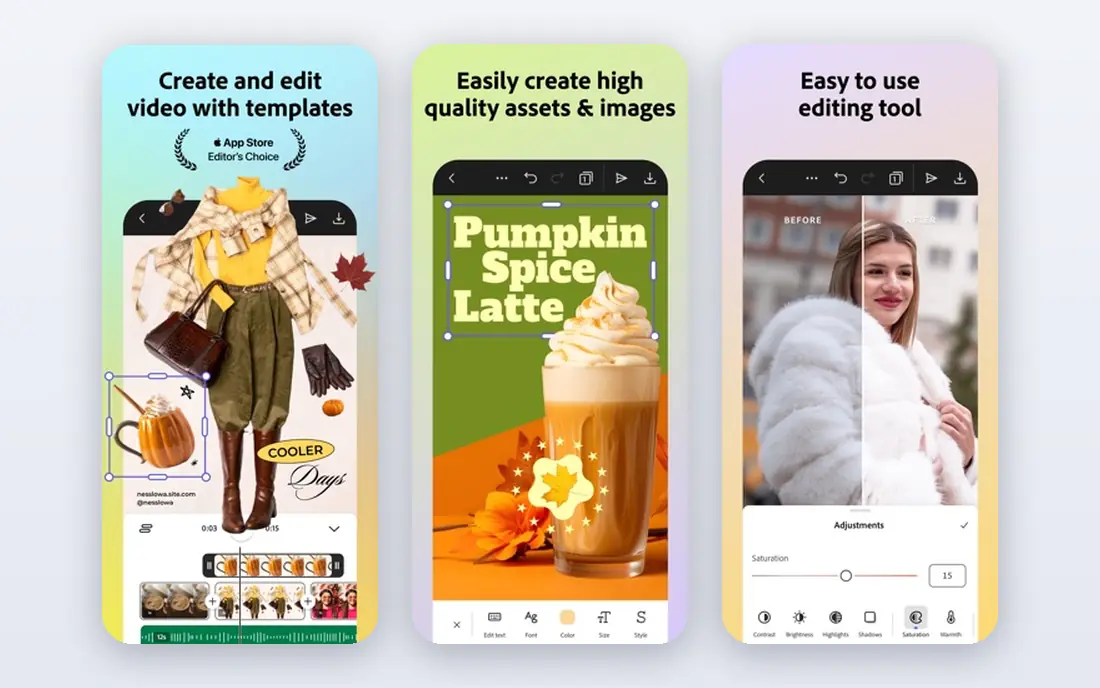
Adobe Express gives a fast route to a clean worksheet without learning a full design app. Templates, fonts and stock images help a teacher build a sheet in one sitting, and the result downloads for print or sharing. Its background and image tools also help when a sheet needs a diagram or photo.
The worksheet template range is smaller than Canva, so a teacher may need to adapt a general template. Adobe Express also does not mark answers. Choose it when you want a quick, good-looking sheet and you already use Adobe tools.
- Free design tools with templates
- Quick image and text editing
- Easy sharing and download
- Worksheet-specific templates are fewer than Canva
- Advanced features need Premium
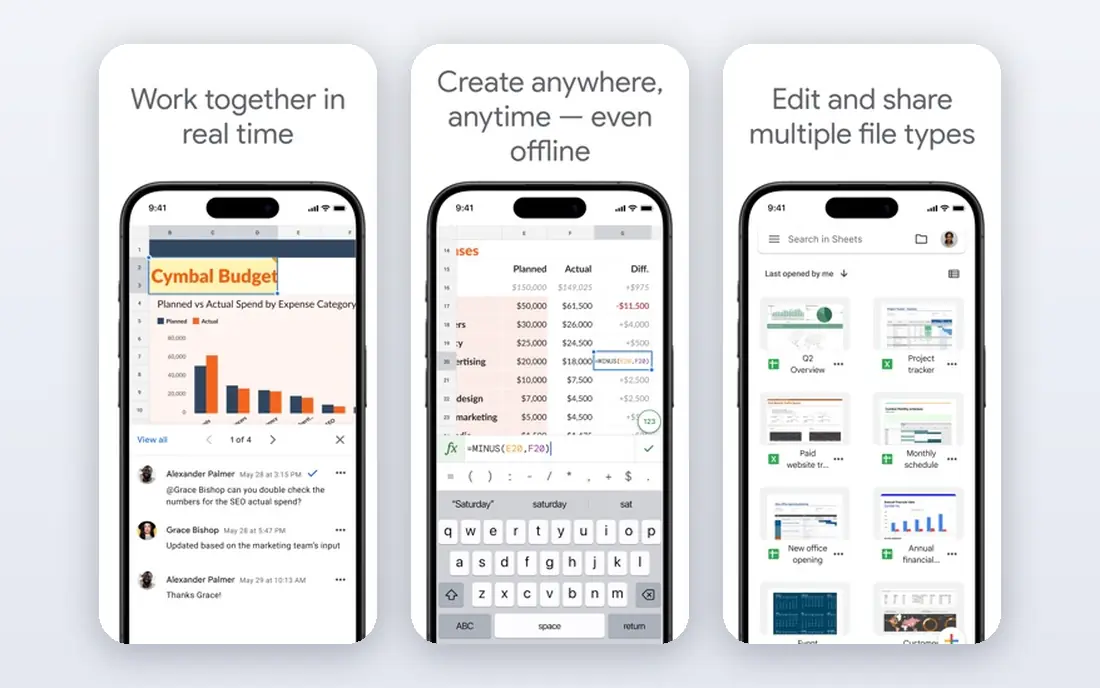
Google Sheets is a strong worksheet tool for maths, data and tracking, because formulas can check answers and give instant feedback. A teacher can build a practice sheet where a correct answer turns a cell green, or where totals update as learners enter values. Sharing and collaboration are simple, and learners can work on the same sheet from different devices.
The design is plain compared with Canva, and print layout needs attention to page setup and print areas. For older learners and for data-led practice, that trade-off is worth it. Sheets also pairs well with Google Forms for a more formal quiz version.
- Free with a Google account
- Formulas can check answers
- Easy sharing and collaboration
- Design is plain for younger learners
- Print layout needs care
Microsoft Excel suits teachers and tutors who need advanced formulas, data validation and print control. A worksheet can check answers, use drop-downs for choices, and track scores across a class with formulas. Its print settings, including page breaks and headers, give more control than a simple web editor.
Full Excel needs a Microsoft 365 subscription, though a free web version exists with fewer features. Excel is less visual than Canva, so it suits maths, data and structured practice more than colourful early-years sheets. For a tutor building reusable, formula-driven practice, it remains a solid pick.
- Powerful formulas and data tools
- Strong print controls
- Widely used in schools and workplaces
- Needs a Microsoft 365 plan for full features
- Design is less visual than Canva
Liveworksheets stands out for interactive work. Upload a PDF or image, add drag-and-drop boxes, multiple-choice questions, fill-in blanks and audio, and learners complete the sheet online with instant marking. That self-marking saves teacher time and gives learners fast feedback.
Shared sheets vary in quality, because the library comes from many teachers, so check a sheet before assigning it. Design control is also lower than Canva, because the focus is on answers, not layout. For remote or hybrid learning, Liveworksheets is one of the most useful tools in this list.
- Turns PDFs into interactive, self-correcting sheets
- Drag-and-drop, choice and fill-in activities
- Large shared library
- Quality of shared sheets varies
- Design control is lower than a design app
WorksheetWorks is a practical generator for teachers who need a printable sheet in minutes. Choose a topic, set numbers, difficulty and layout options, and print a fresh sheet with an answer key. That speed helps when a class needs extra practice on a specific skill, such as multiplication or spelling.
The sheets look plain, and there is no interactive, self-marking online version. WorksheetWorks suits paper practice and homework, rather than a digital classroom. For fast, customisable printables, it is a reliable, free option.
- Free generators for many maths and language topics
- Quick customisation of numbers and difficulty
- Printable output
- Design is plain
- Interactive features are limited
Super Teacher Worksheets offers a large library of ready-made printable sheets across maths, reading, writing and more, with many free samples. Teachers can find a sheet for a specific skill, print it, and use the answer key to mark work quickly. That ready-made range saves planning time.
Customisation is mainly about choosing a sheet, not rebuilding it, and full access needs a paid membership. It suits teachers who want reliable printables fast, rather than a tool for designing a sheet from scratch. Pair it with Canva or Liveworksheets when you need a custom or interactive version.
- Large library of printable worksheets
- Free samples across subjects
- Answer keys included on many sheets
- Full access needs a paid membership
- Customisation is limited to choosing and printing
Twinkl Create lets teachers build custom resources from Twinkl templates, with a large library of classroom materials behind it. A teacher can adapt a template for a topic, age group or theme, then print or share the result. That library depth helps when a sheet needs to match a lesson plan closely.
Full access needs a paid subscription, and pricing varies by plan, so schools should check the current plan that covers Create. Twinkl suits classroom teachers who already use its resources and want custom sheets that sit beside ready-made ones.
- Twinkl Create tool for custom resources
- Large classroom resource library
- Templates for many subjects and ages
- Full access needs a subscription
- Pricing varies by plan and region
Education.com suits parents and teachers of younger learners, with a worksheet generator, guided lessons and games in one place. A parent can generate practice for early maths and reading, then follow it with a game that reinforces the same skill. Progress tracking on paid plans helps adults see where a child needs more practice.
Full generator access needs a paid plan, and the content is aimed mainly at primary ages, so older learners will outgrow it. For early-years practice at home or in a classroom, its mix of worksheets, lessons and games is a useful package.
- Worksheet generator for early learning
- Guided lessons and games beside worksheets
- Progress tracking on paid plans
- Full generator access needs a paid plan
- Aimed mainly at younger learners
How we picked these
We compared official sites for tools that let a user change worksheet content, layout or difficulty, rather than only download a fixed sheet. We kept design tools, spreadsheet tools and generators, because a teacher needs different tools for print, interactive and data-led work. We used See website where a vendor prices by plan or subscription, rather than inventing a figure.
How to choose a worksheet app
Start with how learners will complete the sheet. Print work needs a design tool or a printable generator. Online work needs an interactive tool with marking. Data work needs a spreadsheet with formulas. Choosing the format first narrows the list faster than comparing every feature.
Match the tool to the age group
Younger learners need large text, clear images and simple tasks, which Canva, Education.com and Super Teacher Worksheets handle well. Older learners can use Sheets, Excel and Liveworksheets for structured practice and instant feedback. A tool that fits the age group will get used, while a tool that feels too young or too complex will sit unused.
Check printing, sharing and marking
Check whether a sheet prints cleanly, shares easily with learners, and marks answers if you need that feature. A beautiful sheet that prints badly, or an interactive sheet that cannot be shared with your class system, will cause friction. Test one sheet end to end, from creation to learner completion, before building a full set.
Keep a reusable template set
Build a small set of templates for your most common sheet types, such as maths practice, spelling, reading questions and data tables. Reusing a template saves time and keeps sheets consistent for learners. Store the templates where your team can find them, and update them when a topic or layout stops working.
Frequently asked questions
What is the best customizable worksheet app?
For most teachers, Canva is the best all-round pick for visual, printable worksheets, while Liveworksheets is best for interactive, self-marking sheets. Google Sheets is best for maths and data practice with formulas. The best choice depends on whether you need print, interactive answers, or both.
Can I make worksheets for free?
Yes. Canva, Adobe Express, Google Sheets, Liveworksheets and WorksheetWorks all offer free tiers that cover basic worksheet creation. Paid plans add more templates, features or full library access, but a teacher can build useful sheets without paying.
Which app is best for interactive worksheets?
Liveworksheets is the strongest pick for interactive worksheets, because it turns a PDF into a self-correcting online sheet with drag-and-drop, choice and fill-in activities. Google Sheets also works for interactive maths practice, using formulas to check answers.
Do these apps work for homeschooling?
Yes. Parents can use Canva for visual sheets, Liveworksheets for self-marking practice, and Education.com for younger learners. A mix often works best: a design tool for print, an interactive tool for online practice, and a spreadsheet for tracking progress.
How do I print a worksheet cleanly?
Download as PDF where possible, check page setup and print preview, and test one copy before printing a class set. In Sheets or Excel, set print areas and page breaks first. In Canva or Adobe Express, use a standard page size and keep text away from the edges.
Sources
See where you really rank - block by block
ProMapRanker scans Google Maps across a grid of your service area. Simple monthly plans from $19, white-label on every plan.
Start freeKeep reading
 zyte alternatives
Best Zyte Alternatives in 2026
These zyte alternatives cover managed scraping APIs, proxy networks and no code tools for lawful collection from your own or consented sources only in 2026.
Read → zerto alternatives
Best Zerto Alternatives in 2026
Compare the best zerto alternatives for disaster recovery and replication, with recovery targets, cloud options and honest trade-offs for teams in 2026.
Read → zerofox alternatives
Best ZeroFox Alternatives in 2026
We compared 9 zerofox alternatives for brand protection, phishing takedowns, dark web monitoring, and social impersonation, with clear coverage notes.
Read →