 ProMapRanker
What Is the Best Animation Maker App in 2026

Key takeaways
- Frame-by-frame apps suit drawing and character work, while template apps suit fast marketing and explainer videos.
- A free plan is enough to learn timing and basic motion, but exports, watermarks, and asset limits often sit behind paid tiers.
- Mobile apps favor short clips and practice, while desktop tools handle longer projects and finer control.
- Pick by output first: a social clip, a lesson, and a product video need different tools, timelines, and exports.
Quick comparison
| Pick | Great for | Pricing starts at | Free tier | |
|---|---|---|---|---|
 FlipaClip | Frame-by-frame mobile animation | Free | Yes | Visit |
 Animaker | Template explainer videos | See website | Yes | Visit |
 Powtoon | Business and classroom videos | See website | Yes | Visit |
 Canva | Fast animated designs | Free | Yes | Visit |
 Adobe Express | Quick social animation | Free | Yes | Visit |
 Alight Motion | Mobile motion graphics | See website | Yes | Visit |
 Stop Motion Studio | Stop motion projects | See website | Yes | Visit |
 Pencil2D | Free hand-drawn animation | Free | Yes | Visit |
 Blender | 3D animation and motion work | Free | Yes | Visit |
The best animation maker apps
Animation covers many styles, so this list mixes drawing apps, motion graphics tools, and template video makers. The right pick depends on whether you draw each frame, animate shapes and text, or build from ready-made scenes.
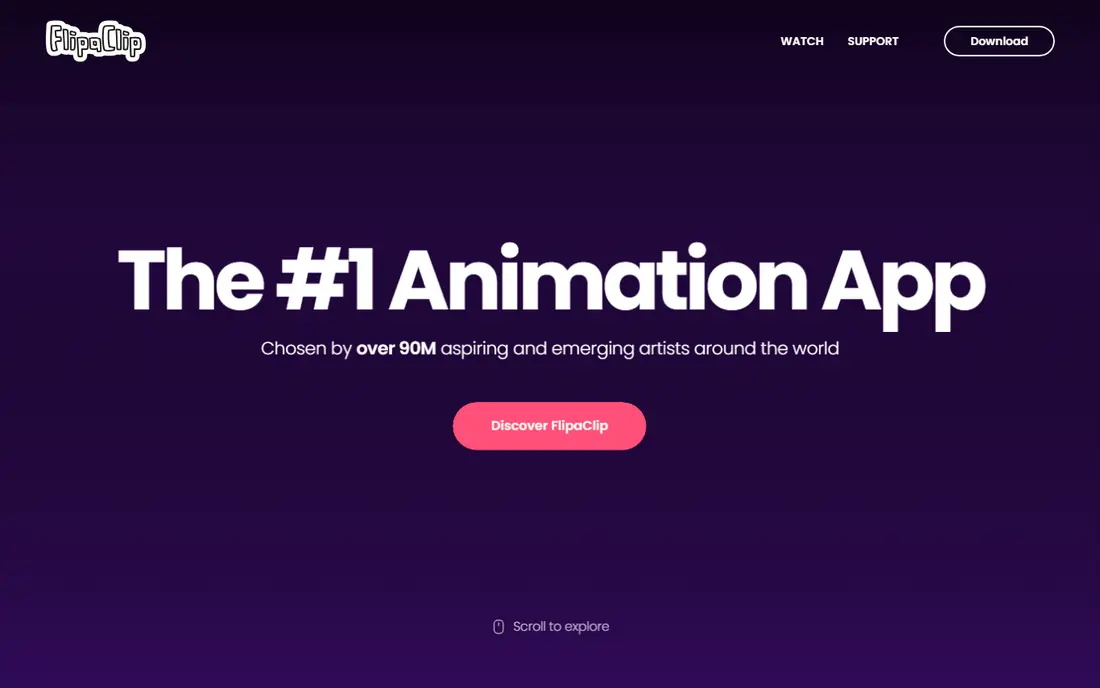
FlipaClip is the best place to start if you want to draw animation yourself. The app shows faint versions of nearby frames, so you can judge movement as you draw, and layers help separate a character from a background. Audio import lets you time motion to sound, and exports to GIF and MP4 suit social sharing.
The limit is project size. Short clips and practice pieces feel smooth, but a long story with many scenes is easier to manage on a desktop tool with stronger asset controls. Start free, and pay only if you hit a layer or tool limit that matters to your work.
- Onion skinning and layers for hand-drawn motion
- Audio import
- Exports to GIF and MP4
- Larger projects are harder to organize than on desktop tools
- Premium layers and tools sit behind a subscription
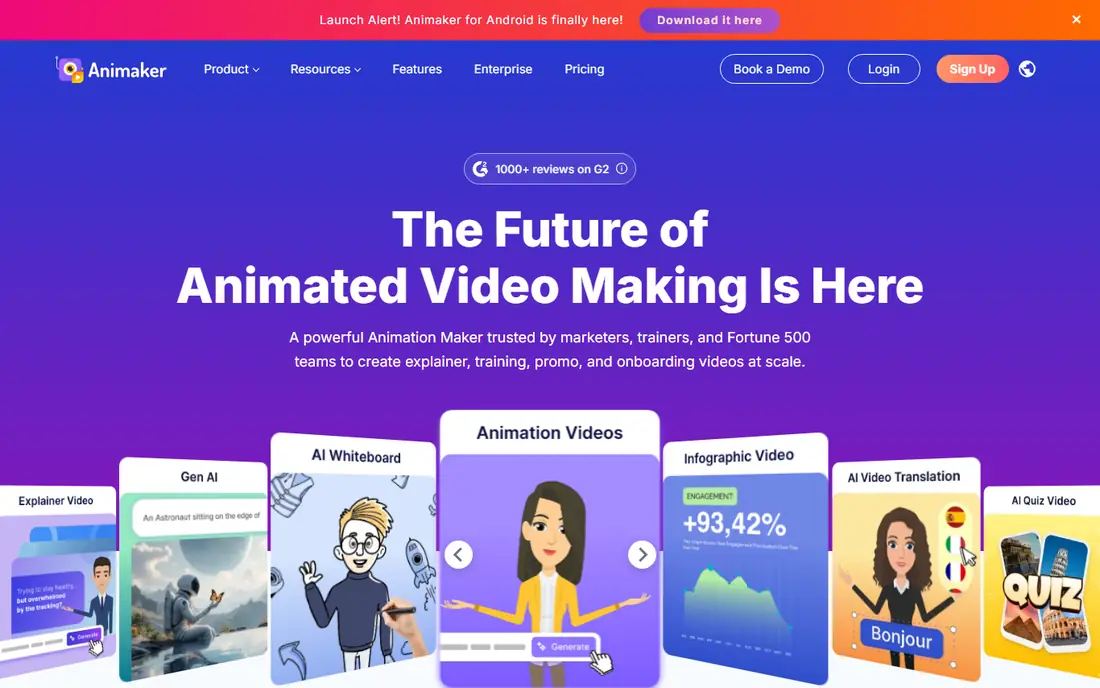
Animaker suits a creator who needs a polished explainer without drawing every frame. Characters, scenes, music, and text tools let a small team build a lesson, a product video, or a social clip in a browser. The template approach speeds up the first draft, and the library covers many common business topics.
The catch is export limits. The free plan restricts downloads and quality, so a video meant for a website or client work will likely need a paid tier. Check the current plan page for download counts and watermark rules before starting a large project.
- Large template and character library
- Whiteboard and explainer styles
- Browser-based editing
- Free exports carry limits and watermark rules
- Longer videos need a paid plan
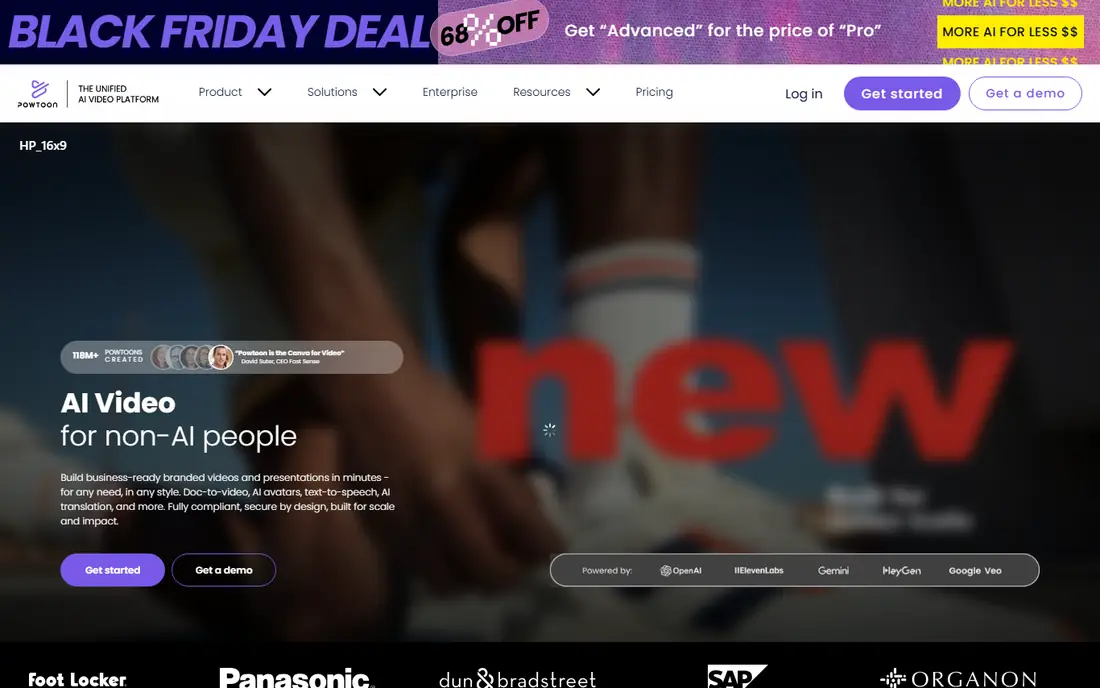
Powtoon is a practical pick for teachers, trainers, and small teams that need clear animated presentations. The app offers characters, props, and scenes that can be arranged on a simple timeline, with voice and music options for narration. That structure helps a beginner finish a video without learning a full animation pipeline.
The downside is sameness. Template-driven videos can look alike unless you adjust colors, text, and pacing with care. Free exports also carry limits, so budget for a paid plan if videos will carry a company brand.
- Character and presentation templates
- Simple timeline
- Good for lessons and internal videos
- Free plan has branding and export limits
- Style can feel template-driven
Canva is the fastest route to animated social posts, slides, and short clips. A user can start from a template, add text and images, apply motion, and export a video or GIF in minutes. For a small business that needs regular content, that speed matters more than frame-level control.
The limit is depth. Canva does not offer the drawing, rigging, or timeline control of a dedicated animation app, so complex character work belongs elsewhere. Use Canva for design-led animation, and pair it with a drawing app for hand-made motion.
- Huge template library
- Animation for posts, slides, and short videos
- Easy sharing
- Motion control is basic compared with dedicated animation tools
- Some assets need a paid plan
Adobe Express suits a creator who already uses Adobe tools or wants clean social templates. The app makes it easy to animate text and images, resize for different platforms, and keep a consistent look across posts. A free plan covers many basic needs for personal and small business content.
The trade-off is control. Adobe Express favors speed and templates over detailed keyframes and character rigging, so a longer animated story will feel constrained. Check which templates and stock assets sit behind the paid plan before promising a client a specific look.
- Templates for social video and posts
- Simple animation tools
- Brand kits on paid plans
- Advanced animation controls are limited
- Some templates and assets need a subscription
Alight Motion brings motion graphics to a phone or tablet with real keyframe control. Creators can animate vector shapes, text, and video clips, add effects, and build presets for repeat use. That depth makes it a strong pick for social editors who want more than a one-tap filter.
The honest catch is learning time. Keyframes, easing, and masking take practice, and the small screen makes long timelines fiddly. Free exports carry a watermark, so a creator who posts client work should check the paid option.
- Keyframes, vector graphics, and effects on mobile
- Good for edits and motion posts
- Preset library
- Learning curve for keyframe work
- Free exports carry a watermark
Stop Motion Studio is the right tool for animating toys, clay, paper, and products one frame at a time. The app captures frames from a phone camera, shows the previous frame faintly for alignment, and adds audio, titles, and basic editing. That setup suits classrooms, hobby projects, and product demos with a handmade feel.
The limit is not the app alone. Good stop motion needs steady lighting, a stable camera, and patience, since each second needs many frames. Some export and editing features sit behind a paid upgrade, so check the current plan before a class or client project.
- Onion skinning and frame capture for physical animation
- Audio and titles
- Works with phone cameras
- Physical setup and lighting matter as much as the app
- Some export and editing tools need a paid upgrade
Pencil2D is a genuine free option for hand-drawn animation on desktop. It supports bitmap and vector drawing, onion skinning, and a simple timeline, which covers the basics of timing and spacing without a subscription. For a student or hobbyist, that free access removes the cost barrier to learning.
The weakness is polish. Pencil2D lacks the effects, asset libraries, and export options of commercial tools, and the interface feels plain for a long project. Use it to learn and to make short films, and move to a larger tool only when a project outgrows it.
- Free and open source
- Bitmap and vector drawing
- Simple timeline for beginners
- Fewer effects and assets than commercial tools
- Interface feels basic for large projects
Blender is the most powerful free tool on this list, covering 3D modeling, rigging, animation, and rendering in one program. It suits a creator who wants to move beyond 2D templates into 3D characters, product shots, or motion graphics with depth. The community offers tutorials for almost every step.
The catch is time. Blender takes weeks of practice to use well, and complex scenes need a capable computer. A beginner who wants a quick social clip should start with a template or mobile app, and keep Blender for a longer-term skill.
- Free and open source
- Full 3D animation, rigging, and rendering
- Huge community and tutorials
- Steep learning curve
- Needs a capable computer for complex scenes
How we picked these
We compared official feature pages, pricing pages, app store listings, and public reviews for animation tools that are currently available in 2026. We favored tools with a clear free entry, a distinct animation style, and exports that suit real sharing, from GIF and MP4 to social video. We avoided tools that have closed, and we marked prices as See website where the vendor does not publish a simple starting price.
How to choose the right animation style
Start with the output you need. A short social clip favors a mobile or template tool, while a hand-drawn short favors a frame-by-frame app. A training video favors templates and characters, while a product demo may favor motion graphics or stop motion. Naming the output first prevents buying a powerful tool for a simple job.
Next, test the timeline. Draw or animate a ten-second test, add sound, and export it in the format you will actually use. That test reveals watermark rules, export limits, and learning time faster than any feature list. If the test feels slow or confusing, try a simpler tool before committing to a subscription.
Finally, check asset rights. Templates, music, and characters may carry limits for commercial use, especially on free plans. Read the license for client work, and keep a note of which assets are free for the use you have in mind.
Frequently asked questions
What is the best animation maker app for beginners?
FlipaClip is a strong start for drawing, while Canva and Adobe Express suit fast template animation. A beginner should pick by style: draw if you enjoy sketching, or use templates if you need a finished video quickly. A short test project shows which workflow feels natural.
Can I make animation for free?
Yes, for learning and short personal projects. FlipaClip, Pencil2D, and Blender offer free access, and several template tools offer free plans. Free plans often limit exports, add watermarks, or restrict assets, so check those rules before client work.
What is the best animation maker app for social media?
Canva, Adobe Express, and Alight Motion cover most social needs, from animated posts to motion edits. FlipaClip suits hand-drawn clips, while Animaker and Powtoon suit longer explainers. Match the tool to clip length and style, not just to popularity.
Do I need drawing skill to make animation?
No, for template and motion graphics tools. Characters, scenes, and presets let a non-artist build a clear video. Drawing skill helps for frame-by-frame and character work, but it is not required for explainer, whiteboard, or text-based animation.
What format should I export animation in?
MP4 suits most social and website use, while GIF suits short loops and messages. Check the platform you will post to, since size, length, and aspect ratio rules differ. Export a test file early, so a watermark or size limit does not surprise you at the end.
Sources
See where you really rank - block by block
ProMapRanker scans Google Maps across a grid of your service area. Simple monthly plans from $19, white-label on every plan.
Start freeKeep reading
 worlds best local seo company
8 Worlds Best Local SEO Companies for Map Pack Growth in 2026
Compare the worlds best local seo company options for Google Business Profile work, citations, reviews, and multi-location rankings and reporting in 2026.
Read → world's best web hosting company
World's Best Web Hosting Company in 2026
Searching for the world's best web hosting company? We compared 10 hosts on price, renewal rates, speed, and support to help you choose well today in 2026.
Read → who's got the best nanny tax services
Who's Got the Best Nanny Tax Services in 2026
We answer who's got the best nanny tax services, comparing full filing, back taxes, software, and pricing so families can handle nanny taxes correctly.
Read →