 ProMapRanker
Best Veed Alternatives in 2026

Key takeaways
- Kapwing is the closest browser-based match for teams that edit together online.
- Clipchamp is our pick for simple edits with no watermark on free exports up to 1080p.
- Descript suits podcasters and interview editors who prefer cutting by transcript text.
- CapCut is best for short-form social video, especially when editing on a phone.
- Check export limits, caption credits, and watermark rules before you pay, since they differ sharply between free plans.
Quick comparison
| Pick | Great for | Pricing starts at | Free tier | |
|---|---|---|---|---|
 Kapwing | Teams editing together in a browser | $16 per month | Yes | Visit |
 Clipchamp | Simple edits with clean free exports | Free | Yes | Visit |
 CapCut | Short-form video on phone and web | Free | Yes | Visit |
 Descript | Editing interviews and podcasts by transcript | $16 per month | Yes | Visit |
 Canva | Branded video inside a design suite | Free | Yes | Visit |
 Adobe Express | Quick branded clips for small teams | Free | Yes | Visit |
 InVideo | Template-led marketing video at scale | See website | Yes | Visit |
 Opus Clip | Turning long videos into short clips | $15 per month | Yes | Visit |
 DaVinci Resolve | Professional editing without a subscription | Free | Yes | Visit |
The best veed alternatives
VEED is a browser editor known for captions, translation, and AI tools in one place. The alternatives below cover the same ground from different angles: browser teamwork, phone editing, transcript cutting, and professional desktop work. We compared official pricing pages, feature pages, and app listings, and we focused on what free plans actually allow you to export.
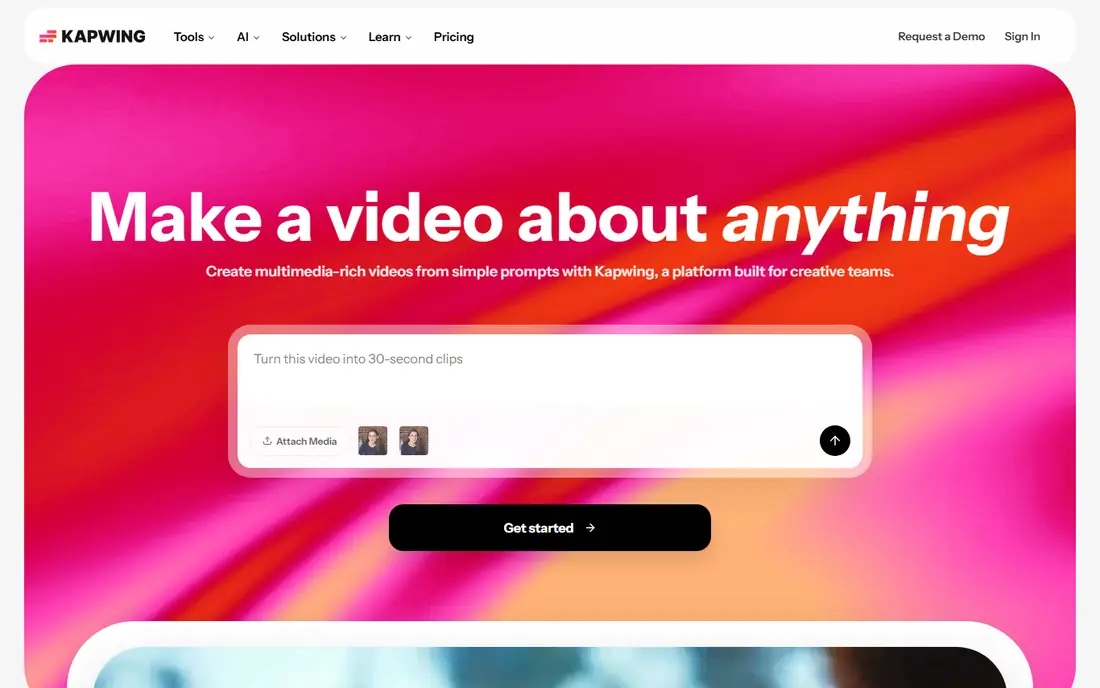
Kapwing feels closest to VEED for a small team that lives in the browser. Multiple people can work on the same project, add subtitles, resize for different social formats, and share a link for review without installing desktop software. Its template and stock library help when a post needs to go out the same day and there is no time to build from scratch.
The free plan is useful for testing, but exports carry a watermark and are capped in length and resolution, so it is not a long-term free solution for published work. Paid plans remove those limits in part, but credit metering still needs checking if you edit a lot of AI-assisted video. Try a real project on the free plan first, then decide if the paid tier matches your monthly output.
- Browser editing with collaboration
- Subtitle and resizing tools
- Templates for social formats
- Free plan exports are watermarked and limited in length and resolution
- Credit limits apply on paid plans

Clipchamp wins on simplicity and on its free tier. You can cut clips, add text, and export up to 1080p without a watermark on the free plan, which is rare among browser editors. Its integration with Windows and Microsoft 365 makes it a natural choice if you already use those products, and beginners can learn the timeline quickly.
Advanced editors will hit limits sooner. Colour work, complex audio, and detailed effects are thinner here than in a desktop editor, and premium features arrive through a Microsoft 365 subscription rather than a standalone Clipchamp price. If your work is short social clips, explainers, and internal updates, those limits may never matter. If you need deeper control, keep a desktop editor in reserve.
- Free exports up to 1080p without a watermark
- Easy timeline for beginners
- Microsoft 365 integration
- Premium features are bundled with Microsoft 365
- Advanced editing depth is limited
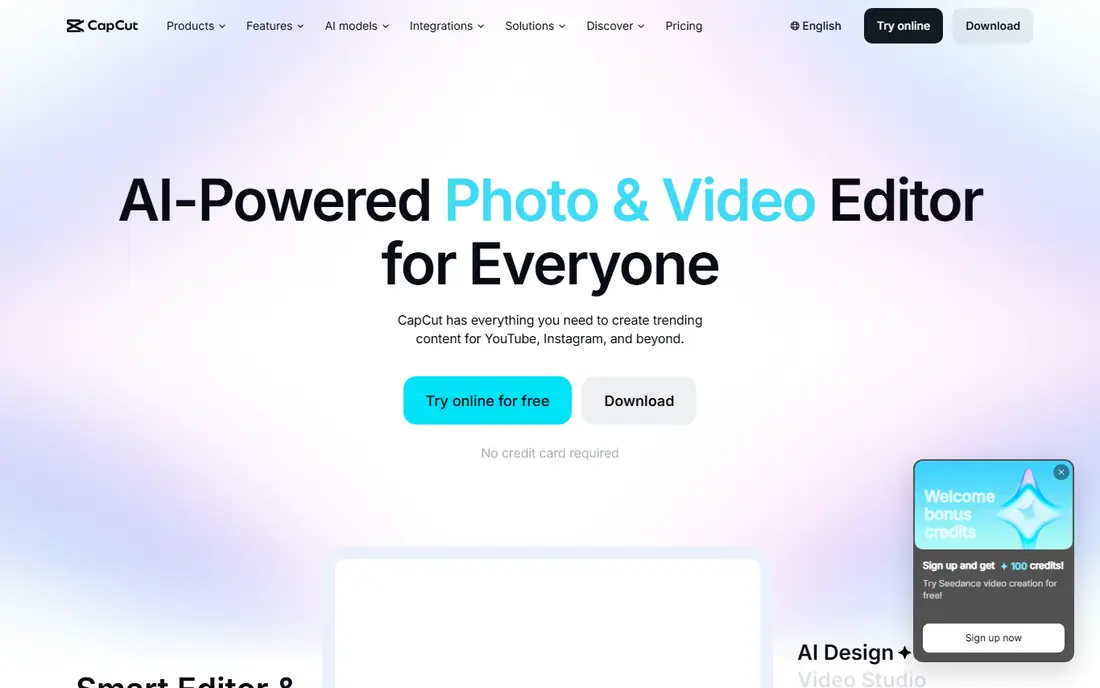
CapCut is built for the pace of short-form video. Templates, trending effects, auto captions, and music tools help turn a raw phone clip into a post-ready vertical video fast. Editing on a phone matters here, because many creators shoot, cut, and publish from the same device, and CapCut keeps that loop short.
The free tier covers a lot of everyday editing, but Pro pricing varies by region and platform, so check the price inside your app or account before budgeting. Some effects and higher-quality exports need Pro, and teams that need brand controls may find Canva or Kapwing a better fit. For solo creators focused on Reels, Shorts, and TikTok, CapCut is hard to beat for speed.
- Large template and effects library
- Phone, desktop, and web editing
- Strong short-form workflow
- Pro pricing varies by region and device
- Some popular effects sit behind Pro
Descript changes the editing job for spoken content. You edit the transcript, and the video follows, so cutting ums, pauses, and whole answers feels like editing a document. That approach is a major time saver for podcasts, interviews, webinars, and talking-head videos where the words carry the content. Studio sound tools can clean up room noise without a separate audio app.
The pricing model needs attention, because media hours and AI credits are metered separately and both can be topped up. Heavy users should model a typical month before subscribing. Visual editing is also less deep than in CapCut or DaVinci Resolve, so Descript works best as a spoken-content editor rather than an effects-heavy production tool.
- Edit video by editing text
- Filler-word removal and studio sound tools
- Good for long spoken content
- Two separate meters for media hours and AI credits
- Visual effects are thinner than in a timeline editor
Canva suits teams whose video lives inside a wider brand system. If your social graphics, decks, and documents already use Canva brand kits, video made in the same account stays consistent without extra file handling. Templates cover announcements, promos, and short explainers, and sharing a design for comment is straightforward.
Timeline editing is basic compared with Kapwing or Descript, so long or complex edits will feel constrained. The Pro plan is best value on an annual basis, which matters if you only need video for a short campaign. For marketing teams that value consistency over editing depth, Canva is a practical VEED replacement.
- Templates and brand kits
- Easy team sharing
- Video sits beside graphics and presentations
- Timeline control is basic
- Paid plan is priced annually for the best rate
Adobe Express offers a fast route to a clean, branded clip without learning a full professional editor. Templates, brand colours, fonts, and stock assets help a small business produce social video that looks consistent, and the mobile app covers quick edits away from a desk. It also sits well beside other Adobe tools if your team already uses them.
It is not a substitute for Premiere Pro or DaVinci Resolve for detailed work. Multi-track control, colour grading, and audio mixing are limited, and the best assets sit on paid plans. Use Adobe Express when speed and brand consistency matter more than fine editing control, and keep expectations matched to a template-led tool.
- Templates and brand tools
- Adobe stock and fonts
- Simple web and mobile editing
- Editing depth is limited next to Premiere
- Some assets and features need a paid plan
InVideo is aimed at marketers who need many videos from scripts, articles, or product pages. Its template library and text-to-video flow turn written content into a narrated video faster than starting from a blank timeline. Stock clips, music, and voice options help when you have no original footage for a topic.
Free exports are watermarked, so published work will need a paid plan in most cases. Credit and export limits vary by plan, so count how many videos you expect to publish each month before choosing a tier. For teams producing regular promo, explainer, and social videos from templates, InVideo offers a clear, repeatable workflow.
- Large template library
- Text-to-video workflows
- Stock media included on paid plans
- Free exports carry a watermark
- Pricing and credit limits need checking for your volume
Opus Clip solves a different problem from a general editor: it takes one long video and suggests short clips for Shorts, TikTok, and Reels. Automatic captions, vertical reframing, and hook suggestions reduce the manual work of repurposing a podcast or webinar. Paid plans add posting options that shorten the path from long video to published clip.
The results still need review. Automated cuts can miss context, misjudge tone, or pick a moment that works out of context, so treat Opus Clip as a first draft tool, not a publisher. Credit use is tied to source minutes, so a very long source video costs more than a short one. Pair it with a general editor for final polish.
- Finds clip-worthy moments automatically
- Captions and reframing for vertical video
- Direct posting options on paid plans
- Output needs human review for accuracy and tone
- Credit use depends on source video length
DaVinci Resolve is the outlier here because it is a desktop professional editor, not a browser tool. Its free version includes colour grading, audio mixing, effects, and editing tools that rival paid software, which makes it a strong choice for creators who want full control and no monthly fee. The paid Studio version is a one-time purchase, not a subscription.
That power comes with a learning curve and hardware demands. Beginners may find the interface crowded, and older computers can struggle with high-resolution footage. If you are willing to learn it, DaVinci Resolve removes the export, watermark, and credit limits that shape most free browser editors. Keep a browser editor for quick social cuts, and use Resolve when quality and control matter most.
- Professional colour, audio, and effects tools
- Free version is unusually complete
- One-time Studio option
- Steep learning curve
- Needs a capable computer for smooth editing
How we picked these
We compared official pricing and feature pages for browser editors, phone editors, and one desktop editor that covers the same video jobs as VEED. We kept only tools that are live and available to new users in October 2026, and we checked free plan limits for watermarks, resolution, and export caps. We did not claim hands-on testing. Instead, we weighed published limits, collaboration features, and the type of video each tool handles best.
What to check before you switch
Start by naming the video you make most often. A transcript editor will not help a trend-led short-form creator, and a template tool will frustrate someone cutting a long interview. Run the same real project through two free plans: check caption accuracy, export quality, and how long the edit actually takes, not just how the demo looks.
Then read the metering. Some tools charge by seats, some by credits, and some by media hours, and the cheapest headline price can become the most expensive at your volume. Check watermark rules, export resolution, brand kit access, and whether your team can comment and share without extra seats. If captions or translation are central to your work, test those features on your own audio before you pay.
Frequently asked questions
What is the best free Veed alternative?
Clipchamp is the strongest free option for simple edits, because free exports go up to 1080p without a watermark. CapCut and DaVinci Resolve also offer strong free tiers, with CapCut favouring short-form work and Resolve favouring detailed desktop editing.
Which Veed alternative is best for teams?
Kapwing is the closest team match, with browser collaboration and shared projects. Canva also works well for marketing teams that already manage brand assets in Canva, while Clipchamp suits teams already on Microsoft 365.
Which Veed alternative is best for captions?
Descript is best when captions come from spoken content you need to edit, since you cut by transcript. Kapwing, CapCut, and Opus Clip also offer strong auto-caption tools for social video, so test accuracy on your own voice and accent.
Can I edit video without installing software?
Yes. Kapwing, Clipchamp, Canva, Adobe Express, InVideo, and Opus Clip all run in a browser. DaVinci Resolve and some CapCut features need a desktop or mobile app, so check your device before choosing.
Is CapCut a good Veed alternative?
Yes, for short-form social video. CapCut offers templates, effects, and phone editing that VEED does not match for speed. It is less suited to team brand control or long transcript-based edits.
Do these alternatives support AI video tools?
Many do, including text-to-video, auto captions, and clip generation, but limits and credits differ. Check whether AI features are included in the plan you intend to buy, since some are add-ons or credit-metered.
Sources
See where you really rank - block by block
ProMapRanker scans Google Maps across a grid of your service area. Simple monthly plans from $19, white-label on every plan.
Start freeKeep reading
 zscaler alternatives
Best Zscaler Alternatives in 2026
Looking for zscaler alternatives? We compare 9 SASE and zero trust platforms on architecture, data protection, pricing, and fit for your network and team.
Read → zapier alternatives free
Best Zapier Alternatives Free in 2026
Nine automation tools for zapier alternatives free in 2026, all with genuinely free tiers, plus free plan limits, starting prices and upgrade paths explained.
Read → which platform is best for online reputation
Which Platform Is Best for Online Reputation in 2026
Wondering which platform is best for online reputation? We compare 8 review, listing, and response tools for small and multi-location businesses and agencies.
Read →