 ProMapRanker
Top PNG Creator Software in 2026

Key takeaways
- Canva and Adobe Express suit beginners who need fast transparent PNG exports without learning a full photo editor.
- Photopea and GIMP give the most control for free, including layers, selections, and detailed background removal.
- The best png creator software depends on whether you need quick social graphics or precise design work.
- Check export settings for transparency, size, and background before you choose, because not every editor handles alpha channels the same way.
- Free plans can produce good PNG files, but paid tiers usually remove limits on size, exports, and stock assets.
Quick comparison
| Pick | Great for | Pricing starts at | Free tier | |
|---|---|---|---|---|
 Canva | Quick social graphics | Free | Yes | Visit |
 Adobe Express | Fast branded graphics | Free | Yes | Visit |
 Photopea | Free browser editing | Free | Yes | Visit |
 GIMP | Advanced free editing | Free | Yes | Visit |
 Affinity Photo | Professional photo editing | See website | Free trial | Visit |
 Pixlr | Fast online edits | Free | Yes | Visit |
 Fotor | Simple photo graphics | Free | Yes | Visit |
 Snappa | Fast marketing graphics | See website | Yes | Visit |
 Paint.NET | Simple Windows editing | Free | Yes | Visit |
The best png creator software
A PNG file is useful because it supports transparency, which lets a logo sit cleanly on any background. The tools below create PNG files in different ways, from template based design apps to full photo editors with layer and mask controls. We compared official feature pages and pricing, and we focused on transparent export, editing control, and ease of use for ordinary users as well as designers.
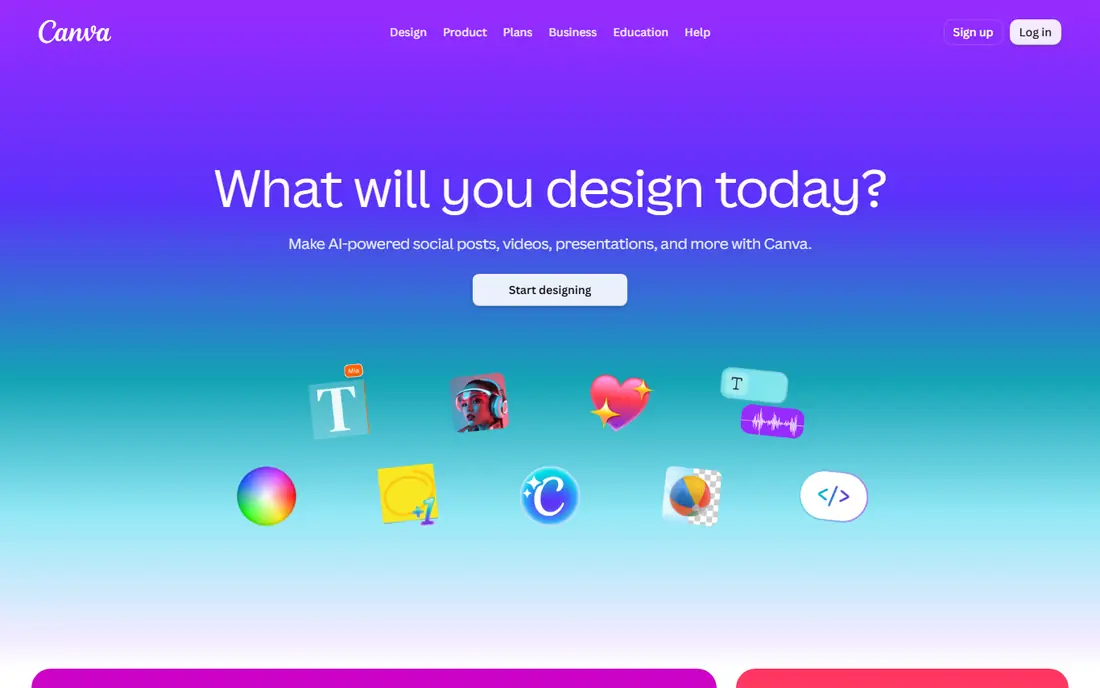
Canva is the easiest starting point for most people who need a PNG logo, icon, or social graphic. Templates cover posts, presentations, and print, and text, shapes, and images can be arranged by dragging elements on a canvas. Exporting with a transparent background is straightforward once you have the right plan, which makes Canva practical for small business branding.
The limit is control. Canva is not a full photo editor, so detailed retouching, complex selections, and precise masking are harder than in Photopea or GIMP. Free users also face limits on transparent export and premium assets. For fast, clean graphics that look professional without design training, Canva remains a strong first choice.
- Large template library
- Background remover on paid plans
- Transparent PNG export available
- Transparent export needs a paid plan
- Advanced photo editing is limited
- Designs can look similar across templates
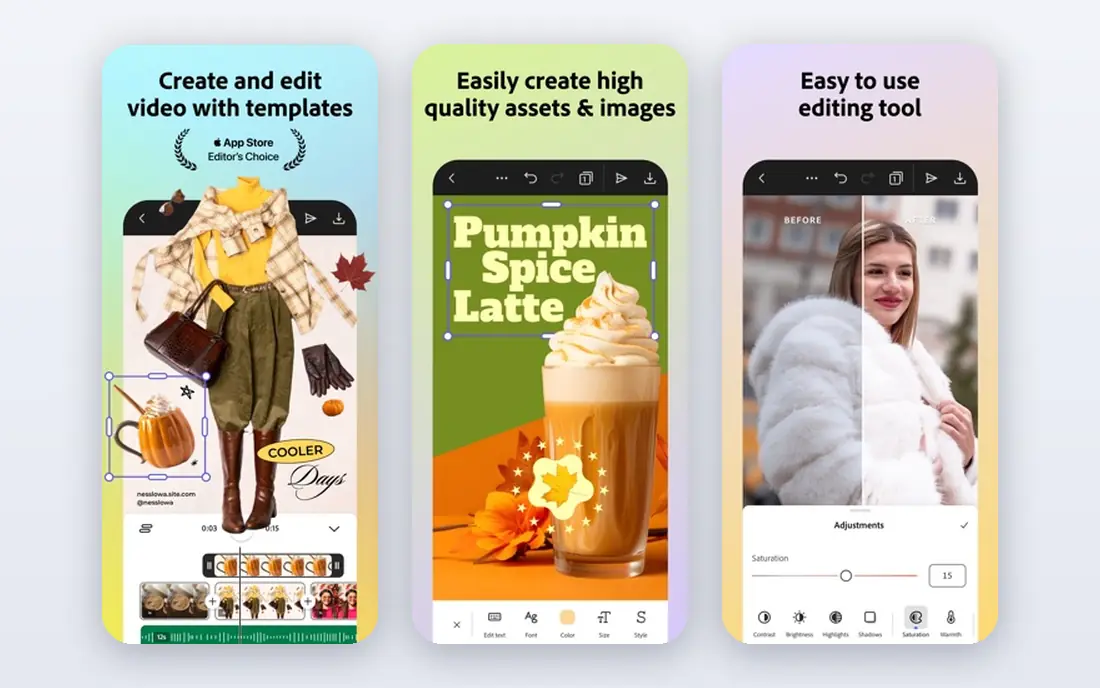
Adobe Express suits users who want Adobe quality templates without learning Photoshop. It handles social posts, flyers, and simple logos, and brand kits help keep colors and fonts consistent. Background removal and transparent export support the common need for a logo that works on light and dark backgrounds.
The trade off is similar to Canva. Express is built for speed, not for detailed image work. Users who need layered photo compositing or precise cutouts will outgrow it. For marketing teams that already use Adobe tools, Express fits well as a fast production tool beside a full editor.
- Templates and brand kits
- Background removal tools
- Integration with Adobe stock and fonts
- Transparent export and premium features need a paid plan
- Editing depth is below Photoshop
- Some assets are paid only
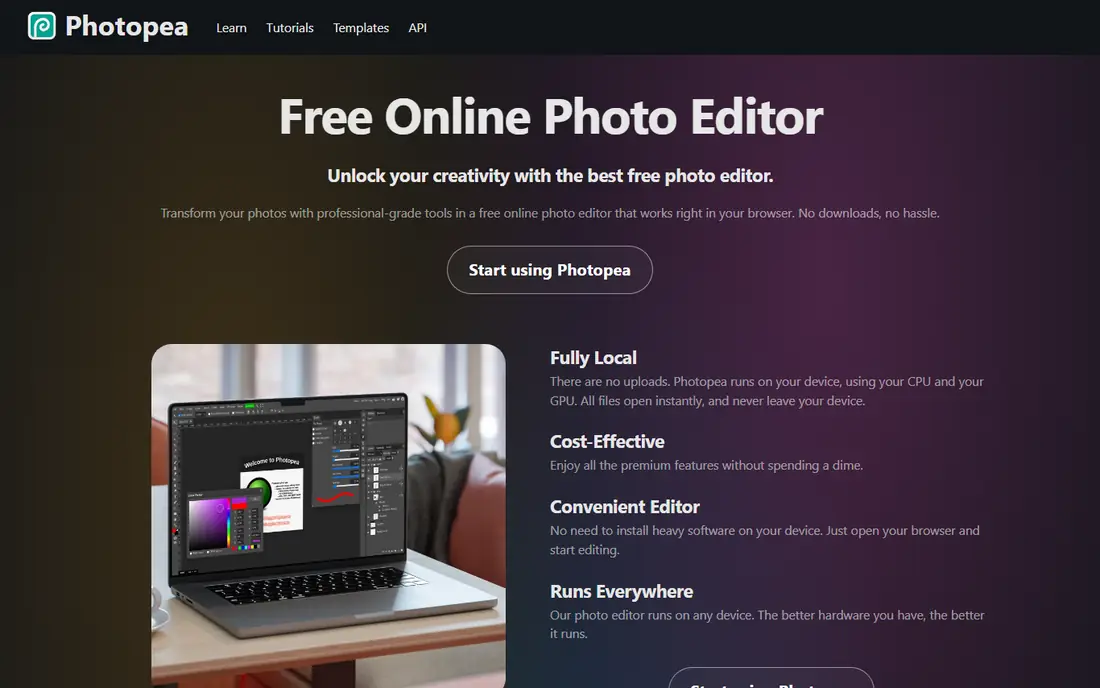
Photopea is remarkable because it offers Photoshop style editing in a browser for free. Layers, masks, selections, and adjustment tools let users build a PNG from scratch or cut out a subject with care. It also opens PSD, XCF, and other common design files, which helps when a designer hands over source files.
The free version shows ads, and very large files can feel slower than a desktop editor. Photopea also needs an internet connection for the web version, which may not suit every workflow. For students, freelancers, and small teams that need real editing power without a subscription, it is one of the best free options available.
- Runs in a browser with no install
- Supports layers, masks, and PSD files
- Transparent PNG export is included
- Ads on the free version
- Performance depends on browser and file size
- No native desktop app for offline work
GIMP has been a free alternative to paid photo editors for many years, and it remains a serious tool for PNG creation. It handles layers, masks, paths, and color tools with precision, and PNG export gives control over transparency and compression. Users can build logos, icons, and illustrations from scratch, or refine photos for web use.
Beginners may find the interface less friendly than Canva or Photopea, and setup takes time. GIMP also lacks the template libraries that make template tools so fast. For users who want full control, no subscription, and a tool that runs offline on major desktop systems, GIMP is hard to beat.
- Full layer, mask, and selection tools
- Transparent PNG export with control over compression
- Large plugin and script community
- Interface can feel dated and complex
- Learning curve for beginners
- No official cloud or template library
Affinity Photo suits designers who want professional editing without an ongoing subscription. It offers layered editing, retouching, and color tools that handle logo work, product images, and illustrations well. PNG export supports transparency and high quality output for web and print use.
The cost is a one time purchase model that varies by platform and version, so check the current price on the vendor site before buying. Affinity Photo also lacks the instant templates of Canva, which means users need more design skill to start from a blank canvas. For serious editors who dislike subscriptions, it is a strong middle ground between free tools and premium suites.
- Professional editing tools without a subscription model
- Strong layer and retouching features
- Good PNG export control
- No permanent free plan
- Smaller template library than Canva
- Learning curve for new users
Pixlr suits users who want a quick online editor that sits between template tools and full photo editors. It offers layers, filters, and AI assisted tools, including background removal, in a browser interface that is easier to learn than GIMP. Social templates help with fast posts and banners.
Free users face ads and some limits, and the most advanced tools sit behind paid plans. Pixlr is not the best choice for complex compositing or print precise work. For quick PNG graphics, profile images, and social content, it offers a good balance of speed and control.
- Browser based editing with AI tools
- Quick background removal options
- Templates for social graphics
- Free version has ads and limits
- Advanced editing is lighter than GIMP
- Some tools need a paid plan
Fotor works well for users who mainly edit photos and turn them into PNG graphics for web use. It combines photo enhancement, collage tools, and simple design templates in one place. Batch editing helps when a seller or marketer needs to prepare many product images at once.
Designers who need precise layer and mask work will find Fotor limited. It is better for enhancement and simple graphics than for building a logo from scratch with full vector control. For small businesses that need clean product PNG files quickly, Fotor is a practical low cost option.
- Easy photo editing and design templates
- Background remover tools
- Batch editing for multiple images
- Advanced layer control is limited
- Premium features need a paid plan
- Output quality varies by plan
Snappa is built for marketers who need a graphic in minutes, not hours. The editor is simple, templates cover common social sizes, and stock images reduce the need to source photos elsewhere. Transparent PNG export helps with logos and overlays for ads and posts.
The free plan limits how many downloads a user can make, so regular users will need a paid plan. Snappa also lacks the detailed editing tools of Photopea or GIMP. For a small team that produces a steady stream of social graphics and values speed over fine control, it is an efficient choice.
- Simple editor for marketing images
- Stock photos and templates included
- Transparent PNG export on suitable plans
- Free plan limits downloads
- Editing depth is below photo editors
- Template style can feel generic
Paint.NET suits Windows users who want a free, simple editor that goes beyond basic paint apps. It supports layers, effects, and plugins, and it can produce transparent PNG files for icons, logos, and web graphics. The interface is clear enough for beginners to learn quickly.
It is not a full professional editor, and it does not run natively on Mac or Linux. Users who need advanced masking, color management, or large print work should look at GIMP or Affinity Photo. For everyday PNG creation on Windows, Paint.NET offers a useful balance of simplicity and capability.
- Free for Windows users
- Layers and plugins available
- Simple interface for basic PNG work
- Windows only
- Less powerful than GIMP for advanced work
- Plugin quality varies
How we picked these
We compared official feature pages and pricing for tools that can create and export PNG files with transparency. We looked for layer or template support, background removal or selection tools, export control, and a current free plan or trial where offered. We excluded tools that only convert files without editing, and tools that were no longer maintained. Prices are starting prices checked in October 2026, and where pricing varies by platform or plan we wrote See website rather than guessing.
What to check before you buy
A PNG tool should match the kind of image you make most often, not just the tool with the most features.
Check transparent export on your plan
Some free plans allow PNG export but keep the background, while transparent export sits on a paid tier. Test this with your own logo before committing, because a white box behind a logo defeats the purpose of a PNG for many uses.
Test background removal on real images
Background removal works well on clean product shots and poorly on hair, glass, and busy backgrounds. Try your hardest image in a trial, and check the edges at full size. A tool that looks good at thumbnail size can show rough edges when enlarged.
Match size and resolution to the use
Social graphics need different sizes from print logos and website icons. Check maximum export size, resolution options, and file size control. A tool that caps exports at small sizes will frustrate users who also need larger files.
Consider file ownership and reuse
Check whether your designs, layers, and source files stay editable if you cancel a paid plan. Template tools sometimes limit export of source files, while desktop editors keep your files on your own computer. That difference matters for long term brand assets.
Frequently asked questions
What is the best png creator software?
Canva suits beginners who need fast graphics, Photopea and GIMP suit users who need full editing control for free, and Affinity Photo suits professionals who prefer a one time purchase. The best png creator tool for you depends on whether speed or precise control matters more.
What is the best free png creator software?
Photopea and GIMP offer the strongest free editing, with layers, masks, and transparent export. Canva and Pixlr offer easier free starting points, but some features such as transparent export or premium assets may need a paid plan. Paint.NET is a strong free option for Windows users.
How do I make a PNG with a transparent background?
Use a tool with layer support and transparent export, remove or hide the background layer, and export as PNG with transparency turned on. Check the result on both light and dark backgrounds, because a missed background layer will show as white or black in some viewers.
Is PNG better than JPG for logos?
Yes, for most logos PNG is better because it supports transparency and avoids the compression artifacts that JPG can add to text and sharp edges. JPG remains useful for photos where file size matters more than transparency. For a logo that sits on varied backgrounds, PNG is usually the right choice.
Can I create a PNG on my phone?
Yes, Canva, Adobe Express, Pixlr, and Fotor offer mobile apps or mobile web editing. Phone editing suits simple graphics and quick exports, but detailed masking and large files are easier on a desktop. For a final logo, check the export on a larger screen before publishing.
Sources
See where you really rank - block by block
ProMapRanker scans Google Maps across a grid of your service area. Simple monthly plans from $19, white-label on every plan.
Start freeKeep reading
 zoro.to alternatives
Best Zoro.to Alternatives in 2026
We compare the best zoro.to alternatives in 2026, listing only legal licensed anime streaming services, from Crunchyroll to free options for fans today.
Read → zip alternatives
Best Zip Alternatives in 2026
We compare the best zip alternatives for buy now, pay later in 2026, covering pay-in-4 plans, fees, spending limits, and credit reporting options today.
Read → yesware alternatives
Best Yesware Alternatives in 2026
Compare the best yesware alternatives for sales email tracking, templates, and sequences, with current pricing and honest tradeoffs for small sales teams.
Read →