 ProMapRanker
The Best Online Tools in 2026

Key takeaways
- This is a broad roundup, not one product. It covers design, writing, planning, scheduling, chat and file tools in one list.
- Canva, Grammarly and Notion are the best starting trio, because all three have strong free plans for everyday work.
- Calendly and Trello save the most time for small teams, by cutting scheduling messages and scattered task lists.
- Start free, add one paid tool at a time, and cancel any tool that does not save you at least an hour a week.
Quick comparison
| Pick | Great for | Pricing starts at | Free tier | |
|---|---|---|---|---|
 Canva | fast design for non-designers | $12 per month | Yes | Visit |
 Grammarly | clearer writing everywhere | $12 per month | Yes | Visit |
 Notion | notes, docs and tasks in one place | $10 per member per month | Yes | Visit |
 Figma | collaborative interface design | See website | Yes | Visit |
 Calendly | scheduling without message chains | $10 per seat per month | Yes | Visit |
 Trello | simple visual task boards | $5 per user per month | Yes | Visit |
 Slack | team chat and channels | See website | Yes | Visit |
 Zapier | automation between apps | See website | Yes | Visit |
 Smallpdf | PDF editing and conversion online | See website | Yes | Visit |
 Todoist | personal task lists that stay simple | $5 per month | Yes | Visit |
The best online tools
This article is plainly a broad roundup of useful online tools, covering productivity, design, writing, scheduling and file work. There is no single product called online tools. Each pick below does one job well, and together they cover most everyday work for a small business or freelancer.
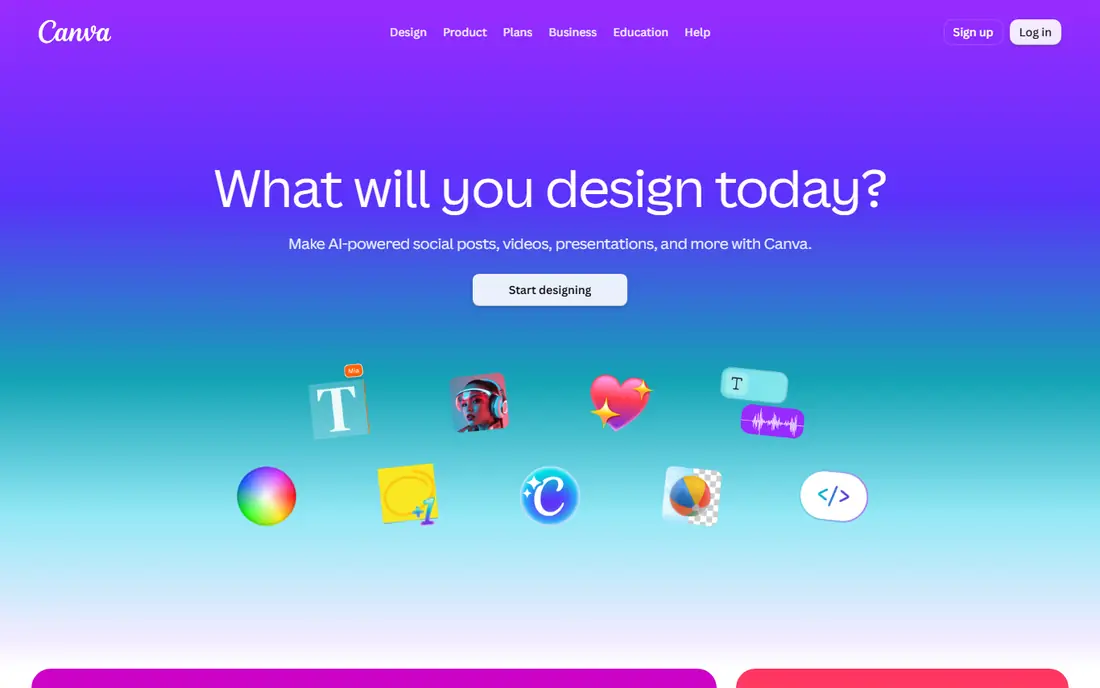
Canva is the design tool most small teams open first. It offers templates for social posts, presentations, posters and documents, and editing stays simple enough for a non-designer. The free plan covers many everyday graphics, and Pro adds premium assets and brand controls.
The limit is depth. Canva will not replace a specialist design app for complex illustration or print production, and premium assets can tempt you into a paid plan you rarely use. Start free, and pay only when premium content appears in your weekly work.
- Huge template library
- Easy editing
- Print and social export
- Paid assets add cost
- Advanced design needs a specialist tool
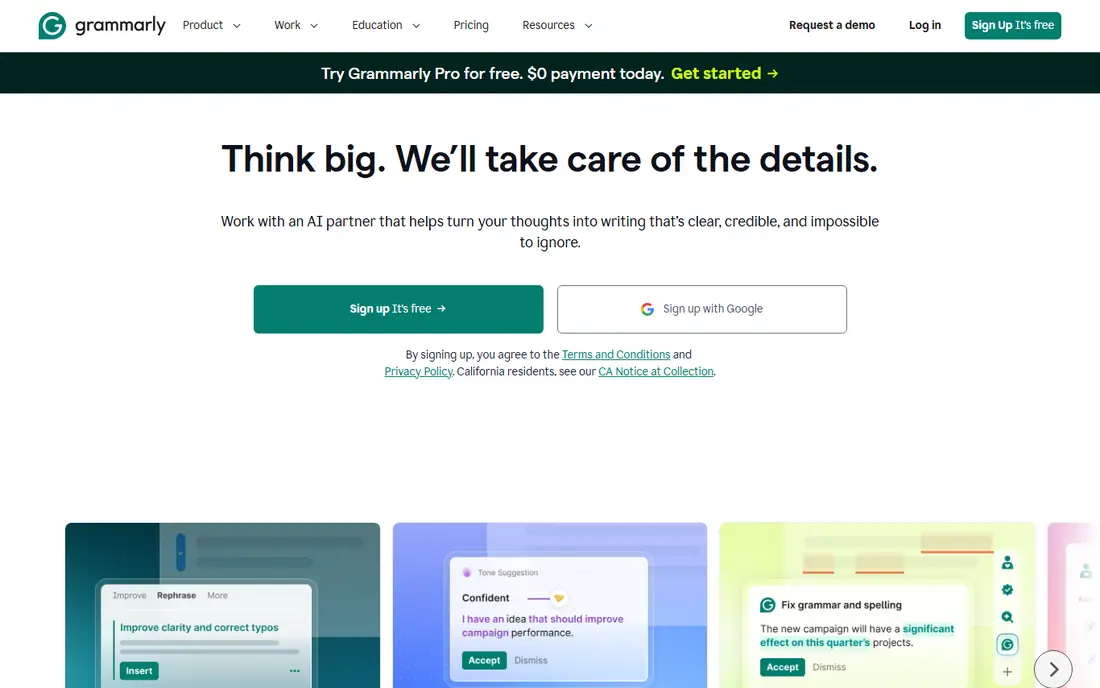
Grammarly is the writing checker most people keep running in the background. It catches grammar, spelling and clarity problems in email, documents and browser writing, and Pro adds rewrites, tone controls and a plagiarism check. The free plan alone helps many writers.
The pricing trap is billing cycle. Pro is $12 a month on annual billing, but $30 a month on monthly billing, so check the total before you pay. Also review every suggestion yourself, because a checker can flatten a distinctive voice if you accept all changes.
- Grammar and clarity checks
- Tone help
- Works across apps
- Pro price jumps on monthly billing
- AI prompts are limited on free plan
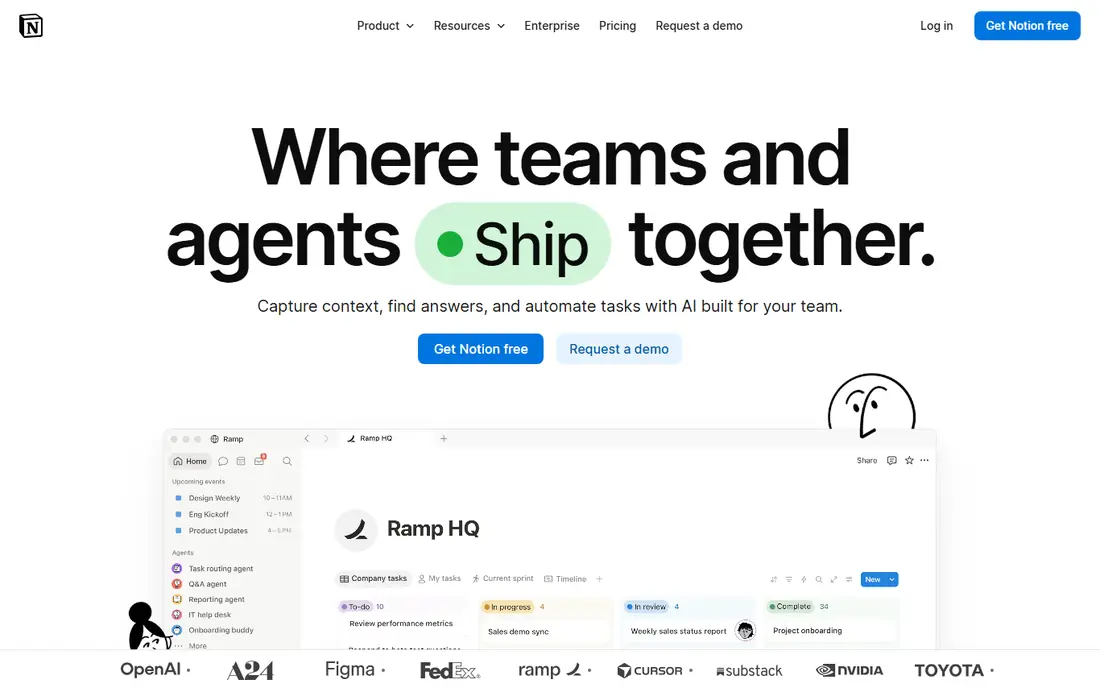
Notion is the planning hub in this list. It combines notes, docs, wikis and task databases in one workspace, so a project plan, meeting notes and task list can live together. The free plan suits individuals, and Plus adds collaboration and permissions for teams.
The risk is overbuilding. Because Notion can become almost anything, teams often build complex systems nobody maintains. Start with one page per project, a simple task list and a few templates, and add databases only when a real need appears.
- Flexible pages and databases
- Templates
- Team workspaces
- Setup takes time
- Can become messy without a simple structure
Figma is the design tool for web and app work. Teams can design, comment and prototype in the same file in real time, which cuts the back-and-forth of exported images. A large community library offers templates and components to start from.
The downside for general users is focus. Figma is built for interface design, not for quick social graphics, so non-designers should use Canva for those jobs. For a product or website team, though, Figma is the standard collaborative choice.
- Real-time collaboration
- Strong for web and app design
- Large community
- Learning curve for non-designers
- Best value for design teams
Calendly removes the message chain around meetings. You share a booking page, the other person picks a time, and calendar invites and reminders follow. The free plan covers one event type, which suits a solo freelancer with one meeting kind.
The limit is event variety. As soon as you need several meeting types, routing or team scheduling, you need a paid plan at $10 per seat per month on annual billing. Only hosts need seats, so count hosts, not guests, when you price it.
- Booking pages
- Calendar sync
- Reminders and routing on paid plans
- Free plan covers one event type
- Paid price jumps for teams
Trello is the simplest planning tool in this roundup. Boards, lists and cards show work at a glance, and the free plan covers a small team. It suits personal tasks, content calendars and small project boards that do not need heavy reporting.
The catch is ceiling. Trello is a board, not a full project platform, so timelines, workload views and reporting are thinner than in larger tools. If your board grows into a portfolio with budgets, move to a fuller platform before the board becomes clutter.
- Simple boards
- Fast setup
- Many integrations
- Reporting is thin
- Advanced features need paid tiers
Slack is the team chat tool that replaces long email threads for day-to-day work. Channels keep topics separate, search finds past decisions, and integrations bring alerts from other tools into one place. The free plan suits a small team getting started.
The risk is noise. Without channel rules, Slack becomes a stream of messages that buries decisions. Keep channels few, pin key decisions, and move final tasks to Trello or Notion. Check the current paid price, because it varies by plan and billing cycle.
- Channels
- Searchable history
- Many integrations
- Free history is limited
- Chat can fragment work if unmanaged
Zapier connects apps that do not talk to each other. A form entry can create a task, a new sale can post a message, and a booking can add a calendar event, all without code. That automation saves the repetitive copying that eats small team time.
The limit is task count. The free plan covers only a small number of tasks each month, and complex flows need paid tiers and careful testing. Start with one automation that saves a weekly chore, test it for a month, and expand only when it runs cleanly.
- Connects thousands of apps
- No code needed
- Multi-step flows
- Free plan limits tasks
- Complex flows need paid tiers and care
Smallpdf is the file tool most people need a few times a month. It compresses PDFs, converts files, merges documents and offers signing and basic editing, all in a browser with no install. That browser access suits shared computers and quick fixes.
The free plan limits how many tasks you can run each day, so heavy PDF users will need a paid plan. For occasional use, free is enough. Check privacy settings before you upload sensitive documents, and delete files from the service when you finish.
- PDF compression
- Conversion
- Signing and editing tools
- Free use is limited per day
- Some tools need a paid plan
Todoist is the personal task tool in this list. It captures tasks fast, sorts them into projects, and uses priorities and due dates to show what matters today. The mobile apps are quick, which matters for a tool you open many times a day.
The limit is team scope. Todoist is best for personal and small team lists, not for full project portfolios. If you need boards, docs and timelines together, use Trello or Notion instead, and keep Todoist for your own daily list.
- Fast task capture
- Projects and priorities
- Good mobile apps
- No built-in calendar view on free plan
- Team features need paid tiers
How we picked these
We compared official pricing pages, feature descriptions and October 2026 productivity guides for each tool. We chose tools that still work in a browser, offer a free plan or trial, and cover a distinct job, so the list does not repeat the same tool twice.
We did not claim hands-on testing. Our picks reflect stated features, free access and price, plus the practical question of whether a tool saves time for a small business or freelancer. Prices change, so check the vendor page at checkout.
How to build a small online toolkit without paying for ten tools
Start with three free tools. Canva for design, Grammarly for writing and Notion or Todoist for planning cover most solo work at no cost. Add Calendly when scheduling messages start taking real time, and add Trello when tasks start living in chat threads.
Next, audit after a month. List each tool, what job it does, and how many hours it saved. Cancel any tool that duplicates another, and keep only tools with a clear weekly job. A toolkit should shrink your work, not add logins and notifications.
Finally, watch privacy and file safety. Use strong passwords, turn on two-factor authentication where offered, and avoid uploading sensitive client files to a free tool without checking its privacy policy. For sensitive PDFs or contracts, use a paid plan with clear data controls, or keep the file offline.
Frequently asked questions
What are the best online tools for small businesses?
Canva, Grammarly, Notion, Calendly and Trello are the strongest starting set, because all five have free plans and cover design, writing, planning and scheduling. Add Slack for team chat and Zapier for automation as you grow.
What are the best online review tools?
For collecting and managing reviews, tools such as Google Business Profile, Trustpilot and Yelp for Business are the usual starting points, depending on your industry. This roundup focuses on general productivity tools, so check a dedicated review guide before you choose a review platform.
What is the best online app for everyday work?
Notion is the best single hub for notes and tasks, Canva is the best for quick design, and Grammarly is the best for writing checks. No single app does all three well, so most people use two or three together.
Are these online tools free?
All ten tools in this list offer a free plan or free access, with paid plans for more features, users or tasks. Start free, and pay only when a limit blocks work you do every week.
How many online tools should I use?
Fewer than you think. Three to five tools cover most solo and small team work. More tools mean more logins, more notifications and more places where a task can hide. Audit your toolkit monthly and cancel what you do not use.
Sources
See where you really rank - block by block
ProMapRanker scans Google Maps across a grid of your service area. Simple monthly plans from $19, white-label on every plan.
Start freeKeep reading
 zoho inventory alternatives
6 Alternatives to Zoho Inventory, Compared on Price and Fit
Zoho Inventory alternatives: 6 tools compared on price, free plans and fit. Katana leads the list for manufacturers. Fit and flaws are laid out for each entry.
Read → zoho crm alternatives
Best Zoho CRM Alternatives (2026)
Need Zoho CRM alternatives? We compare 7 tools on cost, free access and who each suits. Every pick gets a straight assessment. Built for quick decisions.
Read → zelle alternatives
Best Zelle Alternatives in 2026
Compare the best Zelle alternatives for sending money to friends, paying sellers and moving funds abroad, with honest notes on fees, speed and safety in 2026.
Read →