 ProMapRanker
Best SHA-256 Alternatives in 2026

Key takeaways
- SHA-256 is a hash function, not a product, so this list covers tools that compute and verify SHA-256 hashes.
- Built-in tools such as sha256sum and Get-FileHash cover most verification needs at no cost.
- QuickHash and HashMyFiles suit users who prefer a graphical interface over a terminal.
- CyberChef and browser checksum tools suit quick text hashes and one-off file checks without installing software.
Quick comparison
| Pick | Great for | Pricing starts at | Free tier | |
|---|---|---|---|---|
 QuickHash | Graphical cross-platform hashing | Free | Yes | Visit |
 HashMyFiles | Lightweight Windows hashing | Free | Yes | Visit |
 HashTab | Explorer file properties hashing | Free | Yes | Visit |
 CyberChef | Browser text and file hashing | Free | Yes | Visit |
 sha256sum | Linux and macOS terminal checks | Free | Yes | Visit |
 Get-FileHash | Windows PowerShell checks | Free | Yes | Visit |
 HashCalc | Simple Windows hash calculator | Free | Yes | Visit |
 ToolsBox Checksum Calculator | Browser file verification | Free | Yes | Visit |
The best SHA-256 alternatives
SHA-256 is a hash function, not a product you buy. It takes any file or text and produces a fixed-length fingerprint, usually shown as 64 hexadecimal characters. If even one byte changes, the fingerprint changes completely. The tools below compute and verify those fingerprints, so you can check that a download matches the value published by its author. They are not replacements for SHA-256 itself, but practical ways to use it.
QuickHash is our first pick for users who want a proper window, not a terminal. You can drag files or folders in, choose SHA-256, and get hashes plus a comparison against an expected value. That workflow suits download verification, where the goal is a clear match or mismatch.
The interface is functional rather than polished, and that is fine for a utility. QuickHash also handles text hashing and disk-style tasks, which makes it useful beyond single files. For cross-platform teams, its consistency across operating systems is a plus.
- Free graphical tool for Windows, macOS, and Linux
- Supports SHA-256 and other hashes
- Batch file and folder hashing
- Interface looks utilitarian
- Very large folders can take time to process
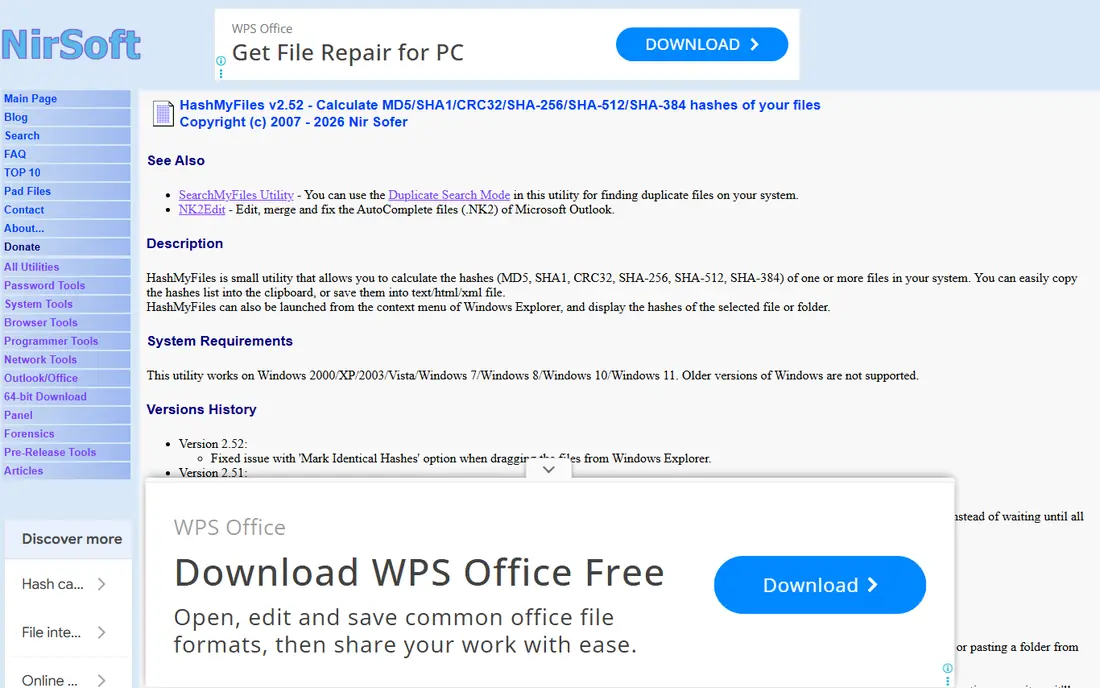
HashMyFiles from NirSoft is a classic small utility that does one job well. Add files or a folder, and it lists MD5, SHA-1, SHA-256, and other hashes in columns you can sort and export. Portable use means you can run it from a USB drive without installing anything on a work machine.
Windows-only support is the limit. Mac and Linux users should pick QuickHash or a built-in terminal tool instead. For Windows users who verify many files, HashMyFiles remains fast and dependable.
- Tiny, portable Windows utility with no install needed
- Hashes many files at once
- Exports results to text or HTML reports
- Windows only
- Interface is a plain file list rather than a modern app

HashTab takes a different approach by living inside file properties. Right-click a file, open properties, and a hashes tab shows its SHA-256 value. You can paste the published hash to check for a match without opening a separate app.
That simplicity is ideal for occasional checks. If you need to verify dozens of files or a whole release folder, a batch tool such as QuickHash or HashMyFiles will be faster. For one file at a time, HashTab is the least intrusive option here.
- Adds a hashes tab to Windows file properties
- Paste an expected hash for instant comparison
- Minimal learning curve
- Windows focused
- Less suited to batch verification of whole folders
CyberChef is a browser-based workbench for data tasks, including SHA-256 hashing. You can paste text or load a file, add a SHA-256 operation, and see the result at once. Because it runs in the browser, it works on any operating system without installation.
The breadth of options can overwhelm first-time users, since CyberChef covers far more than hashing. Stick to the hash operations for this task, and it becomes a quick, reliable checker. For sensitive files, prefer a local tool, since browser tools still process data in your browser session.
- Free browser tool from GCHQ
- Hashes text and files with many operations
- No install and no account needed
- Browser based, so very large files can be slow
- Interface has many options that beginners may find busy
sha256sum is the standard command-line tool on Linux for SHA-256 work. Running it on a file prints the hash, and running it with a checksum file checks many files at once and flags mismatches. That batch mode is why software projects publish SHA256SUMS files alongside releases.
Terminal use is both its strength and its barrier. Users comfortable with a command line will find it fastest for scripts and servers. Users who prefer clicks should choose QuickHash or HashTab instead.
- Built into most Linux systems and available on macOS via coreutils
- Batch verification with checksum files
- Script friendly
- Terminal only, so no graphical interface
- MacOS users may need to install it first
Get-FileHash is the Windows equivalent of sha256sum, built into PowerShell. A single command returns the SHA-256 hash of a file, and the same command can hash many files in a script. IT teams can add it to deployment or download checks without installing extra software.
As with sha256sum, there is no graphical compare button. You can still compare by pasting the expected hash beside the output, or by scripting an equality check. For Windows automation, it is the cleanest built-in choice.
- Built into Windows PowerShell
- SHA-256 is the default algorithm
- Easy to script and automate
- Terminal based
- Output needs comparison by eye or script unless you add a check step
HashCalc is a straightforward Windows calculator for hashes. You can hash a file, a text string, or hex data, and compare the result with an expected value. That text option helps when you need to hash a password-style string or a short snippet rather than a file.
Its dated design will not impress anyone, but the function is clear. HashCalc suits users who want a small, single-purpose Windows tool without the extra features of QuickHash. Cross-platform users should look elsewhere.
- Simple calculator for files, text, and hex data
- Supports SHA-256 alongside other hashes
- Small download
- Windows only
- Design is dated compared with modern tools
ToolsBox Checksum Calculator is a simple browser option for quick checks. Drag a file in, choose SHA-256, and compare the result with the published value. Text input works too, which helps when a project publishes a hash for a short string.
Browser tools are convenient, but they are best for ordinary downloads and learning. For sensitive internal files, a local tool such as QuickHash, HashMyFiles, or a built-in command keeps the file fully on your machine. For everyday verification, this tool is fast and free.
- Free browser calculator for files and text
- Supports SHA-256, SHA-512, MD5, and SHA-1
- Drag-and-drop with hash comparison
- Browser based, so large files depend on browser performance
- Do not use it for highly sensitive files you cannot share locally
How we picked these
We compared official product pages, documentation, and public tool descriptions for hash and checksum utilities live in October 2026. We favoured tools that clearly support SHA-256, that are still available, and that cover distinct needs: graphical, terminal, browser, and batch use. We did not claim hands-on testing, and all tools in this list are free at the time of writing.
How to verify a SHA-256 hash
Start with the published hash from the software author, not from a random forum post or mirror site. Download the file, compute its SHA-256 hash with one of the tools above, and compare every character. A single character difference means the file is not identical, even if the file size looks right.
Use checksum files for multi-file releases. Authors often publish a list of hashes, and tools such as sha256sum can check the whole list at once. If a check fails, do not run the file. Re-download from the official source, check your network and storage, and contact the author if the mismatch persists.
Remember that a matching hash proves integrity, not trust by itself. It shows the file matches what the author published. It does not prove the author is trustworthy. Always combine hash checks with downloading from official sites and, where offered, signed releases.
Frequently asked questions
What does SHA-256 do?
SHA-256 turns any input into a fixed-length fingerprint of 64 hexadecimal characters. The same input always gives the same fingerprint, while a tiny change gives a completely different one. That property makes it useful for checking file integrity.
Is SHA-256 a product I can buy?
No, SHA-256 is a hash function defined in public standards, not a product. Tools in this article compute and verify SHA-256 hashes. You do not need to buy SHA-256 itself, and free tools cover most verification needs.
How do I check a downloaded file on Windows?
Use Get-FileHash in PowerShell, or a graphical tool such as QuickHash, HashMyFiles, or HashTab. Compute the hash, then compare it character by character with the value published by the software author. Do not run the file if the values differ.
How do I check a file on macOS or Linux?
On Linux, use sha256sum in a terminal. On macOS, use shasum with the SHA-256 option, or install coreutils for sha256sum. Both approaches let you check single files and, with checksum files, whole folders.
Should I hash files in a browser tool?
Browser tools are fine for ordinary, non-sensitive files and quick checks. For sensitive work files, prefer a local tool that never leaves your machine. Browser hashing still processes data in your browser, so local tools give clearer control for private material.
What should I do if hashes do not match?
Do not run or install the file. Delete it, re-download from the official source, and verify again. If the mismatch repeats, check for a different file version, a corrupted download, or a changed published hash, and contact the software author before proceeding.
Sources
- https://quickhash-gui.org
- https://www.nirsoft.net/utils/hash_my_files.html
- https://implbits.com/products/hashtab
- https://gchq.github.io/CyberChef
- https://www.gnu.org/software/coreutils
- https://learn.microsoft.com/en-us/powershell/module/microsoft.powershell.utility/get-filehash
- https://www.slavasoft.com/hashcalc
- https://toolsbox.io/code/checksum-calculator
See where you really rank - block by block
ProMapRanker scans Google Maps across a grid of your service area. Simple monthly plans from $19, white-label on every plan.
Start freeKeep reading
 zyte alternatives
Best Zyte Alternatives in 2026
These zyte alternatives cover managed scraping APIs, proxy networks and no code tools for lawful collection from your own or consented sources only in 2026.
Read → zerto alternatives
Best Zerto Alternatives in 2026
Compare the best zerto alternatives for disaster recovery and replication, with recovery targets, cloud options and honest trade-offs for teams in 2026.
Read → zerofox alternatives
Best ZeroFox Alternatives in 2026
We compared 9 zerofox alternatives for brand protection, phishing takedowns, dark web monitoring, and social impersonation, with clear coverage notes.
Read →