 ProMapRanker
Best Screen Studio Alternatives in 2026

Key takeaways
- OBS Studio is free and powerful, but it records raw footage and expects you to edit elsewhere.
- Camtasia and ScreenFlow are the complete record plus edit packages for structured tutorials and courses.
- Loom and Tella win for fast team videos shared by link, while CleanShot X and Kap suit quick Mac captures.
- If automatic zoom is the feature you miss most, FocuSee and Cap come closer to Screen Studio than a plain recorder does.
Quick comparison
| Pick | Great for | Pricing starts at | Free tier | |
|---|---|---|---|---|
 OBS Studio | Free recording and streaming | Free | Yes | Visit |
 Camtasia | Polished tutorials and courses | $179.88 per year | Free trial | Visit |
 ScreenFlow | Mac creators who record and edit | $199 one-time | Free trial | Visit |
 Cap | Open source recording and sharing | Free | Yes | Visit |
 CleanShot X | Mac screenshots and quick clips | $29 one-time | No | Visit |
 Tella | Polished videos with hosting | $13 per month | No | Visit |
 Loom | Fast async team videos | $18 per user per month | Yes | Visit |
 Descript | Editing video by transcript | See website | Yes | Visit |
 ScreenPal | Budget recording and editing | $4 per month | Yes | Visit |
The best Screen Studio alternatives
We compared official feature pages, pricing pages, app store listings, and public reviews. Screen Studio itself is not listed, since this is a list of alternatives, and we focused on tools that record a screen with webcam, audio, and a shareable result.

OBS Studio is the honest free answer, and it is far more capable than its price suggests. You can record multiple sources, mix webcam, screen, and audio, and stream live, all without a subscription or a watermark. For creators who already edit in another app, OBS removes the recording cost entirely.
The trade off is polish. OBS does not add automatic zooms, smooth cursor moves, or a styled background for you, and you will need a separate editor to trim, caption, and export a finished demo. Choose OBS when budget and control matter more than one click polish.
- Free and open source with no watermark
- Multi source scenes and live streaming
- Runs on Mac, Windows, and Linux
- No built in editor or automatic zoom
- Setup takes time for new users
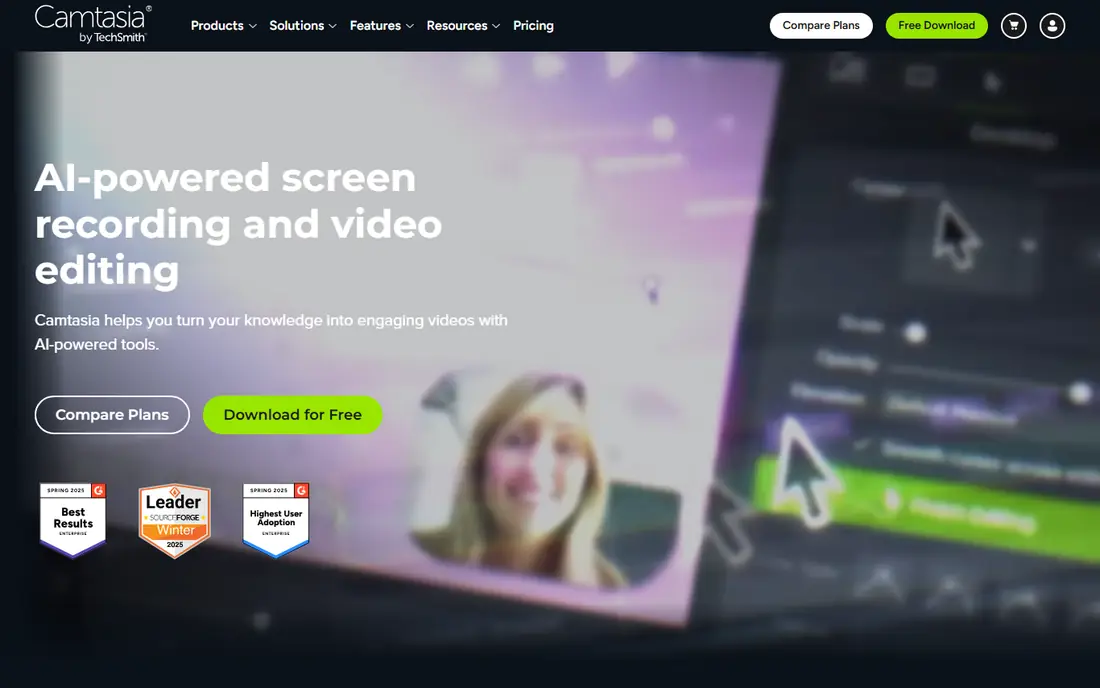
Camtasia is the traditional tutorial suite, and it still earns that place for structured training. You record your screen and webcam, then edit on a timeline with callouts, transitions, captions, and quizzes, without leaving the app. For a course, an onboarding series, or a support library, that complete workflow saves the back and forth between tools.
It is not a quick capture tool. The editor takes time to learn, and the yearly price is hard to justify if you only make a demo every few months. Camtasia fits teams that publish training regularly and want a consistent, polished result.
- Real timeline editor with annotations and effects
- Screen, webcam, and audio in one app
- Good for structured courses
- Annual cost is high for occasional use
- Interface feels heavier than a simple recorder
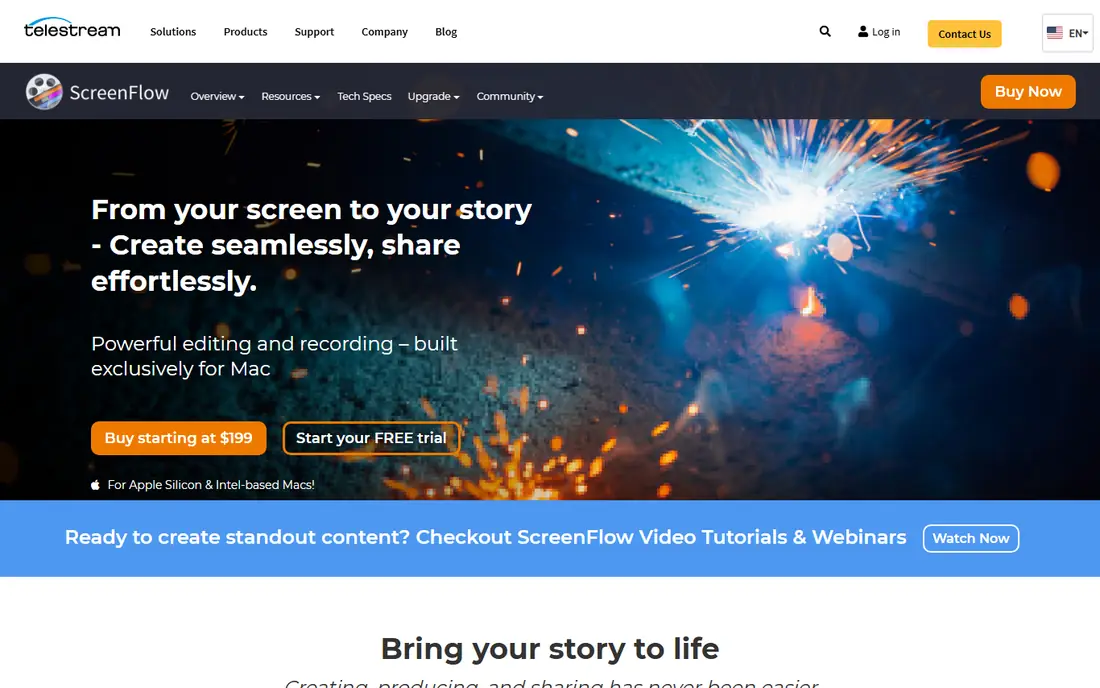
ScreenFlow is the Mac creator pick for people who want to record and edit without a subscription. Its editor handles multi track video, animations, titles, and audio cleanup, and it feels at home on macOS in a way cross platform tools often do not. A one time price also makes the long term cost easier to plan than a monthly plan.
The limits are platform and polish. ScreenFlow runs only on Mac, and it does not automatically add the zoom and cursor smoothing that make Screen Studio demos look finished with little effort. If you are on Mac and you enjoy editing, ScreenFlow is a strong, durable choice.
- Strong Mac editor with animations and titles
- Records screen, webcam, and audio cleanly
- One time purchase
- Mac only
- No built in hosting or automatic zoom like Screen Studio
Cap is the modern open source answer for people who want a recorder plus a link, not just a file on disk. You record, get a share link, and send it to a teammate or a customer without uploading to a separate host. The editor covers the basics, and the open source code gives teams more confidence about what the app does with their recordings.
Free personal use is generous, but work use and some desktop features sit behind a paid licence, so check the current terms for your team size. Cap is best for small teams and solo creators who want Screen Studio style sharing without a heavy monthly bill.
- Open source recorder with instant share links
- Screen, webcam, and audio capture
- Simple editor
- Desktop paid features add cost for work use
- Windows support is newer than Mac
CleanShot X is not trying to replace a full editor, and that focus is its strength. It is the tool you reach for when you need a clean screenshot, a short annotated clip, or a quick GIF for support, with scrolling capture and markup built in. The one time price is easy to justify for daily Mac use, and the app stays fast because it does not try to do everything.
Long tutorials are outside its comfort zone. There is no timeline editor, no course structure, and no automatic zoom for a polished product demo. Pair CleanShot X with a simple editor if you need both quick captures and longer finished videos.
- Excellent screenshots with annotation
- Quick screen recordings and GIFs
- Tidy, fast Mac app
- Mac only
- Not a full video editor for long tutorials
Tella is built for the moment after recording, when a video needs to look presentable and be easy to share. Layouts, backgrounds, and webcam framing give a demo a finished feel without a separate design step, and hosting means you send a link instead of a large file. Trimming and captions cover the most common edits for team updates and product walkthroughs.
It is less suited to long, heavily edited courses, where Camtasia or ScreenFlow give more control. Tella also has no free plan, so the monthly cost needs to earn its place if you only record occasionally. For regular short demos, it is one of the closest in feel to a polished recorder.
- Clean recording layouts and backgrounds
- Built in hosting and sharing
- Easy trimming and captions
- No free plan
- Browser and desktop workflow suits short videos more than long courses
Loom wins on speed, not on editing depth. You record your screen and webcam, get a link, and a teammate can watch, comment, and react without downloading a file. That loop is ideal for feedback, bug reports, onboarding notes, and async updates, where a perfect edit matters less than a fast answer.
If you need a polished marketing demo, Loom will feel thin. Trimming and captions exist, but there is no real timeline editor and no automatic zoom styling. Use Loom for internal communication, and keep a proper editor for customer facing demos.
- Record and share by link in seconds
- Comments and reactions for teams
- Usable free tier
- Editing is light
- Per user pricing adds up for large teams
Descript changes editing from a timeline chore into a text task. You record your screen, get a transcript, and cut a video by deleting words, which makes removing pauses and mistakes far faster than scrubbing a timeline. Captions, filler word cleanup, and overdub style tools help turn a rough walkthrough into a clean, watchable video.
The approach is not for everyone. Precise visual edits still need a timeline mindset, and heavy use sits behind paid plans. Descript is best for creators who talk through demos and want the fastest route from a rambling take to a tight final cut.
- Edit by deleting transcript text
- Captions and filler word removal
- Screen recording plus podcast tools
- Transcript editing takes getting used to
- Paid plans are needed for longer, higher quality work
ScreenPal, formerly Screencast-O-Matic, is the budget pick that still covers the full loop. You can record, make simple edits, host the video, and share a link, all for a low monthly price, with a free tier for short clips. For teachers, support teams, and small businesses, that combination is hard to beat on value.
The editor will not match a professional suite for animations, multi track work, or course quizzes. Free recordings also carry limits that push regular users to a paid plan. ScreenPal is the right choice when cost matters and good enough editing is enough.
- Low entry price
- Screen, webcam, and audio recording
- Hosting and simple editing included
- Editor is simpler than Camtasia or ScreenFlow
- Free tier has limits on length and features
How we picked these
We compared official feature pages, pricing pages, app store listings, and public reviews, and we kept only tools that record a screen with audio and produce a shareable video. We looked at editing depth, hosting, platform support, automatic polish features, and price, and we favoured tools with a clear, current plan over tools with vague pricing. We did not claim hands on testing, and prices change, so check the vendor page before you buy.
How to choose the right recorder
Start with the end product, not the feature list. If the video is a quick internal note, Loom or Cap will save the most time. If it is a customer demo that must look polished with little editing, Tella or Cap come closest to Screen Studio, and a Mac only tool like CleanShot X covers short clips well.
For courses and training libraries, choose Camtasia or ScreenFlow and accept the learning curve, because a real editor pays off over many lessons. For streaming or free raw capture, OBS is the clear pick, as long as you have an editor ready. Test one real demo in your top two choices before you pay for a year.
Frequently asked questions
What is the closest free alternative to Screen Studio?
OBS Studio is the closest free recorder, but it does not add automatic zoom or styled backgrounds. Cap is closer in sharing and polish, with free personal use, while FocuSee is worth checking if automatic zoom is the key feature you miss.
Is Screen Studio only for Mac?
Screen Studio is built for macOS, which is a common reason people look elsewhere. OBS Studio, Camtasia, Loom, Descript, and ScreenPal all run on Windows as well as Mac, so cross platform teams should start there.
Which alternative is best for tutorials?
Camtasia and ScreenFlow are the strongest tutorial tools, because both combine recording with a real timeline editor. Camtasia suits Windows and Mac course teams, while ScreenFlow suits Mac only creators who prefer a one time purchase.
Can I record and share a video without an editor?
Yes. Loom, Tella, Cap, and ScreenPal all offer hosting and a share link, so you can send a video without exporting and uploading a file yourself. Editing is lighter in those tools, but trimming and captions usually cover a quick demo.
Do I need a paid plan for a watermark free video?
Often, yes. Free tiers may limit length, resolution, or exports, and some add a watermark. Check the free plan terms for the tool you choose, and budget for a paid plan if the video will face customers.
Sources
See where you really rank - block by block
ProMapRanker scans Google Maps across a grid of your service area. Simple monthly plans from $19, white-label on every plan.
Start freeKeep reading
 zyte alternatives
Best Zyte Alternatives in 2026
These zyte alternatives cover managed scraping APIs, proxy networks and no code tools for lawful collection from your own or consented sources only in 2026.
Read → zerto alternatives
Best Zerto Alternatives in 2026
Compare the best zerto alternatives for disaster recovery and replication, with recovery targets, cloud options and honest trade-offs for teams in 2026.
Read → zerofox alternatives
Best ZeroFox Alternatives in 2026
We compared 9 zerofox alternatives for brand protection, phishing takedowns, dark web monitoring, and social impersonation, with clear coverage notes.
Read →